


Are you still using sticky notes, regular meetings, or unending email chains to manage projects? Stop it, and use ClickUp, the project management software that our research proves is best for most. It comes with just about every task management feature you’d need, is highly customizable, and delivers incredible visibility into every project and task on your team’s plate.
The Best Project Management Software for Most
ClickUp
Best for Most
Get everything you want from PM software at the best price point around. The entry-level plan from ClickUp alone comes with the best collaboration tools, workflow customization options, and flexible project views among the products on this list, all for the starting price of $5 per user per month.
When you want to keep things as simple as possible while still getting the visibility and task management functionality you need, ClickUp starts the fire. ClickUp is versatile and flexible enough to fit any use case. Plus, it’s a cinch to quickly identify bottlenecks before they become bigger issues.
The platform delivers tons of features, with step-by-step instructions that take the work out of learning something new. And, best of all, it comes at one of the most affordable price points for PM software today.
The 6 Best Project Management Software Options to Consider:
- ClickUp – Best for most
- Asana – Best balance of power and simplicity
- Trello – Best low cost way to start fast with hardly any effort
- Teamwork – Best for client and service-based businesses
- Monday.com – Best for partnering sales with project management
- SmartSheet – Best for turning spreadsheets into project management gold
When it Makes Sense to Invest into Project Management Software
Project management software helps with breaking down projects or processes into actionable tasks that can be assigned to individuals, then given a start and end date to help with finishing each component on time.
Using pen, paper, emails, and simple calendar invites is so 2018. This is how you lose contacts, cause team members to not know what to work on next, and make budgets impossible to manage.
Starting a new project shouldn’t make you feel like a dog’s chew toy. You should be energetic and confident. If you feel chewed up after a project’s completion and dreading the next one, you need this software.
Project management software is the key to making your projects less chaotic and more organized.
Are you a manager? You need it for visibility. Are you an employee looking to pitch this to your employer? You need it for the sake of staying organized.
Maybe you are in HR and you’re looking for a way to decrease turnover and improve retention for departments.
Project management software also improves teamwork. It doesn’t matter if the team is local or remote. When it’s time to find out who is doing what and work together, they won’t need to chase anyone down.
Integrations with Slack or built-in, project-based messaging, for example, make getting answers quick and easy between teams, because all the information is in one place.
When it’s time to make data-driven decisions, you can see everything on one screen. Point, click, and, boom, it’s all right there. The data is begging to be analyzed and manipulated so you get the job done, faster and better than you ever could before.
#1 – ClickUp – The Best Project Management Software for Most

ClickUp
Best for Most
Get everything you want from PM software at the best price point around. The entry-level plan from ClickUp alone comes with the best collaboration tools, workflow customization options, and flexible project views among the products on this list, all for the starting price of $5 per user per month.
Overall: 4/5
The Swiss Army knife of project management, ClickUp has more top-rated features than any other option on this list.
It scores first in task management and collaboration, and is tied for first for workflow and visibility tools.
The best part about all of this is that it doesn’t stop ClickUp from being the cheapest plan on the list, when you pay in full for a year.
Let’s dig into these features so you can see for yourself why ClickUp is best for most use cases.
- Pricing: 5/5
- Onboarding: 2/5
- Ease of use: 3.5/5
- Task management: 4.5/5
- Collaboration: 4.5/5
- Workflow and Visibility: 5/5
Pricing: 5/5 – ClickUp gives you a few surprises when it comes to pricing.
First, they are the cheapest on the list in annual cost—just $5 per user per month when you pay for a year up front.
But what if you don’t want to pay the whole year ahead of time? Do you miss out on a deal?
Not exactly. You just have to settle for the second-cheapest plan on this list. The rate goes up to $9 for each user each month.
Are you picking up what we’re putting down?
It means you get the cheapest annual price or, at worst, the second-cheapest rate if you pay month-to-month.
All while getting the best, most versatile PM software option on the list. You can’t lose with a deal like this.
Especially with all that you get—but more on that later.
We used the monthly rate for three users to judge pricing. Compared to the list-wide average of $23 per month when paying annually, you’re getting savings of nearly $100 each year if you choose ClickUp’s yearly pricing.
In fact, ClickUp is less than half the price of the two most expensive options on our list.
A free forever plan can also be tested if you like. It comes with unlimited tasks, up to five separate work spaces to create and use, custom fields, Gantt charts, timeline view, and more.
Once you confirm your love for ClickUp, like so many other users have, you can upgrade seamlessly to a paid plan through your account dashboard.
If you jump straight to a paid package, you still get a 15-day trial to test things out.
Now that we’ve covered pricing, let’s move on to you actually setting up the software and how that works.
Onboarding: 2/5 – ClickUp’s learning curve would be better if it required little to no explanation to grasp. Unfortunately, this tool requires a significant amount of training.
But, that makes sense when you think about the number of features they offer within the software. It’s to be expected.
Getting up and running isn’t bad, though. It only took us a little over four minutes to lay eyes on our personal dashboard.
To get started, just click on the plan you want to choose from ClickUp’s pricing page.
They’ll ask you for your email and name and to set a new password. Once you get your confirmation email, you’ll click on the link there to take you to your dashboard.
Confirm your workspace name, pick your primary colors, pick a few customizations you might want at the start—like time estimates, tags, and custom fields—then you’re in.
What’s awesome is they give you a “read me first” link when you get to your dashboard that tells you all the important next steps and how to follow them.
ClickUp even populates a few demo tasks to help you get acquainted with the software and learn about the different elements of how each project works in the platform.
These tasks teach you about your home screen in ClickUp, notifications, templates, and importing tasks.
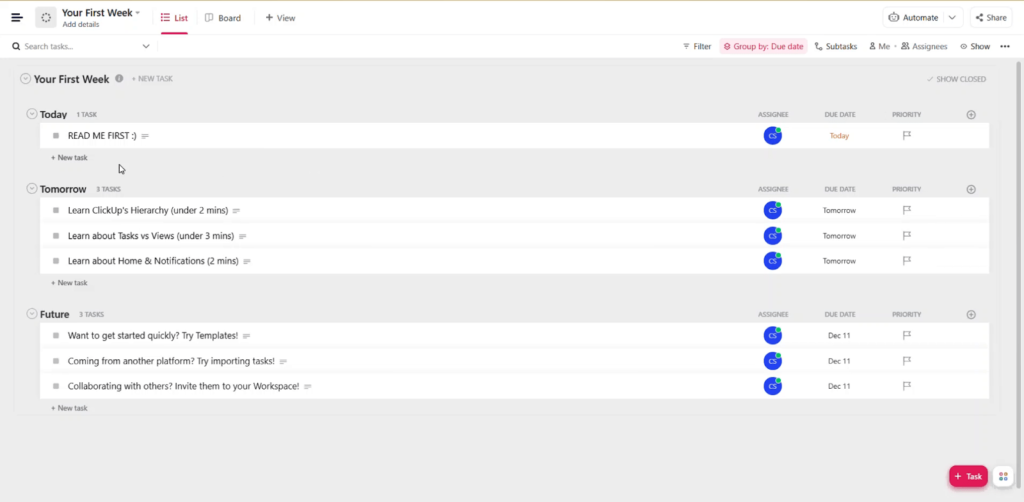
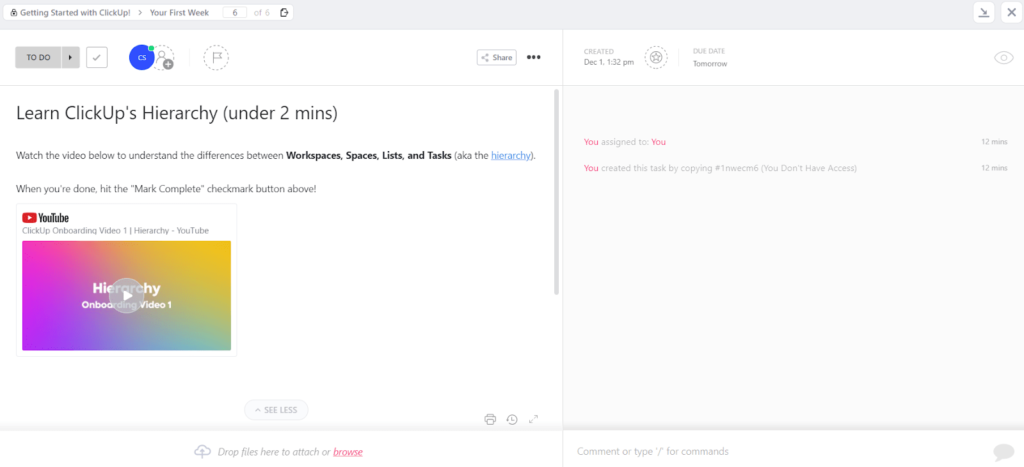
There’s also a list of videos that help you get acquainted with the terminology and features.
Each task in the image above has a corresponding video that’s a few minutes long. They show you how simple functions work in ClickUp. And most have a link to different areas, so you can go explore the things each tutorial talks about.
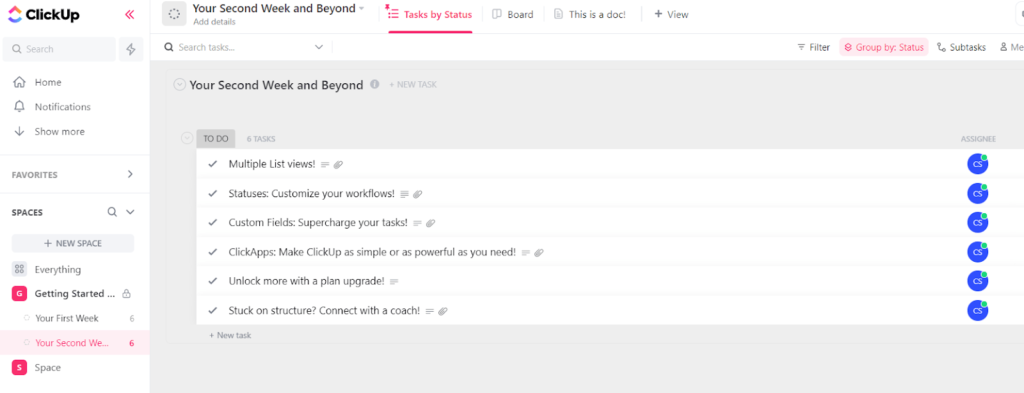
Each section of setup tasks they give you is based on weeks, so you will go through your first week of tutorials, then your second, and so on.
You’re not limited to waiting a week to keep learning, but it’s recommended you follow the tutorial as directed to really grasp each section clearly. The second week contains more advanced information and guidance.
There are a few things that will pop up as quick tips as you start marking things complete and navigating around the software.
One example is a quick tip showing how to use a slash command to mark tasks as complete with your keyboard.
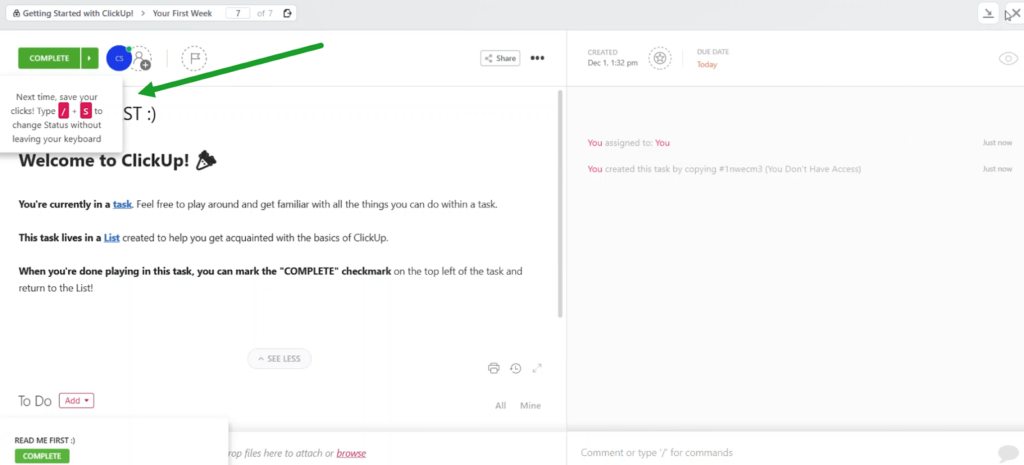
The tips are nice, but we find there’s a lot going on and not really much explanation of any of it unless you watch those videos embedded inside the tasks.
It would be nicer if there was an interactive walkthrough or something more hands-on showing you how to navigate the software and all the features.
Fortunately, after onboarding, using the software becomes much better.
Ease of use: 3.5/5 – ClickUp is just above average when we tested how simple it is to use.
They do an excellent job, for example, by letting you use natural language processing to set up appointments and dates for starting and ending projects.
For example you can type “next Wednesday” or “Friday at 4 p.m.” to set a task’s date. The software will recognize those words and set those times instead of you having to actually click on the date within your calendar.
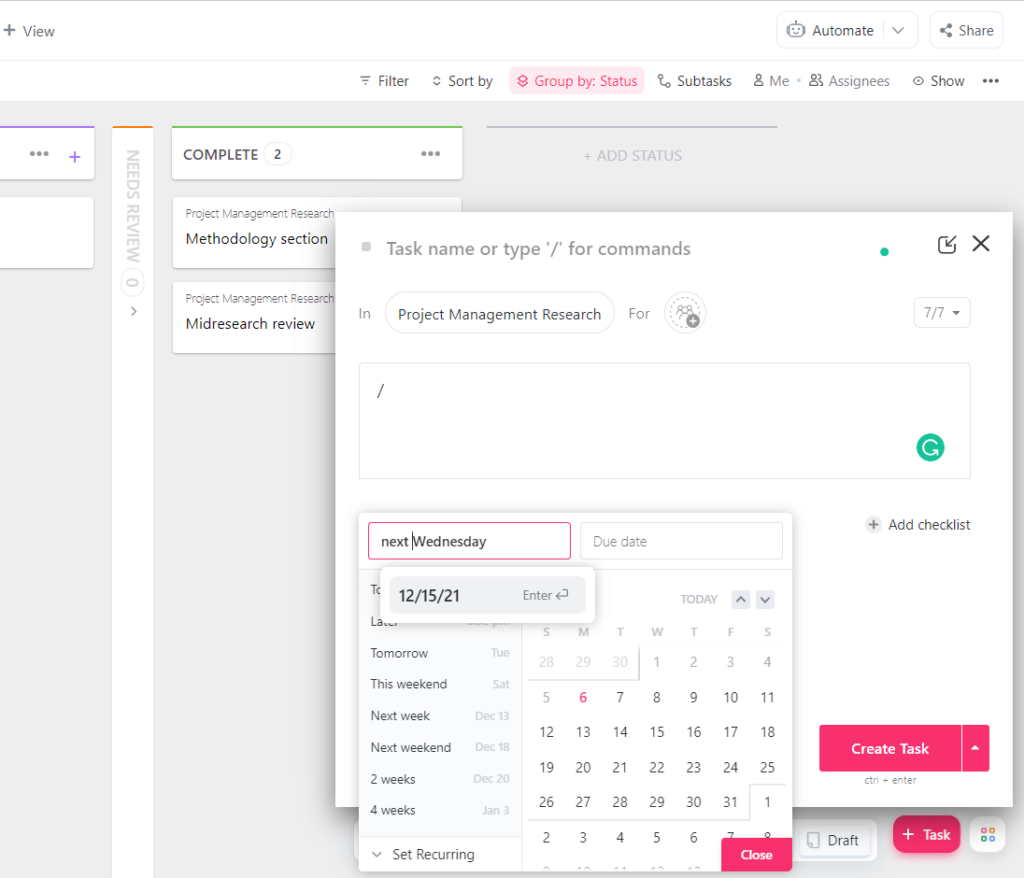
It’s the most robust natural language processing for dates we’ve seen out of all the tools.
You can also add assignees, set priorities, add a checklist, create a bullet list, add a table, create subtasks, and add attachments with natural language commands.
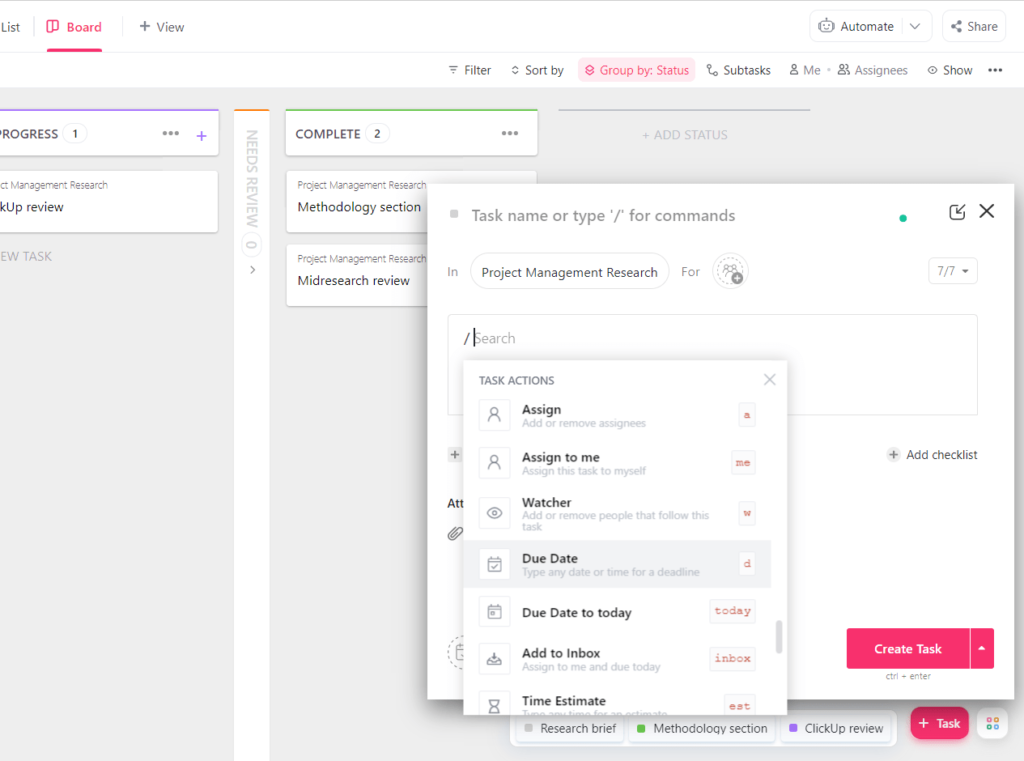
Use the tons of slash commands available to speed things up even more.
Rather than clicking in the due date box, you can do a slash command to add the due date without ever moving your hands away from the keyboard.
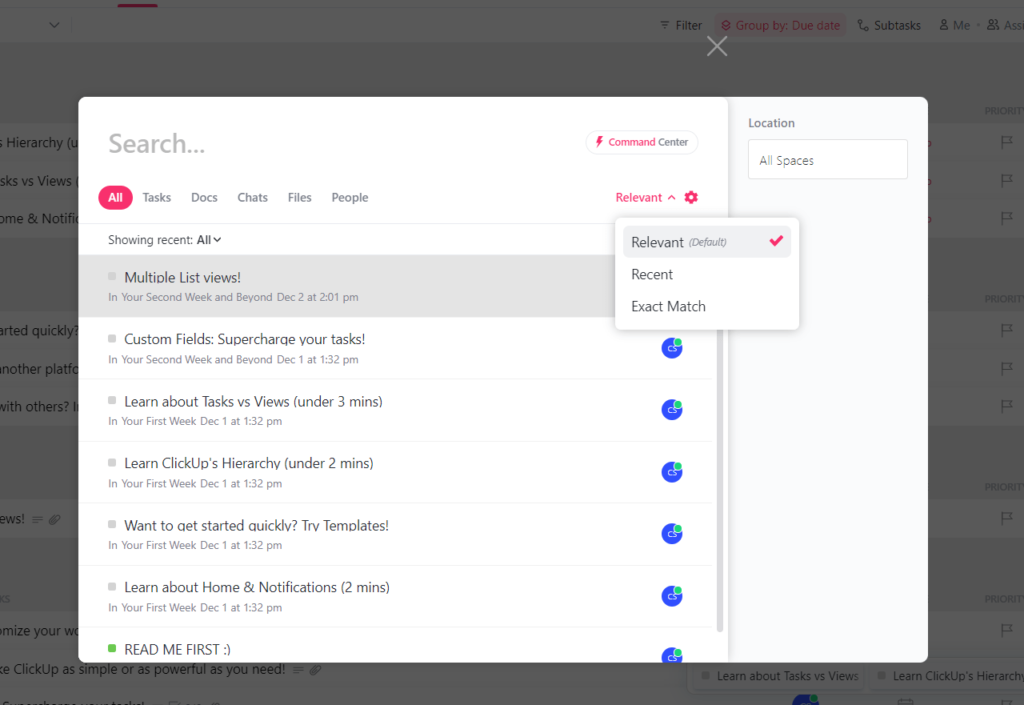
Clickup’s advanced search function lets you look for people, tasks, documents, chats, and files. Choose one type or search through all of them at once.
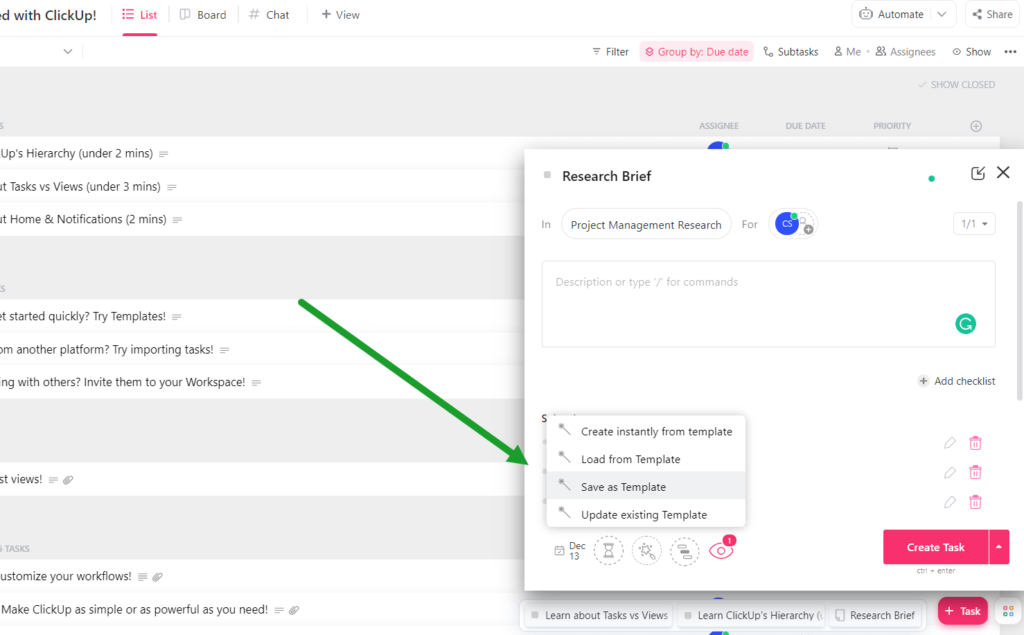
Suppose you search for the same task every day and you need to fill in a form with new information each time. With ClickUp, you can make a template of your task, making it reusable and never having to do redundant setup work. That way, all you have to do is update the fields that change from one task to another and everything else is filled out and ready to go.
Overall, it just makes life easier after you’ve set these templated tasks up.
And, if you want to quickly add a task, you don’t have to jump through hoops and navigate all the way back. You can just use the quick add button at the bottom right of the screen.
There is also a button next to it to start recording your screen, start tracking time, open up a notepad, create a reminder, start a new document, or open up your calendar.
When you click any of those options, a new pane pops up so it doesn’t disrupt what you’re currently working on or looking at.
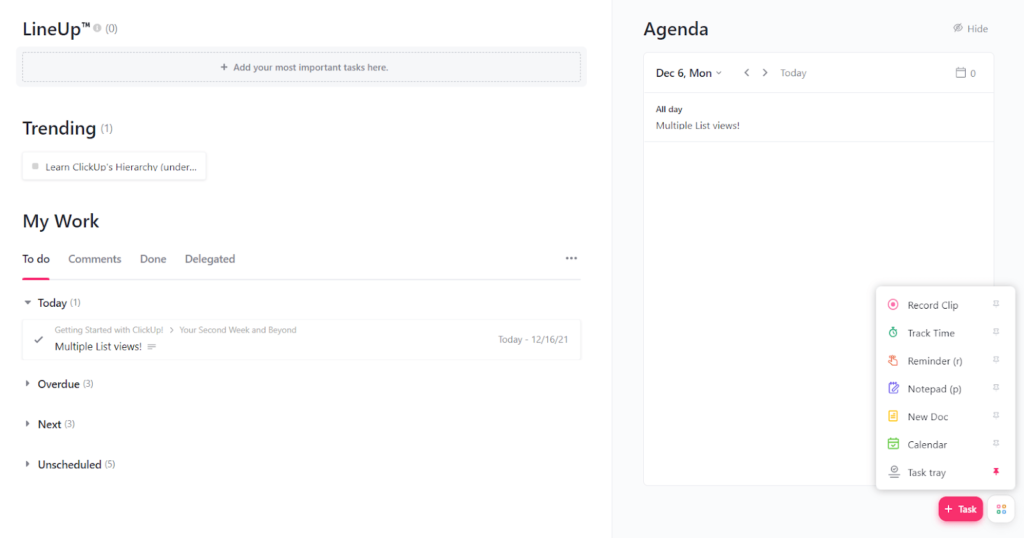
Here is what the tracking time popup looks like, for one example:
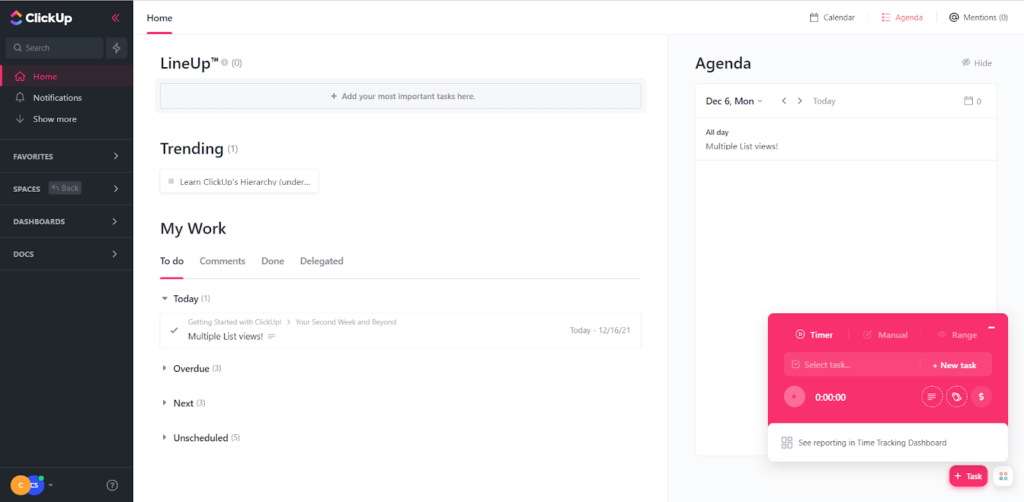
ClickUp makes it super convenient to add tasks and perform all of those actions without having to stop what you’re doing or navigate to a new screen to do so.
If you’re dying for more, let’s move on to task management, where ClickUp got the highest score out of all the other project management software providers.
Task management: 4.5/5 – You sit down at your desk, open up your project details in ClickUp, and see everything you need in a simple workstation. Simple as that.
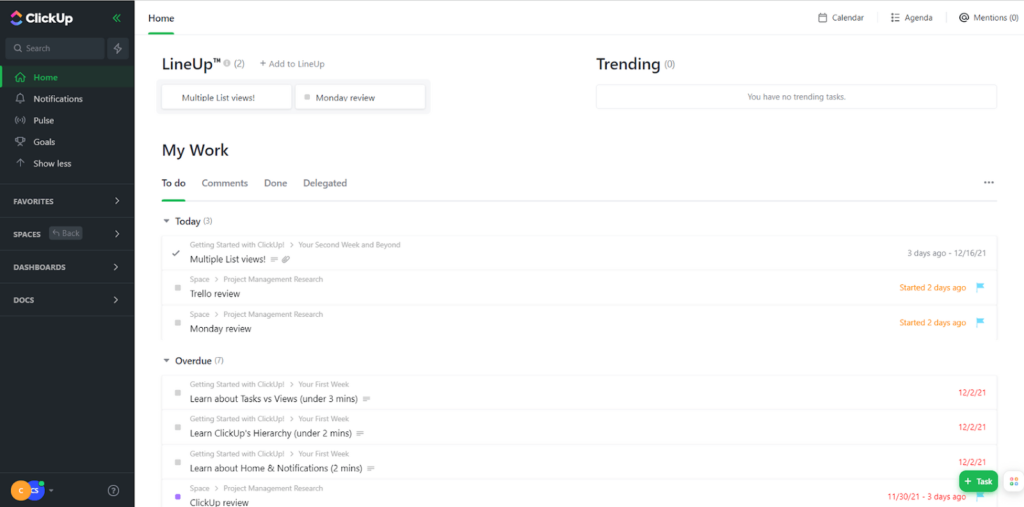
The home page is dedicated to all of your assigned tasks and Includes tasks across all of your projects, so it’s all there, listed out in one place.
This is what you get with ClickUp. How much time and confusion do you think that would save you?
Just think how much better it would be to drag-and-drop your most important tasks to the top area to remind yourself which ones are top priority today. As you check them off, they’ll disappear and you can then move onto other the next tasks that take their place.
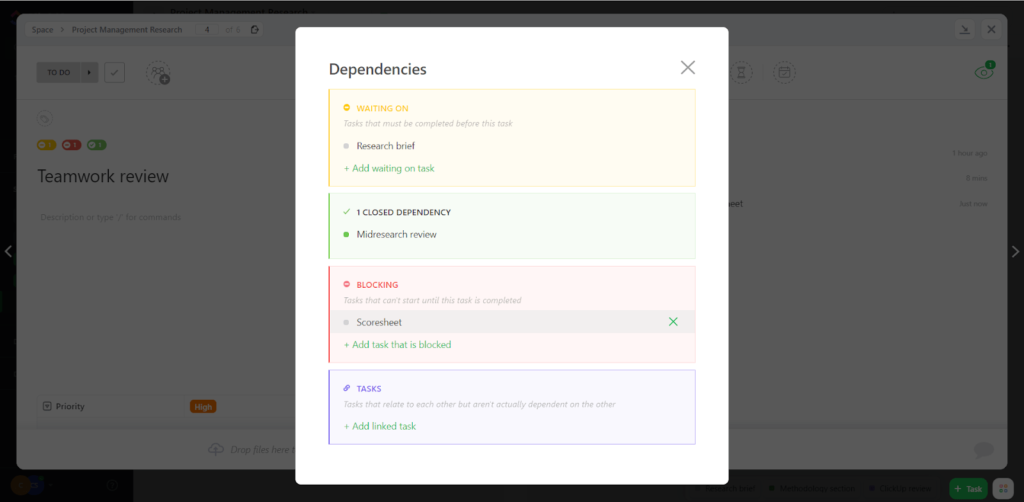
Have you ever started one part of a project, then moved to something else before you finished the last task? We all have. But this can cause chaos.
With dependencies in ClickUp, you can set up rules that won’t let you move on until the task beforehand is completed. This makes it impossible to leave things out or get out of sorts by jumping around to different things.
Sometimes, you will have tasks you can automate. On this base level plan of ClickUp, you get 1,000 automations per month to use.
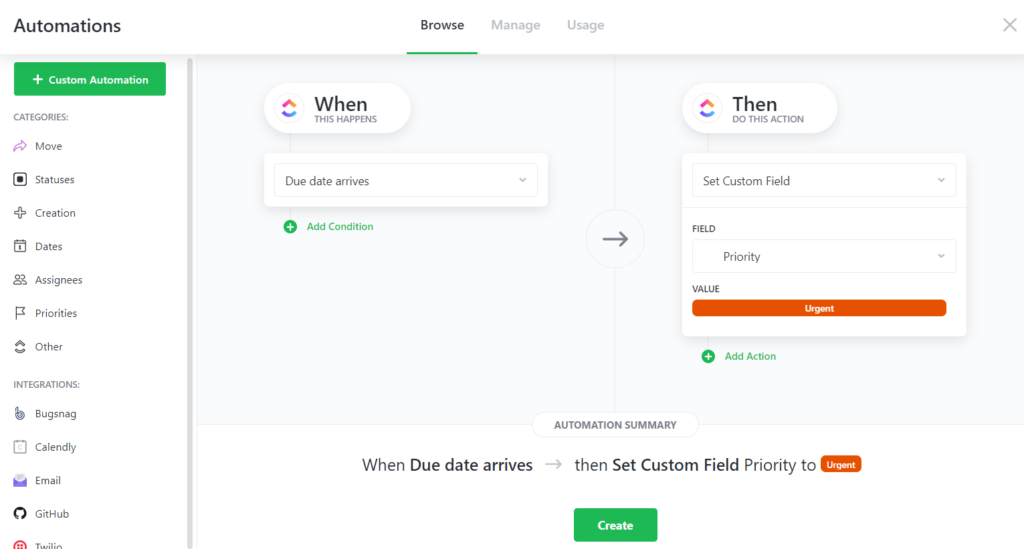
You can add custom automations with specific triggers and actions or choose from hundreds of pre-built automations. A few examples of pre-built automations are what happens when a checklist is completed, when you archive a task, or when a due date arrives (such as sending an email to assignees or closing the task altogether).
If you opt for setting your own automations, you can use the ClickUp builder.
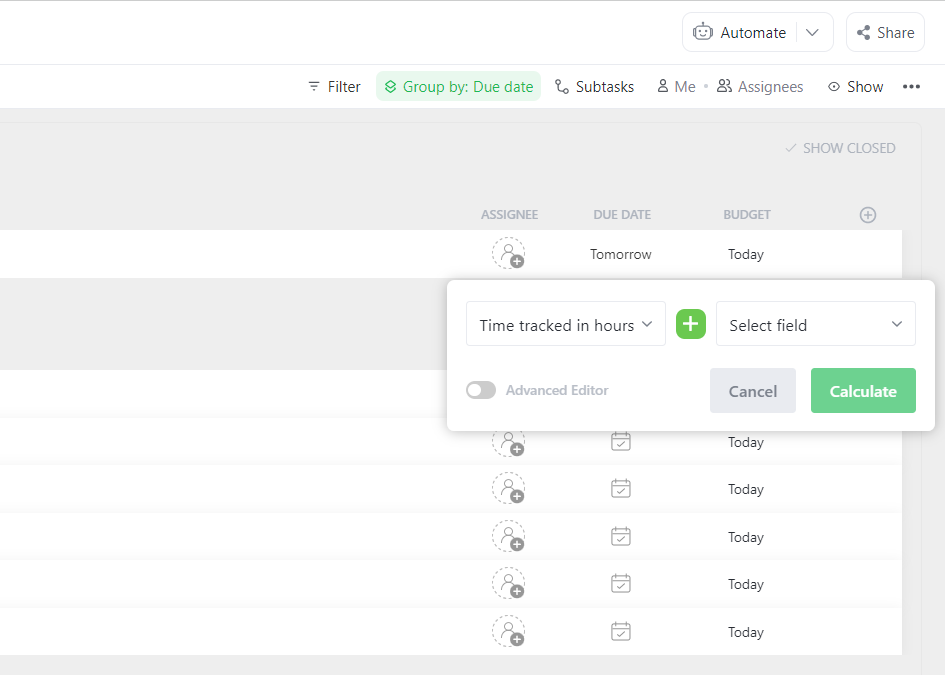
ClickUp also makes it easy to add subtasks or checklists to a task card. Plus, you can use an editor that lets you set up formulas for calculations like tracking time.
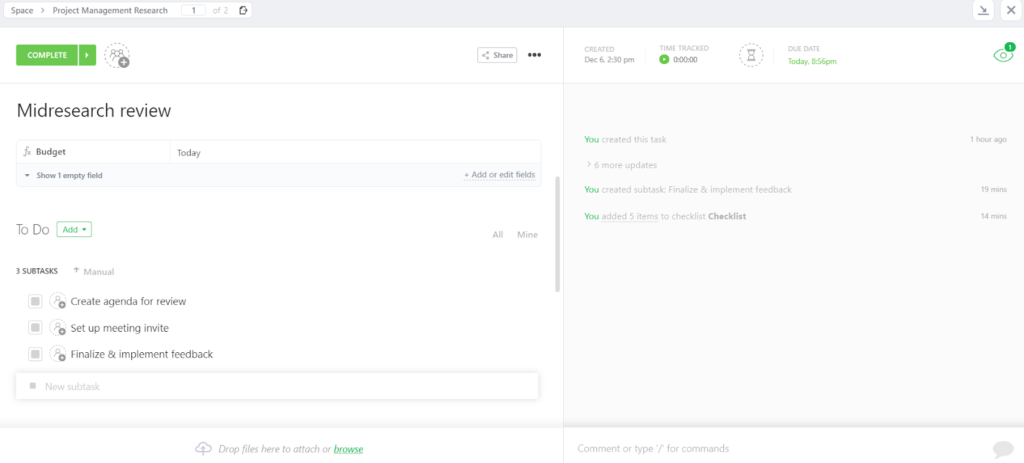
If you have tasks that require custom fields, you can easily add these too. Customize the types of information you include on tasks so your team has the info they need to complete them much faster.
Here’s what setting up custom fields looks like in a task:
Now that you have tasks set and they’re easy to see, who needs access to them? Is it just you, or do you have a team that works together in various roles?
You should be able to collaborate easily within your project management software, instead of having to use other tools. And ClickUp demonstrates serious awareness of that need.
Collaboration: 4.5/5 – Have you ever had a project that lost its way because of poor communication between team members or departments?
When you buy the base plan of ClickUp, you get unlimited free viewers. That means they can’t edit anything whatsoever or leave comments, but you can make sure no one is left out of the loop—all without having to pay an extra cent.
For those who need more authority on your entry-level plan, you can add up to five guests with customized permission settings, and each of those five people can add two extra guests per user under them with view-only access.
When it’s time to view or create documents, there’s a built-in document creator. It’s very similar to Google Docs. Users can work on files together, which is great for company-wide things like processes and SOPs in addition to task-related documents.
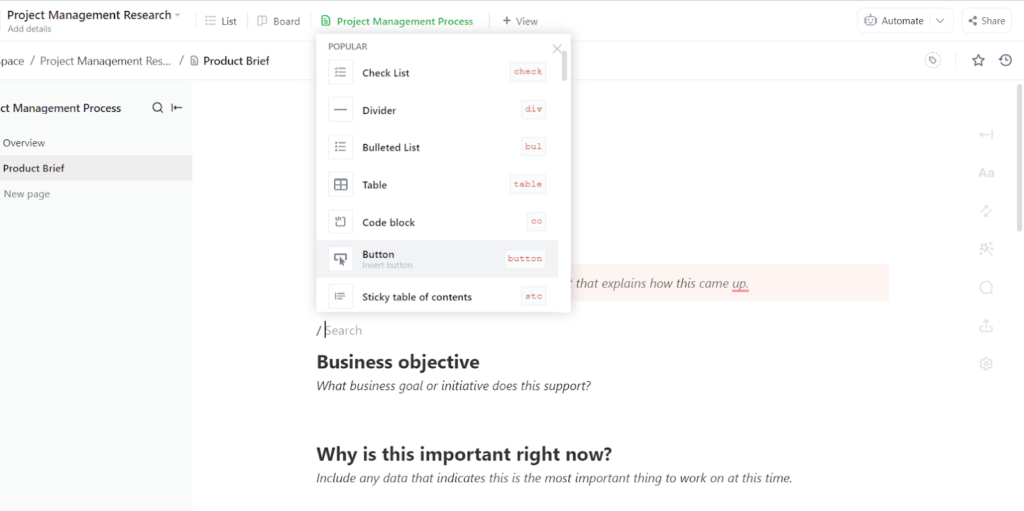
The document creator also has dozens of pre-built templates for event planning, product development, brainstorming, educational resources, release notes, and so many more use cases.
Being able to message each other within your project management tool is a critical part of speed and accuracy when working on a project together. And ClickUp delivers solid project-based messaging.
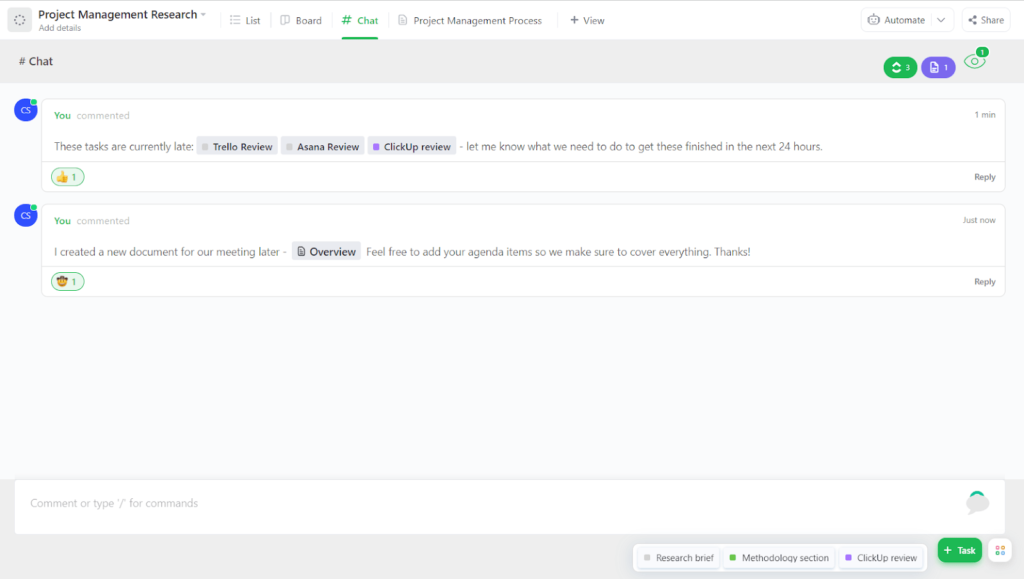
You can add a chat view at either the space, folder, or list level, which keeps ideas and communication segmented to the appropriate areas, minimizing confusion.
Activity logs are another easy way to keep tabs on progress. However, ClickUp only lets you look back at your activity logs seven days in the past on the entry-level plan, which falls short of the unlimited historical logs other providers give.
You can also choose several activity widgets on your dashboard for easy viewing. Hide or show subtasks, view all tasks, or see only tasks assigned to specific people.
There might be times when you need forms approved or need to send out requests for approval. You can use the drag and drop form builder to help organize inputs, requests, and feedback from others outside of your team.
Having this feature makes it easier to collaborate with clients, customers, and other departments.
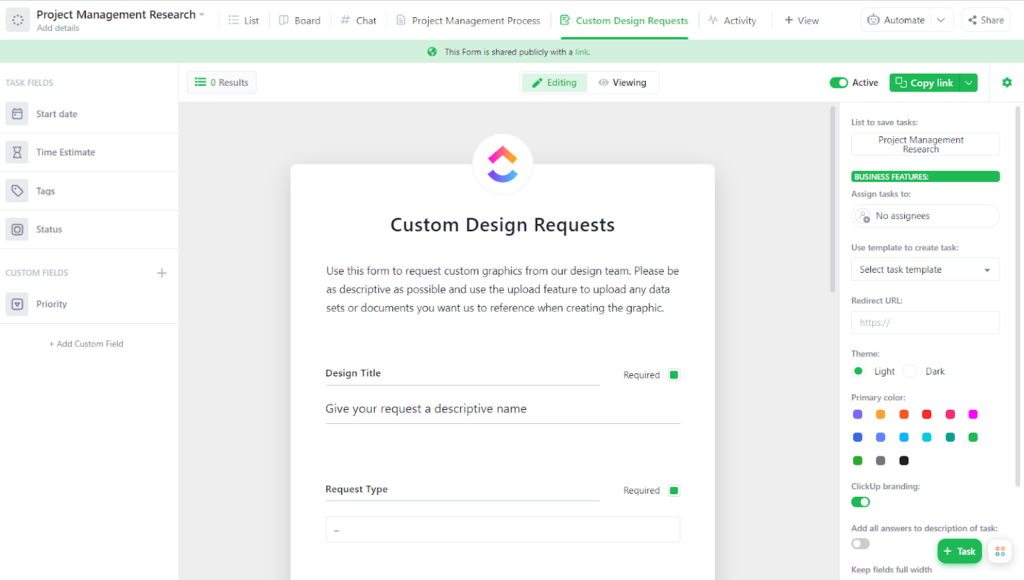
Share forms easily via a public URL to anyone who has internet access.
Collaboration will always be necessary within project management, regardless of the size of your team. With ClickUp, it’s so simple.
Workflow and Visibility: 5/5 – Make sure nothing falls through the cracks as your team grows and projects become more and more detailed. ClickUp ties for first place for workflow and visibility features.
As you manage your projects, you will want a view that’s tailored to you. But you will also want options that are best for your team.
With ClickUp, each user on your plan will also have an “everything view” where they can see all tasks assigned to them across all projects. They can then use the different types of views to sort and filter all of their tasks and due dates in one place.
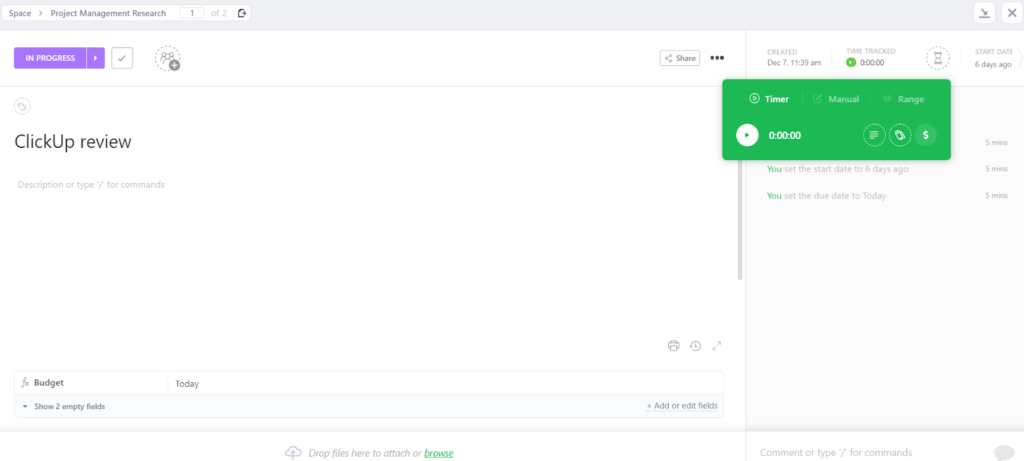
You have a native time tracking tool built into the software, which includes full time tracking functionality on the mobile app and a Chrome extension to track time. These features are available on every plan.
This is perfect if you are looking for a way to decide client payment for a task or project. Plus, this feature integrates with numerous other time tracking features too.
You can access time tracking from two different views. First, within a task:
And the second time tracking view is from the quick add button (as we showed you earlier):
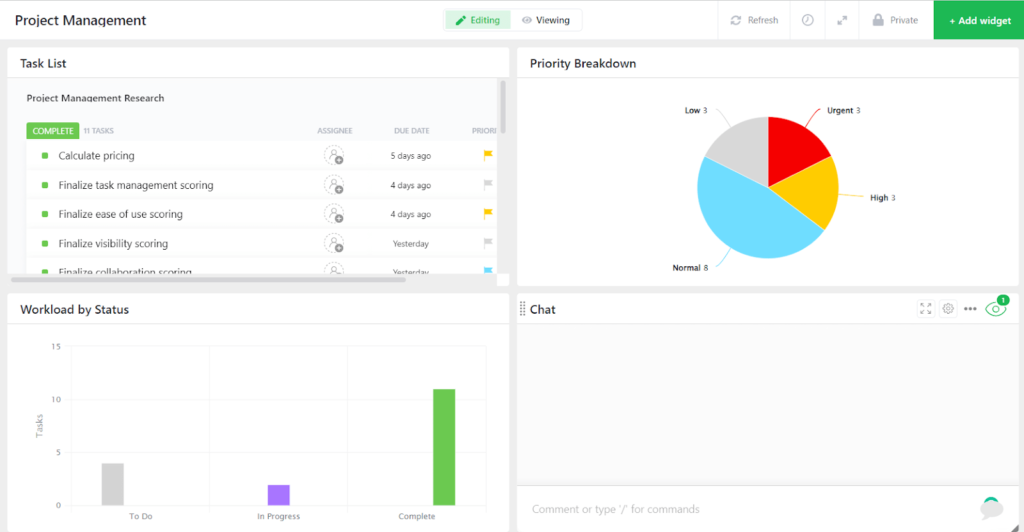
When you want to look at other reports, you can create as many dashboards as you want.
There are so many pre-built widgets to choose from, such as a task list, including tasks by assignee and by status, a chat widget, number of tasks in progress, and more.
There is a short walkthrough that shows you where to access things and how dashboards work.
You can select filters, date ranges, specific users, different spaces, lists, or folders—the possibilities are endless with the drag-and-drop dashboard editor.
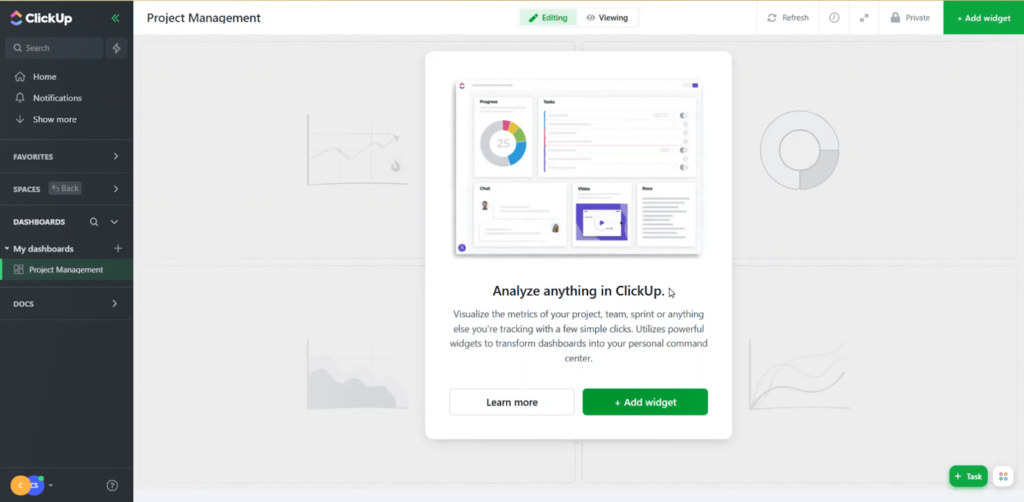
Here is a look at our dashboard we created for the research for this article:
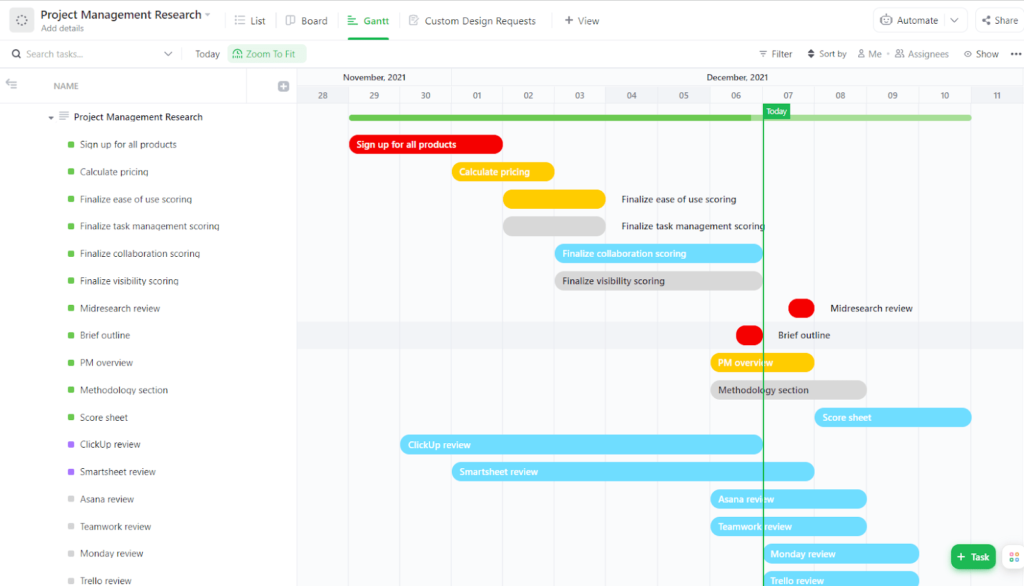
You can also set up interactive Gantt charts.
Start by moving tasks around, then shorten or lengthen the time allotted for tasks or open the full task view by clicking on it. Make the chart your own by changing the color scheme, setting a time frame, applying filters, sorting by different criteria, and more options.
ClickUp makes it easy to see what you need to see and make adjustments as necessary. And, with a handy zoom to fit button, you don’t have to scroll to see all your data at once.
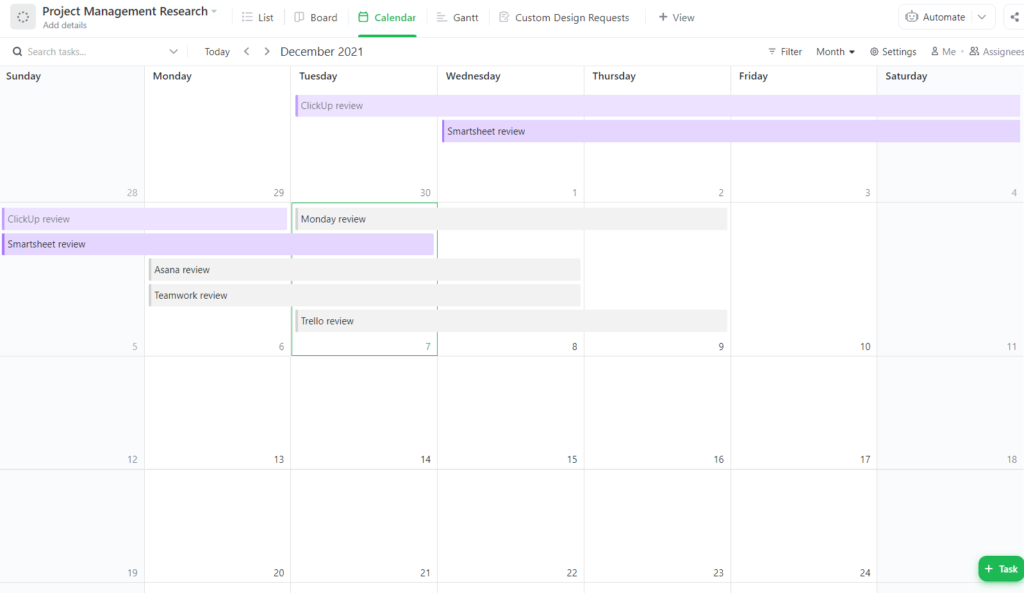
See your projects by calendar view as well, and filter what you need and what you don’t.
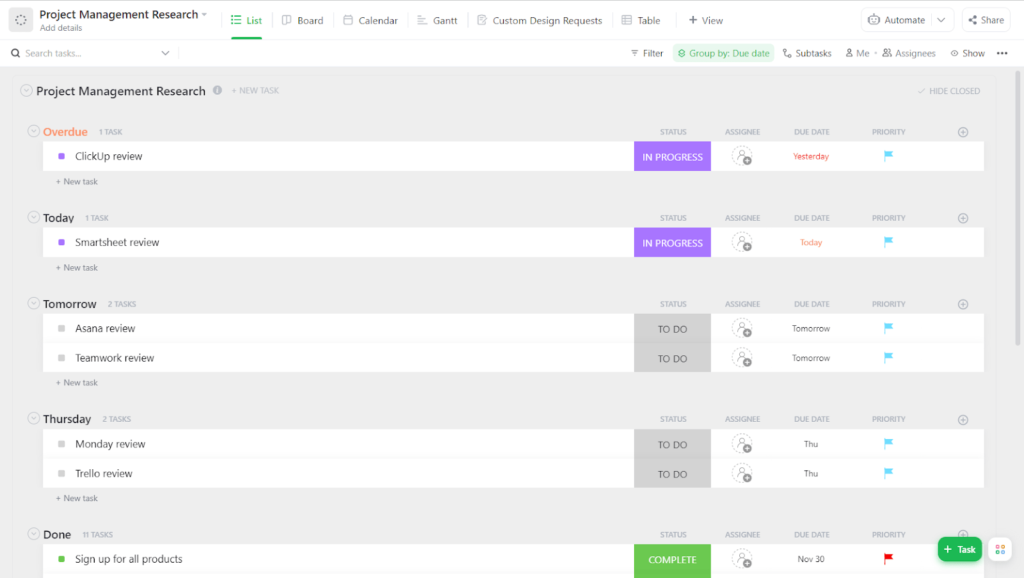
If you have team members who prefer a list or table view, that is also available.
Mind maps can also be created. This lets you list one idea and then break it out into several dependent ideas or tasks in a nice visual interface.
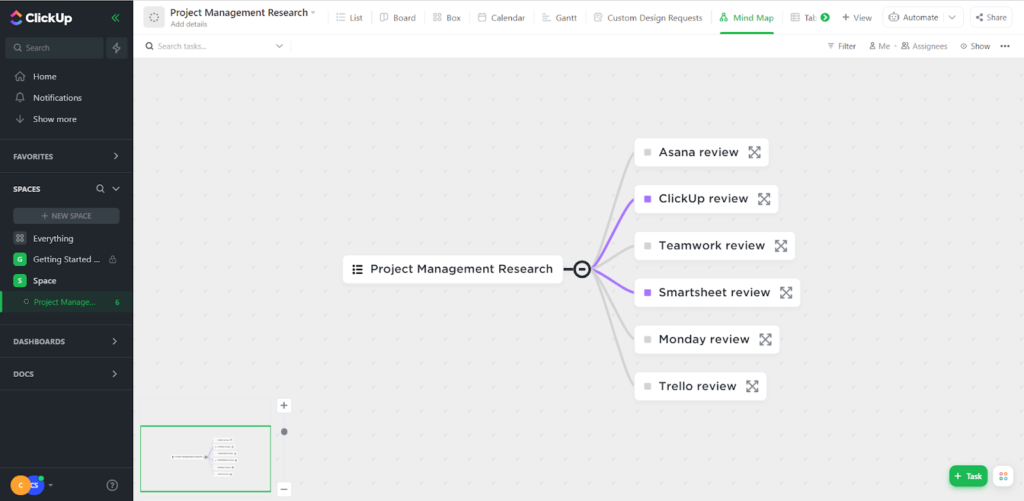
Mind maps can get complicated, but what you see above is a simple research project broken out into six different providers to dig into.
And, of course, view project boards in the familiar, traditional Kanban style:
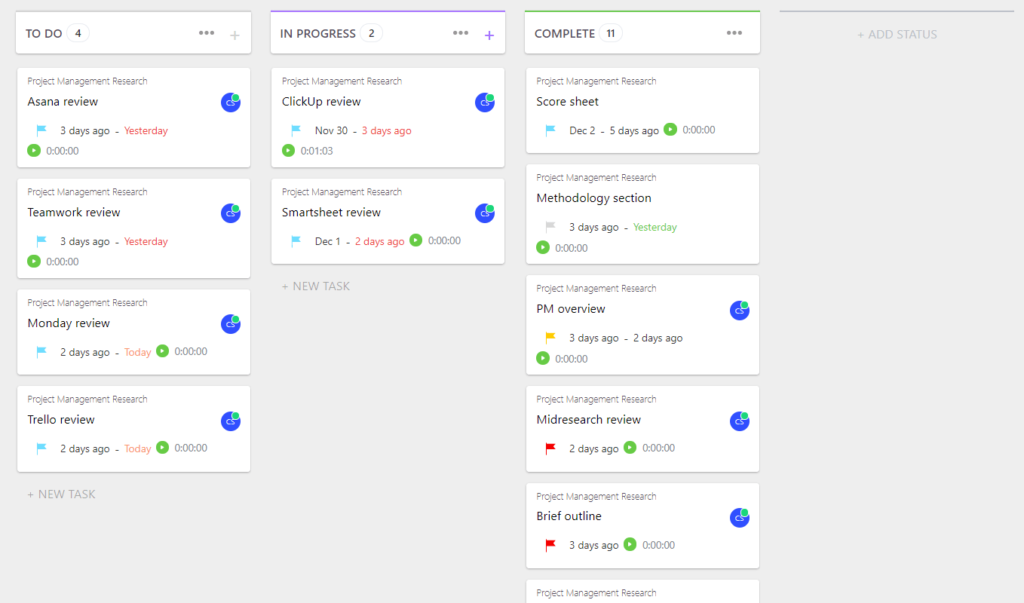
See the data for your projects in any way that appeals to you or your team. It makes seeing what’s working—and what isn’t—for your project crystal-clear.
In closing, ClickUp is by far the best for most users, because it offers a wide variety of features while still being the cheapest. And you won’t find one provider on this list better in the categories of collaboration and workflow visibility.
Spending time with old ways to manage your projects is only going to get you more behind, and lead to frustrated employees. Wouldn’t it be nice not to have to fight with your processes or chase after other team members shuffling their feet on deadlines?
ClickUp makes not only project management more simplified and effective, it makes accountability easier on everyone. You need that for every task, because in project management there is no room for finger pointing.
Results are all that matter, so get started on improving your project work by signing up with ClickUp today.
#2 – Asana – The Best Balance of Power and Simplicity

Asana
Best Balance of Power & Simplicity
Even with the easiest onboarding and interface to learn among PM software solutions, Asana’s no slouch on powerful features. Get unlimited automations on its entry-level plan, plus natural language processing, dependencies, recurring tasks, and so much more.
Overall: 3.2/5
Let’s say you need a project management solution fast, but you don’t need tons of bells and whistles. You just need the essentials.
Plus, you want an interface that is pretty and fast that also isn’t laggy. You want just enough power and customization to be useful without feeling overwhelmed.
Wait, you’re not done. Let’s say you also want to have unlimited automations—because you’re tired of those monthly limits other tools hold you to.
Say hello to Asana, your new best friend. A powerful yet easy-to-use project management savior.
Why is Asana so popular? Let’s look at the reasons in detail.
- Pricing: 1/5
- Onboarding: 4/5
- Ease of use: 4.5/5
- Task management: 3.25/5
- Collaboration: 3/5
- Workflow and Visibility: 4/5
Pricing: 1/5 – Despite the score, and Asana coming in as tied for most expensive, it’s still second on our shortlist of worthy project management providers.
Yeah, Asana is $32.97 for three users per month on the plan we tested—totalling $395.64 annually.
If you want to pay monthly. It’s $485.64 per year for three users, at a monthly cost of $40.47.
At these prices, why are people using Asana?
It’s because project managers, freelancers, and regular users—everyday people—can learn this software fast. It’s easy to use, and anything that improves performance in record time as well as Asana does is worth the price.
If you want to start with the free plan, you won’t be disappointed. You can have up to 15 users and take advantage of unlimited tasks and projects.
You also get calendar views (but no Gantt views on the free plan), 100 free integrations, and basic workflows—all the things you need to start and end a project with precision.
The entry-level plan is what we tested, and now we’ll talk about how easy getting started really is.
Onboarding: 4/5 – Asana wipes out difficulty when it’s time to get started, coming in second only to one other provider on this list.
You get help with configuring the tool to match your needs during initial onboarding.
First, Asana finds out what kind of work you do, be it customer service, sales, IT, operations, marketing, engineering, or something else.
Then, you select what your primary objectives are. For example, project and process management, personal task management, portfolio and workload management, or goal management.
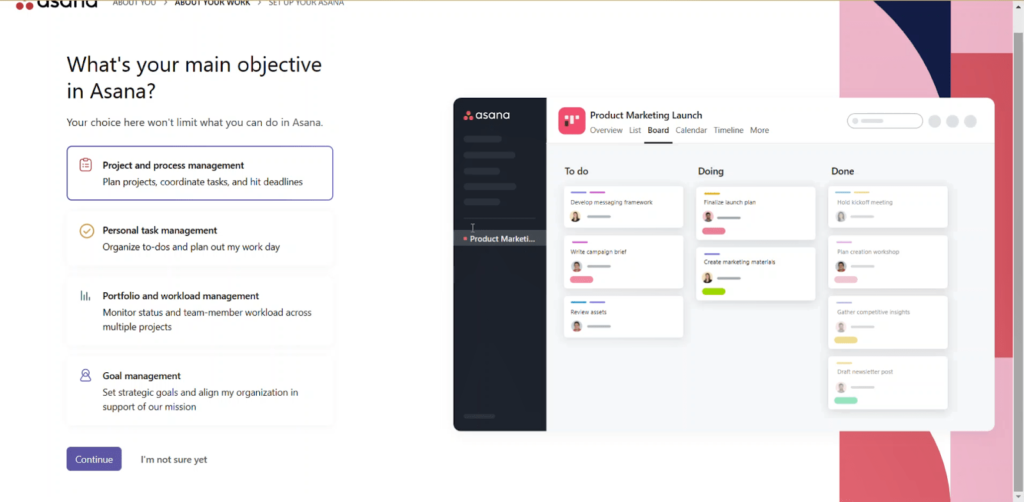
Doing things this way doesn’t limit what you can do in Asana. The opposite is true, actually. It helps streamline getting started since you can choose which route you’d like to walk from the start.
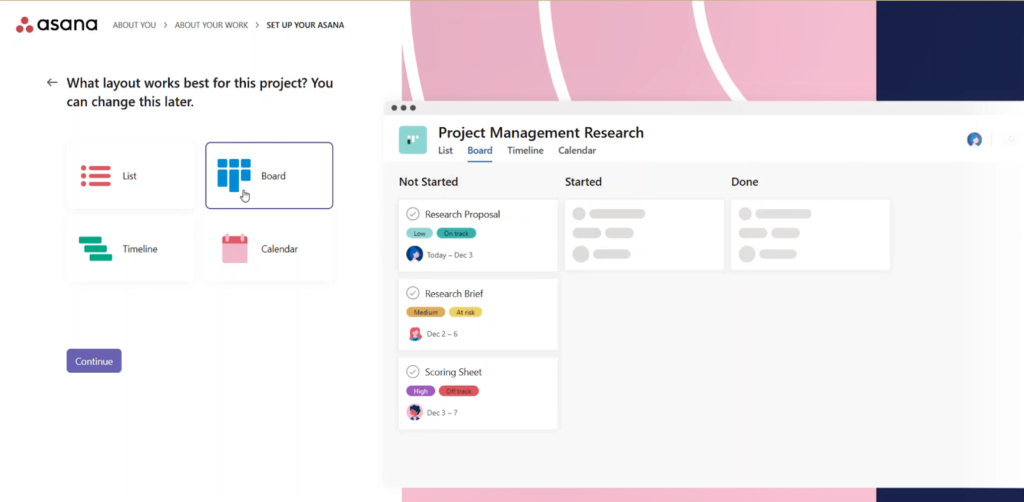
You can see a preview of each setup before choosing how you want your dashboard to look.
Once you decide on the view, your dashboard will be set up in a way that makes sense based on what you’ve input.
Next, you get help setting up your first project. Asana walks you through the process—you’ll give it a title, set up three tasks, and set up three statuses to track those tasks.
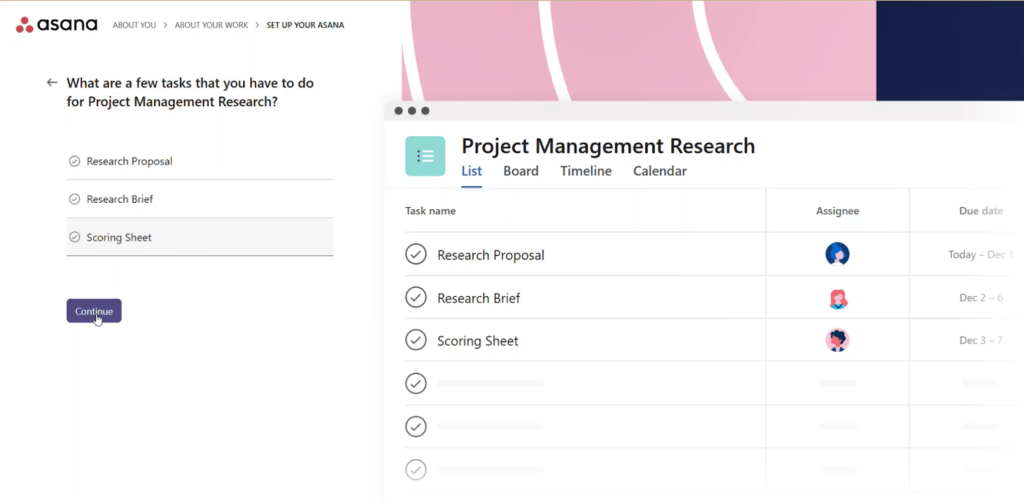
Once you add your tasks, set which view makes the most sense for the project, between list, Kanban, calendar, or Gantt.
This helps prevent an overwhelming feeling of confusion, since you’re given one tailored option at the beginning. Later, you can switch to different views, but choosing this now helps inform how you set up your first project and initial tasks.
You’re given a solid starting point rather than having Asana toss you into an empty tool
You can invite teammates after you set up your project, as well.
Once you go to your project, there are short explanations of a few different areas—like your inbox—to explain what you’ll find there and how each works.
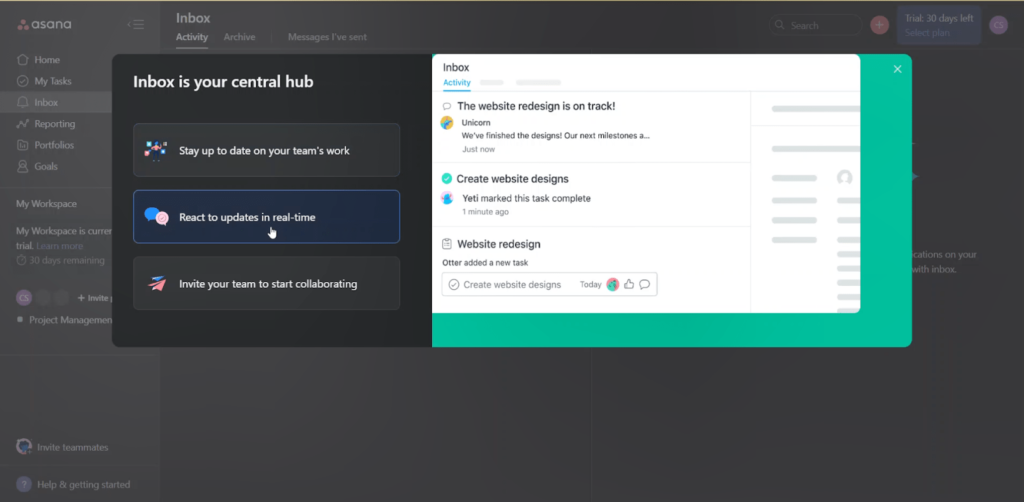
We love that the interface is so simple.
From here, you get to explore and play around with Asana on your own. It’s pretty intuitive, the software doesn’t require a lot of explanation.
Plus, there are additional pop ups as you navigate around your project to explain tools and sections a bit more.
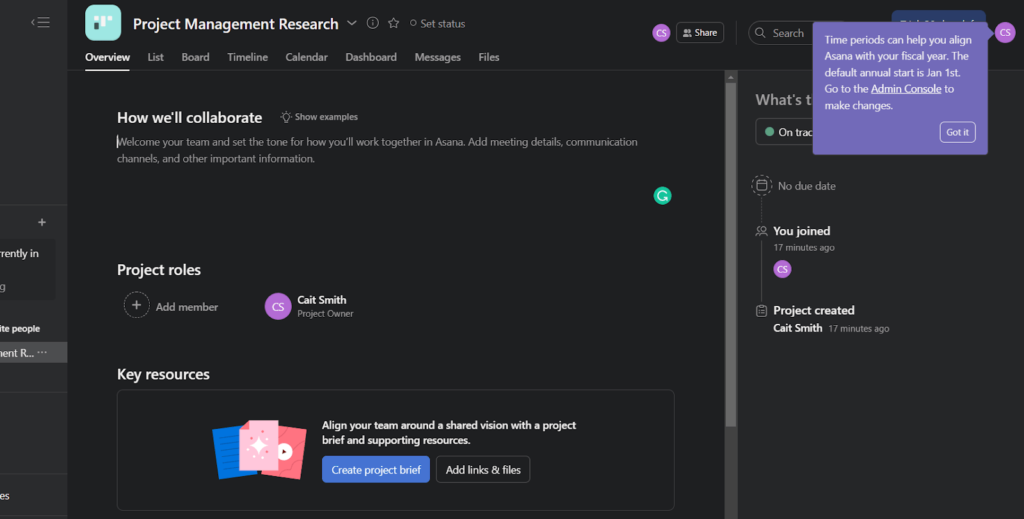
You won’t have a problem getting started, because every detail is right here. If you do run into a problem, all the guides remain available for you to refer back to.
Asana does what it’s designed to do—get you started without so much as a hiccup.
Is using this software as easy as the onboarding was? That’s the question we asked ourselves. And, you know what? It’s even easier.
Ease of use: 4.5/5 – Asana eliminates all uncertainties about whether you can use this project management software. Just about any user can manage to figure this out in record time. The positive results you’ll find as you use this software will be fast-acting.
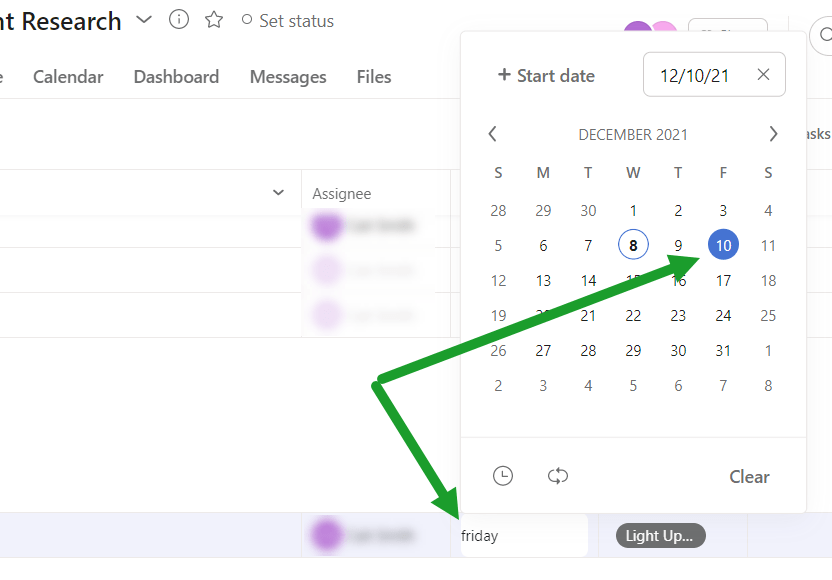
For starters, you can use natural language programming to set up appointment dates. Say you want to meet with your marketing manager Paul on Thursday this week, and it’s Monday now.
If you just type “Thursday” inside Asana’s calendar, then an appointment for Thursday of this week in your calendar will be set up for Paul. Use specific days or even just type in “next month” (which will set an appointment for the same numerical day of the next month), “next week” (sets the same day of the week), or other terms like that.
Use Asana’s advanced search functionality to get really deep into what you’re looking for. This also includes several filtering options like date, people, and projects, even your custom fields.
More than that, you can look for projects assigned to someone in particular, only tasks that have attachments, completed tasks, and tasks with a specific due date, to name a few more examples.
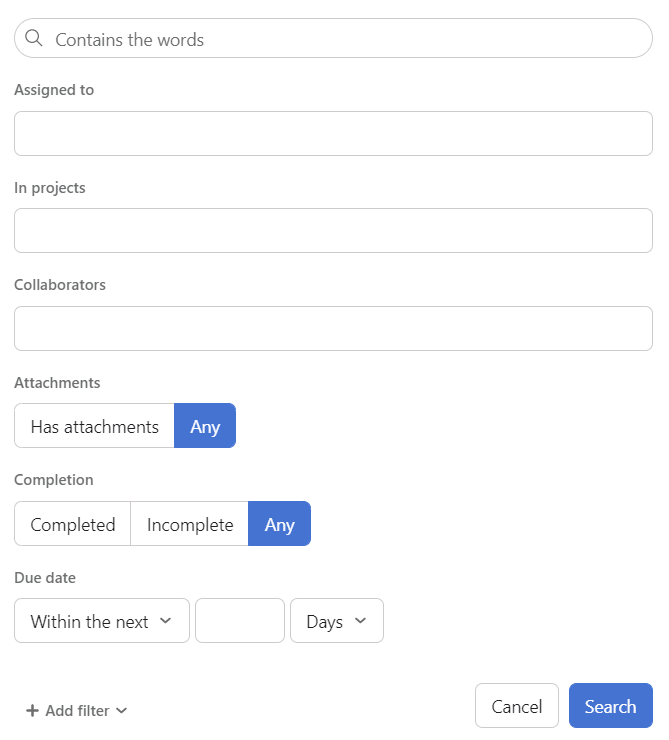
Asana makes it foolproof to find what you need in a few seconds.
Another benefit of using Asana is the task templates you can create.
Turn any task into a reusable template, versus having to re-enter all of that information every time. You can save as many templates as you’d like.
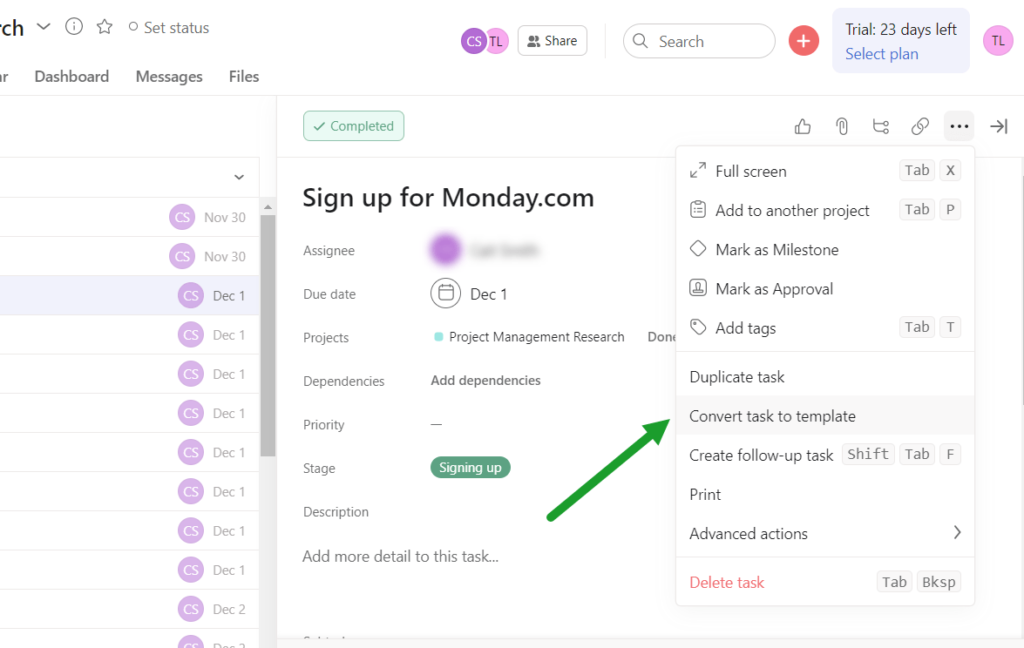
It really stinks to have to type the same task or outline over and over. Now you don’t have to.
Sometimes ideas and things you didn’t remember when setting up a project will come to you later. With the convenient Add Task button, you don’t have to navigate to the right project and the right screen to add a task.
Add a new one any time, anywhere in the platform. The button is ever-present in the top right corner of the screen, no matter what screen you’re on.
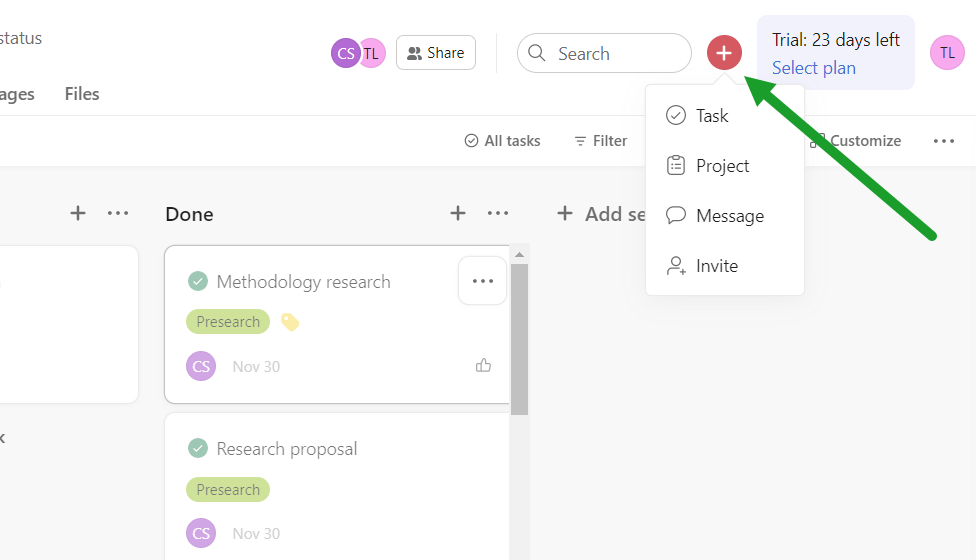
Add a new task, project, or message. You can also quickly invite someone to the software.
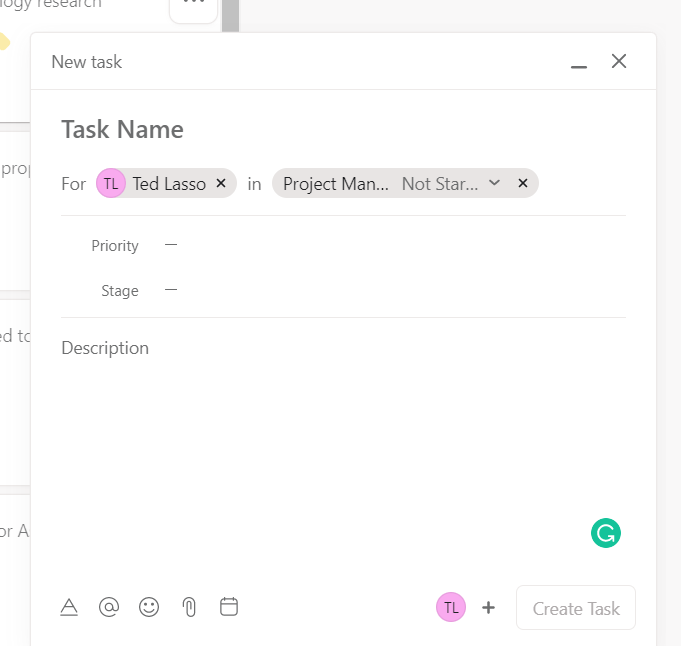
Now you can assign the task, choose which project it belongs to, set the priority, set a due date, and fill out any custom fields.
It’s all laid out in a beautiful and very intuitive platform.
Since we’re on the subject of tasks, it’s a good idea to look a little deeper into task management features, so you know exactly what you can do with Asana.
Task management: 3.25/5 – Out of the ten features we tested for, Asana has seven of them to make task management much easier for you.
You have intuitive task views that let you open up a task to see more information. In the board and timeline view, it opens up a new pane on the right of the screen.
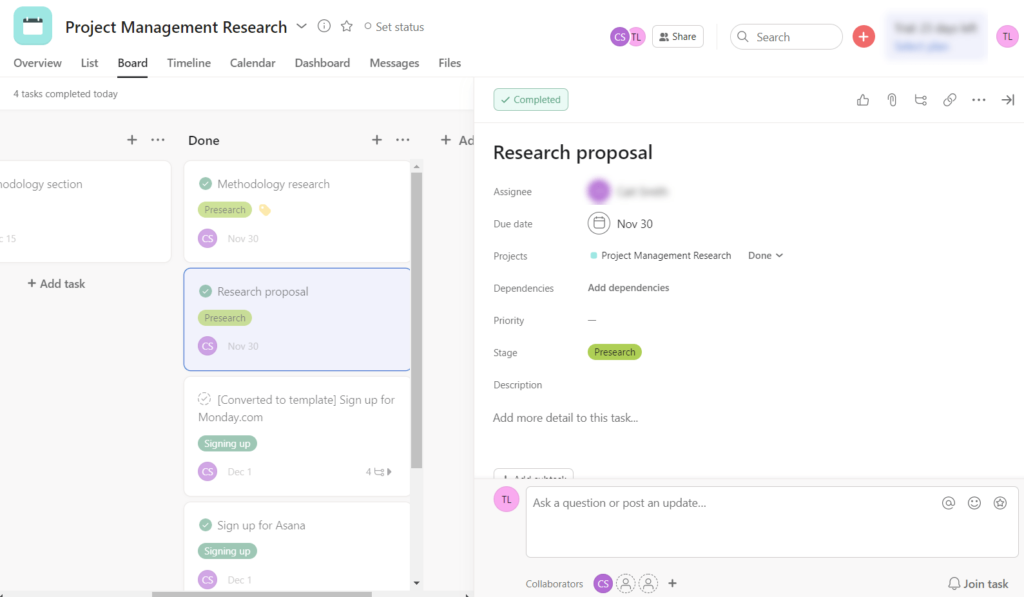
You also have a personal work area that enhances how you deal with tasks in Asana. Your task area is easily accessible from the left-hand navigation menu.
In it, you can view all tasks assigned to you in a list, board, or calendar view.
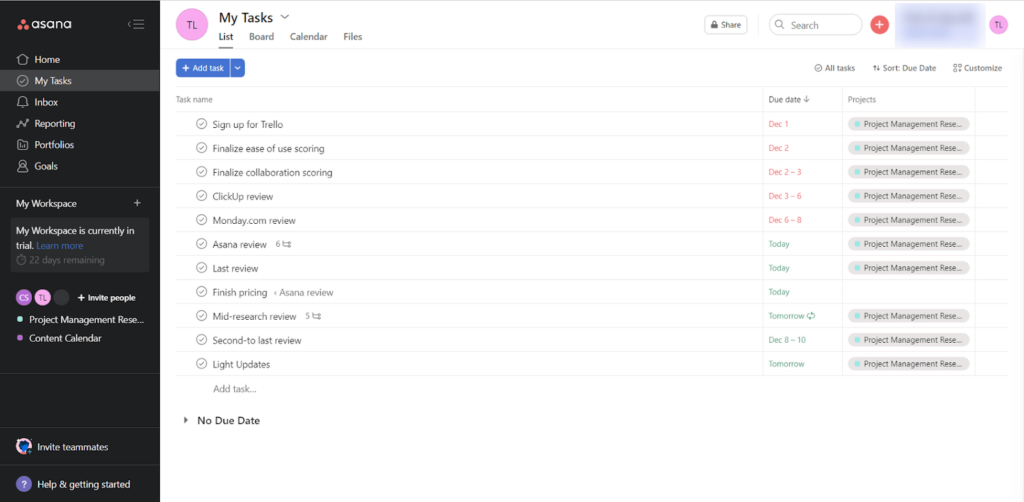
We love that you can review tasks and sort by due date, task status, alphabetical, or by project.
This workspace makes managing your tasks a no-brainer.
Asana makes setting up dependencies intuitive, too. You have two types of dependencies—blocking and blocked by.
“Blocking” dependencies mean the task you choose in the drop-down can’t be started until the task that’s currently active gets done.
For example, if you select put the cake in the oven in the drop-down list, you can’t start doing that until you mix the ingredients. Once that’s done, you will have a cake to put into the oven.
When you think about a “blocked by” dependency, try to imagine that the task you choose in the drop-down needs to be completed first, before you start the next task.
Going with the cake idea again, now the drop-down task is to put the cake in the oven. That needs to be completed before you can add frosting, which is the next task. Putting on frosting is blocked by putting the cake into the oven.
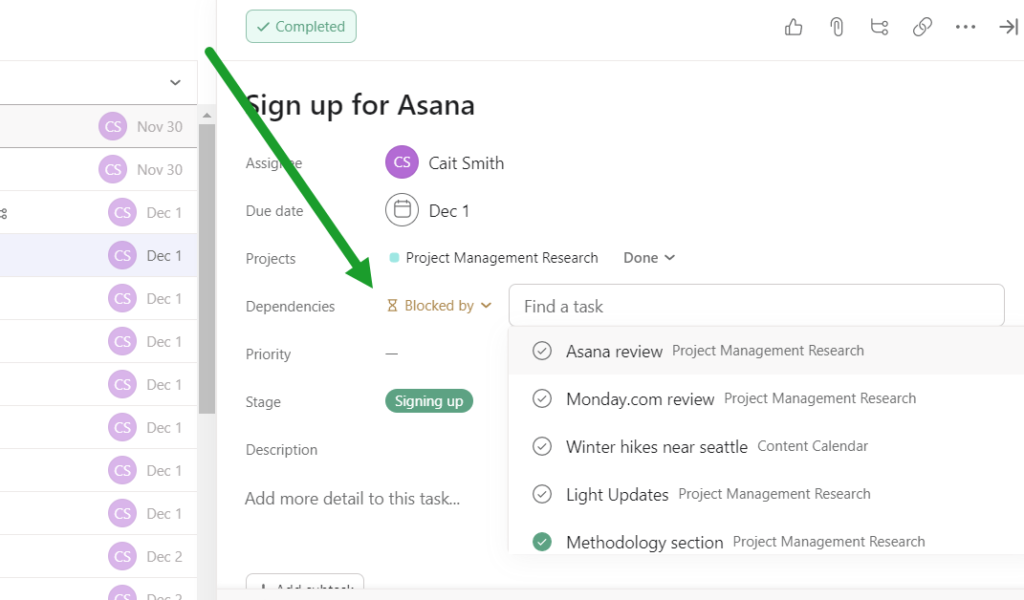
Each makes it so you can complete one task at a time in the right order. If you have a sales qualifying process, you shouldn’t start calling clients to pitch them until the lead is verified, for example.
Automations are important to task management, and Asana gives you unlimited automations to help you keep busy work off your hands.
You are limited to using pre-built rules, which is a bummer. If you want to use automations that aren’t available out of the box, you’re out of luck unless you upgrade.
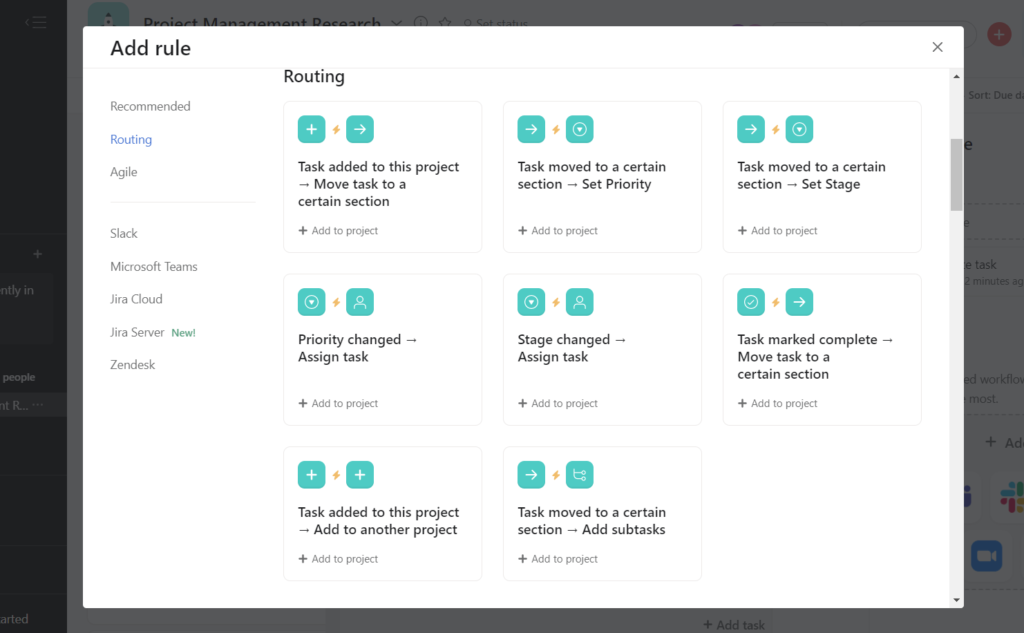
There are 54 pre-built rules you can choose from, including rules that work with other tools like Slack, Jira, Microsoft Teams, and Zendesk.
Even though you can’t create your own rules, there are still a lot to choose from and a ton of possibilities and room for automating repetitive tasks.
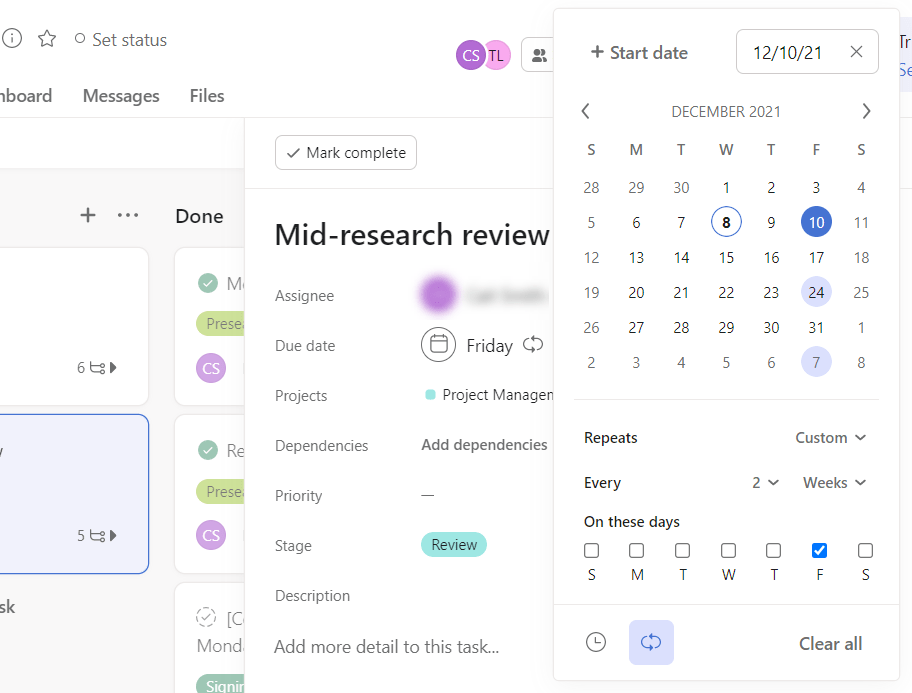
Recurring tasks are made easy within Asana because of the simple design and the automation options on the screen after creating a task.
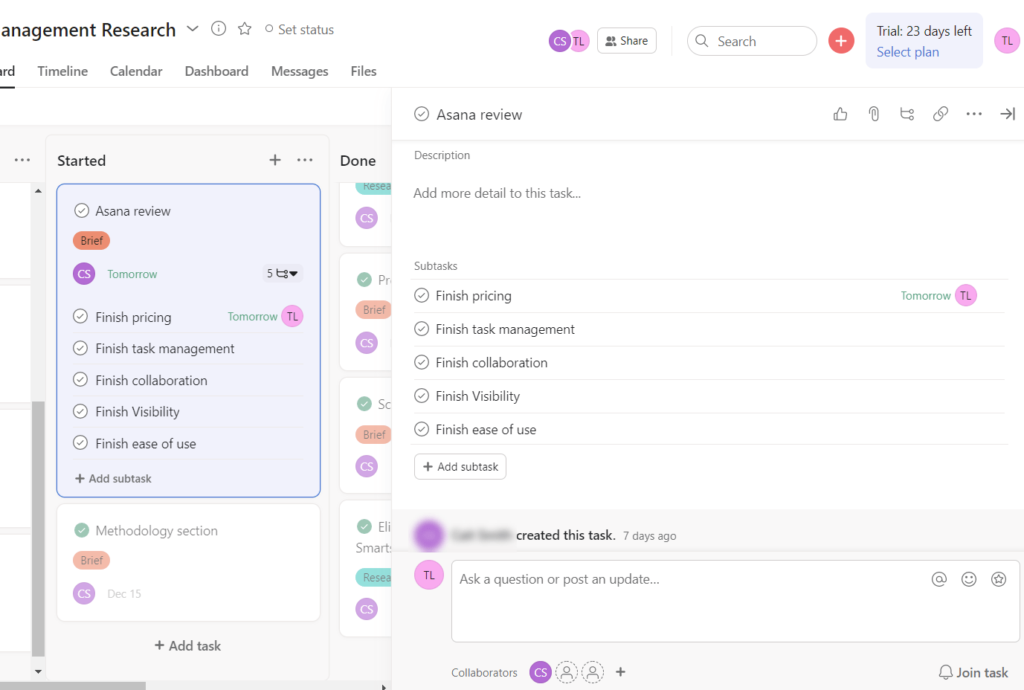
Turning any task into a recurring task can be done with just a few clicks.
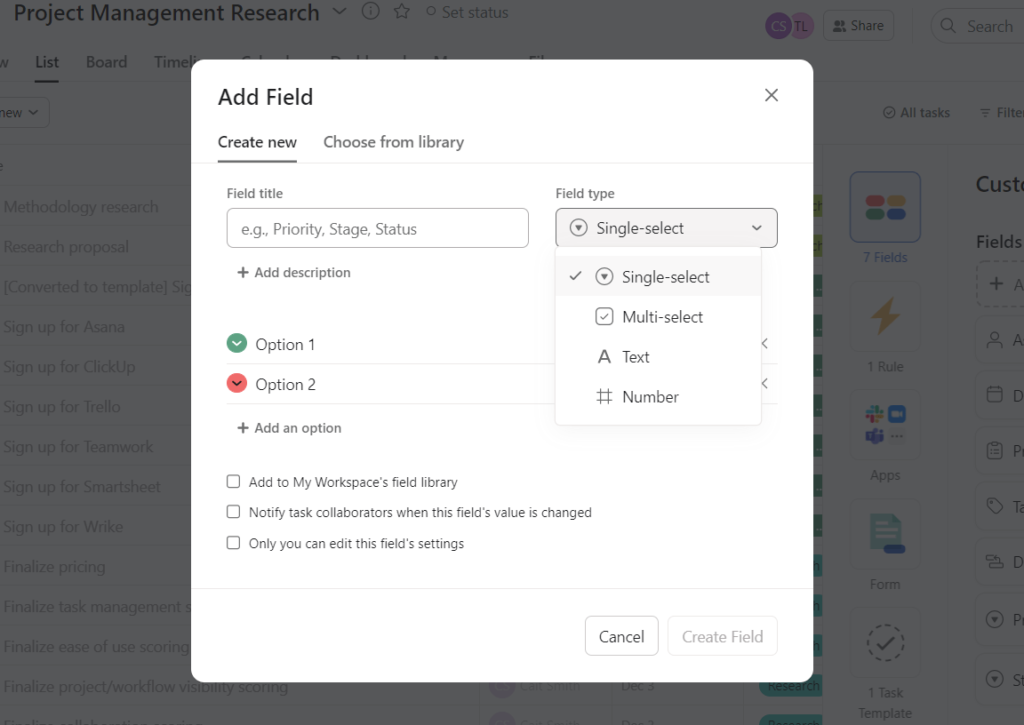
If you want to customize your task fields, you can create as many custom fields as you want. That’s great for adding different labels and levels of organization to your tasks.
Collaboration: 3/5 – Collaboration comes in at an average score for Asana. Not terrible, but nothing to ooh and ahh over.
You can invite an unlimited number of guests, including clients, contractors, vendors, suppliers, and whoever else you see fit. And team messaging is baked into Asana.
To enhance this, you also get unlimited document storage. There is just a limit of 100 MB per attachment.
Asana is one of only two PM software providers that offers unlimited storage, so you never have to worry about running out or losing older documents.
If a team member needs to review meeting notes from whenever, they can go back to them and comment in the project-based message board about their findings. This is something many project management softwares don’t provide, so Asana gives you yet another feature and reason for being worth the price.
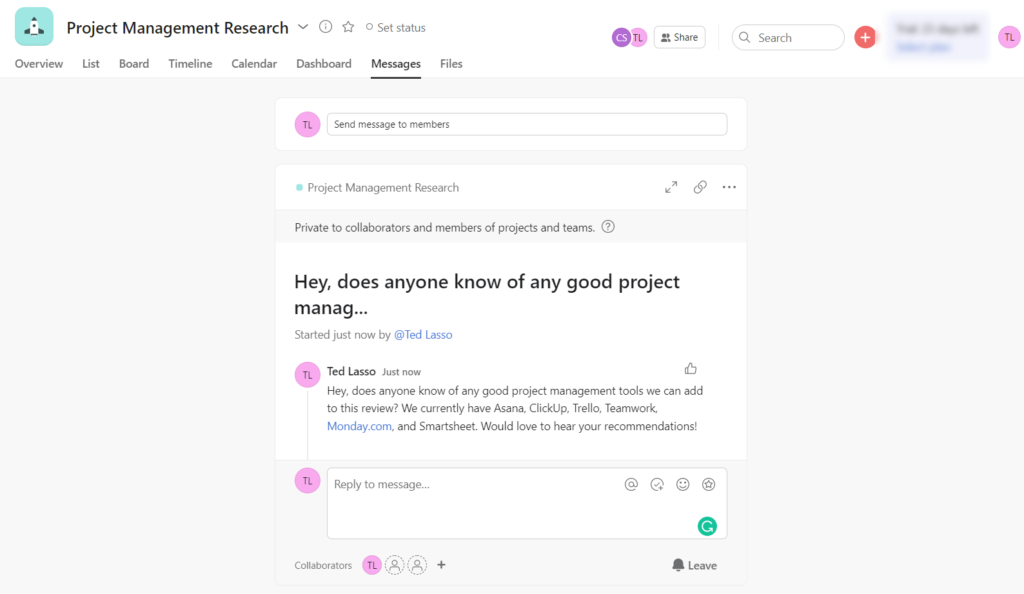
The thing that’s missing is built-in document collaboration. You will still need to use Google Docs or some other means for that.
You can create basic unbranded forms with as many fields as you’d like. Add a single-line text field, multi-line text field, a number field and more, plus you can add custom fields on the fly with the Asana form builder.
This can be useful for surveying clients, stakeholders, or getting preferences from team members.
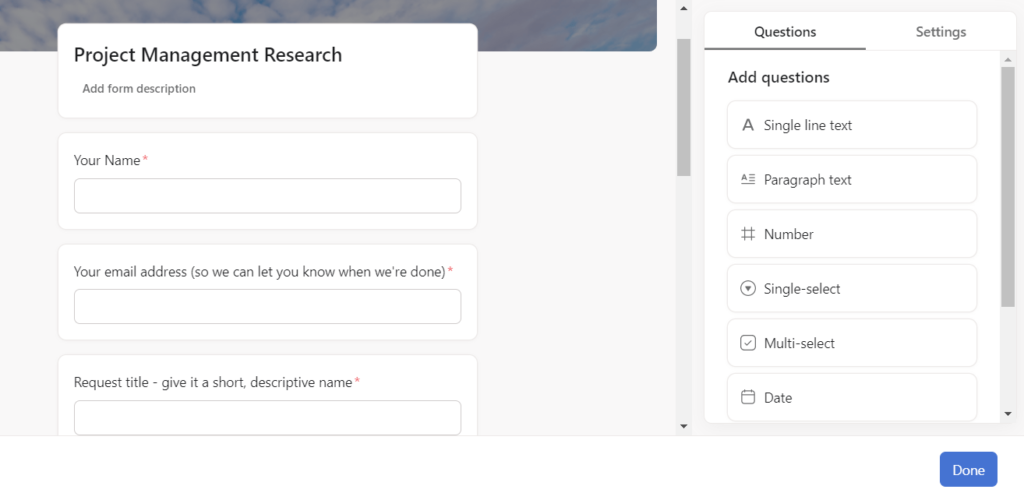
You also can use these collaboration tools Asana’s workflow and visibility features to strengthen your results. Let’s look at how you can merge both to really supercharge your project performance.
Workflow and Visibility: 4/5 – Asana makes it their business to help you see your goals and performance in the clearest view possible.
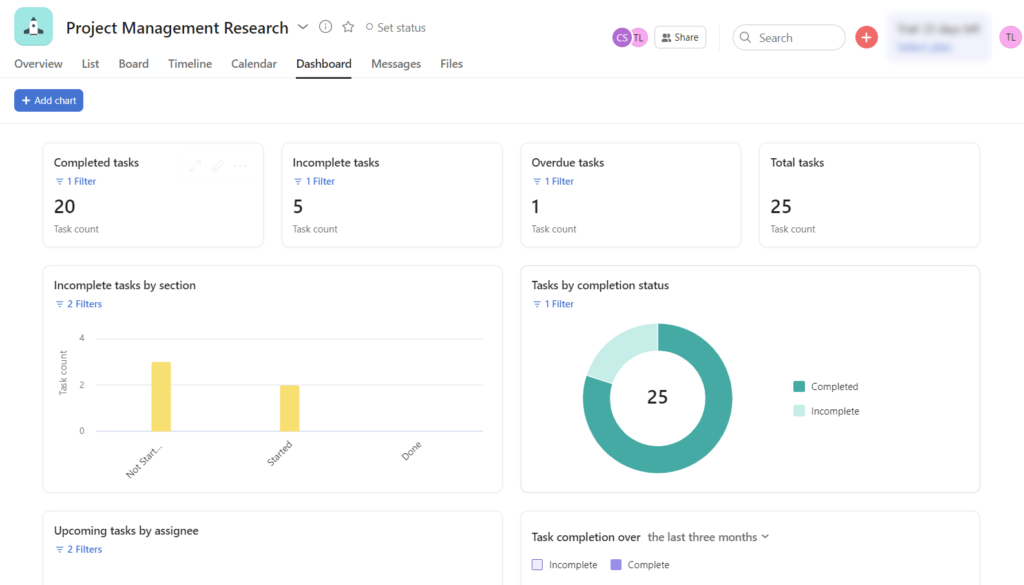
You can use dashboards to see results with full transparency. Each of your allotted unlimited projects gets an exclusive dashboard, pre-built automatically with every new project
It shows total completed tasks, total incomplete, overdue tasks, and other task completion stats over any set period of time.
You can filter these to see what you care about most and edit or delete these charts entirely.
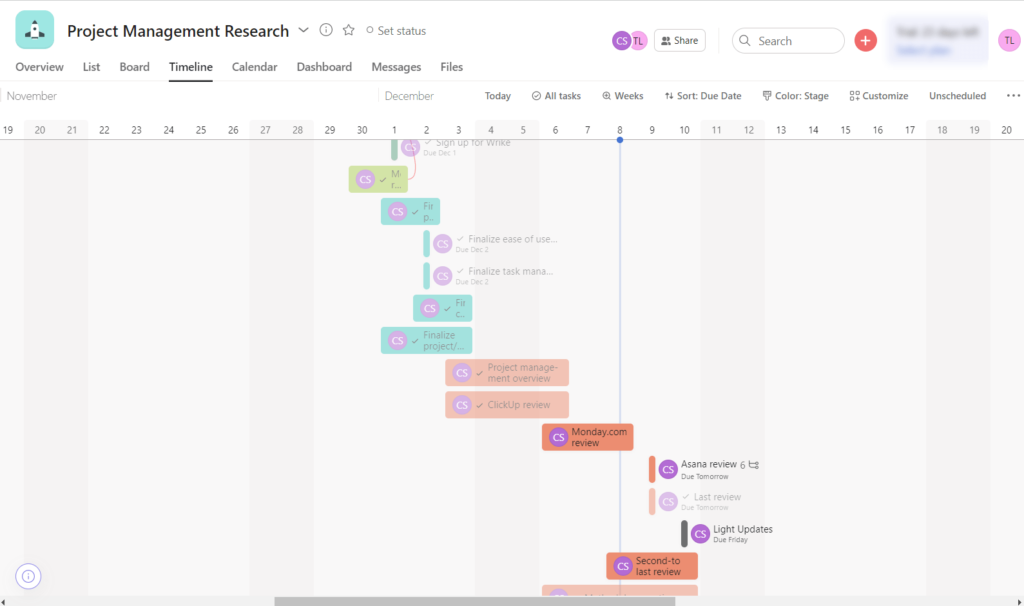
Gantt charts are also available, if you prefer to see your projects that way. Asana calls it a timeline, and it’s automatically available for view once you create a new project.
The Gantt/timeline chart is interactive, so you can change start and due dates, mark tasks as done, add milestones and new tasks, and update or add dependencies.
Just like the timeline chart, a calendar view is also created when you create a new project. Below you can see what your project will look like in this view.
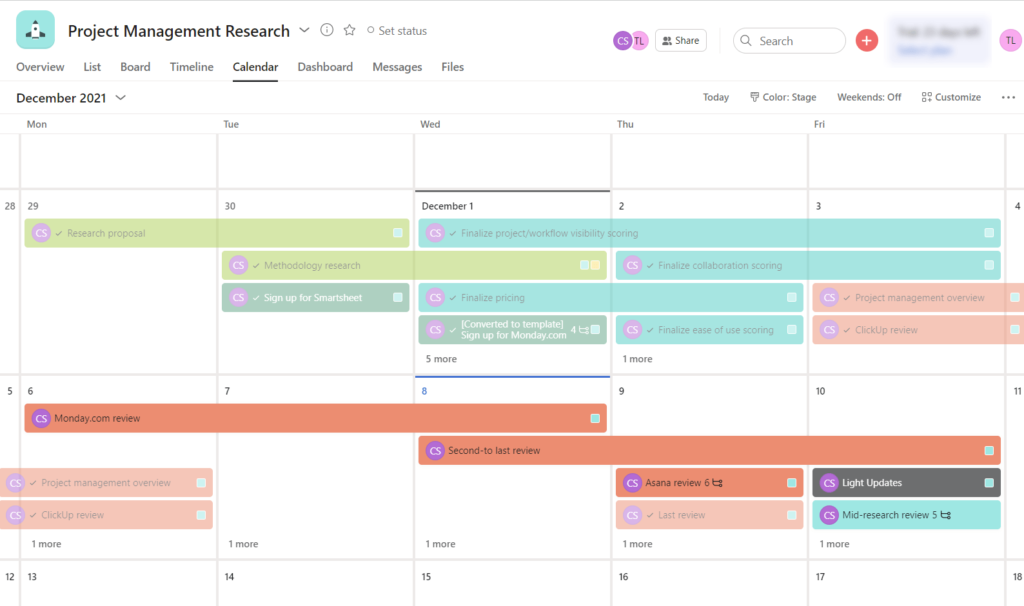
This makes it super easy to see what tasks are coming up for the day, week, and month. Plan your time accordingly and give managers or team members an overview of the upcoming days’ work.
A list view can also be used where you can add, hide, show, or delete columns depending on what types of information you want to see.
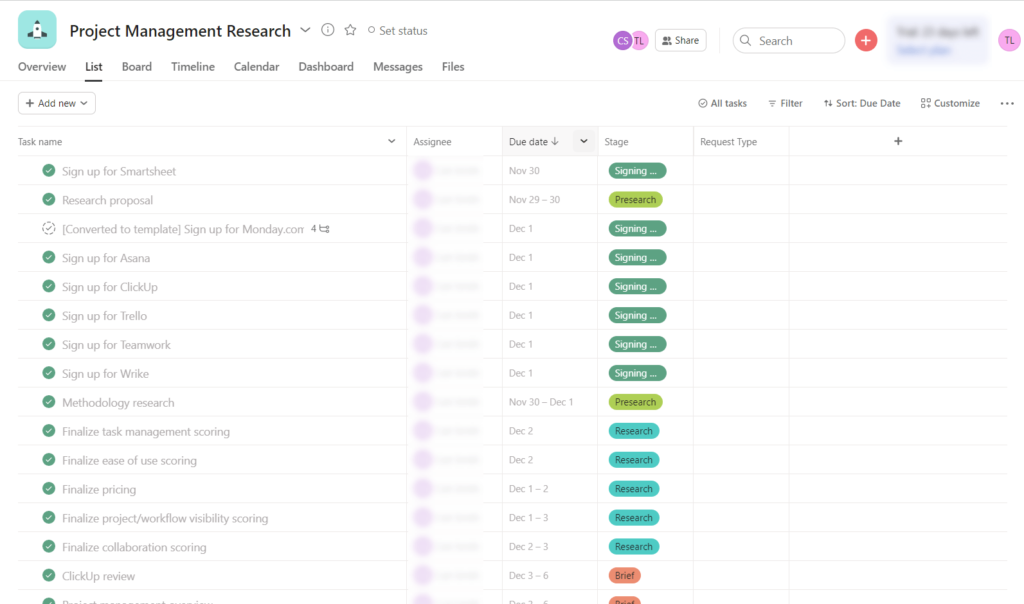
If you want, you can filter by complete, incomplete, or all tasks.
And, of course, don’t forget the Kanban view:
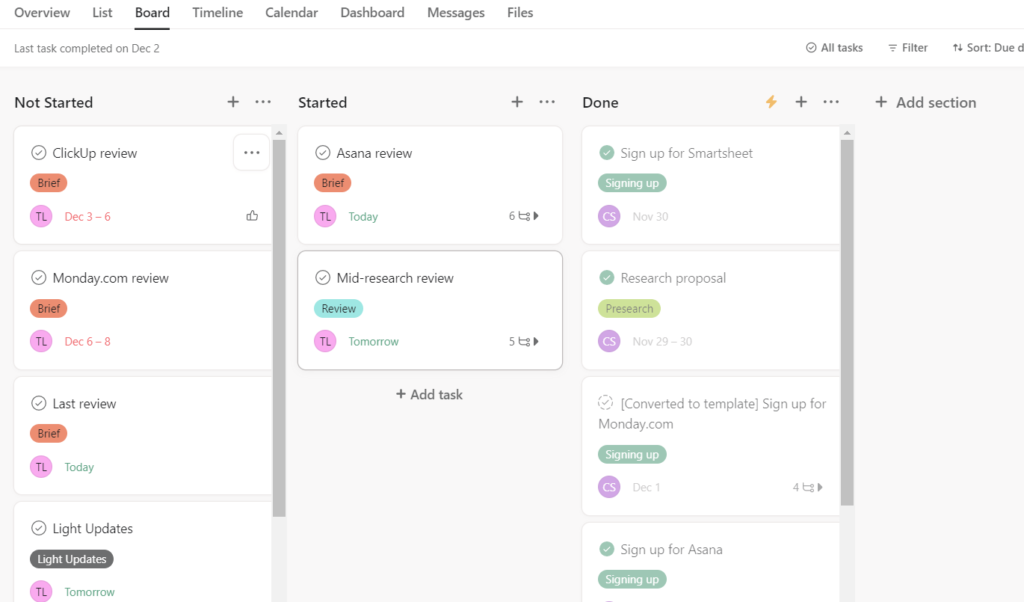
No one wants choppy and unclear workflows. So, when each employee can use their own view of a project that works best for them, project work will be clearer for everyone involved.
The marriage between functionality and ease of use is what is so inviting about Asana. It’s not hard to use and it’s honestly beautiful to look at. Unlimited automations and simple-to-apply task management features makes this project management software even better.
If you want project management software you can use in minutes, Asana is worth the money.
#3 – Trello – The Best Low-Cost Way to Start with Hardly Any Effort

Trello
Best Low-Cost Option
Trello is popular project management software that leverages Kanban-style boards for visual project management. It’s easy and simple to use, albeit a bit limiting on power features. But at the price you’ll pay (including a generous free plan) it can be more than enough for simpler projects.
Overall: 3.1/5
Trello is practically a household name in project management software. It’s easy to set up and you can actually learn how to use it without any training if you just start looking around.
It’s best for simple projects. Plus, it supports many integrations so you can easily include the apps and software you’re currently using.
Plus, its value for the price tag is only matched by ClickUp. So, if you want a low-risk investment into PM software, there’s no wrong time to start with Trello.
- Pricing: 5/5
- Onboarding: 5/5
- Ease of use: 2/5
- Task management: 3.5/5
- Collaboration: 2/5
- Workflow and Visibility: 0/5
Pricing: 5/5 – Trello makes starting with project management software easy on your wallet. Its pricing matches ClickUp for most affordable on our list.
It’s just $5 per month for each user when you pay for the year. That’s $180 for three users.
For a monthly plan, you are bumped up to $9 per user per month and will spend $324 each year for three users.
That doesn’t mean you have to have three users—that’s just for consistency in our testing—so it can be even cheaper.
A free plan is also available and includes unlimited cards, up to 10 boards, unlimited storage, unlimited automations, unlimited integrations, and more.
The free plan is perfect if you have no budget and want something simple with plenty of room to grow.
Let’s hop into the onboarding process and see how you can get things up and running in under 10 minutes.
Onboarding: 5/5 – There isn’t a getting started tutorial or video or anything when you first log into Trello, but you honestly don’t need that level of help. Trello is just that simple to get started with.
Once you login and create your first board, it’s all so intuitive you don’t need any additional training to set up your first project.
Within a few minutes, you’ll know how Trello works and how things are organized just by clicking around.
All you do when you start is enter your email and name. Once you verify your email, you’ll enter a password.
After you get logged in, there’s a short getting started checklist that covers adding your first board, connecting other business tools, configuring basic settings, and inviting your team.
For most project management software providers, this wouldn’t be enough to get rolling. But, for Trello, it’s all you need.
There are helpful tips throughout to help you get to know the terminology and different areas of the software.
It took us about three minutes to sign up and create our first board.
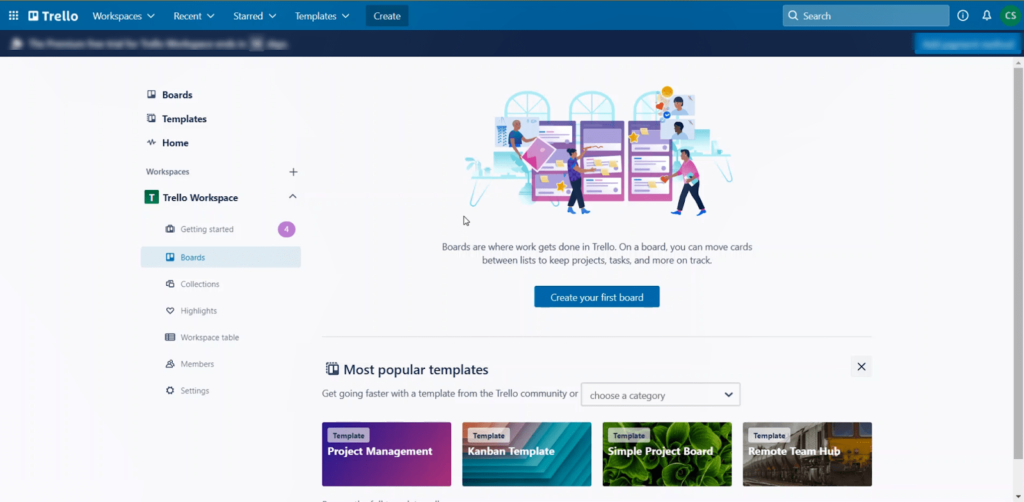
There are a few templates you can choose from for your first board. You can preview the template then create your own board from it.
Trello defaults to Kanban boards, which is why it’s so easy to use.
The templates have columns already set up for you and a few pre-made tasks so you see how it all works together.
It’s so simple you may feel like you’re missing something—but don’t worry, you’re not. Trello is just that refreshingly easy to set up.
Ease of use: 2/5 – Don’t think that because Trello scores tied for last in this category, you won’t be able to use it. It just doesn’t have some of the features that we tested for which other providers have.
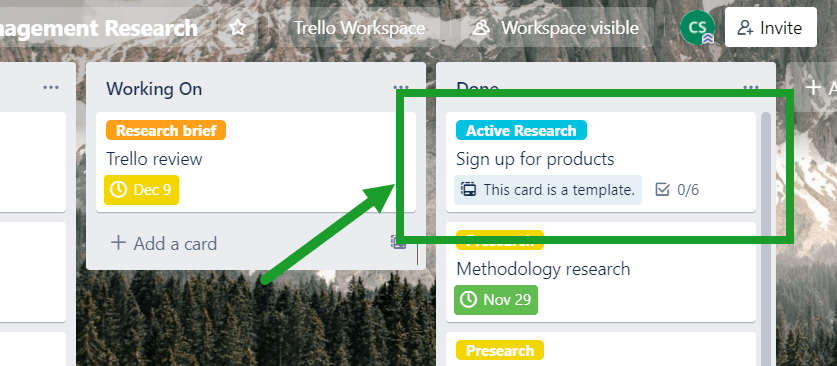
Right out of the gate, setting up tasks within your board is simple. You have task templates to help you get started. They are useful for recurring cards and automations, as well as for tasks that have a lot of information in them.
You can turn any task into a template in one click. You also have the option of hiding the template card so it doesn’t appear in your task list.
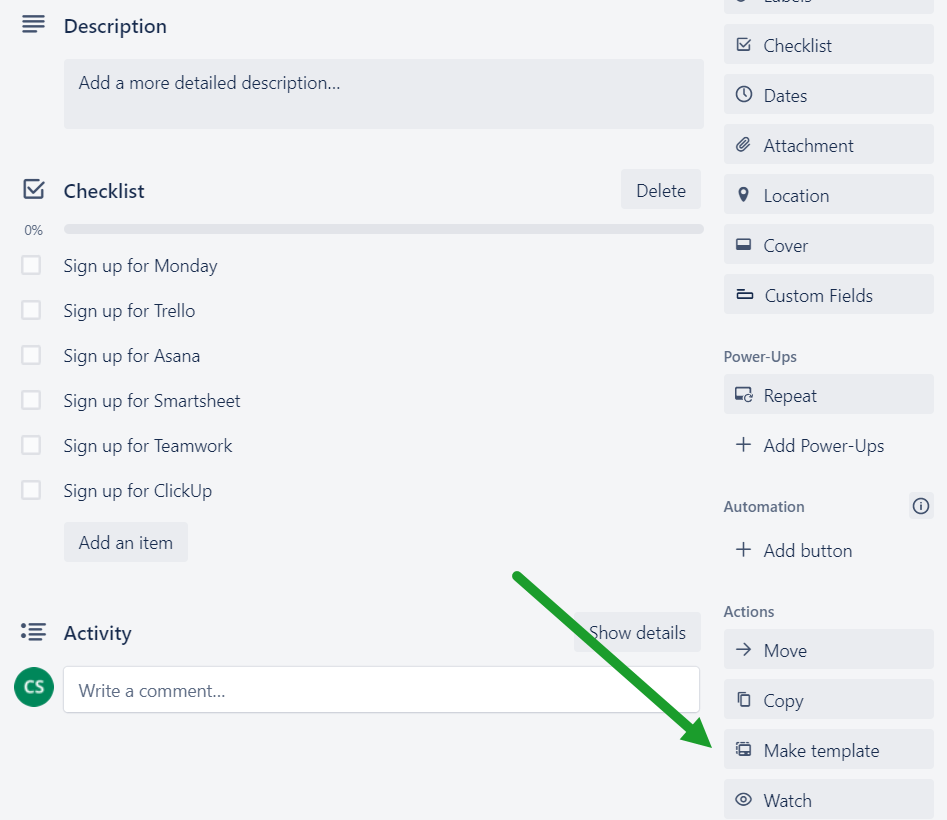
And here’s what a created template looks like in standard Kanban view.
Trello is versatile, too. Most teams now are remote, and some have members for whom English is not the native language. Trello swoops in with the ability to have your project management team select between 21 languages.
This can be a bonus to clear up possible confusion when communicating. Individual users can set their own language without affecting everyone else. Trello offers translations for two types of Chinese, Finnish, Italian, Turkish, and many others.
Other tools only have two or three languages to offer, so there’s a lot more to choose from here.
However, Trello’s low score comes from a lack of natural language processing, no persistent quick add button on every screen, and no advanced searching. So, it’s just not as effective for power users who want to add and manage tasks with the smallest possible number of clicks.
Task management: 3.5/5 – Trello comes in just above average in task management. After setting up what you want, you have several features to make tasks even easier to manage.
Let’s talk about intuitive task views. This lets you lay out your tasks in a way that is perfect for how your team works.
Even with a ton of information inside the task, it doesn’t look cluttered. Everything is in one place for you to see, with the most important information listed from top to bottom.
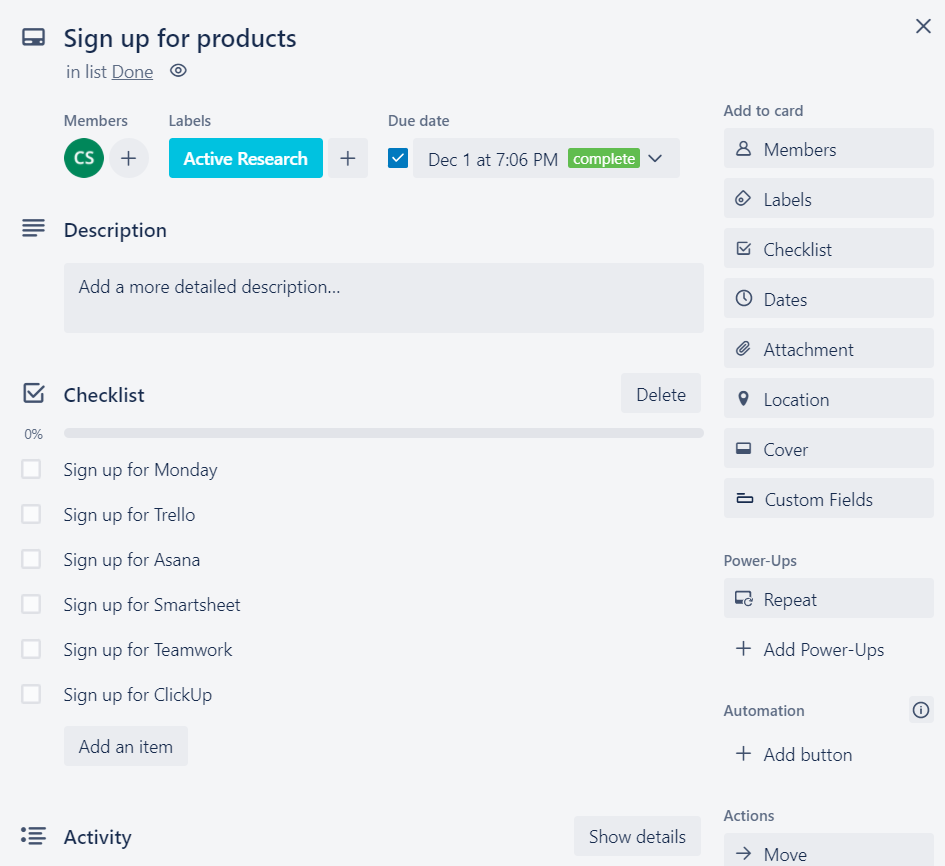
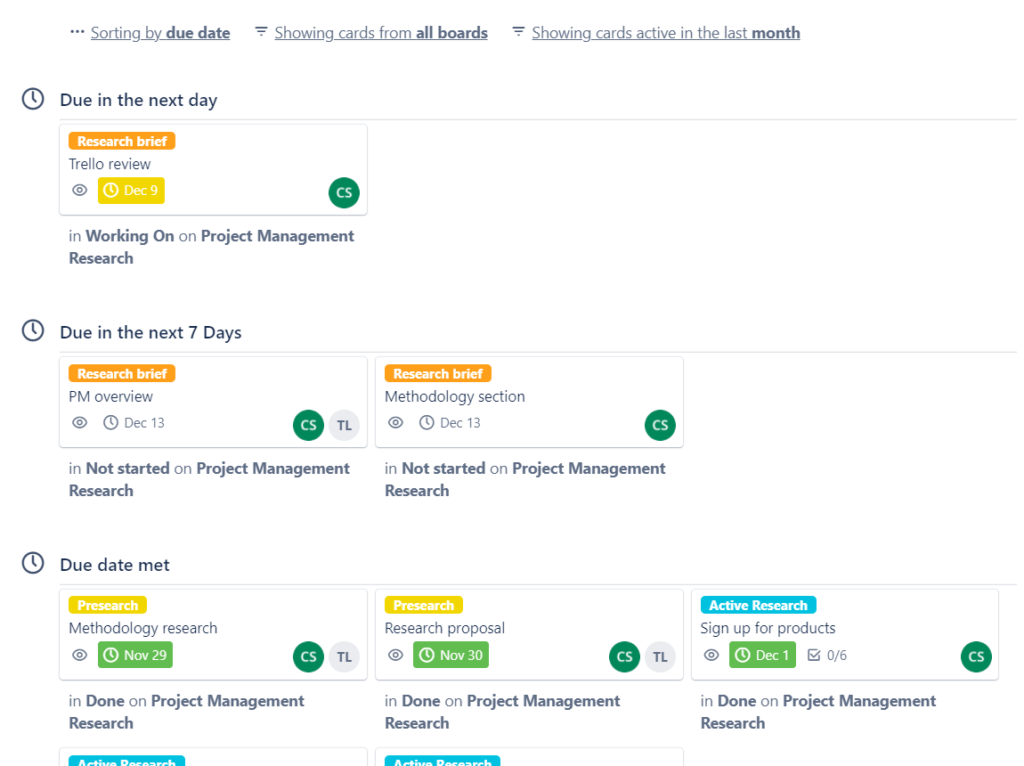
If you want to see all the cards assigned to you, just use your work area.
If you click on your user icon in the top right of the platform and click on Cards, you can see all the cards assigned to you across all of your projects in one place. Then, if you want, you can sort them by board or by due date.
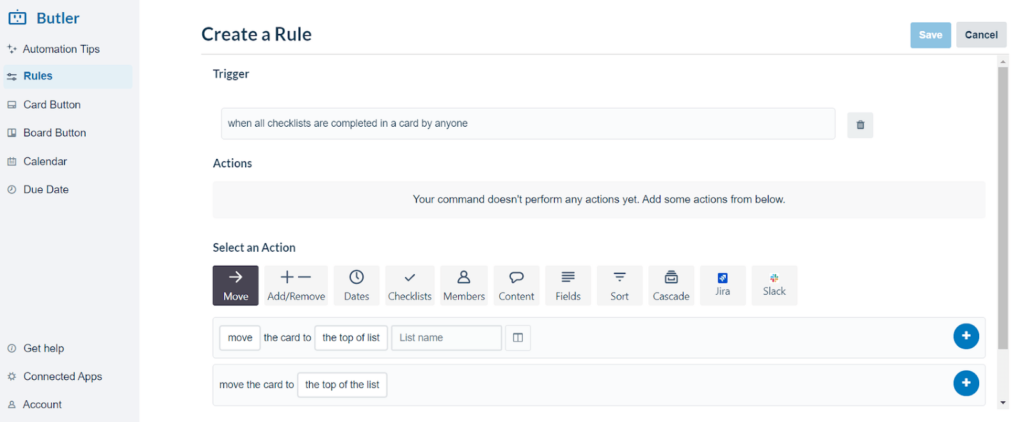
What’s nice about Trello is all plans, even the free one, include automations. If any of the cards in your work area can be automated, you can set that up.
There are four different automations inside Trello.
Set up rules with a trigger for a condition and desired action, which is great for building processes and workflows.
Or, add a button that triggers an action. When you click it, it triggers a desired action, like moving a card from one column to another and changing the assigned team member.
After that, we have due date commands. What this does is use a card’s due date as the trigger for which you can set the desired action.
The last automation type is calendar commands that run at set calendar intervals. In a simple example, say every Friday at midnight you can have all cards in the Done column archived, removing clutter from your Trello board.
The language used for automations is super simple and requires no experience to set up. Trello’s automation tool, called Butler, observes common actions you’ve done in the past, then gives recommendations on how to automate those actions.
If you want to make things even more streamlined, you can set up simple checklists for your cards too. Add one or many checklists in a single card to keep to-do items organized.
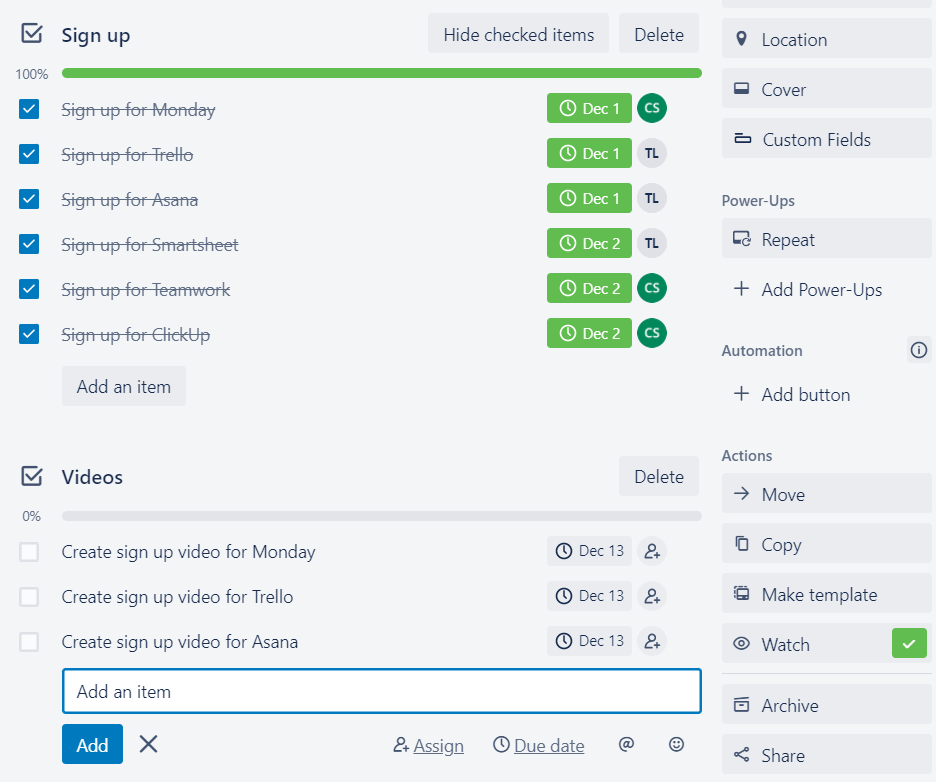
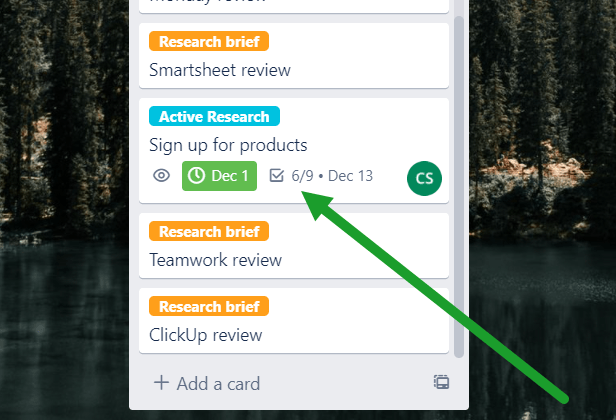
In your board, you can even see the number of checklist items and how many have been completed without opening up the card:
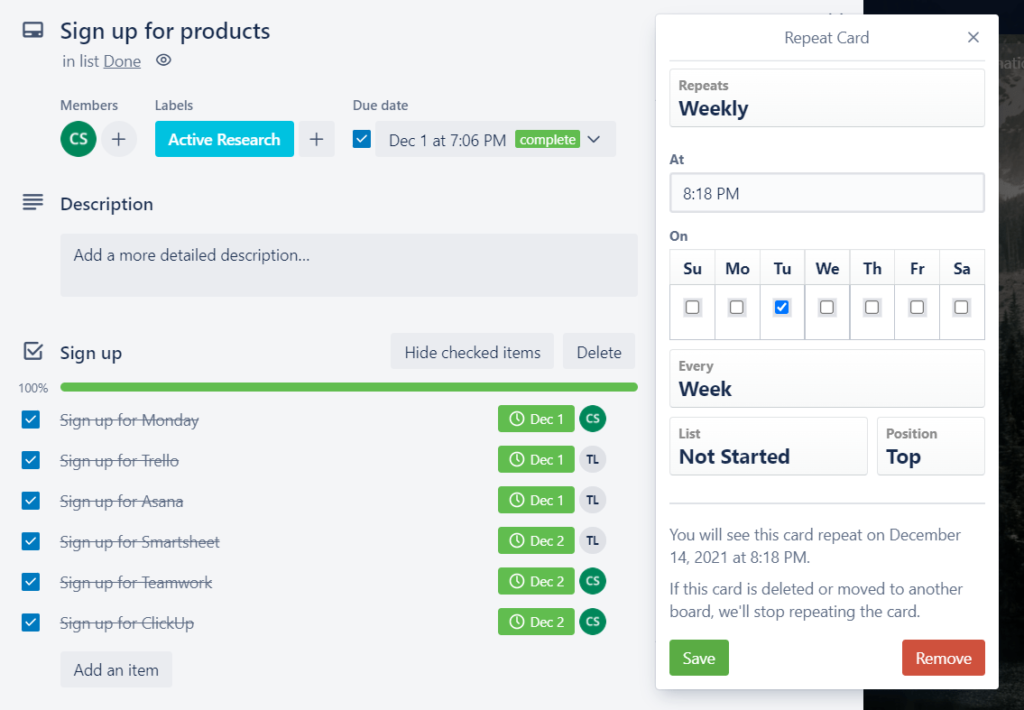
Adding recurring tasks is just as easy as setting up everything else.
Let’s face it, certain tasks can be automated, but some cards will have to be recreated over and over.
Why do that manually?
Creating recurring tasks is simple. Set what time the new card will be created and on what days of the week, plus which column it goes in and whether it repeats weekly, monthly, or yearly. That’s it.
You can even pick a number of weeks, months, and years you want this recurring card to repeat for.
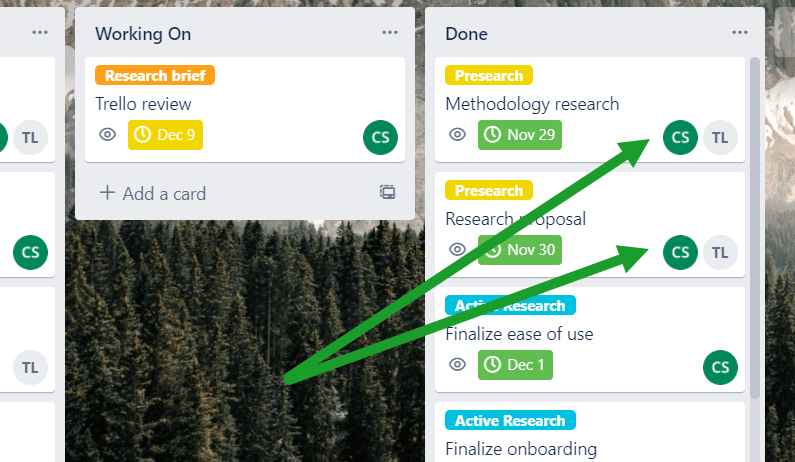
Cards allow for multiple assignees, too. The user icons will appear in the lower right corner of the card, clearly showing who has responsibility.
Say that card also needs some custom fields. You can make the task card exactly how you want it to look.
Add as many custom fields as you need to, choosing from options like checkbox, date, dropdown list, number, and text.
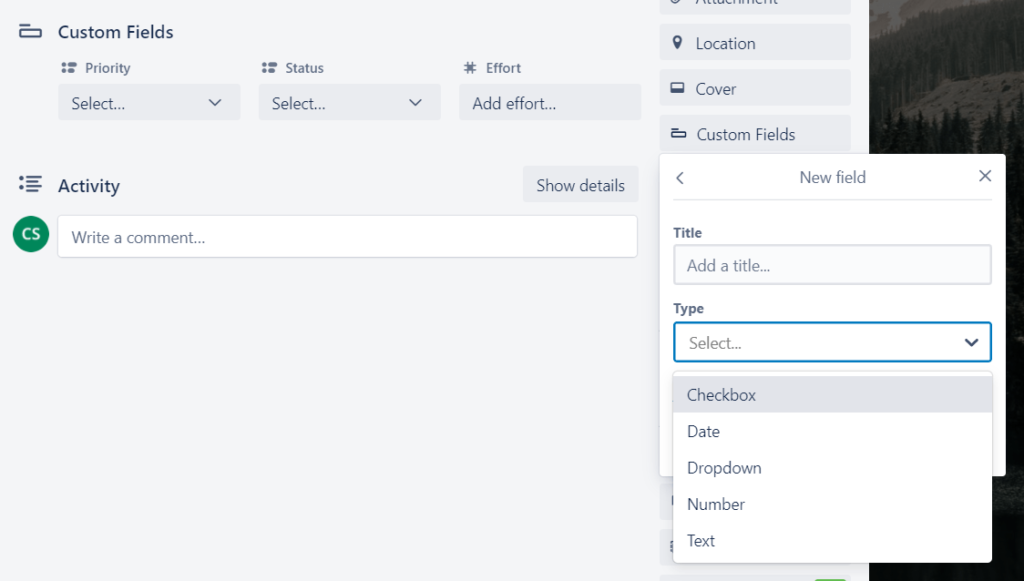
Custom fields will appear under the task description. They’re easy to set up, and they add depth and clarity to your task cards when things are a bit more complex.
And when you’ve got project items that require more than one person to get the job done, that’s when you need some in-platform help with collaboration.
Collaboration: 2/5 – There isn’t much to discuss in this category for Trello, as it’s not big on collaborative features.
It’s simple, so pinging and tagging people you work with is built in. You can leave comments for other users, but it’s not streamlined the way some other providers are.
You have unlimited document storage, which is instrumental when building processes for your business. If you have tons of SOPs or Google Doc templates, you don’t have to pay for storage. It’s only one of two providers who offer no limits on document storage.
An activity feed feature also lets you keep up with exactly how progress is moving.
There are two different activity feeds: your home feed and project-based feeds. Both are unlimited, with no time frame on how long activity logs are kept.
For the home feed, it’s all the tasks you’re assigned to.
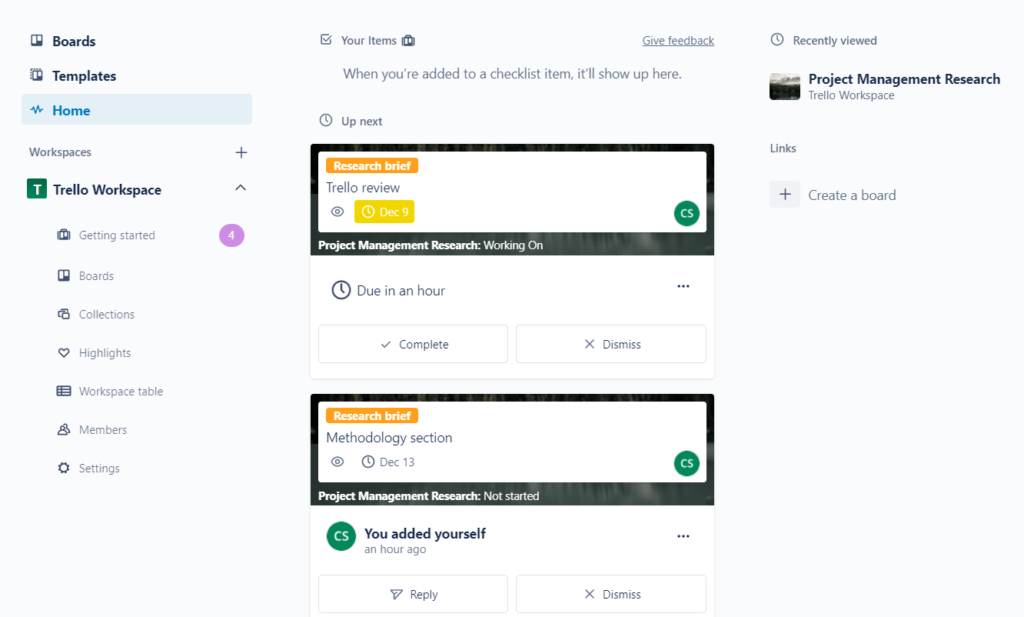
This feed shows your upcoming tasks in descending order. Click on a task to open it up, mark tasks as complete, change the due date, add comments, and assign a different user right from the feed.
The second one is the project-based feed which shows all of that project board’s activity by every user.
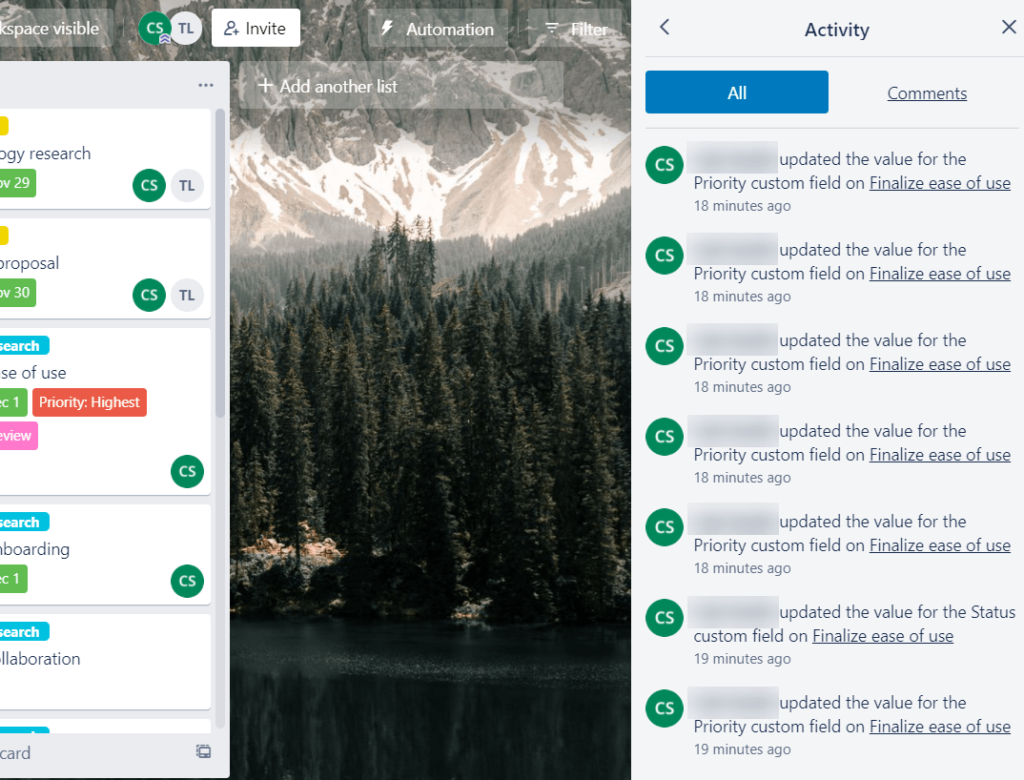
You can’t filter or sort within this feed, but you can look at a feed of user actions and comments on the board.
It would be nice to be able to see an activity feed for all projects in one place. But it’s not a deal breaker, especially if you’re dealing with relatively simple projects.
All in all, Trello has bare bones collaboration features. But integrations with all your favorite apps and software (like Slack) can make collaboration better than what you have now.
Keep in mind, this is for simple projects, so the comments within the cards are usually just fine for that purpose.
At Crazy Egg, we use Trello for our entire editorial calendar. Leaving comments and pings works fine in our crazy world, so we think it can work for you, too.
Workflow and Visibility: 0/5 – Not to sound like a recording or anything, but Trello isn’t meant for high-powered analytics.
It’s best for simple drag-and-drop Kanban projects, keeping you organized on less complicated projects.
Here is that typical Kanban view which Trello defaults to.
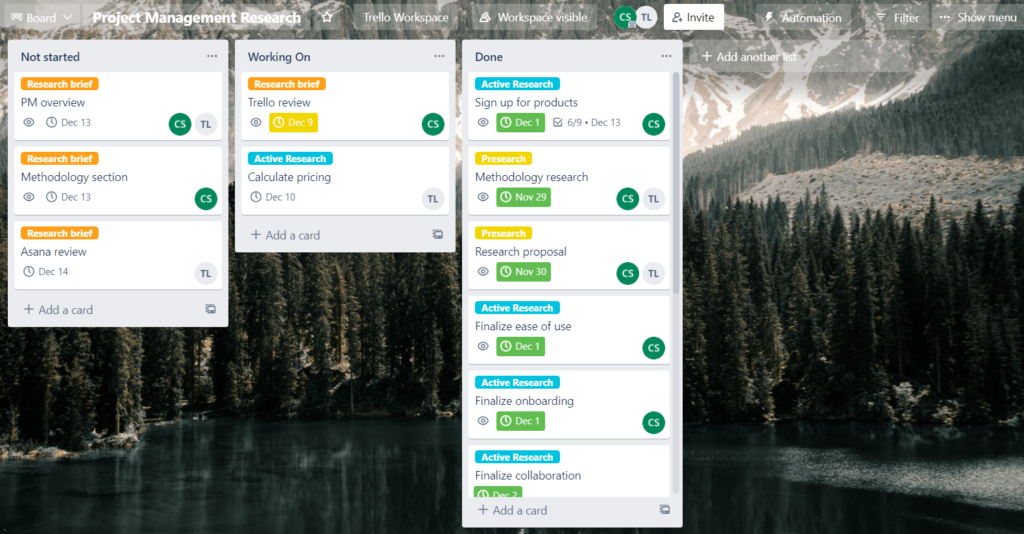
Kanban is at the core of what Trello does and it does it really really well. This simple, clean, intuitive interface is what allows Trello to work wonders on simple project management.
If you love Trello’s simplicity but find yourself needing additional views after you’ve grown bored of Kanban, you will need to upgrade to a higher tier.
If you want simple and easy-to-use tools for your small or medium-sized project, Trello grabs hold of your workflows and tightens up the loose ends in no time.
All you have to do is start with your first project and you will quickly see why it’s the best low-cost way to start with project management software. Try Trello risk-free right now to see for yourself.
#4 – Teamwork – Best for Client or Service-Based Businesses

Teamwork
Best Client-Based Work
Want a PM solution that also replaces your invoicing and team chat software? Get it all with one easy-to-swallow bill from Teamwork. You’ll get features no other PM software offers, like built-in invoicing and unlimited roles for clients, contractors, and other project viewers.
Overall: 3/5
It’s right there in the name—Teamwork. This provider focuses on making collaboration and workflow management powerful, because your success depends on working together with each other and with clients and stakeholders.
They give you a ton of features specific to running a client or service-based business. For example, Teamwork is the only PM software provider that gives you built-in invoicing.
Let’s dive into each category so you can unravel the benefits and see how you can use them within your projects.
- Pricing: 1/5
- Onboarding: 2/5
- Ease of use: 3.5/5
- Task management: 3.25/5
- Collaboration: 4/5
- Workflow and Visibility: 5/5
Pricing: 1/5 – Teamwork is tied for the most expensive project management provider on our list.
However it won’t feel like a raw deal because of the features you get, some of which normally require a whole new piece of software to pay for. Which, in turn, means a separate monthly or annual payment on top of your PM software.
Teamwork starts at $10 per user per month, equalling $30 each month for three users and a total of $360 if paid in full.
The monthly plan is $37.50 per month for the same three users—$450 for the year. That’s $12.50 per user each month.
The average monthly rate for three users across the rest of the providers is $23, so you can tell Teamwork is more expensive in comparison.
But Teamwork can also replace your invoicing and team chat software.
Invoicing software usually ranges from $10 to $20 per month if you run a smaller business. And if you use Slack or other team messaging software, that’s around $6.67 per user per month.
So, that can be an instant $15 to $40 of extra savings per month on software, depending on the size of your team.
There are two other pricing tiers available for Teamwork which offer more features and benefits, but we did not test those plans.
If you love how this all sounds but want to try a free version first before committing, that’s a great idea.
The free plan includes subtasks, dependencies, milestones, board and calendar views, Gantt charts, dashboards, tags, time tracking, and more.
You’re allowed up to five users and two projects with 100 MB of total storage.
However, it doesn’t have templates, billing and invoicing, custom branding, or integrations except Zapier.
Still, not bad for free, right?
And that entry-level pricing makes more sense when adding in the savings on invoicing and team chat software.
Onboarding: 2/5 – Teamwork has a lot of features and navigating the tool feels overwhelming when you’re logging in for the first time.
On top of that, there’s only a basic, high-level overview of the software to help you get started. It barely grazes the surface of how to use the tool, so you’re mostly on your own to figure that out.
When we first signed in, we were unsure of where to start, even to just set up our basic research project.
Starting from the beginning, you’ll enter your email, password, name, company, and phone number. Then, choose your industry, tell Teamwork the size of your company, and give your first project a name.
It’s up to you to add tasks, set their statuses, and choose a preferred project view. That can be a list, table, or board view.
Take a look below:
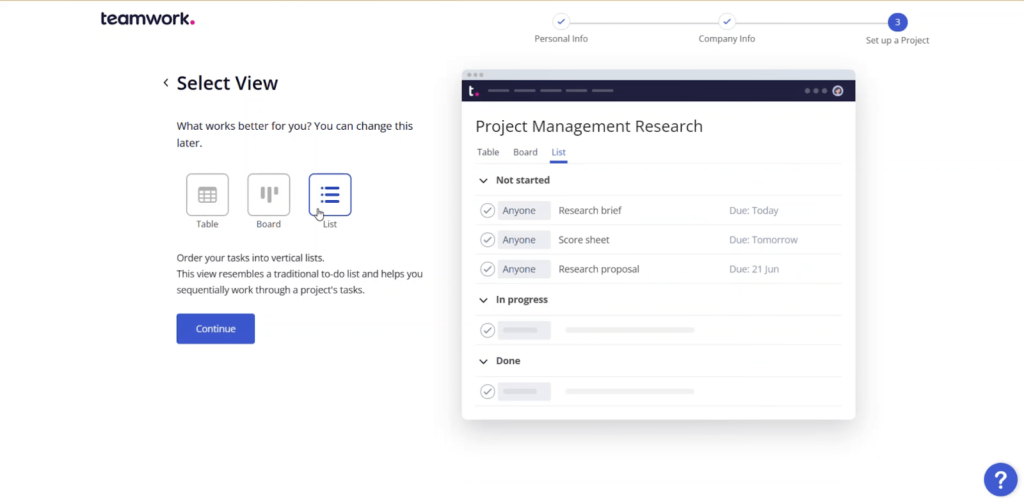
After selecting your view, you can invite your team and take a short tour of the software.
The tour covers tasks and task lists, milestones, projects, people, settings, and your home screen. It takes you to each of those areas and explains what that area does.
The initial tutorials and configuration of your first few tasks are great for understanding how the software works as a whole, but it doesn’t go into much detail.
It would be great to have more hands-on help while learning the software at the outset, like walking you through time tracking or setting billable hours.
Luckily, getting started and ease of use are different. Even though Teamwork has a lackluster showing in terms of onboarding, they do a much better job when you start really using the software.
Ease of use: 3.5/5 – Teamwork invites you to enjoy your experience by offering simple ways to navigate around and find what you’re looking for.
It’s easy to set up company profiles to group users and projects by client or brand.
Since you’re dealing with client and service-focused software, key features are included like file versioning, the ability to create project-level teams, billable hours, and custom branding. These are things other providers usually charge extra for.
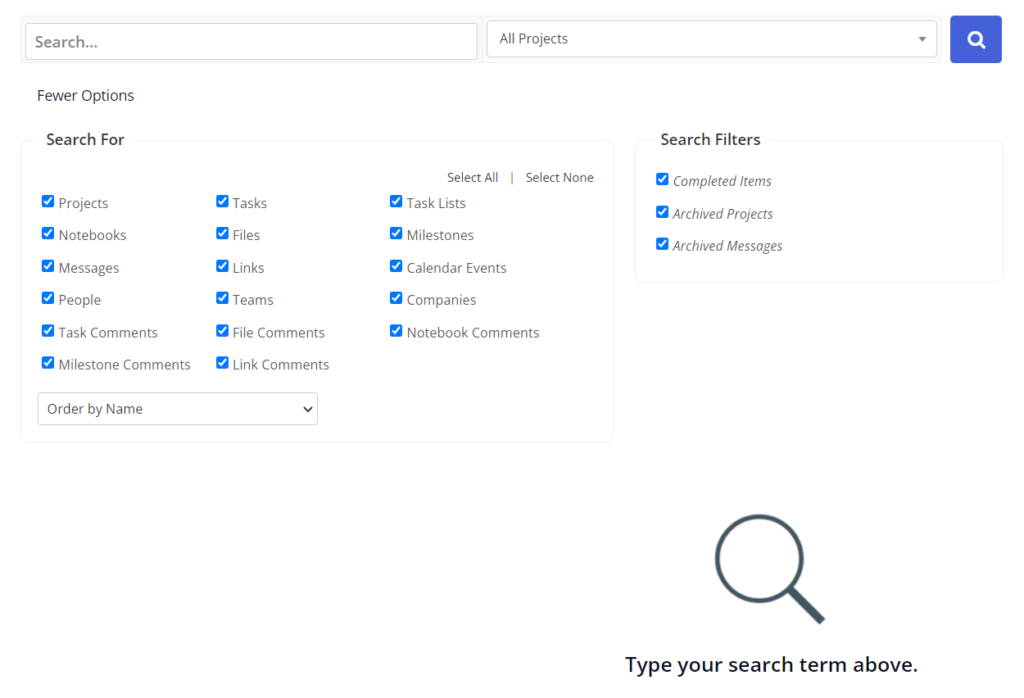
Advanced search features let you find anything in Teamwork’s interface with ease, and it’s very customizable.
Being able to drill down to find the things you’re looking for without having to dig through hundreds of tasks or projects makes your life so much easier.
You can search for client-specific tasks or projects, even if you have hundreds going on at the same time.
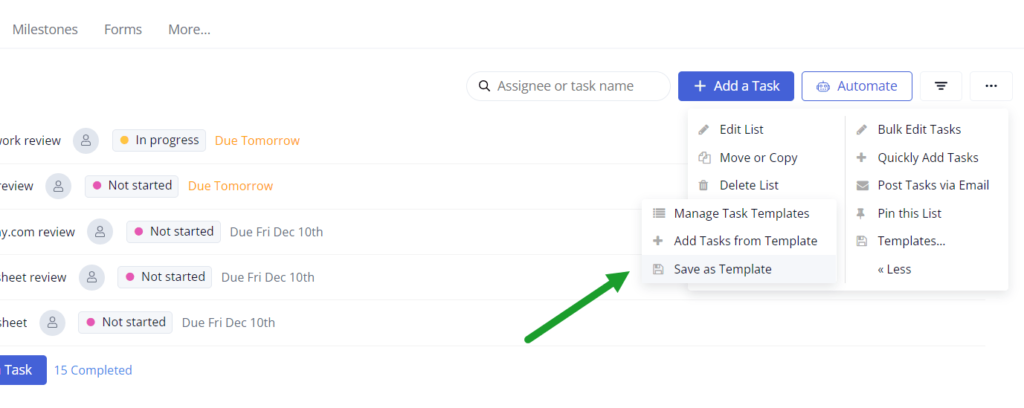
The ease of creating reusable task templates is also very important for sustainable use of this software. Make it easier to onboard clients, set approval processes, or any other routine work that’s repeated with each client or multiple times during a project
However, you can’t create templates for individual tasks. You can duplicate existing tasks, which is shown by the Save as a Template option in the image below. But you can’t create a standalone task template on its own.
Teamwork supports 48 different languages, so each user has the ability to work in the software using their preferred language without affecting anyone else’s work experience.
You might also need to make new project tasks or milestone goals as you make changes or updates to your project. The quick add button is how you can do that, regardless of the screen you’re on. There’s always a quick add button in the top right corner—just look for the plus sign.
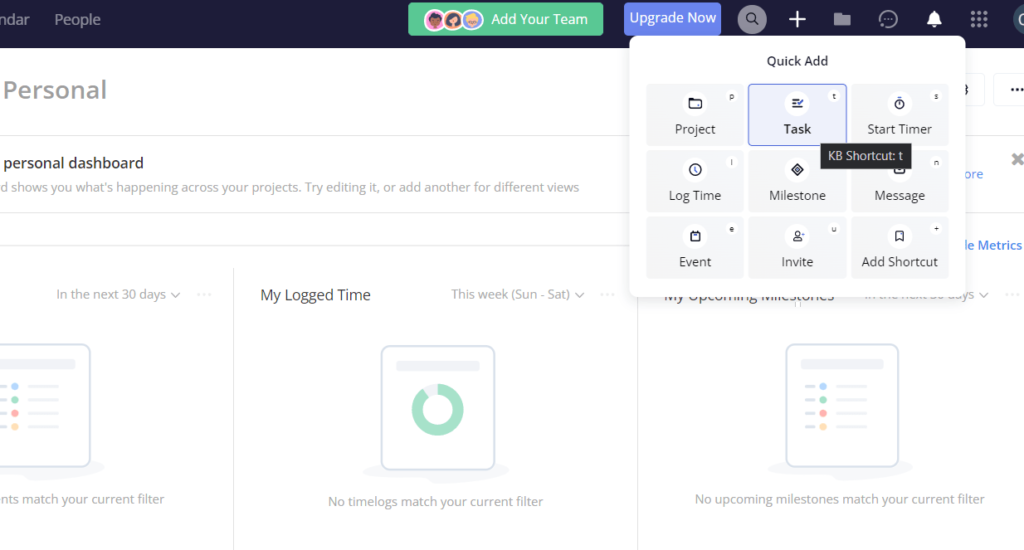
Start a timer, log time, or invite a teammate. Something that makes Teamwork’s quick add button unique is that you can add your own shortcuts depending on the types of things you do regularly.
Think how much time that saves. No other tools on this list offer this option to customize your quick add button’s options.
Task management: 3.25/5 – Having an intuitive task view means you can see more in one place, so you don’t have to go searching for what you need when reviewing a task.
Teamwork may score less than two other providers on the list, but this works better in their platform because you don’t have to scroll through extra clutter to find your information. You get a two-column view of tasks and subtasks by default.
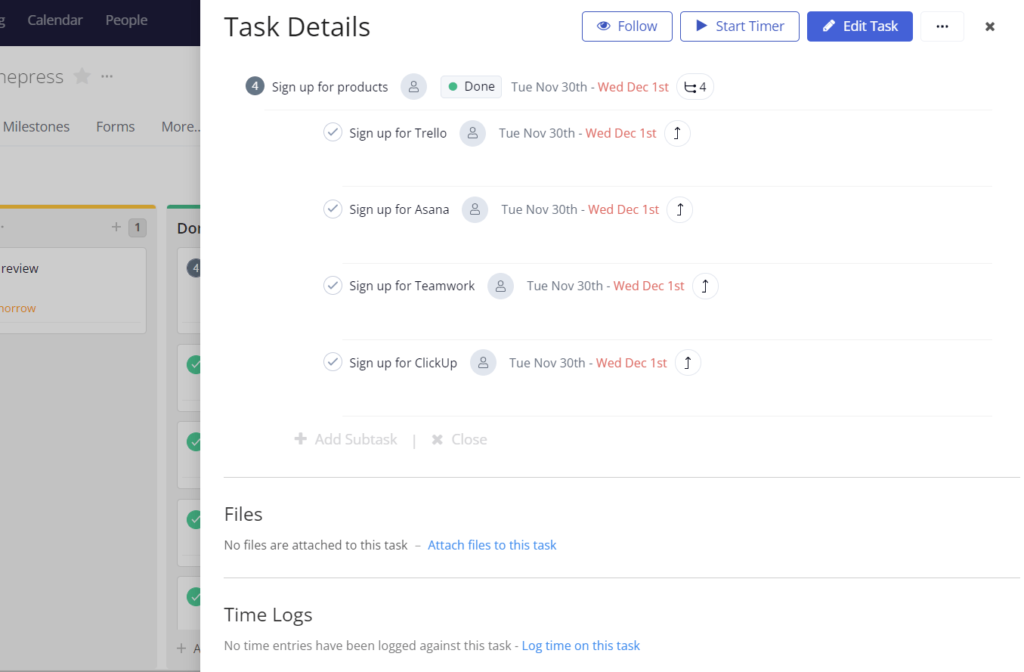
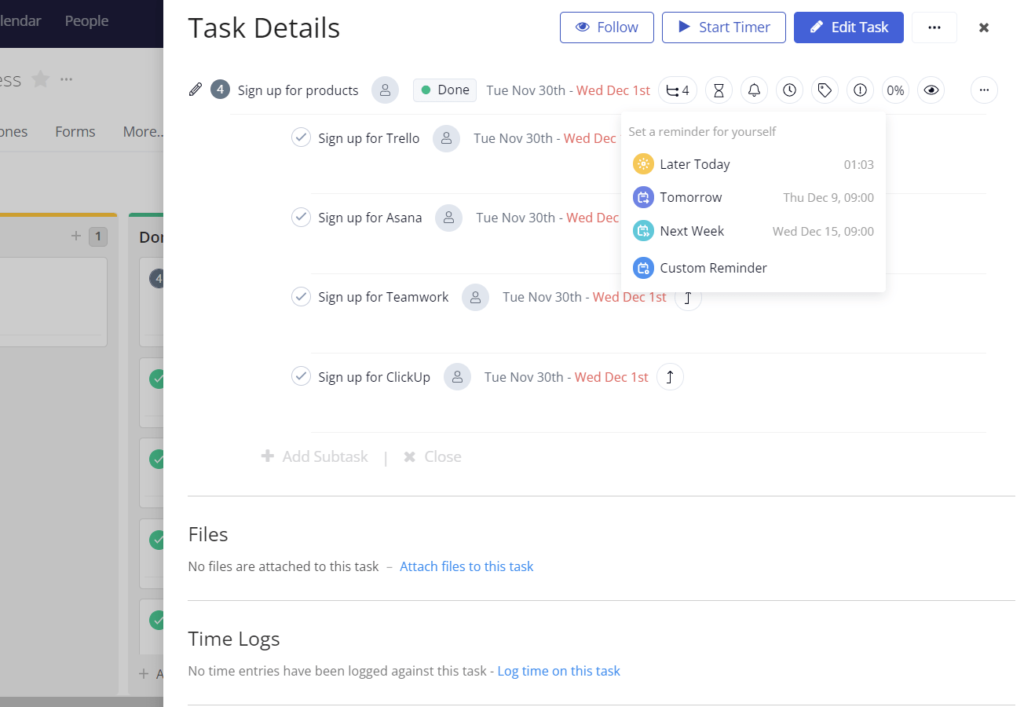
You don’t have to click on a task to see what’s embedded. Just hover over the task and, voila, it’s right there for you to see.
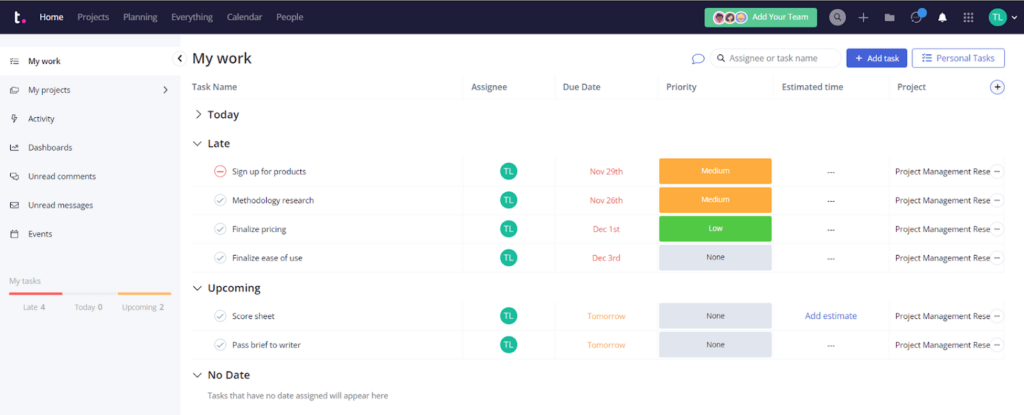
You can also use your home view to see all of the tasks assigned to you, organized by status.
To make this view much easier to manage, you can rearrange columns and add new ones to customize your personal view. Your workflow is clear the minute you look at your home screen in Teamwork.
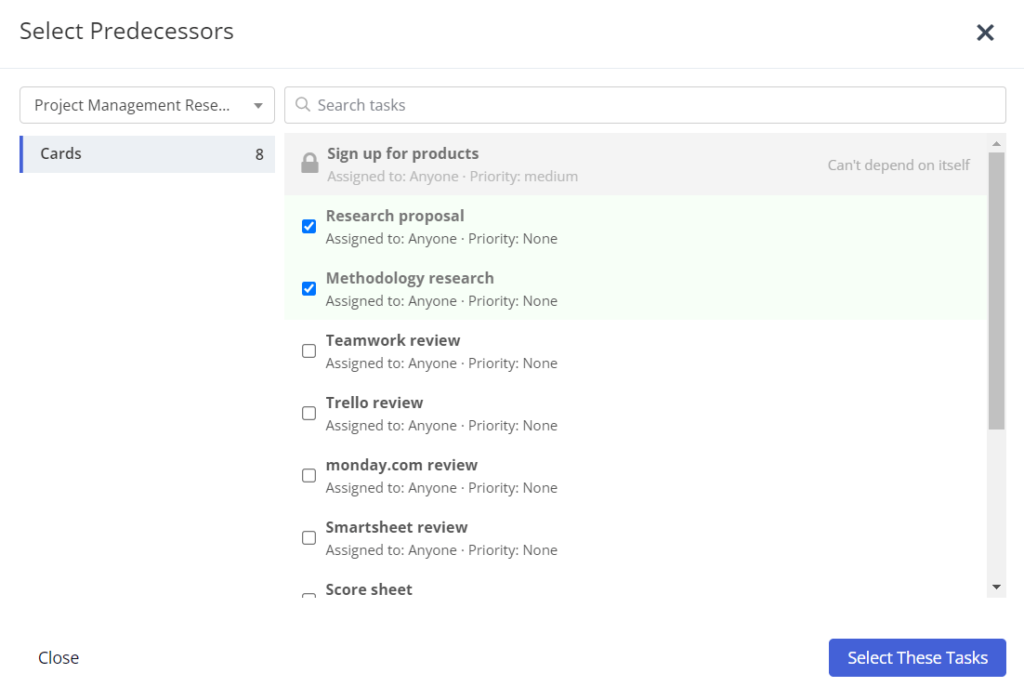
When editing a task, you can add dependencies. The only limitation is there’s only one dependency type, so whichever task you’re editing is the one that can’t start until its predecessors are complete.
Say you want to set up automations to remove busy work. You have up to 500 automation runs per month on the entry-level plan.
You’re able to create them from your imagination with the custom workflow builder. When creating your own, set a trigger and the project it applies to, then set a desired action.
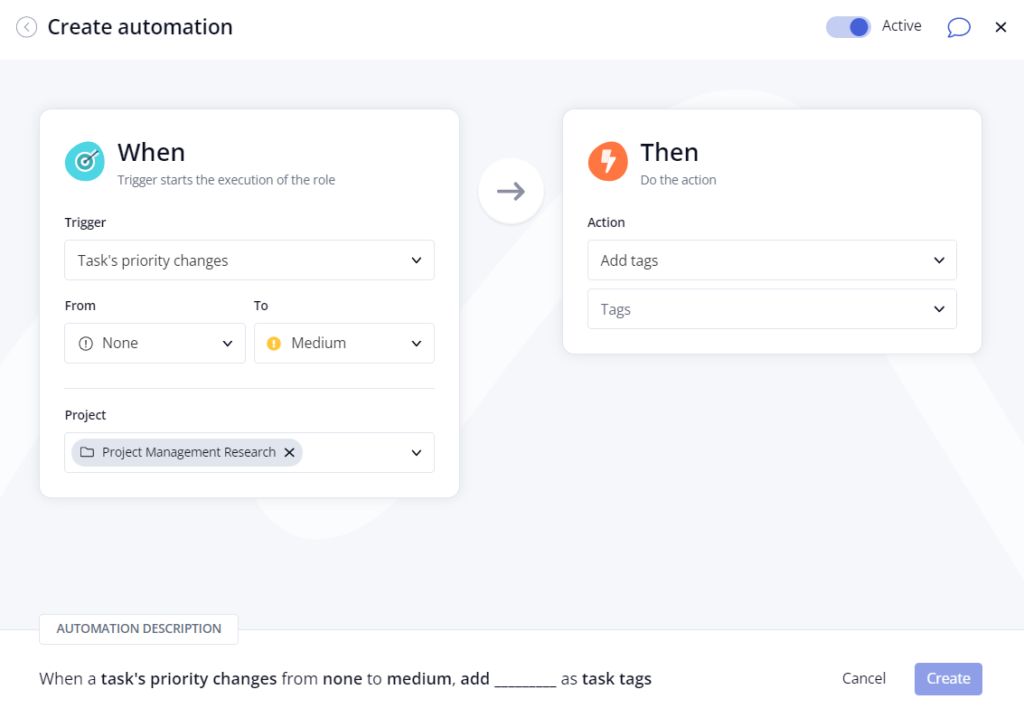
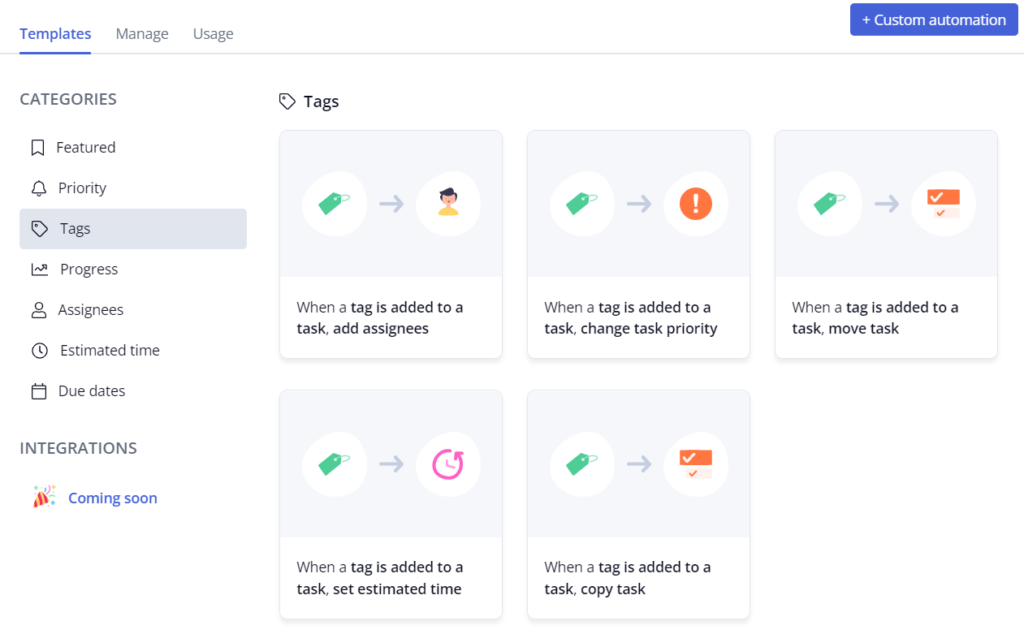
You don’t have to create them out of thin air either. Just use one of the 27 pre-built automations, like adding an assignee when a new task is added, changing a task priority when a tag is added, or notifying someone when a task is complete.
And if you want to create a recurring task, just set that up when you create the task originally. Repeat options are incredibly flexible, allowing you to fine-tune how and when recurring tasks are deployed.
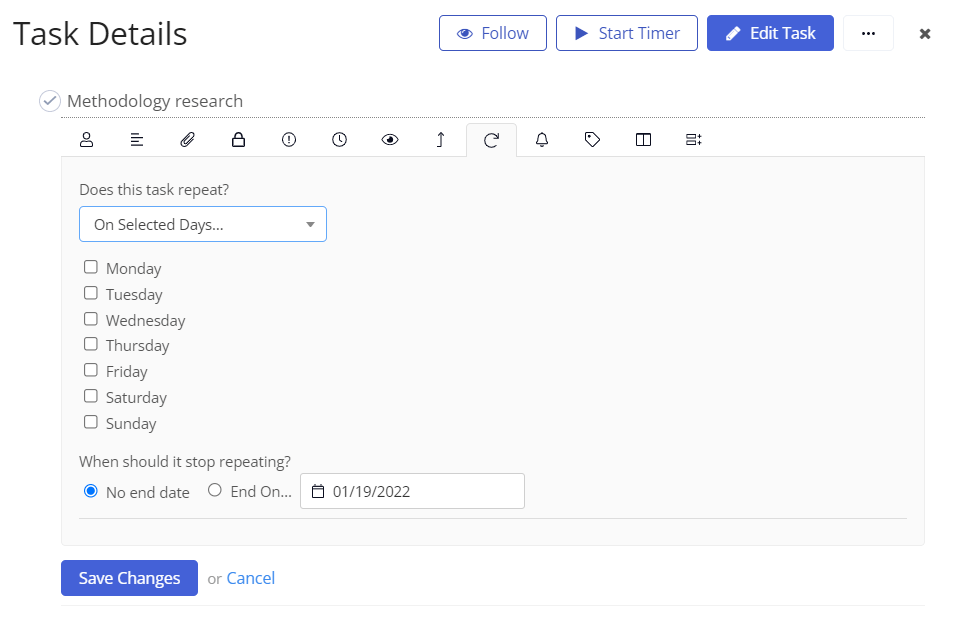
Honestly, the options on how you want to set up your tasks are nearly endless. This makes collaboration even easier, because you can just set up meeting and huddle schedules for the full quarter or year and never touch it again.
Speaking of which, Teamwork excels in the collaboration department. Keep reading to find out why Teamwork is truly the perfect name for this project management software.
Collaboration: 4/5 – Unlike other providers, Teamwork doesn’t put a stranglehold on the amount of people you can add to your projects.
You get unlimited client and collaborator accounts for free, an excellent and required feature for service or client-based businesses.
Invite all of your contractors and clients to join you without paying for a full seat. They can only work on the projects you invite them to. Not only that, but you can also set granular permissions for each type of role.
Every project has a separate message board for broad communications that don’t pertain to a specific task, great for getting feedback on deliverables, asking questions, and sharing wins.
You can look at messages in a condensed way with only the headings displayed, or in an expanded view where you can see all the contents of every message in a social media-style feed.
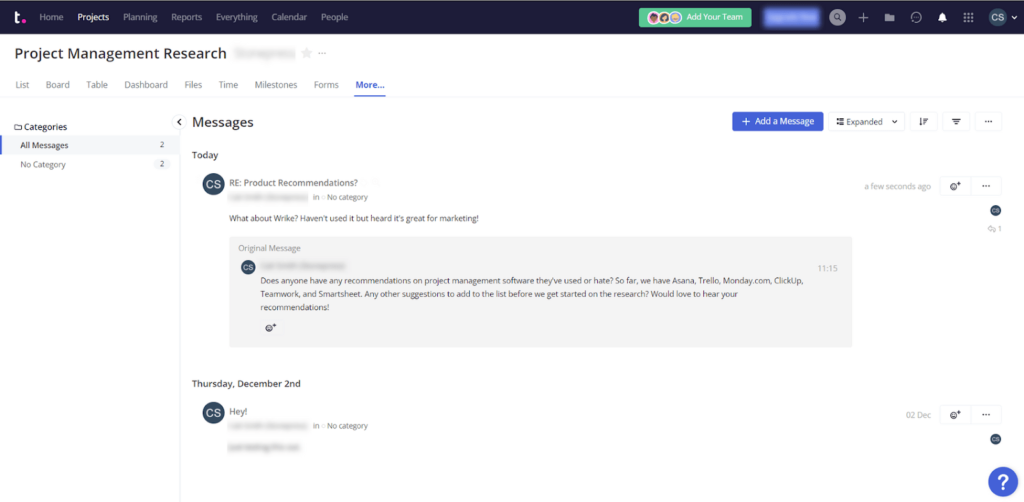
And if you feel you want even more organization, add message tags and categories to help keep the message board crisp and clean.
Document management and sharing is a snap as well. You can attach files to messages and decide which team members should be notified.
Your communication will be so clear, it’s impossible for anyone to get lost in the shuffle of a growing project. That’s always the biggest problem in project management, and you can solve it with Teamwork.
The activity feed feature Teamwork employs makes it super easy to see all activity across all of your projects. Just click Activity from within your home screen. Any user can see this, so everyone knows what’s happening.
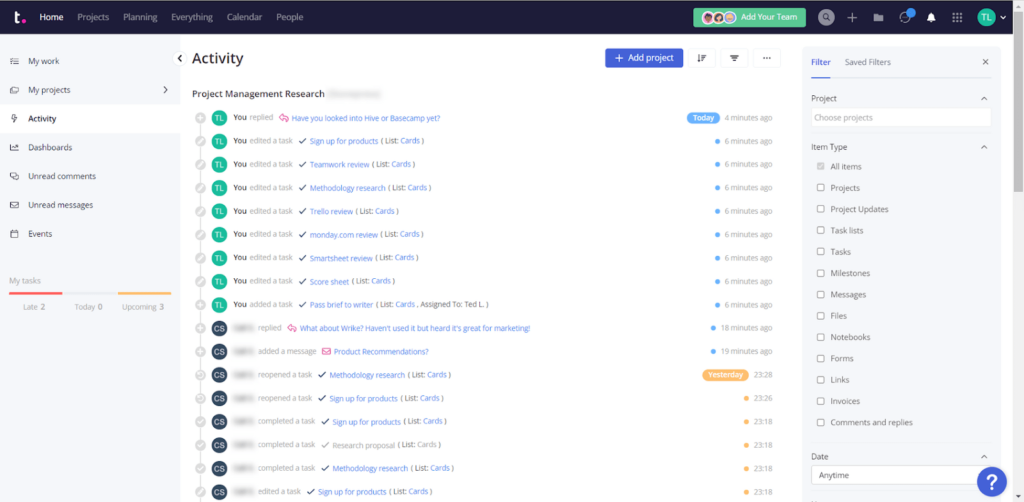
Activity view includes unlimited historical logs, so you always have everything at your disposal, rather than having activities disappear after a certain amount of time.
Sometimes you’ll need forms filled out or requests answered, especially when touching base with clients. Teamwork has a nice form builder for that.
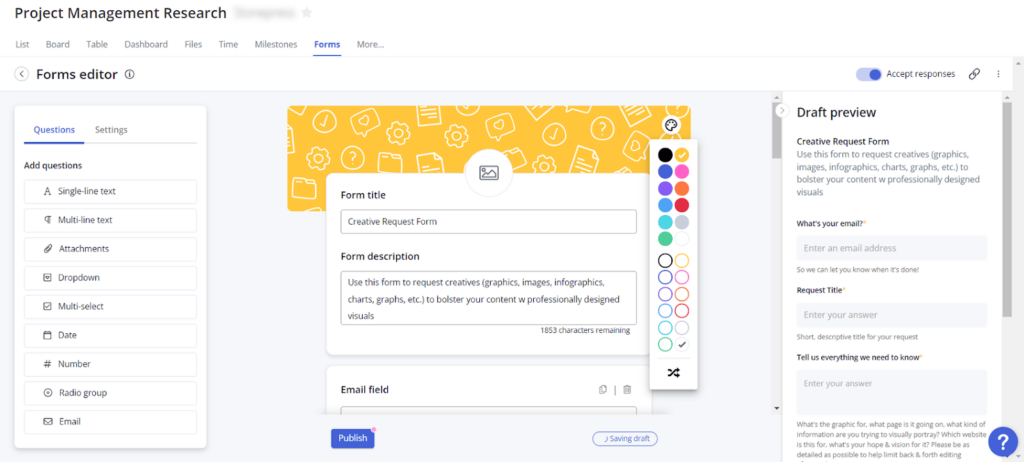
After you build your form, it’s easy to preview it to make sure it has all you want to include.
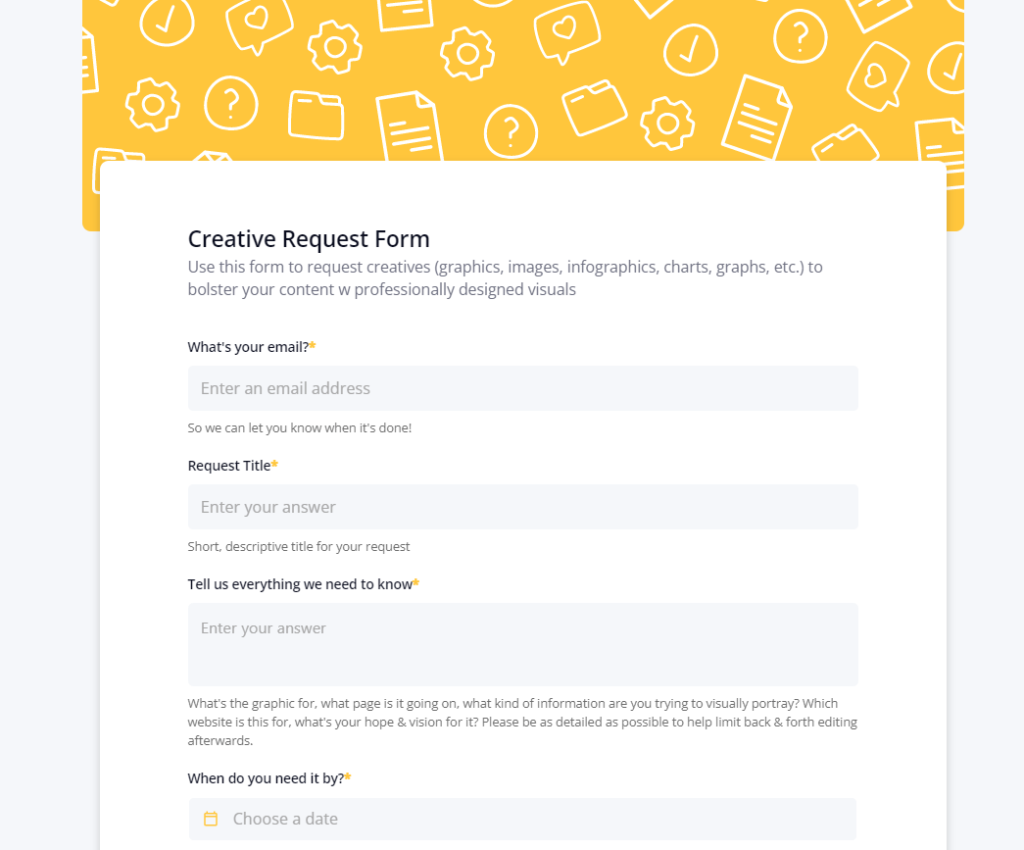
You have an unlimited number of forms you can create. The Teamwork logo is on all forms, however, unless you’re on the next tier up from the entry-level plan or higher. That’s a bit of a drawback for client work and your agency’s professionalism.
So what do you do, now that you have everything clicking in Teamwork? How do you keep all of your data front-and-center to drive even better results?
Easy, you focus on your workflows with Teamwork’s visibility feature set.
Workflow and Visibility: 5/5 – You can’t get any better than the workflow and visibility performance Teamwork shows for this category.
When you want to step to the next level of project management, you need to focus on your workflows and what those look like within your team.
For starters, if you need to track time for your projects, you can easily attach time logs to tasks and then tie it to billable hours for charging clients.
You can use the quick add button in the top right to start the timer or input a manual time log. If you work with freelancers, you can set the time as billable or non-billable.
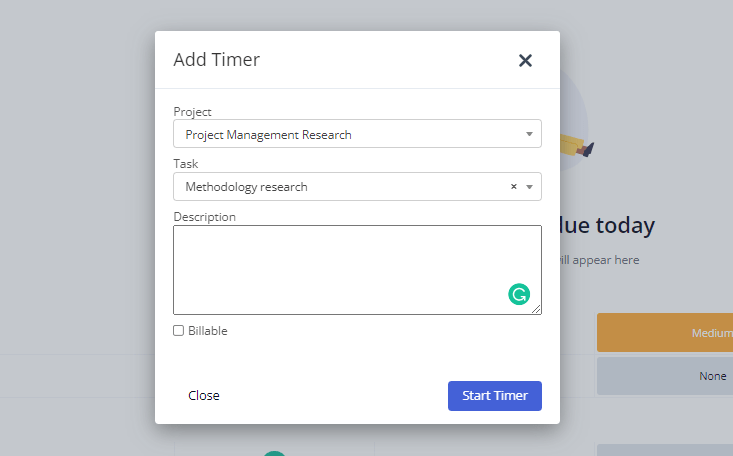
The best part is this is entirely built-in to Teamwork, with no integrations required.
When it comes to dashboards, you’re given two types—global or project-based.
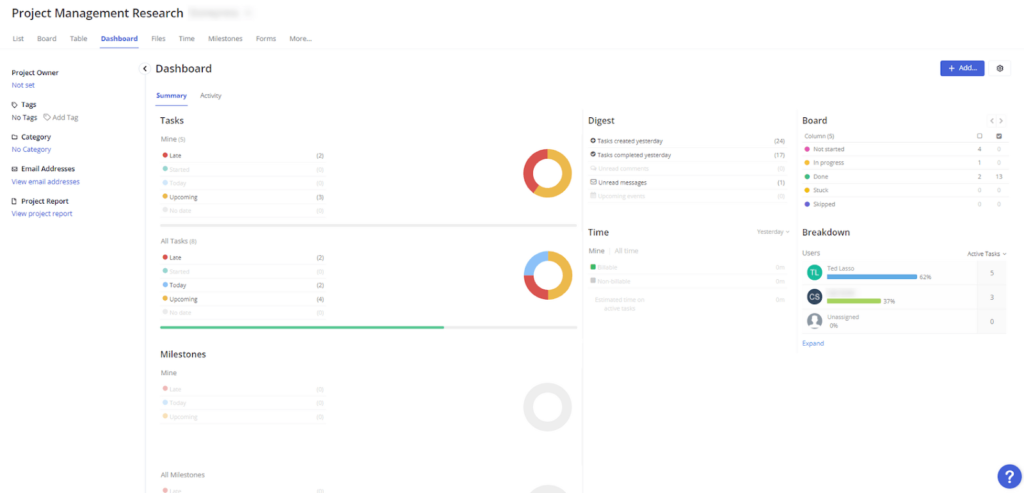
Each project comes with a pre-built dashboard that covers your tasks by status, the number of tasks created, unread messages, a breakdown of active tasks by assignee, milestones, and project trends.
Here’s what a project-based dashboard looks like.
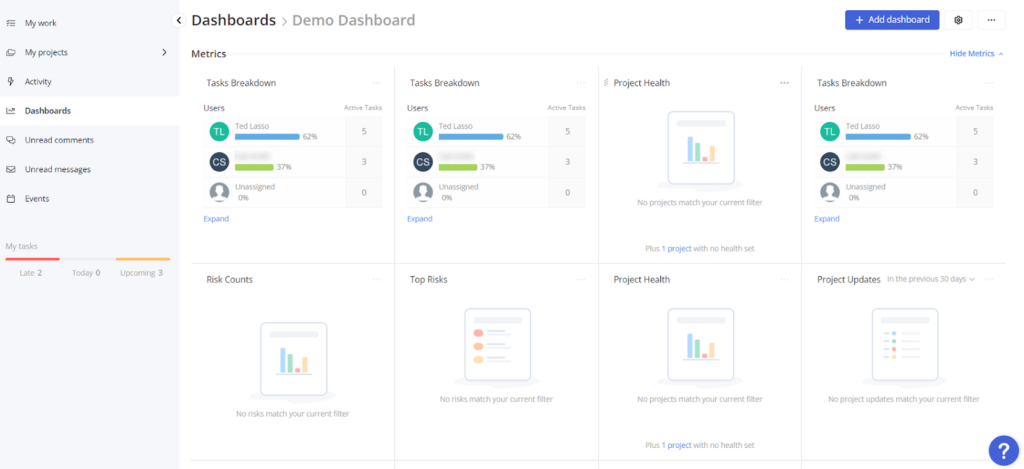
Global dashboards are more customizable. Each user can create their own dashboards that cover everything across all the projects they’re assigned to, working on, or managing.
You can create as many dashboards as you’d like. Design personal dashboards for just you with only your tasks and projects or starred dashboards for projects you’ve added to your favorites.
Add dozens of different widgets (Teamwork calls them panels) for different types of things, including task breakdowns, project health, latest project updates, and more.
A global dashboard looks like this in the software:
Gantt charts are also used so much in the project management space that it could lead to anarchy if Teamwork left them out. So the software automatically creates Gantt charts for each project.
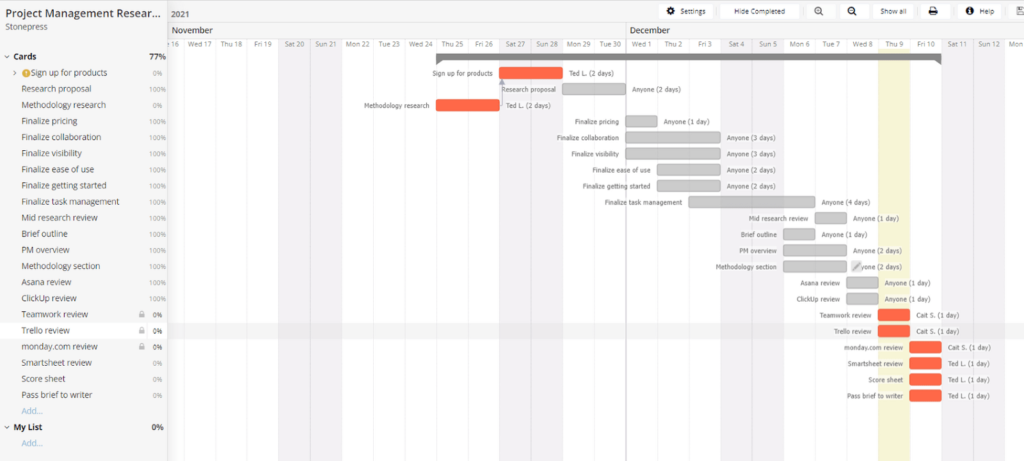
You can hide or show completed tasks, hide or show weekends, turn autosave off or on, and select how dependent tasks are moved.
Your visibility for the project can be rearranged for tasks, you can change the start and due dates, set dependencies, view dependencies, assign tasks, everything in between.
It makes it super easy to plan projects and get a timeline look at when each task and the entire project will be done.
You also have list, table, and calendar views. And, let’s not forget, a trusty Kanban view for a simple board-based approach:
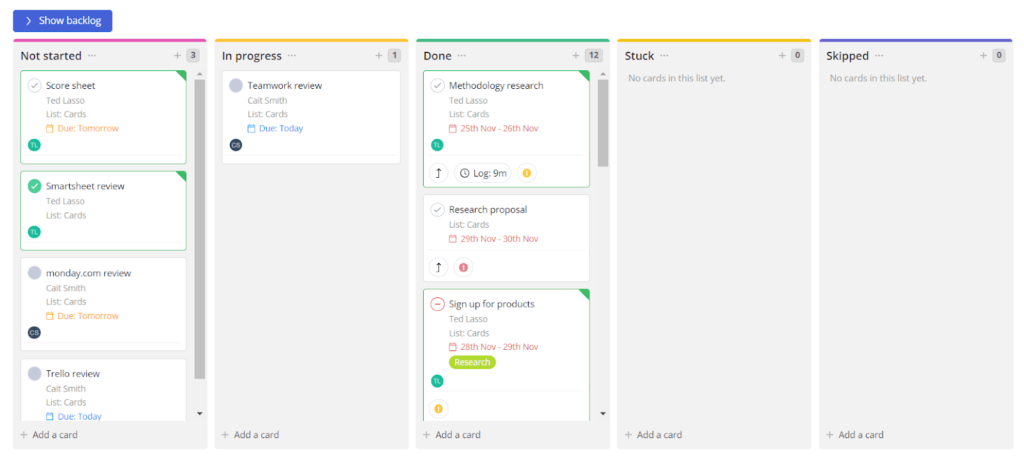
Teamwork keeps you in the loop with so many different ways to see how your project and team are getting things done, you would find it hard not to be organized.
With so many features for client and service-based businesses, you can’t ignore how useful this software is and how it can take you from where you might be struggling now to thriving beyond what you thought could be possible.
The built-in time tracking, unlimited users for collaborating, and the easy navigation makes this perfect for you, no matter the industry you serve. Grab hold of Teamwork’s business-changing software and create the environment of consistency you deserve.
#5 – Monday.com – The Best for Partnering Sales with Project Management

Monday.com
Best for Sales + PM
Supercharge your sales campaigns with the combination of CRM and PM software that Monday.com offers. You’ll get all the crucial tools for managing sales cycles long or short, plus incredible visibility into your prospects, deals, sales journeys, and touch points.
One of the biggest issues facing project managers and teams of all sizes is a lack of visibility. Who’s working on what, is it on track, and what needs to happen next? Not only is it crucial for you to know, but it’s also critical that everyone on the team knows as well.
Monday.com takes the guesswork out of your entire project from start to finish.
With it, you can easily fill in the gaps that many other project management solutions miss, even if you’re not quite sure where those gaps are. Whether you need a simple tool to help keep track of tasks, are struggling to move forward with a different project management tool, or need an advanced solution that’s malleable enough to work how you work, it’s an excellent choice.
It makes it easier than ever to identify bottlenecks and roadblocks while implementing proven processes to eliminate those setbacks, to begin with.

With Monday.com, you can easily set up automations from scratch or leverage automation templates that make collaborating with your team and managing tasks a breeze. It also acts as a centralized repository for your files, conversations, and workflows.
As such, you and your team can say goodbye to alt-tabbing to all those other programs you have open.
For individual users, work views offer clear insight into what’s happening today and what needs to happen next. Users can also quickly switch between calendar, Kanban, and timeline views so they can look at their upcoming tasks in a way that makes sense for them.
Next time someone says “Hey, what’s your status?” you can point to green checkmarks across the board rather than explaining the status of everyone over the course of five or ten minutes.
Admins and organizers can choose from hundreds of fully customizable templates in just a few clicks to get project boards set up and ready to go in just a few clicks. What used to take days of fumbling and guesswork now takes less than a minute.
After you have your project ready to go, your team can use time tracking tools and collaborative boards to make sure work is progressing.
You can also set up recurring automations to eliminate repetitive tasks so everyone can spend time on actually getting work done rather than managing the software.
Monday.com also comes with a boatload of integrations. Their most popular available options include integrations with Zoom, Slack, Salesforce, Outlook, Excel, and Zendesk.
So, you can connect the existing apps and software your team already uses.
Monday.com offers a free plan for up to two users with unlimited boards but limited features. If that’s not enough for you, its paid plans are affordable and you can start with a 14-day free trial to take it for a test drive before you invest. Paid plans include:
- Basic – $8 per user per month
- Standard – $10 per user per month
- Pro – $16 per user per month
- Enterprise – Custom pricing
As you can see, the introductory plan is incredibly affordable.
Think about where you are and where you’d like to be 30 days from now. Is being uncertain and guessing about which strategies are an effective part of that equation?
Or would you like to be executing confidently and accepting the praise for your team and their focus?
This slam dunk software will give you win after win.
Sign up for a 14-day free trial to see if it’s right for you!
Methodology for choosing project management software
There are hundreds of project management tools out there with dozens of different features to sift through. We did the heavy lifting for you and identified the most important factors to consider—then we used them to distill that massive list down to our top five recommendations.
Paying Close Attention To Ease Of Use
You know that getting started quickly is crucial to your success when setting up a project. Time is of the essence. You want to feel confident you know what you’re doing.
Any software will have some learning curve. But how long it takes to get your team up and running can make all the difference.
Entire teams can fold under the pressure of learning new software, causing an enormous amount of frustration. You want to be the PM that keeps this unneeded aggravation out of the equation for your team.
So, when you’re selecting a project management provider, you want to select one that allows you to easily navigate its resources and features.
You want one that gives your team the flexibility to use a mobile option as well. Not all projects are completed or updated in front of a laptop or in the office.
When you’re reviewing your options, make sure easy access to mobile-friendly updates and messaging are part of the plan. Keep your focus on what will be best and useful for your team and place ease of use at the forefront of your decision. This will keep your team thriving and your project accessible to all that need to be involved.
Get What You Expect Without Unexpected Costs
No one likes getting something they can’t really use. You can easily reach a boiling point if you are paying for software that doesn’t deliver on your expectations.
Several providers offer the bells and whistles to lure you into making them your top choice. But is what they’re giving you really beneficial to your project team? Access to reporting is important, but is deep reporting as critical to you as rock-solid project messaging?
Getting features you actually use in a basic plan makes your workflow a snap. You should not have to pay for advanced features you feel should be part of the plan at the base level. Many providers offer exactly what you need at an affordable price without the extras.
Staying on budget and making sure you know where every dollar is spent is part of responsible project management. So having to pony up more cash for the standard features your team needs is not ideal. You don’t want to pay for a warehouse of features you’re never going to use.
Can you imagine needing to calculate formulas for your project proposal and not having the means to do so? Or, paying a monthly fee for services and still having to painstakingly create a dinosaur report in excel or Google Sheets? Why?
Some software doesn’t offer alerts to tell you project deadlines are coming due. Can you believe that? It’s an extra fee. C’mon, really? And that’s the point.
If you want reporting, formula calculation, and alerts to keep your team on track you should get it without paying a king’s ransom.
Keep your budget and sanity intact when you pull the trigger on a provider by keeping the main features and benefits you need front-and-center. This will prevent surprises and long calls with support trying to find out why you can’t build the reports you need.
Workflow Templates That Are Quick And Easy
Templates make your life easier. Being able to plan your projects based on your team’s specific workflow is what you’re paying for, right?
You don’t want to continuously hack together workflows and spend precious time putting together documents for employees that need step-by-step instructions. You should have a quick and simple way to point and click and send a document that says, “Follow this”.
Your day is busy enough as it is. Collaboration is at the core of project management; you don’t do it alone. And when you have remote teams, collaboration tools become even more critical.
Having a provider that gives you outlines for Agile and Kanban-style project management can really save you time. And, if you use a different methodology like Waterfall or Pert, you should have the flexibility to adjust templates quickly. Not have to make them from scratch.
You also want to be able to design your workflow how you see fit and easily adjust things on the fly, so you keep things running smoothly. Several providers on this list offer project templates for any situation you can manage, and they come standard without any extra fees or surprises.
Live Integrations in 5 Minutes or Less
Your time as a project manager is thin like prosciutto. You need to take every opportunity to make your daily tasks easier. That’s what integrations do.
When you find a good PM software provider, those integrations ought to be ready to be used instantly.
Here’s how it works.
Find the software you’re currently using, like Slack or Salesforce. With a few clicks, you tie that software to your PM platform, so all your data from Salesforce or communications through your Slack channels are now accessible too within your PM software.
No more alt-tabbing between windows for you!
Why is this important? Well, if you consider the number of tabs you have open now in your browser, how much time do you think adds up as you sift through them all?
If you think this doesn’t compound wasted time, think again.
If you use Google Drive, Slack, Quickbooks, or a CRM daily, you will instantly benefit from integration.
They immediately make your project management software a living, breathing project hub of cross-team collaboration. So, no matter where your work needs to happen, your team is ready to execute with no time wasted.
Another good example is if you work in software and you need to include something like GitHub to check code or update branches. If you have to bounce back and forth between platforms, how efficient are you?
The simplicity you create by adding a simple button to upload your codebase is priceless.
The providers on this list offer 100s of integration options to choose from. Heck, you might even add a few to the workflow you’re not using now and make your team even more efficient.
Wouldn’t that be nice? Even if you don’t think you have a use for them now, at some point they will save you on frustration and give you godlike power over your time later.
Can you see why you need to make this a priority?
Focused Provider Selection That Pays Off
Are you seeing the theme we’re painting for you here?
You get to take valuable back time with PM software. You also maximize accuracy and keep your team on the straight and narrow to hit deadlines every time.
Plus, you’ll have all the answers when your boss says, “Hey, how are things going?”.
When you focus on your provider selection and laser in on what the best options for your team are, you magnify your leadership qualities at a rapid rate. And begin to hit deadlines for delivering quality work with ease.
Imagine confidently saying your project will come in ahead of schedule because of your planning. Think you’ll get noticed? A provider like LiquidPlanner can make that happen over and over again.
But let’s be honest here, not every provider can give you what you need.
That’s why we have a list.
Picking what’s best for your business or team can sound simple but is often quite nuanced.
Many business owners take advice from colleagues about what software to use. You might even take recommendations from friends on what works from them—and that’s fine, but following through on them without doing your own research is gambling without knowing the odds.
And if you have made this mistake in the past, it’s ok. It’s normal. Many a project manager sits back, looking at the outcome and wondering, “What the heck happened?”.
But now you know better.
Some providers will not cater to your style of project management, they won’t have the resources you need, and even if they work for your friends, they might not be right for you.
And worse off, selecting a provider solely on features doesn’t prove they have the chops to help your bottom line or flood your agency with more clients than you know what to do with.
So how do you pick?
The simple rule is to look at your project management style, and see if the provider you’re looking into caters to your way of planning.
All-in-one platforms give you a little bit of everything. But SaaS development and product creation have different workflows that require specificity in feature sets.
PM philosophy matters a lot, too.
If you use Agile or Kanban, look at that as your primary starting point for winnowing out poor choices. Whatever your planning methodology, if your team is familiar with the style; it makes sense to give them what they’re comfortable using.
Then look at the features that will benefit the layers of your project. Keep both eyes on what matters most to your workflow and select a provider that gives you what you need.
Ask yourself if an attractive PM software provider has the flexibility that allows you to maneuver throughout projects easily, making adjustments as needed?
Do they have the resources, the visual aids, and the templates you need? Will your team be able to easily apply the software? Will you be able to confidently complete this project with an end date you can believe in?
The best way to get these answers is to test. It’s not the sexiest answer, but it’s how you make the right choice. Take your time and utilize free trial periods with a focus on the ideas above.
Besides, you’re not picking a pair of sneakers here.
You’re selecting how your business and team will grow their reputation and revenue streams. It’s worth your focused attention, right?
ClickUp
Best for Most
Get everything you want from PM software at the best price point around. The entry-level plan from ClickUp alone comes with the best collaboration tools, workflow customization options, and flexible project views among the products on this list, all for the starting price of $5 per user per month.
Summary
In summary, the best project management software for you depends on how you plan to use it. Looking for something versatile and flexible? ClickUp is our #1 recommendation.
Its superior set of features and tools offer an efficient way to manage projects of any size in any industry.


