


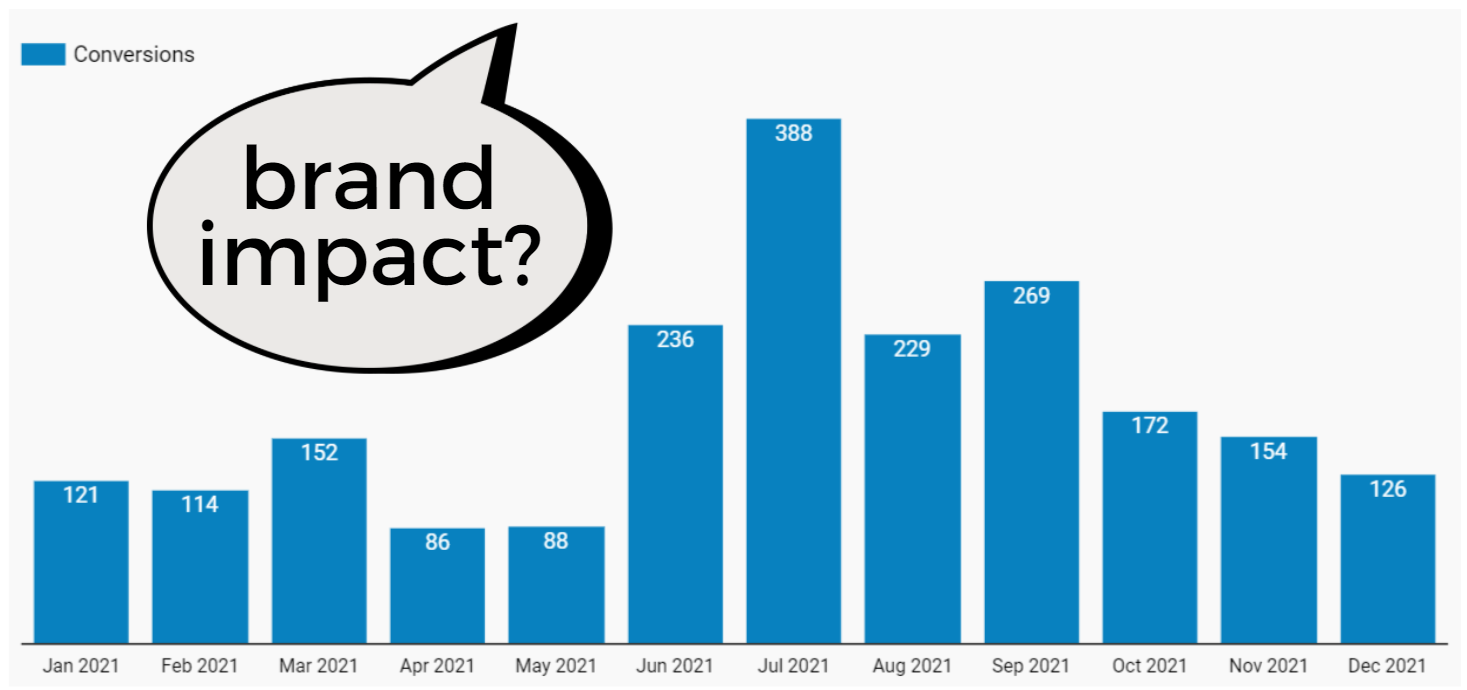
Say you’re looking at a Google Ads conversion bar graph by month Google Data Insights.
You want to understand how brand activity affects performance.
-
Author image, April 2022
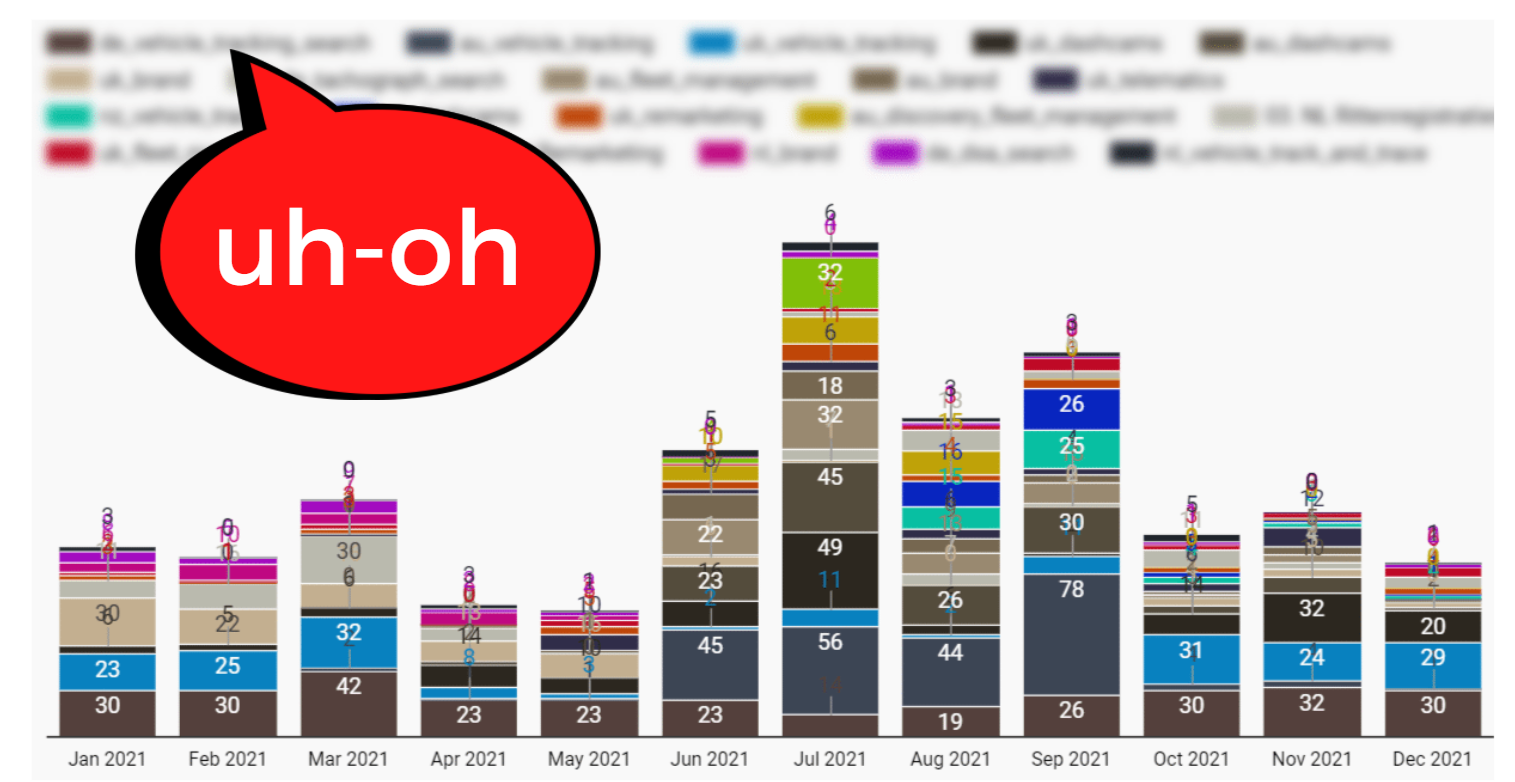
You decide to add campaigns as a “segment dimension” to see conversions by campaign.
This segment will not give you the desired result:
-
 Author image, April 2022
With dozens of campaigns across multiple accounts, this graph is too noisy to be useful.
So what to do now?
You can create filters for branding campaigns.
However, this will filter out the performance of any non-branded campaigns – which you don’t want to do.
If supported, importing tags from Google Ads will solve the problem.
How can I create my own segments in Data Studio for full control over visualizations and better insights?
Answer: Case.
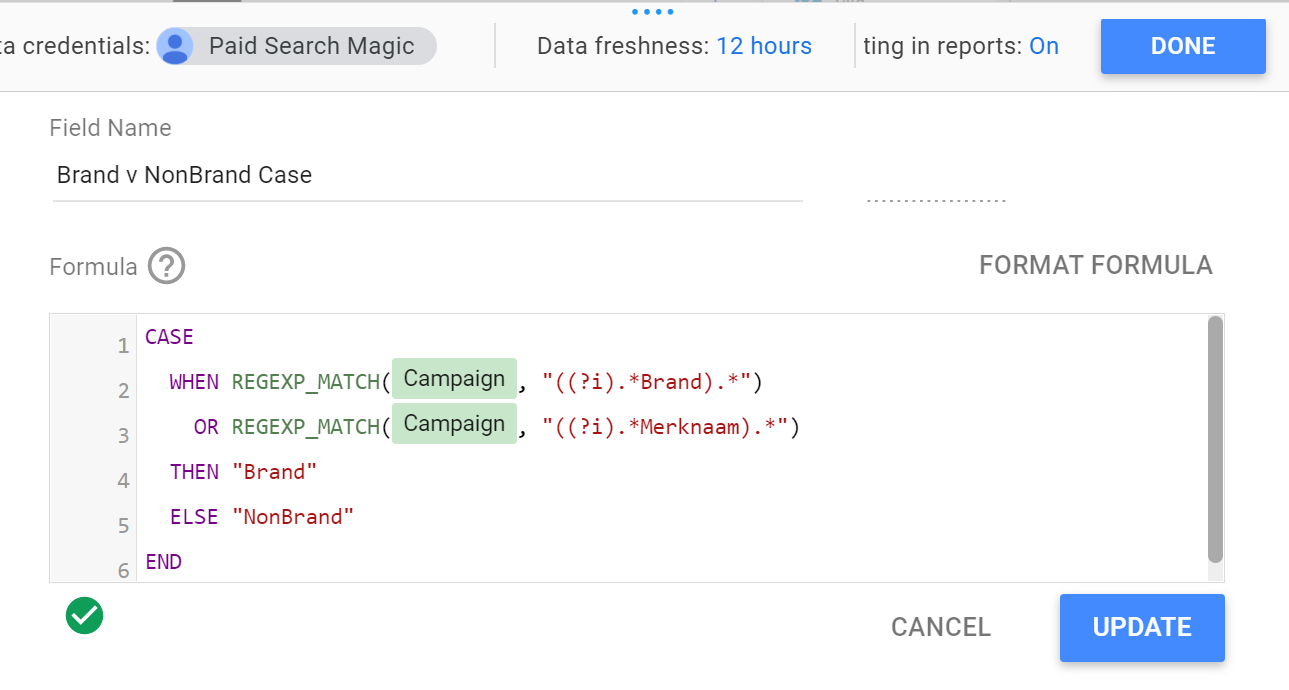
This CASE statement allows you to separate branded and non-branded campaigns into two separate parts:
-
 Screenshot by author, April 2022
Using the above code, campaigns that do not contain “Brand” (or “Merknaam” in Dutch) will be classified as “Non-Brand”.
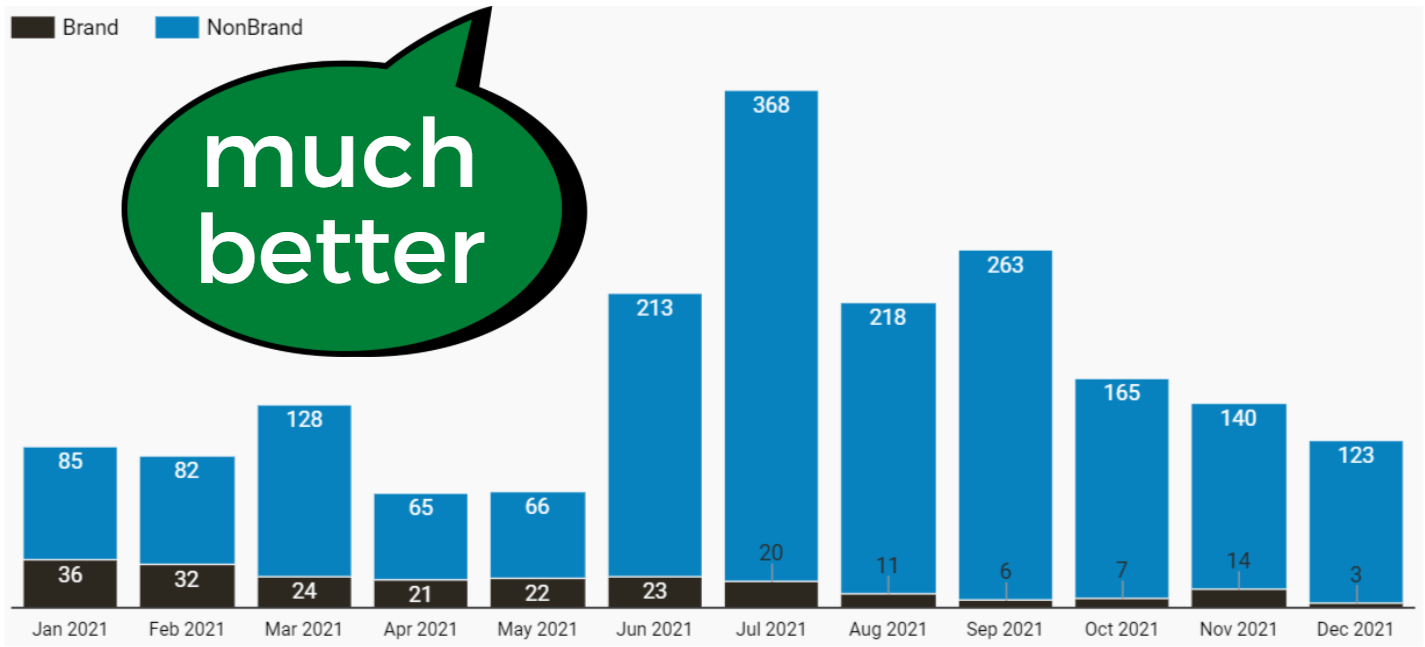
The end result was exactly what we wanted: a stacked bar chart with a segment dimension showing only the total number of conversions for the “brand” and “non-brand” campaign groups.
-
 Author image, April 2022
The trend in this chart is clear: brand conversion rates have been steadily declining over the past year.
This insight can now drive strategies to address the problem.
If using CASE to get custom segments in Data Studio leaves you frustrated and confused, fear not.
This article will show you how to use CASE with confidence and give you some examples that you can apply directly to reports for better visualization.
case case
It’s hard to discuss CASE expressions without a little technical knowledge, so let’s start with W3 SchoolDefinition of CASE statement:
A CASE statement iterates over conditions and returns a value when the first condition is met (like an if-then-else statement). So once the condition is true, it will stop reading and return the result.
Returns the value in the ELSE clause if none of the conditions are true. Returns NULL if there is no ELSE part and no condition is true.
In other words, you set the criteria for the segment (“Brand Activity” in the example above).
If the conditions are met (campaign name contains “brand”), it is included in the brand group. If the conditions are not met (the campaign name does not contain “Brand”), it is in the NonBrand group.
If this illustration sounds overly simplistic, let’s look at a slightly More complex scenarios using CASE From Google Data Studio’s help page:
A common use of CASE is to create new categories or groupings of data. For example, to group selected country values into the Sales Territory dimension, you could create the following CASE expression:
case
When the country is in (“United States”, “Canada”, “Mexico”) then “North America”
When country is in (“England”, “France”) then “Europe”
other “other”end
In this example, five different countries are combined into two different continents, and the “Other” category is used to capture any other countries.
A list of dozens or even hundreds becomes a clean list of three.
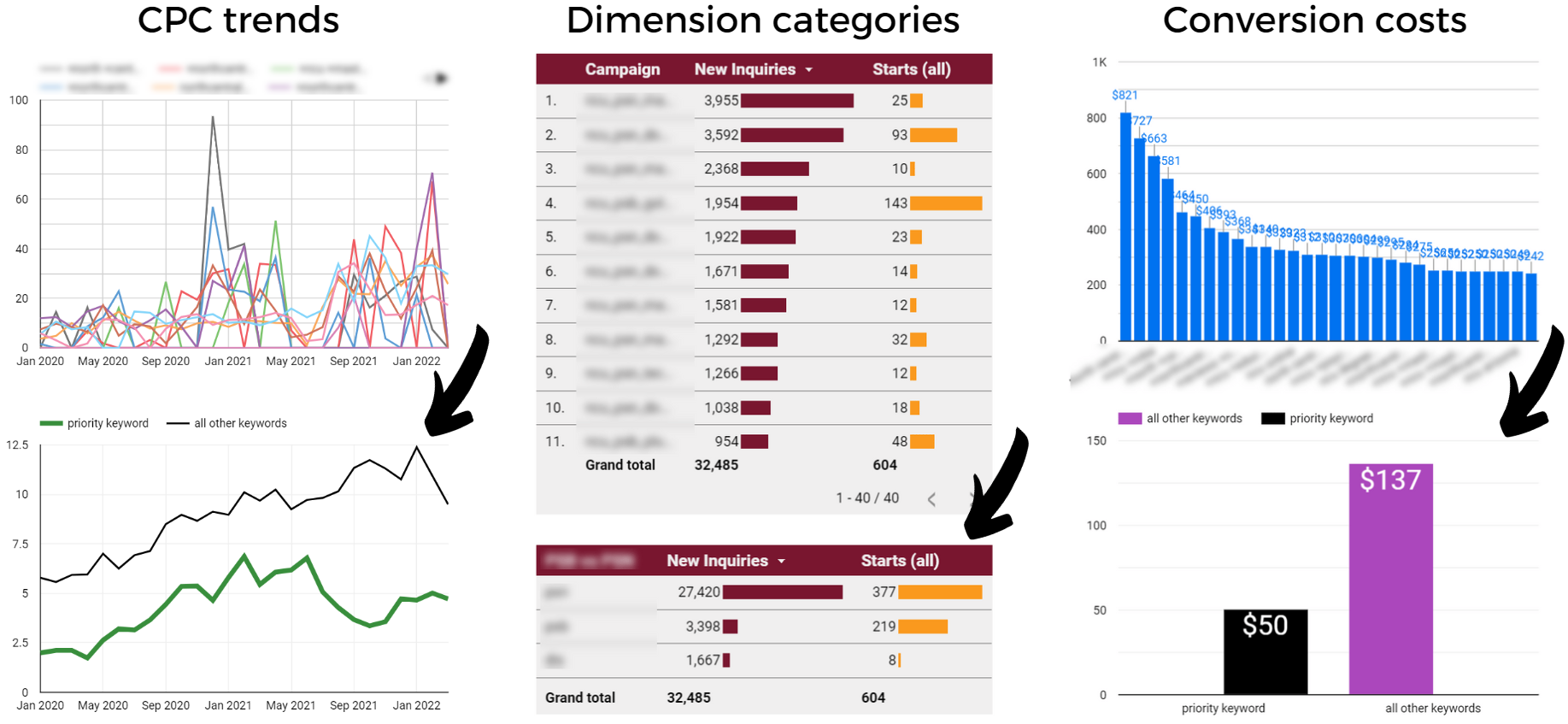
The power of Data Studio CASE expressions
Use custom groups and segments to simplify, clarify, and focus on busy diagrams.
-
 Author image, April 2022
With CASE expressions, you can:
- reconstruction Label Use in your Google Ads account.
- Group Google Ads campaigns by priority, target region, language, or topic.
- Merge or customize the default dimensions in the data source (such as grouping the Google Analytics default channel with custom channel grouping).
- Compare the performance of a keyword or asset to a group or category.
After learning some basic syntax and structures, you can create CASE expressions to solve your specific segmentation and classification challenges.
How to use CASE expressions in Data Studio
Looking for step-by-step instructions for using Data Studio CASE expressions? Look no further.
Here, we’ll review how to add CASE statements and set up formulas.
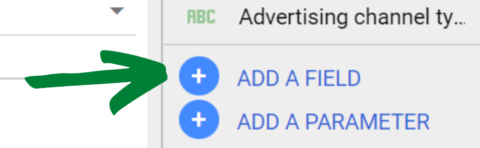
1. Create a calculated field
You’ll find this option in the bottom right corner of the data panel. Click the blue Add Field button.
-
 Screenshot by author, April 2022
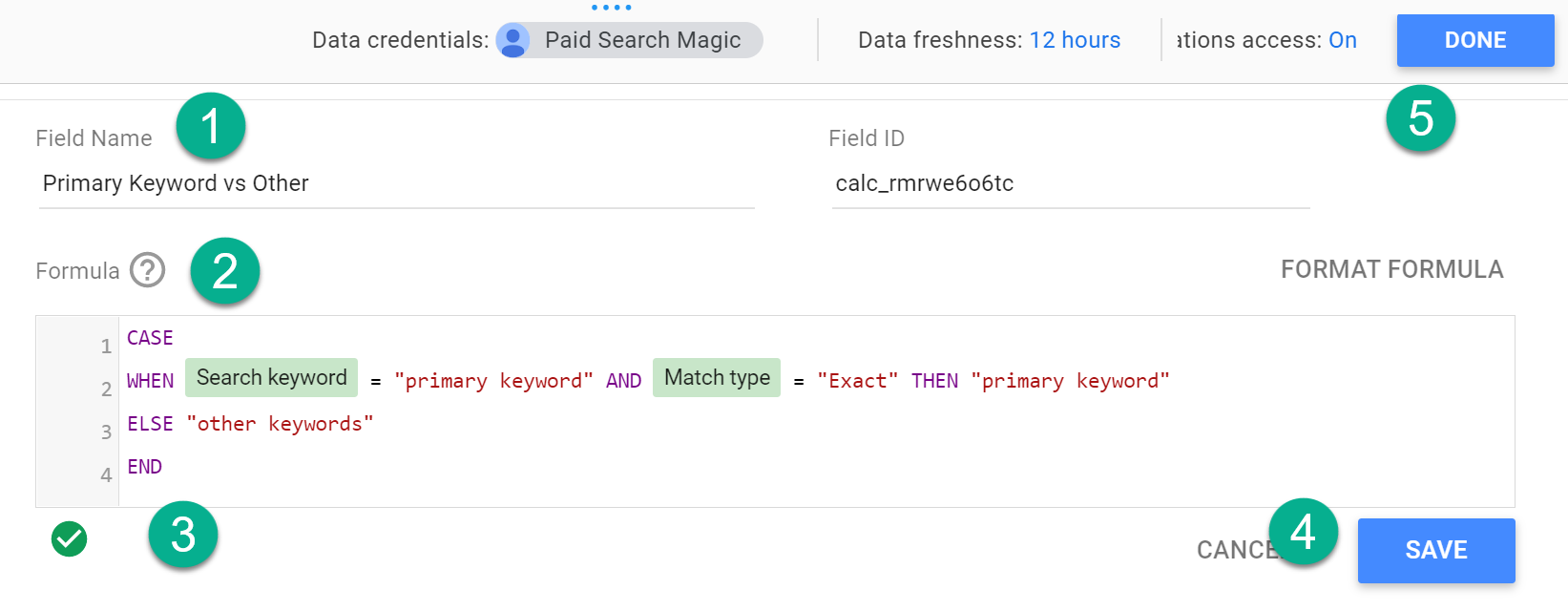
2. Enter and save the CASE statement
Name your field and enter the statement in the formula box (more on that below).
-
 Screenshot by author, April 2022
Valid formulas will display a small green arrow below the formula box.
Then click “Save” (or “Update”) and “Done”. Skipping “Save” will get you the exact result you expect, so don’t forget to click those two buttons.
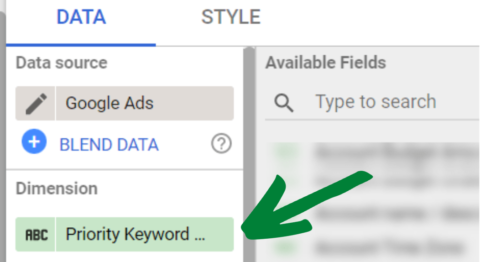
3. Add fields as dimensions in the chart
You’ll find a new field with a CASE statement in the list of available fields in the data panel that you can add as a dimension to the chart.
-
 Screenshot by author, April 2022
You can edit a CASE expression at any time by clicking it from the Available Fields section of the data panel.
How to write your CASE statement
Now that you know how to add CASE expressions in Data Studio, let’s look at the syntax you’ll use to build formulas.
You will use the following components in the formula box of the CASE statement:
- case (Open formula).
- when (describe the conditions).
- Then (Describe the result when the condition is met).
- other (Optional: describe the result when the condition is not met).
- end (close formula).
As you’ve seen in this article, there are many ways to format a CASE statement.
Ultimately, you will want to find a “common denominator” that only applies to the conditions you define with “WHEN”.
Here are some examples of how to set up the WHEN / THEN formula:
- when [field] = “condition” then “result”
- when [field] != “condition” THEN “not result”
- when [field] IN(“value A”, “value B”, “value C”) then “result”
- When REGEXP_MATCH ([field]”.*condition*”) followed by “result”
- WHEN CONTAINS_TEXT ([field]”condition”) followed by “result”
You can get something more advanced than this, but this should be enough to get you started.
Case Limits and Considerations
With the power of CASE comes the great responsibility of making sure your data is actually… accurate.
Here are some issues to be aware of and address.
Aggregation errors and solutions
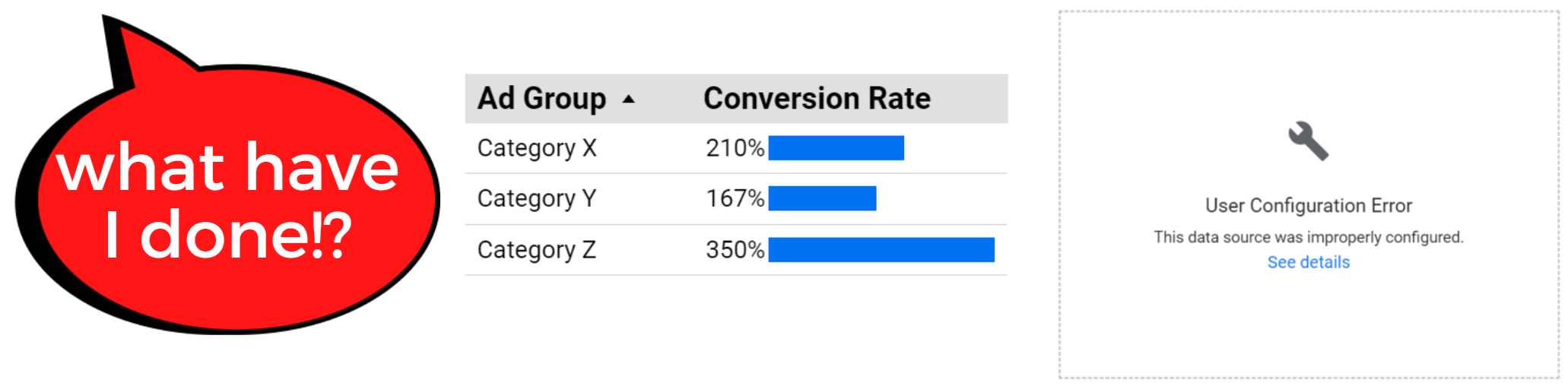
Your data sources and metric aggregation methods can cause inaccurate or corrupt charts, including:
- Unweighted average of the mean: average an average Distorted actual performance indicators.
- Average measure sum: Displaying the sum of the averages is wrong.
- User misconfiguration: Some data sources throw configuration errors instead of displaying incorrect aggregations.
-
 Author image, April 2022
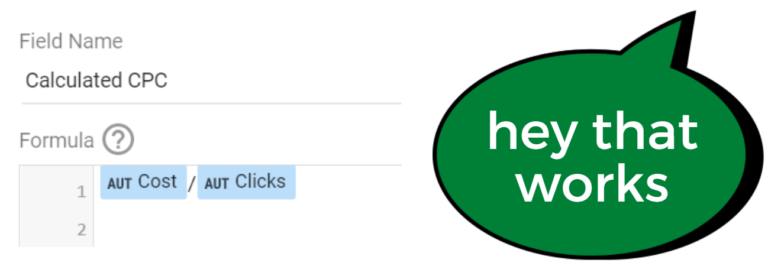
Solution: Don’t aggregate on precomputed fields.
If you have a calculated metric (CPC, AOV) instead of raw totals (cost, sessions):
Create a new calculated field. Enter the formula, then swap the metric in the chart data panel with the new field.
-
 Author image, April 2022
Segmentation Trap (Signal and Noise)
There are no restrictions on how data can be sliced and diced, but the value of certain pieces of data is limited.
Correlation is not causation, and identifying trends is less valuable than knowing why.
So, while you can segment your data by average CPC range, it’s the intent of the keyword, not the cost of the click, that drives post-click performance.
Make sure your segmentation correlates to the effect shown in the graph, otherwise you will find yourself optimizing for noise rather than signal.
other restrictions
CASE has other limitations.
E.g:
- CASE runs sequentially. If a value meets the criteria for more than one category, it will only be included in the first category listed in the CASE statement.
- You cannot mix dimensions and metrics in WHEN conditions.
- You cannot use formulas in WHEN or THEN clauses.
- The CASE fields you create are unique to the data source. If you need to use the same formula for multiple data sources, you will need to create a new instance.
You’ll learn more about CASE by using it, but knowing these limitations means less time troubleshooting and searching the help forums.
in conclusion
The CASE statement is a powerful way to group and segment data in Google Data Studio.
It’s not as simple as the drag and drop components you’re used to. But it’s not far off.
Learn the basic rules and syntax, and until you know it, it will be your go-to tool in your visualization toolbox.
More resources:
Featured Image: Billion Photos/Shutterstock


