


Adding GIFs to your emails is a great way to add some engaging, dynamic content to help your campaign stand out. However, it’s not always that simple. In the post, we’ll tell you exactly how it’s done.
For a format created in 1987, GIFs can do a lot to make your email marketing efforts look modern. Nor are they just for fun and memes. Sometimes, GIFs can convey an idea or concept faster than text or still images.
However, GIFs only work if they are, well, Work. If the GIF is displayed as a still image or takes a few seconds to load, you lose any advantages the format might have.
Whether you’ve got a GIF ready or want to familiarize yourself with the format, knowing how to put a GIF into an email is only part of the picture. Make sure you not only add the GIF correctly, but also select the correct GIF by following the steps below.
In this article, we will cover:
- Optimize your GIFs for email
- Add GIFs to emails
- Choose the right GIF
- Examples of great email GIFs
Optimize your GIFs for email
Every modern email platform allows you to embed animated GIFs, but they don’t guarantee the same user experience. User differences — from screen size and internet speed to the option to turn off GIFs in Microsoft Outlook — mean you have to be careful to ensure your readers don’t miss anything. Optimize your GIFs is a quick way to make sure everyone can see the message you’re sending.
Everything you need your audience to see should be visible in the first frame of the GIF. Turning off the animated GIF, like some email clients allow you to do, doesn’t result in a blank box – it just displays a static image. The image may not communicate like your GIF, but it should cover the basics.
You’ll also want to make sure your GIF has a maximum width of 600px (a typical newsletter width), so it doesn’t get truncated on smaller phone screens. Keep audience data in mind; GIFs should have a target file size of 0.5 MB. You can add up to 1 MB if necessary, but smaller files mean faster downloads and less chance of browser dropouts. GIF file too large?Try reducing the framerate with a similar tool GIF cutter. For the GIFs you make, you can also try to limit the number of colors you use.
Finally, add some alt text for users who use screen readers or turn off image loading entirely. This is a good accessibility practice for every image you post on your website, social media, and email.
Insert your GIF using one of the following methods
No matter what email client you use, inserting animated GIFs is a piece of cake.
drag and drop
Best for: Gmail
When you see a GIF you like, just click and hold on the image and drag it to your email client. (You need to have the window with your email message visible at the same time as the page with your GIF for this to work.) This method won’t work with every email client, only those that support drag and drop Email client upload.
Copy URL
Best For: Everything else
Sites like GIPHY and Tenor make it easy to copy GIF links from share options; sites like Google Image Search don’t. You can always find the GIF’s URL by right-clicking on the image and selecting “Copy Image Link”.
Once you have the URL in the clipboard, go back to your email client and find the “Insert Photo” button. If you’re using an email template, look for image blocks (or GIF blocks, if your client provides them). Click it, select the “Paste URL” option (if necessary), and paste.
Check to make sure the link you copy ends with a .gif extension, as some websites share page URLs rather than image URLs. If your link doesn’t end in .gif, try adding it yourself and see if the image pops up.
download and re-upload
Best for: when other options don’t work
This method is the most complicated and offers no special benefit (unless you habitually download GIFs and have them ready to use). However, if your email client refuses to copy images hosted on another site, you may have to upload a new version.
To download a GIF, right-click on the image and select “Save Image As”. Make sure the file keeps the .gif extension or you will lose the animation! It’s wise to double-check the GIF after downloading to make sure your device is saving the correct image format.
In your email client, compose a new email, click the “Add Image” button, and select the option to upload a new file. Navigate to your saved GIF, select it, and tap Done.
Make sure you’re using GIFs for the right purpose
GIFs are best for replacing videos, not for boring laughter. They change the tone of your emails and risk irritating your audience because they take longer to load. When used properly, they can inspire and inspire your audience. If overused, they can annoy your readers or obscure important information.
Showcasing a product or feature is a great use for GIFs. Why spend 500 words explaining how something works when you can actually show it? A GIF that educates your audience will create the right impression and spark interest.
GIFs are also great for teasing multimedia content. Embed video in email It’s a bad idea because, unlike GIFs, they’re not universally supported. They also have larger file sizes and load times. Instead of sending a clip, convert your video to a GIF and cut to the most enticing parts to create suspense.
Images can sometimes explain things better or faster than words. Use GIFs to set the mood for your messages or share multiple messages in a quick, easy-to-understand format. Why would you want to write a full description if vision can convey a complex idea in seconds?
Learn from these great GIF examples

How do you personalize content when the final product doesn’t fit your audience? This GIF shares several popular brands and products at the top of the email, so gift-givers know they have options when shopping with Zip.

Rather than trying to guess whether their shoppers are looking for menswear or womenswear, Uniqlo has created a GIF that fits both audiences. We like the way GIFs contain multiple parts: product image, description, size and price information.
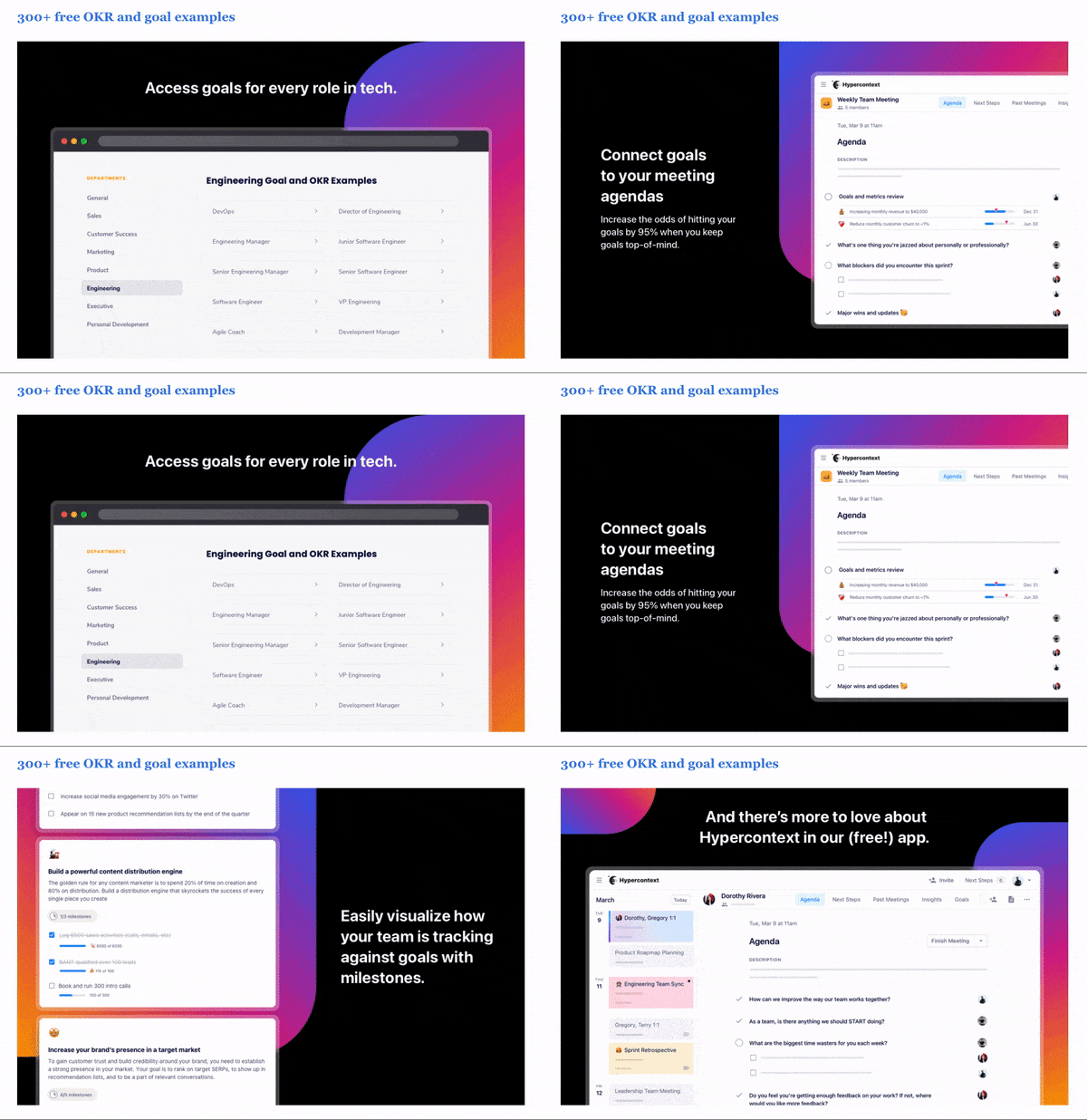
In the second half of a lengthy roundup email, 360Learning chose to honor their readers’ time with this GIF, which is essentially an animated slideshow. It provides a high-level overview of the product to help readers decide whether to dive into the details below the GIF or continue to scroll to the next item.

Madison Reed’s before and after is a great product demo. Unlike what we expect from digitally enhanced photos, GIFs look more original and real. (This is also how to take full advantage of User Generated Content.)

When introducing the Brutalista font, MyFonts goes to great lengths to educate consumers about it and show how to use it. Having one product photo is good for sales – but having multiple product photos covering multiple environments is great.
GIF to it!
GIFs aren’t ideal for every marketing campaign, but when used strategically, they can improve the effectiveness of emails. Many viewers struggle to keep up with their inboxes, which means they only give each email a few seconds to impress them. If your GIFs present the most important information in a concise and visually appealing way, you’re likely to buy more time for your readers.