For many years, email design has lagged behind website design.To a large extent, this is because email clients are not designed for the ever-changing digital design environment (especially Responsive design).
However, in the past five years, email clients have begun to support features originally reserved for the Web.The most notable is 2016 announcement Gmail will now support embedded CSS and media queries-two tools that support responsive design.
Email designers finally have the opportunity to apply the modern design knowledge that Web developers have learned over the past two decades to email. Here is what email designers can learn from web developers.
Ensure responsive design, especially on mobile devices
In 2019, more emails opened On mobile Than on the desktop. Email designers today must prioritize the way emails are presented on mobile devices without sacrificing readability on desktops or tablets.
This is where responsive design comes in. Responsive design means that your design will adapt to the screen size and resolution of its reading device.
We recommend following the example of a website developer and creating three different wireframes for each email (or each email template): one for mobile devices, one for desktops, and one for tablets.
Then, use Media inquiries Tell the layout how to render based on factors such as screen size, or use Fluid method For email clients that do not support media queries.
Let’s take a look at the difference. Unresponsive emails may display small text that is difficult to read on mobile devices:
On the other hand, the responsive email design seems to be optimized for mobile reading:
Keep the design simple to improve readability
Website developers know that simple design is best when it comes to mobile readability. The smaller screen makes it impossible to comfortably browse multiple columns or creative fonts and designs.
Here is the best way to keep the design simple:
Use single-column layout
Single column layout It renders most clearly on smaller screens such as mobile devices. In addition, they allow designers to create a single flow of information that guides the reader to take the desired action (such as clicking a button).
This single information flow is also a better user experience than having to scroll left and right or zoom in on the small screen of a smartphone to access all content.
Reduce visual clutter
Visual confusion It is any design element that can be removed without changing the influence of the message.
For example, dividing lines that separate parts instead of blanks may be seen as visual clutter. Similarly, if font styles such as bold, italics, and different headings are not absolutely necessary to convey the message, they may be considered cluttered.
Designed to create the cleanest possible design possible, you might enhance the user experience.
Only one CTA button
After mastering the art of conversion-centric design, developers know that it is vital not to let readers choose from multiple actions to take. Instead, the designer should have only one call-to-action so that the reader should be clear about what to do next.
In addition, make your CTA a larger, contrasting button instead of a hyperlink text. Compared with hyperlinked text, it is easier to tap a button with your finger on a mobile device or tablet.
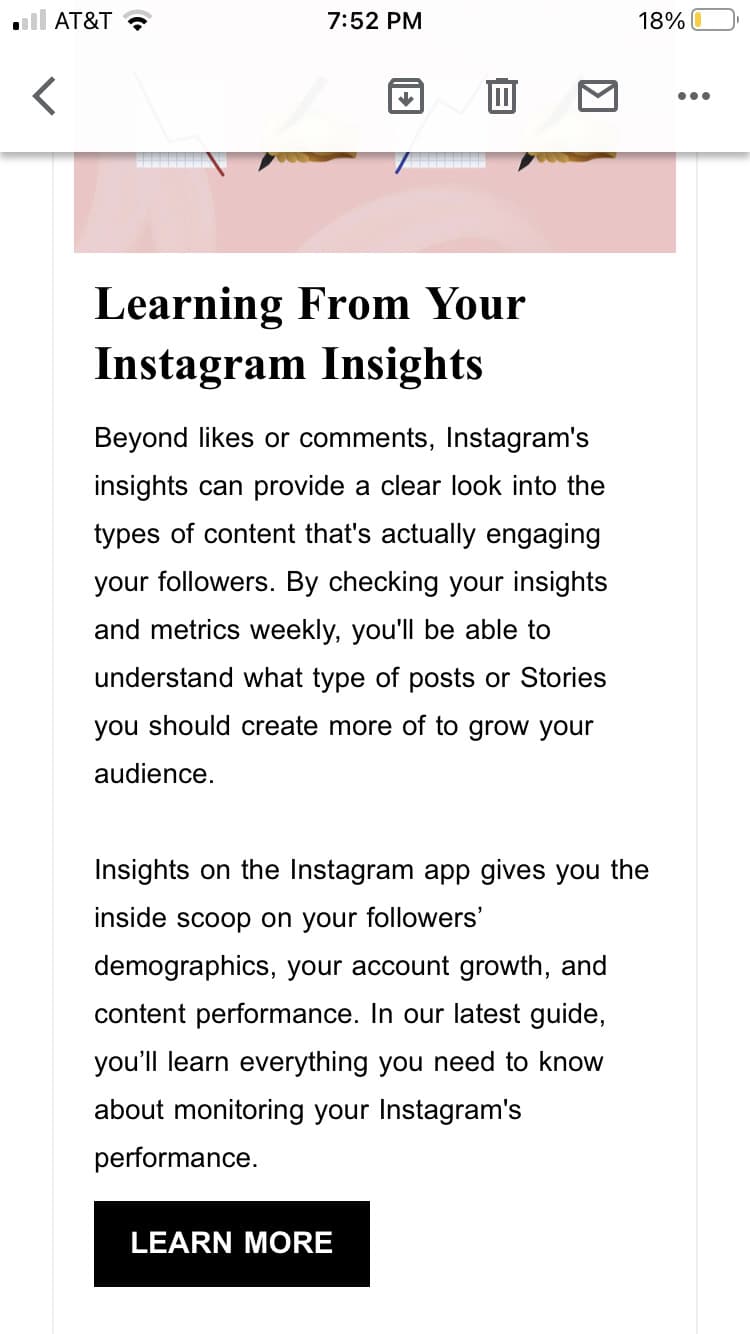
For example, this single-column email from Planoly is visually small and leads directly to a single CTA button:
Borrow advanced responsive design strategies from the Internet
Creating a single-column design for mobile devices is the minimum work that email designers must do to create responsive emails. However, designers who want to provide a better user experience on all devices can take advantage of these slightly advanced strategies:
Use progressive disclosure for text-heavy emails
When an email is written like a small essay, readers will experience seemingly endless scrolling of text on a mobile device, even on a desktop computer, the email does not seem to be long.
To solve this problem, email designers can borrow “Progressive Disclosure” Strategies from web developers. This is when certain elements of the email (such as the text portion) are hidden under interactive elements (such as the title) and only appear when the reader clicks.
Progressive disclosure allows readers to experience the order and minimization of emails and jump to the part they want to read.
Use live text + background image to superimpose text on the image
Previously, whenever email designers wanted to display superimposed text on an image, they had to create a separate graphic of the image and the superimposed text, and then insert the graphic into the email template.
Unless the email client can’t render your graphics correctly, this works fine-and then suddenly, your message is missing an important header. In addition, it requires designers to create different graphics for each device wireframe, which will take extra time.
Instead, designers can borrow a strategy from website developers: use Real-time text and background image Create your text overlay. This allows you to automatically adjust the overlay text image for each device-without the risk of rendering failure.
E.g, Royal Children’s Hospital Use real-time text on the background image to create this dynamic email:

wrap up
The email client finally caught up with the website platform in terms of design capabilities. Email designers should ask web developers how to take advantage of these new features and create emails that are more responsive, more beautiful, and easy to convert.