


Post views:
127
Most people like to capture a small portion of the screen to save images, text or other useful information that cannot be manually saved to the device or copied and pasted. For this, they used the clipping tool.But migrating from a Windows PC to laptop Or the iMac might have a hard time finding the Snipping Tool on the mac when capturing a small part of the screen for some reason. If you’re still struggling to capture images for your Mac, this article will help you choose the best snipping tool for Mac.
What is Snipping Tool?
A tool that allows computer users to capture all or part of their screen and save it as a new image on computer storage with a unique filename. For example, if you want to share your computer error screen with your friends without sharing the entire screen, you can use the Snipping Tool to crop the screen for the specific area you want to send. Snipping tools usually come with editing features like a pen or highlighter to write or draw on the captured image.
Is there a snipping tool for Mac?
like in Windows operating system, the Mac’s Snipping Tool is built right into Mac OS. You can manually search for the tool or use a keyboard shortcut to access it.If you can’t find the Mac Snipping Tool and want to know how to take a screenshot on Mac, you can just press ⇧+⌘+5 Simultaneously.
This keyboard shortcut will invoke a Snipping Tools menu at the bottom of the screen with many options to capture the screen and edit it to your needs. Using the available options, you can write or draw on the captured screen.
The Best Snipping Tool for Mac
In addition to the snipping tools built into Mac OS, software developers also provide various snipping tools that Mac users can use to capture screens or images on their MacBook.
Here are some of the top snipping tools for Mac with which you can easily capture Mac images.
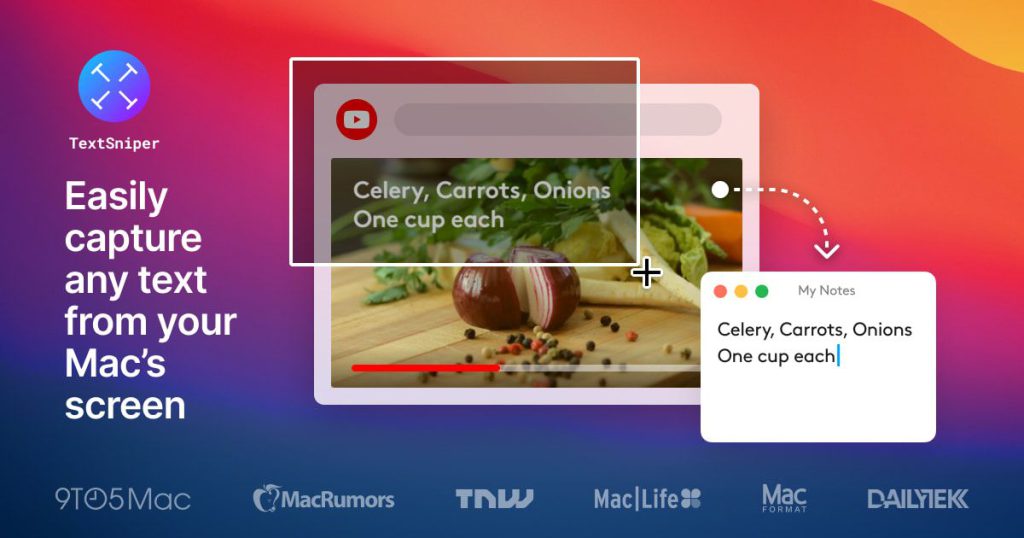
1. TextSniper app
Textsniper is a popular Mac screenshot tool that helps users extract text from images, PDF file, and even video. The application comes with an intuitive user interface that is very easy to use for both experts and beginners. New users can also find tutorials on its official website for effective use.
It’s a paid tool that lets you buy three different Macintosh OS devices for just $6.99.
2. Drip
Whether you need a high-resolution Mac snipping tool for personal, business or business use, Droplr is the best snipping tool for Mac. The tool features cloud storage, enhanced security, and screen recording at a relatively low cost. It is one of the top screenshot tools for recording screen and creating GIF. The tool captures screenshots and screen recordings directly to the cloud and allows users to create custom short links to instantly share screenshots across different digital channels. Saved clips and recordings can be found in an online Droplr account, and users can also sort using tags and boards.
You can also integrate the app with other enterprise apps like Slack to share files with team members. Droplr is also available as a Mac, Windows and Chrome extension. For $6/month, you can get this snipping tool for Mac with 1TB of cloud file storage.

3. Single Shot
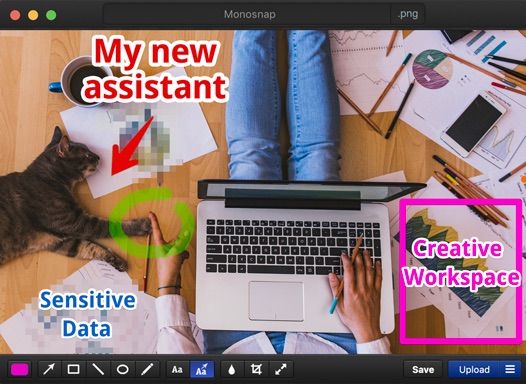
Monosnap is a screenshot tool that works great on Macintosh OS, Chrome and Windows OS. As a single user, you can use this Mac Snipping Tool for free. Commercial users may need to pay $5 for this. The app can also be used as content management software and cloud storage.
Monosnap also comes with many exciting features such as video editing, customizable hotkeys, cloud storage solutions, tools to hide personal information, and more.
4. Light Shot
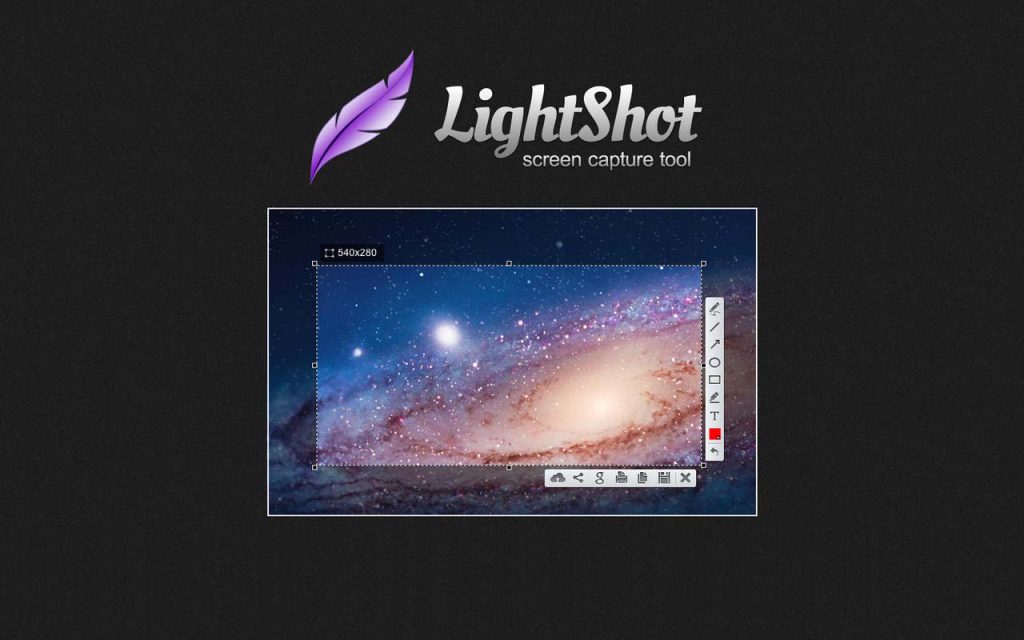
Looking for the best and fastest screenshot tool for Mac in 2022? Lightshot can be a great screenshot tool. It is a free tool for capturing images and screens on Mac.
Features of Lightshot include taking screenshots of selected areas of your Mac screen, writing or drawing on captured screenshots, and adding shapes and colors to screenshots. Also, the tool can help you find similar images online.
5. SnapNDrag
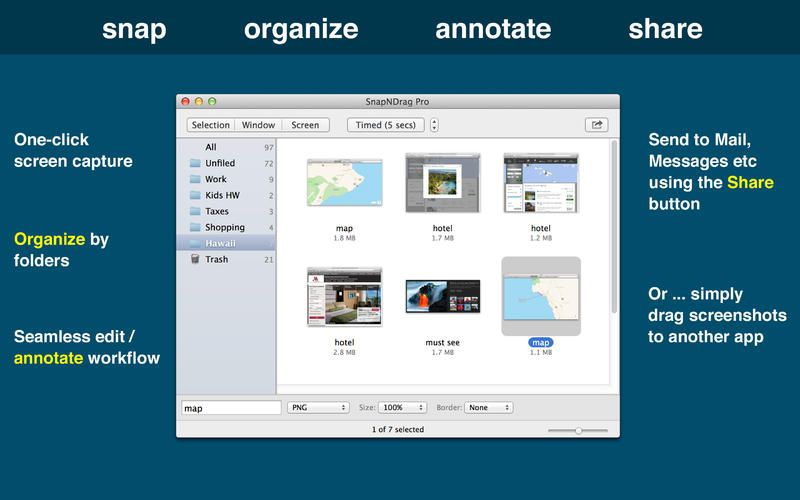
SnapNDrag is one of the best Mac screenshot tools available in both free and paid versions. The free version of SnapNDrag allows you to take screenshots, delete and rename files.
The paid version costs $10 and offers exciting features like resizing screenshots, flipping ads, assigning global hotkeys, and other features available in the free version.
in conclusion
Taking a screenshot of a selected area of a screen or window on a Mac is no longer a big deal, as Mac OS has a variety of snipping tools available. Users also don’t need to remember keyboard shortcuts when capturing Mac images. Just choose the right snipping tool for your Mac from the above list and make taking screenshots easier than ever.


