


Sharing is caring!
Want to know how to use AirPlay on Windows 10 effortlessly? Look no further, because this article aims to provide a step-by-step guide on how to do this.
AirPlay is one of Apple’s most ingenious features, and it provides a fast and effective way to stream multimedia content on a large screen-without any delay. But because it is an exclusive Apple application, many users want to know whether this powerful feature can be used on a Windows PC.
The good news is that you can integrate AirPlay with Windows PC to enjoy your favorite audio, video, and photos like never before.Below is a simple but proven list of tools that can be used AirPlay on Windows 10.
Read on and find out which method works best for you.
Whether for entertainment or business purposes, using AirPlay on Windows is very convenient.Among all the methods of AirPlay on Windows 10, These are the two most common methods.
1.1 Using iTunes
iTunes may be the fastest way to use AirPlay on Windows. But please note that you can only use iTunes to use streaming audio files on Windows. Here is how to use this method:
step 1
Open the Microsoft Store on Windows and search for Apple iTunes. Click the official iTunes logo and click Get to install it.
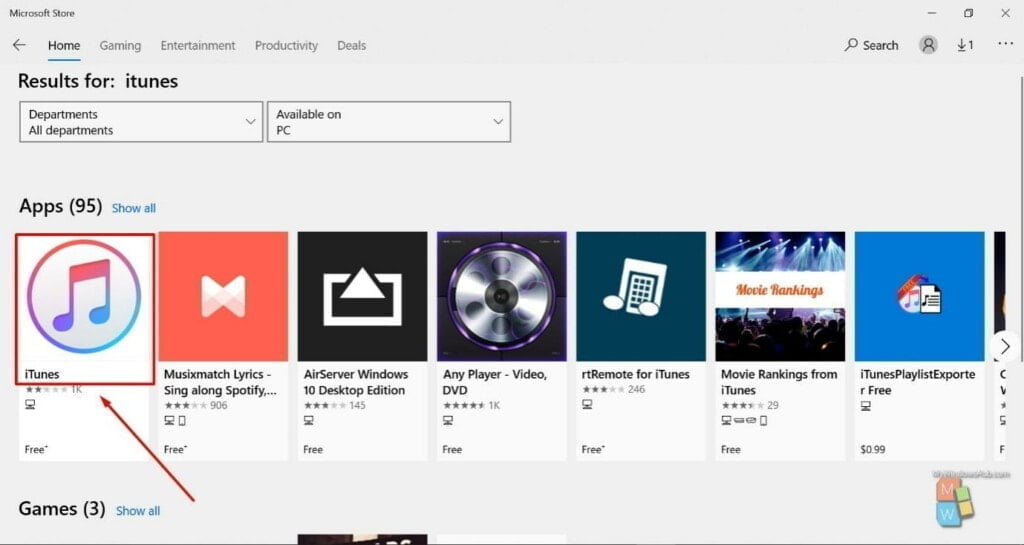
Step 2
After the installation is complete, launch the program and make sure that iTunes and Apple devices (iPhone, iPad) are on the same Wi-Fi network.
Step 3
Go to the Apple Music app and start listening to audio files on your Windows PC.
1.2 Use third-party tools
Airfoil for Windows It is a popular tool that allows you to stream any audio from your PC to Apple TV and AirPort Express over the network. The best thing about AirFoil is its compatibility with mac, Linux, Windows and other Apple devices (including iPhone and iPad).
After connecting the device, the audio will be played synchronously on all devices connected to the network. The company offers a free trial, but you must purchase a premium package for $29 to access all of its services.
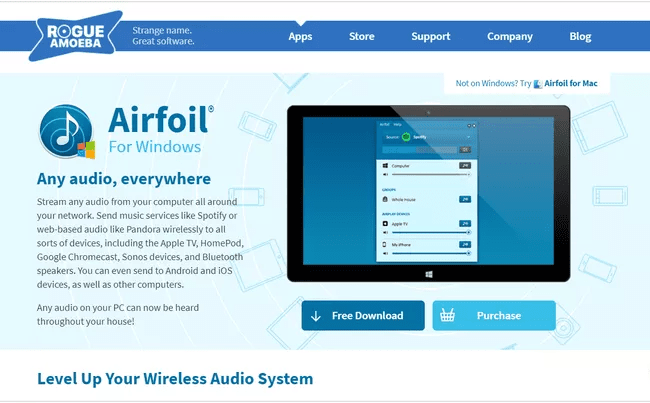
To use AirFoil for Windows:
step 1
Download the program and launch it on your Windows PC.
Step 2
Now, first select the device you want to use as the audio source, and then select your PC as the device that will receive AirFoil signals.
Step 3
Play the audio and start enjoying it on Windows 10.
Now that you know how to stream multimedia on a Windows PC, it’s time to learn how to easily AirPlay an Android smartphone to Windows. We have a huge user base of Android phones, and sometimes, they have no choice but to mirror their smartphones to the big screen—whether for entertainment, presentation, or any other purpose.
Here are two simple ways to mirror Android phones on Windows PC.
2.1 Use Smart Mirror App
If you want to mirror your Android device to the big screen efficiently and quickly, then MirrorTo screen mirroring software Is your ideal choice. With just one click, you can have a consistent and smooth connection without any delay.
Its interface is very simple, even a 10-year-old child or grandma will not encounter any problems when installing and using it. Check out how to use this powerful application:
step 1
After downloading, install iMyFone MirrorTo On your computer.
Step 2
Run the application and connect your phone to the PC via a lightning cable, then click “Transfer Files” to start using.
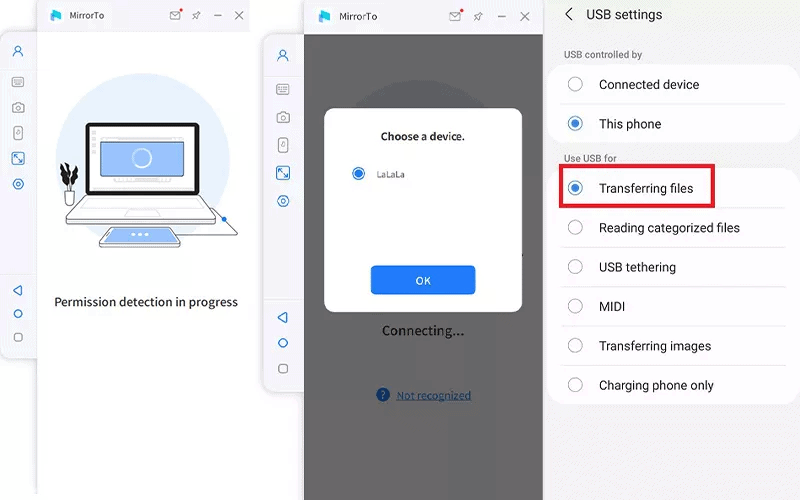
alt: transfer file.jpg
Step 3
Now, follow the instructions on the screen to enable USB debugging on your Android phone.
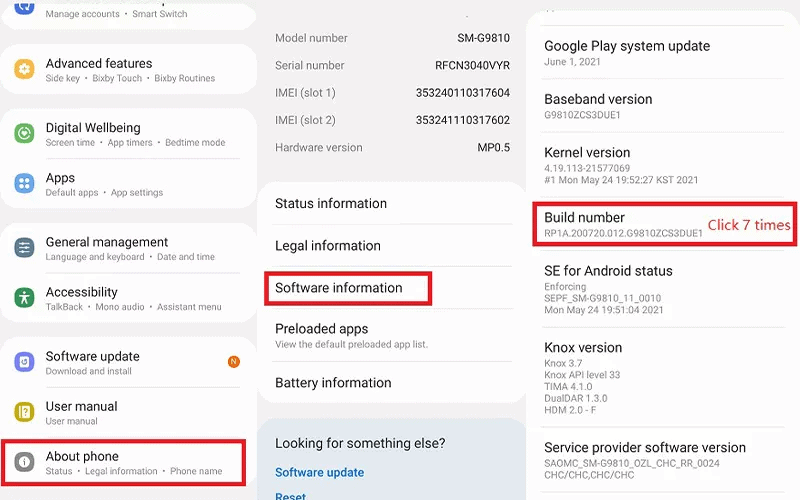
the fourth step
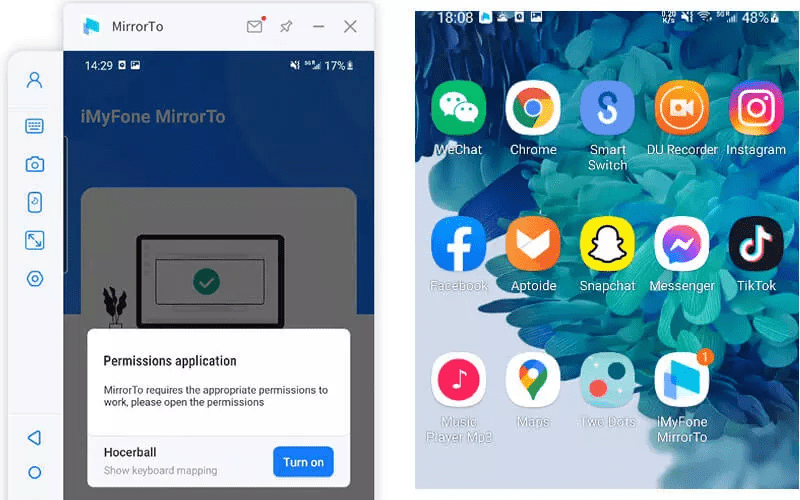
Now, tap Open to allow the program to mirror your smartphone on the big screen.
Step 5
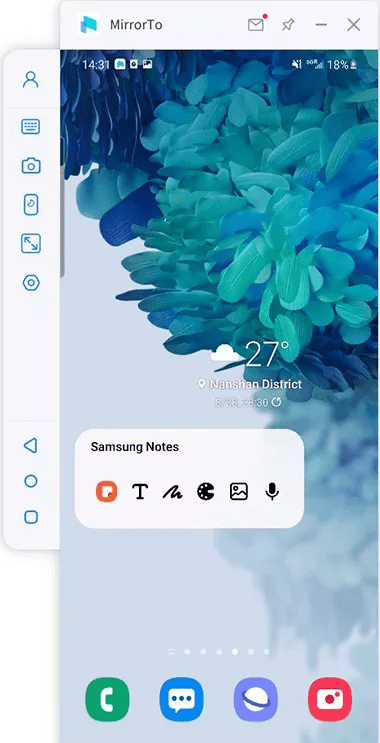
Well, you just mirrored your smartphone. Now you can enjoy any mobile game, application or multimedia file on the big screen.
2.2 Use Mobizen
Mobizen is another screen mirroring application, which enables users to mirror smartphones on a PC. After the connection is established, the user can control all content on the Android phone through the PC.
The software may not be as efficient as MirrorTo, but it can still help connect smartphones and Windows PCs without too much technical trouble. Please note that you must download the application on both devices to be connected.
Please follow the steps below to use Mobizen:
step 1
Install the Mobizen app on your smartphone. Then, install the Mobizen PC application on your computer from Mobizen.com.
Step 2
Launch these two applications and connect them via Wi-Fi or USB.
Step 3
In a few seconds, the app will connect the two devices. Now you can stream any content from your phone on your PC.
If you have a large Apple TV and want to mirror it to your Windows 10 PC, we can still meet your needs. This becomes especially useful when you have to display content to a large audience on Windows.
These are the two most popular software for enabling mirroring on the Windows screen
3.1 Aerial parrot 3
AirParrot is one of the best applications to connect Windows PC to Apple TV. It only takes a few seconds to detect an available device and mirror your PC to it. After the connection is established, everything you do on the Windows PC will be displayed on the Apple TV in real time.
In addition, users can connect multiple devices at the same time, such as Apple TV and Chromecast. With AirParrot 3, users do not need to worry about compatibility issues. Here is how you can use this excellent software:
step 1
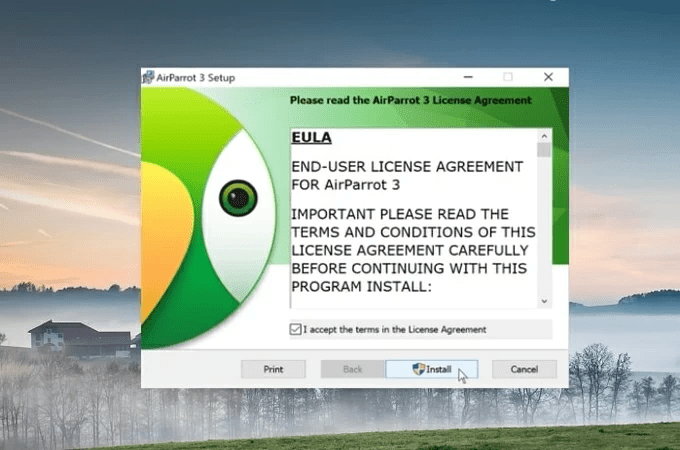
Start from download Aerial parrot 3 On your computer. Make sure that both Windows 10 and Apple TV are connected to the same Wi-Fi network.
Step 2
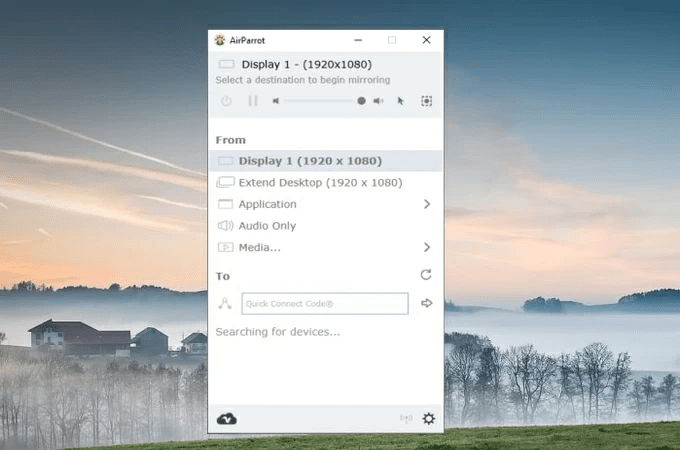
Soon you launch the application, and it will automatically detect available devices on the same network. Choose our Apple TV from the list.
Step 3
Boom, your Windows is mirrored to the TV.
3.2 5K player
Just like AirParrot 3, 5KPlayer is another popular tool that can project Windows PC to Apple TV. Basically, it is an advanced media player with a built-in mirroring function. With 5KPlayer, expect a safe, reliable and consistent connection.
Please follow the steps below to use this program:
step 1
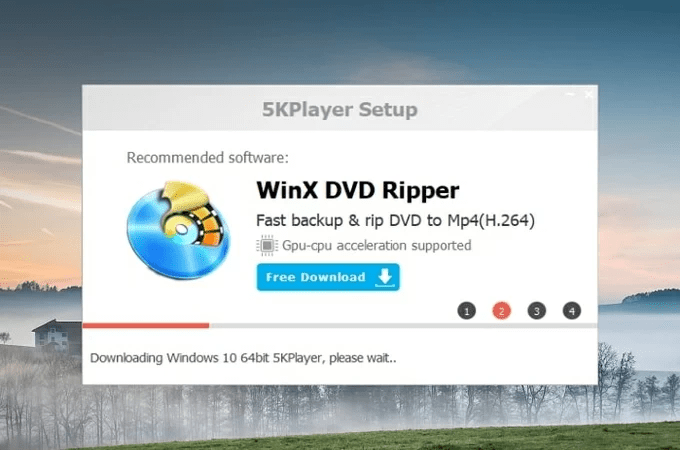
After downloading, install 5KPlayer on your PC and connect both devices to the same Wi-Fi server.
Step 2
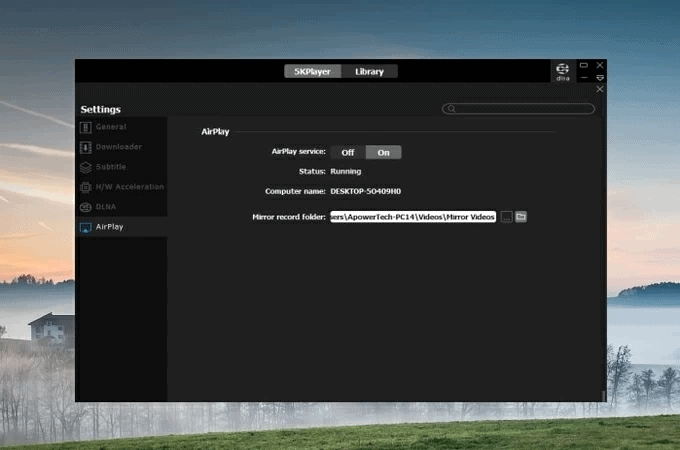
Now, launch the application and click on AirPlay as shown in the figure. From the list of available devices, select your Apple TV.
Step 3
Start using your PC to manage your big screen.
in conclusion:
Finally, this article provides a comprehensive guide on how to use AirPlay on Windows 10 quickly and easily. All the methods we discussed are efficient, easy to implement and user-friendly to get the job done.
If you want to cast any Android device on the big screen, please use iMyFone MirrorTo for best results.


