


review — Suppose you want to make a mouse, then throw these requirements into a bag and shake it: silent operation, wireless, available in multiple sizes, suitable for left- or right-handed, in five different colors, and most importantly, cheap. What you end up with is Logitech Signature M650 Wireless Mouse.
What is it?
The Logitech Signature M650 is a wireless mouse that comes in two sizes, right- or left-handed options, and is available in 5 colors. It also offers dual wireless connectivity via Bluetooth or a Logo Bolt USB receiver.
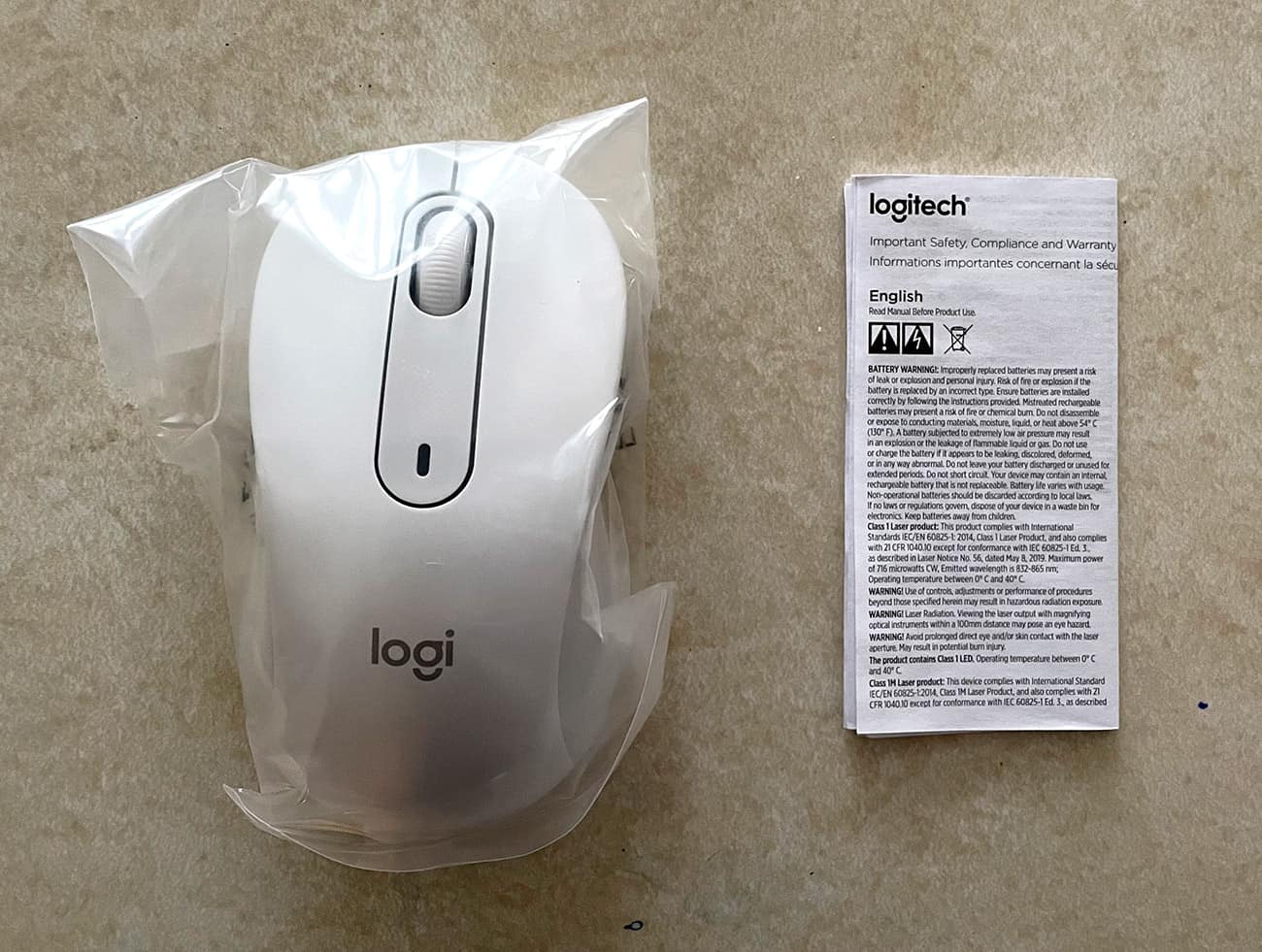
What’s in this box?
- wireless mouse
- USB receiver
- 1 AA battery
- user documentation
Hardware Specifications
- Sensor Technology: Logitech Advanced Optical Tracking
- Nominal: 400 dpi, up to 4000 dpi
- Number of buttons: 5 (left/right click, back/forward, middle scroll wheel)
- SmartWheel Scroll
- Connection Type: Logi Bolt USB Receiver or Bluetooth Low Energy Technology
- Battery Type: 1 AA battery (included)
- Battery Life for Logi Bolt USB Receiver: Up to 24 Months Battery Life for Bluetooth: Up to 20 Months
- Wireless range: 10 m (33 feet) wireless range
- 1 Year Limited Hardware Warranty
The M650 comes in two sizes, I was sent to check out the large size and it fits my hand perfectly. It’s also available in left- or right-hand configuration, switching the position of the thumb buttons.
Signature M650 — Regular size
- Height: 4.22 in (107.19 mm)
- Width: 2.43 inches (61.80 mm)
- Depth: 1.49 in (37.8 mm)
- Weight: 3.57 oz (101.2 g)
Signature M650 L — Large
- Height: 4.65 in (118.19 mm)
- Width: 2.58″ (65.63mm)
- Depth: 1.64 in (41.52 mm)
- Weight: 3.93 oz (111.2 g)
Design and Features
Aside from the Apple Magic Mouse that comes with the various iMacs I own, I’ve pretty much only used Logitech mice. After years of using multiple mice, I must say up front that Logitech’s M650 Signature Mouse does exactly that.
Naturally, when designing a peripheral, you have to take hand size into account, whether the user is right or left handed, and delve into color options. Logitech took a smart approach by creating 3 option categories and allowing users to customize their choices.
Left or right hand? Big hand or small hand? What’s your favorite color? Do you prefer to use a low-power USB dongle or good Bluetooth? The last question is tricky because both are available regardless of size or hand configuration.
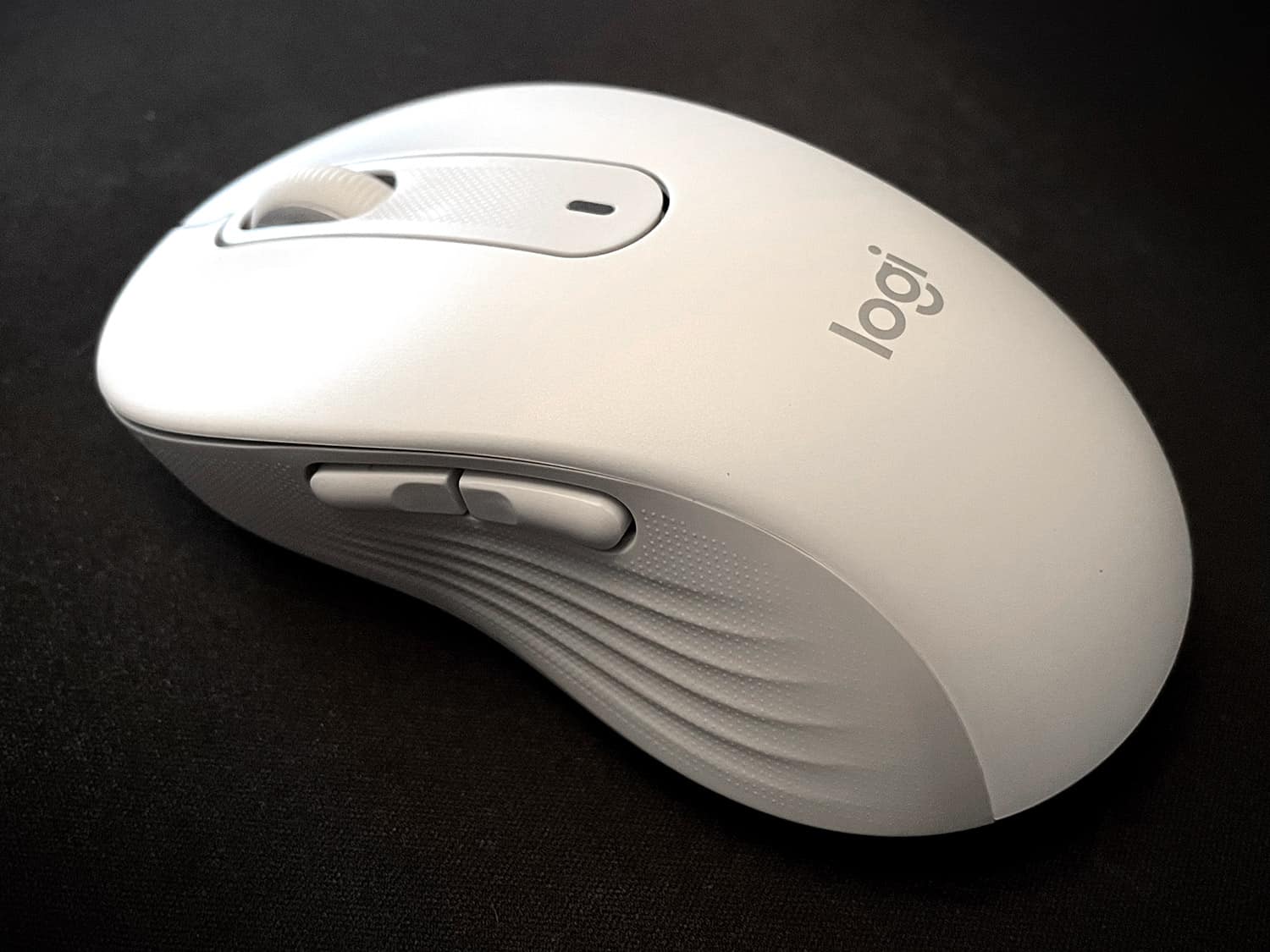
I got the big option for this review and it fits like a glove. The sides of the mouse are coated with a grippy rubber surface as well as several ridges for increased traction.
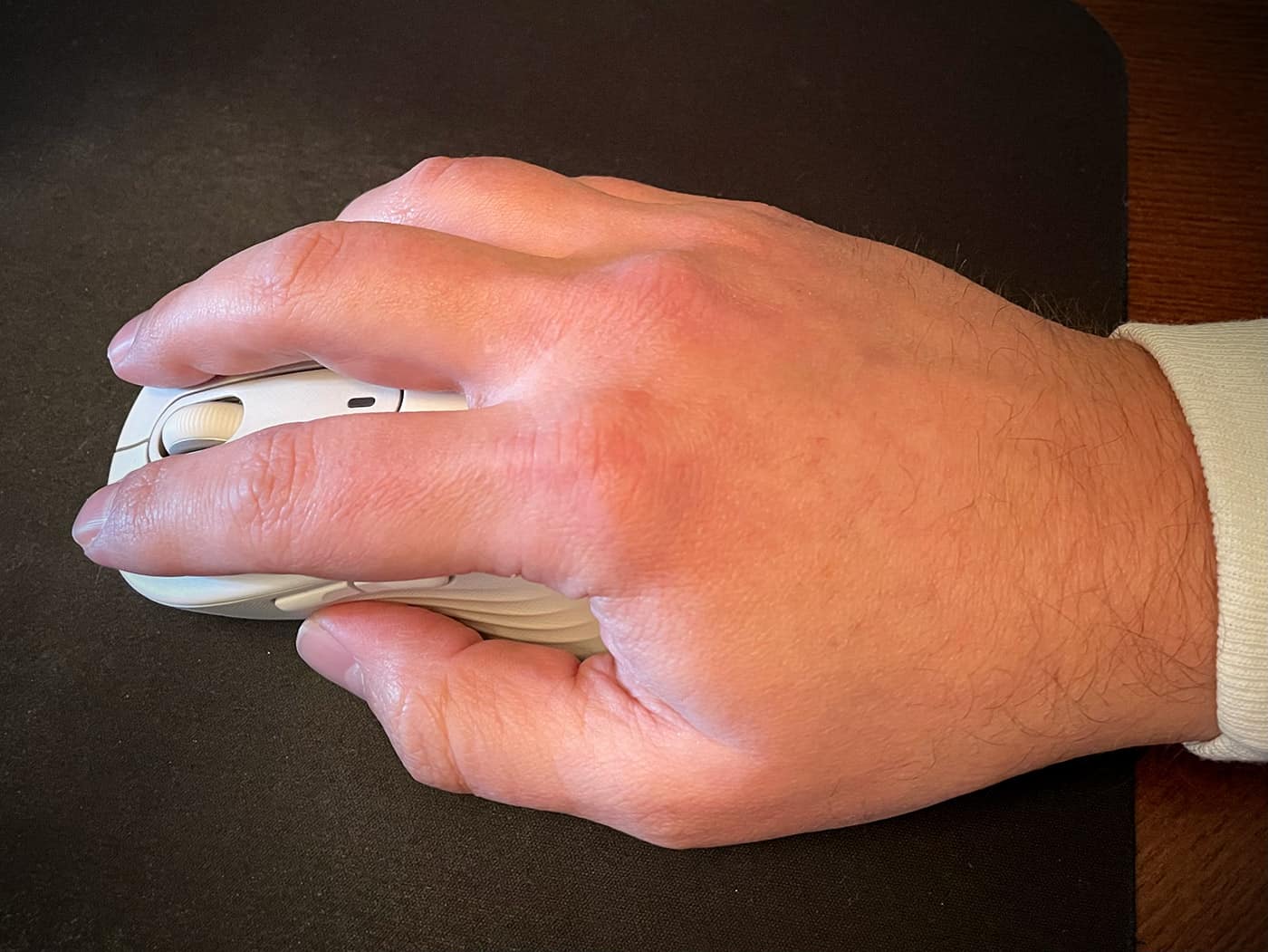
side button rest only On my thumb, immediate access. Everything feels “right,” with no seams that ostensibly cut into your hands subtly all day long, and no odd angles. Just lovely ergonomic curves. Maybe I got lucky and just happened to be a perfect fit with this mouse.
Naturally, there are left and right mouse buttons as standard. These are also a nice shape. The top edge of the button has a subtle lip that lets your fingertips know where the end of the mouse is.
The buttons are almost silent. it’s great. I like it. I don’t know why, but I’d almost like to miss hearing the click as audible feedback, but there’s enough haptic feedback to register it without the noise.
I don’t mind the keyboard rattling, but I know there’s no reason to hear a hollow mouse click a million times a day. In a room with moderate ambient noise, you can barely hear the M650 clicking next to your head.
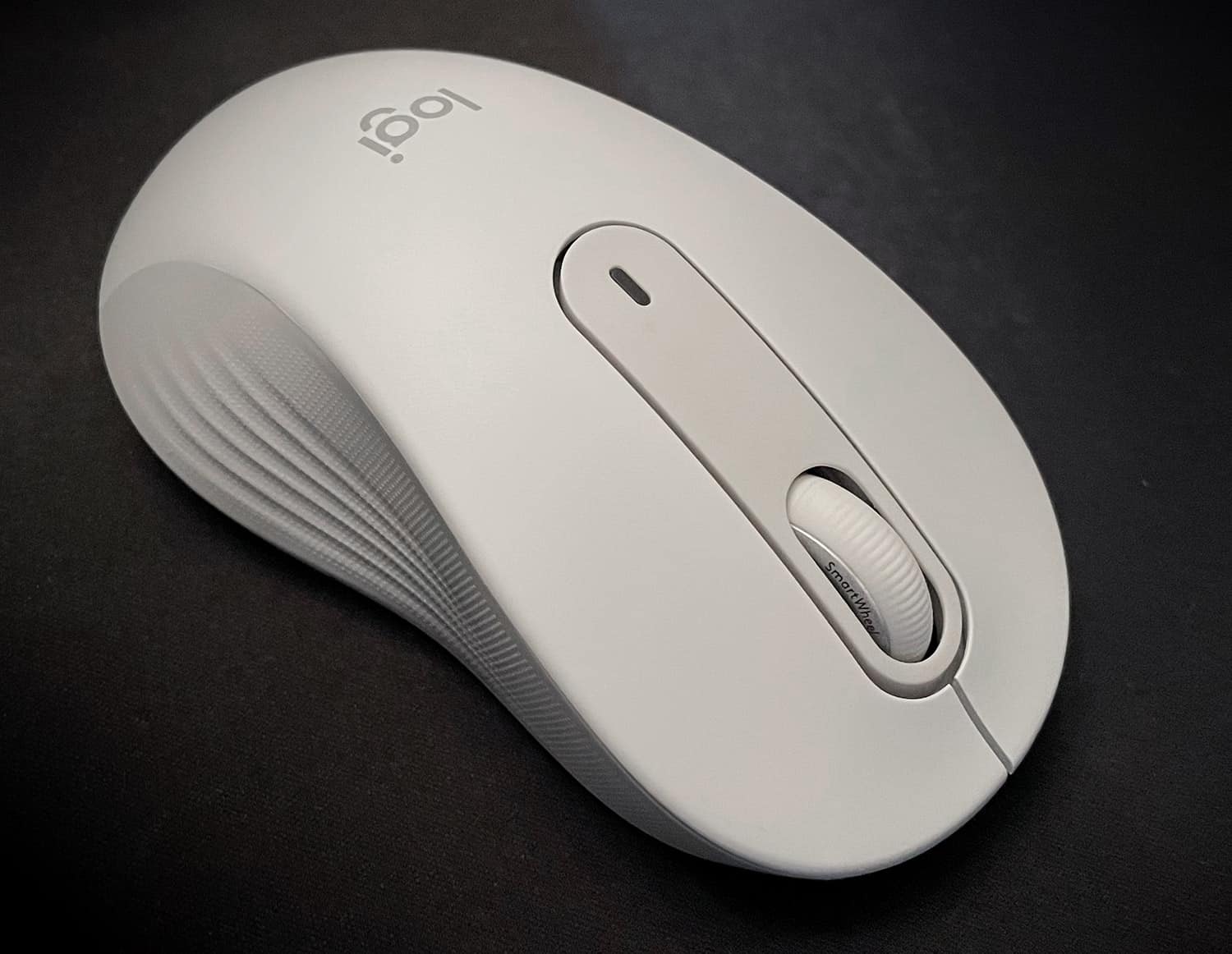
In the center between the buttons is a beautifully textured scroll wheel.I think this is the first logitech mouse I’ve used with them smart wheel scroll wheel, but I like it. Cornering is easy; it reminds me of the smoothness of weighted, bearing-mounted rollers.
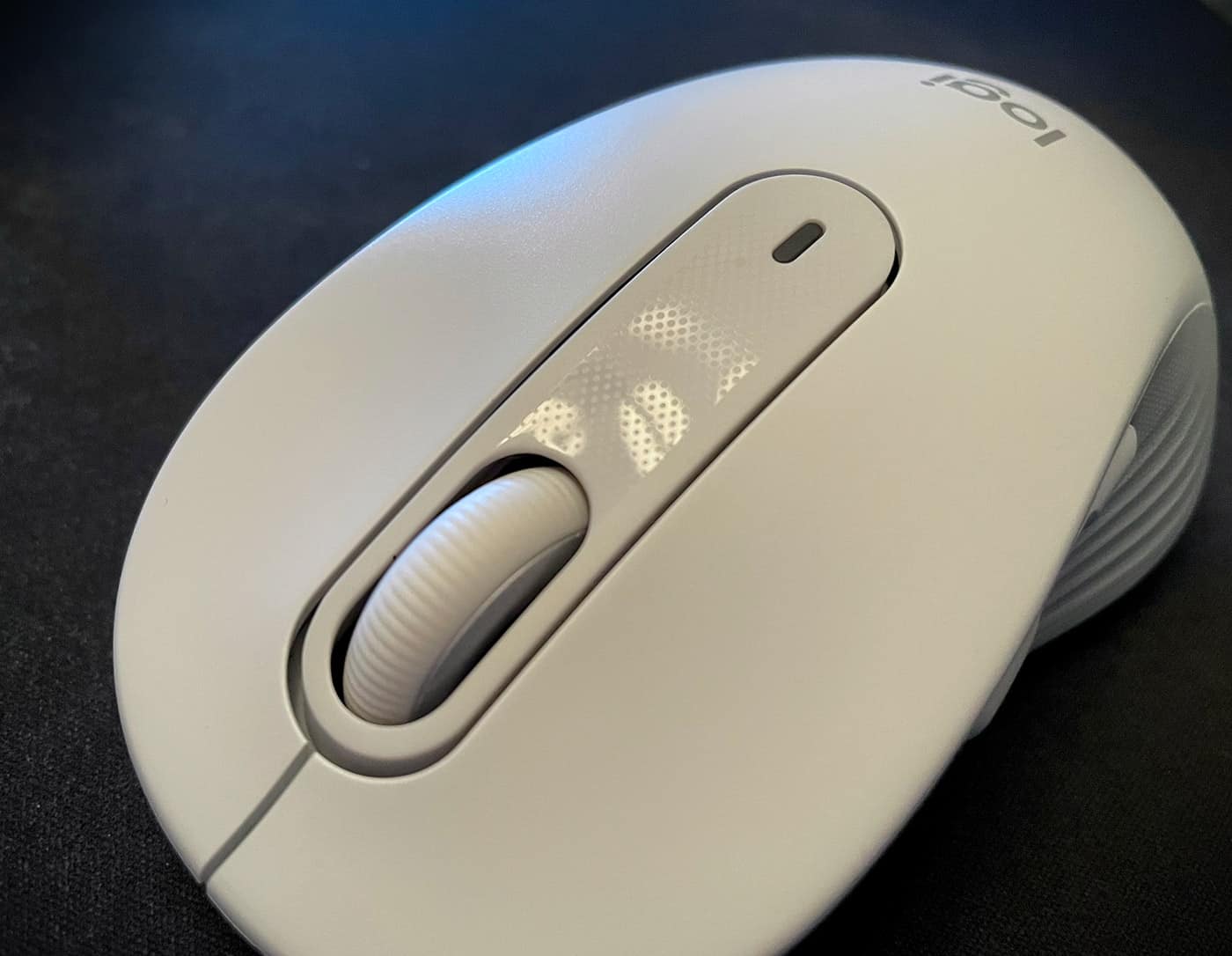
There are subtle tactile bumps when scrolling, and it feels good enough to provide some feedback. This SmartWheel has some extra tech, you can nudge it a little and the scrollbar will react accordingly, and a spin of the wheel is enough to get the site all the way to the footer.
Press the SmartWheel to act as a 5th mouse button. The functions of all buttons can be customized through Logitech’s software.
like a button, it is Also very quiet. How many times have you overheard “Oh, let me see here” in an office or waiting room and heard the mouse wheel make a sound similar to a baseball card slapping a bicycle spoke? This is a nice scroll wheel. I am sorry. Smart Wheel.
Flip the mouse over to reveal an on/off switch, a pairing button, and a battery door. Inside that cover is a slot for 1 AA battery (it is said to power the mouse for up to 2 year) and a “Logi Bolt” USB receiver.
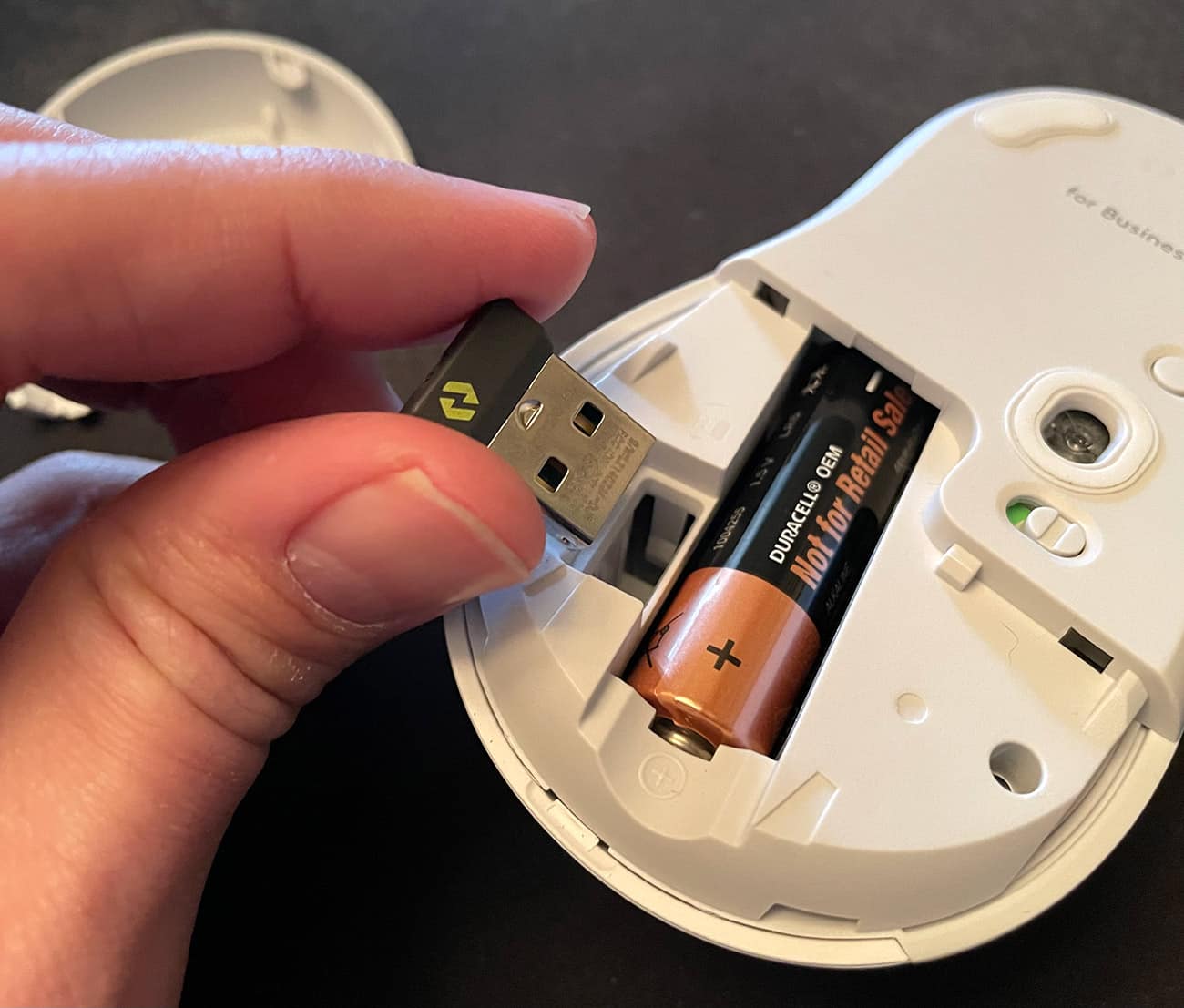
The M650 can be paired with your computer using this USB receiver, which is USB-A only, bad news for laptops that only have USB-C ports or…or…Bluetooth.Thanks to the tech gods, I can finally use a Logitech mouse on my MacBook without having to chain together a hub or converter to connect an old one Unified receiver. Just pair it in your bluetooth options and boom.
Now, connect via bluetooth Do Uses more power than a USB receiver. Logitech claims up to 20 months with Bluetooth and up to 24 months with the receiver on a single AA battery, so if you can stow away the small USB dongle, you can save modest power.Anyway, this is a ridiculous long time. I remember chewing on 2 AA batteries with my Apple Mouse every few months, before they started making them with rechargeable batteries.
It’s nice to have this notch to store the receiver, I think Logitech has been doing this for a while now. Overall, I’m trying to figure out the downsides of using this mouse. There might be more buttons, maybe? I don’t really use a bunch of macros that map to extra thumb buttons, I think the normal 5 macros are enough for most people.
There is no DPI adjustment to speak of, such as being able to switch between 400 and 1600dpi. This always seems to be a good choice for gaming or situations where you need to switch between big and small action. But then again, this mouse is only $40. It’s almost perfect for this price range.
what do I like
- Comfortable and almost silent
- Bluetooth or USB dongle connection
- Extend battery life
- very affordable
what would i change
- can’t think of anything
final thoughts
The Logitech Signature M650 mouse is without a doubt one of the best mice I’ve used at this price point.It’s accurate, comfortable, used for hours on end, and most importantly finally breaks Require a USB dongle while still Keep it as an option. I can’t think of anything I would change.
Price: $39.99
where to buy: Amazon
resource: Samples of this product are provided by Logitech.


