


Sharing is caring!
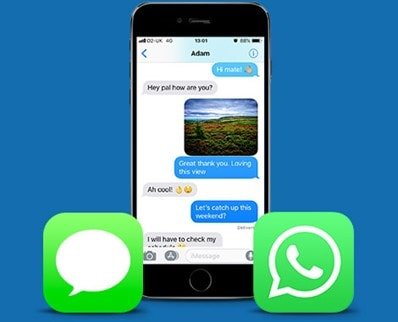
Text messages have become an extremely important part of our daily lives. Messages range from quick updates with friends and family to lengthy conversation threads, sometimes including countless photos and videos. Some of these SMS conversations may be too important to delete. It may be a message from a loved one you don’t want to lose, a message from a contact agreeing to a work price, or images and videos in text that you want to keep.
This guide will show you how to save messages received on iOS and Android devices, and how to print them out. If you are using an iPhone, you can save the information to a computer or iCloud. Android users can choose to save their messages to their computer or cloud service (such as Google Drive).
Save iPhone messages to your computer
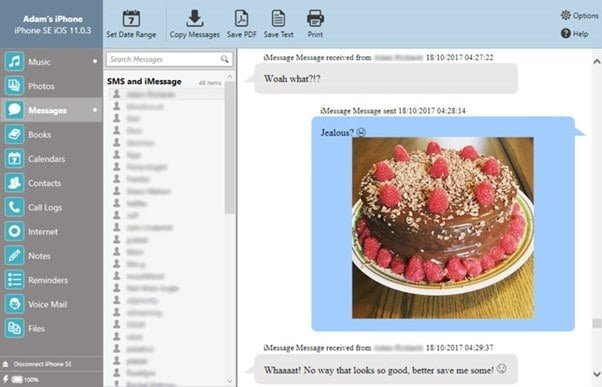
To export your text messages to a Windows PC or Mac computer, we recommend using Touch copy software. After you download and install TouchCopy, you can select the iPhone conversation you want to save, and then click “Copy Message” in TouchCopy. All messages exchanged with the selected contact will be saved to your computer, including any video, image and even audio file attachments in the message, they are all saved in a separate folder. After you select the conversation, TouchCopy can even export the conversation you selected as a PDF file by selecting “Save as PDF”. TouchCopy supports SMS, MMS, iMessages, WhatsApp conversations, and LINE messages.
If you wish to keep a paper copy of the conversation, TouchCopy will also print your message. After selecting the message, just click the “Print” button in TouchCopy. The printout will also include all photos, emoticons, and the date and time when the message was sent and received. The messages printed by TouchCopy are displayed in the same way as when you view them on the iPhone screen.
In addition to messages, TouchCopy can also transfer your iPhone music to your computer, back up iPhone photos and videos, export iPad books, transfer iPhone contacts, save iPhone call history, and more. The software comes with a free trial version with restrictions on the transmission of music and information, while the full version allows unlimited use.
Save iPhone information to your iCloud
If you want to save iPhone messages to iCloud, you need to turn on “iCloud Backup” in the iPhone settings section. In addition to text messages, if you are willing to purchase additional iCloud storage space (the free storage space is limited to 5GB), you can also save your WhatsApp and LINE messages. This is the most convenient if you are changing iPhone and want to transfer messages from iCloud backup to the new iPhone.
Save Android phone text messages to computer
If you want to save Android messages to your computer, you need to use a trusted third-party application.we recommend Robot transmission It is suitable for Windows PC because it is easy to use and the message backup contains all relevant information: the text message itself and the image, emoticons, time and date when the message was received or sent, and contact information.
Droid Transfer allows you to backup your messages via Wi-Fi or USB connection, and requires free Transfer partner An application on your Android device to connect your phone and PC.
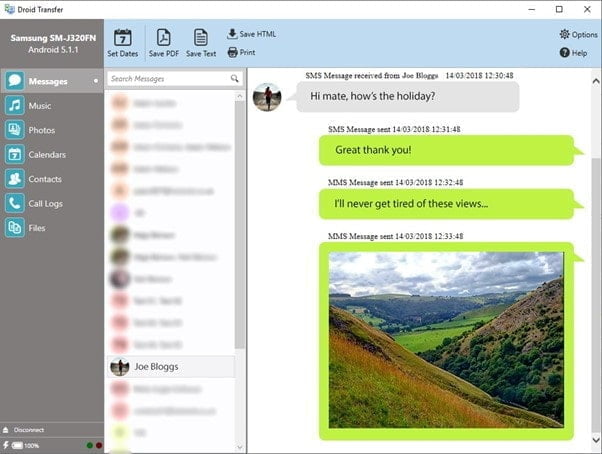
To save your Android device messages to your PC, open the message section in Droid Transfer. Here, you can browse all SMS, MMS and RCS (Rich Communication Service) conversations stored on your Android device. Then just select the conversation you want to save and choose the save format you want. Saving your message as a PDF will include any images, emoticons, and date/time of the sent and received messages. You can also use the “Save HTML” option to save your message as an HTML file, and save all images and videos attached to the message in a separate folder on your PC.
In addition, Droid Transfer provides you with a “print” option so that you can print messages directly from the app. The printed message is displayed in the same way as the message is viewed on the screen of an Android phone, and the printout contains images and emoticons.
Backup Android messages to Google Drive
With plenty of storage space (starting from 15GB and above), Google Drive is a great choice for saving messages, especially because the backups can be automated and you don’t remember to start them manually. Please note that unlike the Droid Transfer described in the previous section, Google Drive will not back up messages with images or videos, that is, your multimedia messages (MMS) will not be saved.
To save your Android SMS to Google Drive, please follow the steps below:
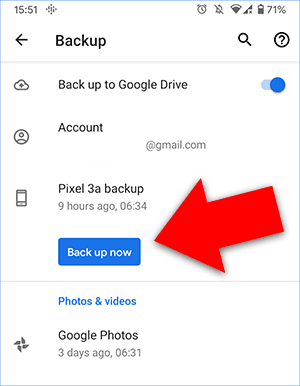
- Launch the “Settings” app on your Android phone.
- Click “System” and select “Backup”.
- Select “Back up now” to back up your device to Google Drive.
Final thoughts
Hope you find our roundup on how to save Android and iPhone messages useful. The solution we recommend should be easy for most people to follow, but if you only need to save a few messages, you can take screenshots of them and save them to your photos at any time.
thanks for reading!


