


Post views:
13
Many of us are very familiar with the concept of screenshots. It allows you to save whatever is on your smartphone screen. The problem arises when you need to record a series of events on your phone or you need to record a process. Doing so by simply taking lots of screenshots is also a waste of your time, energy and phone storage. Every digital problem has a smart solution, in this case the smart solution is named Screen Record.
No doubt, you’ve probably heard this term before and practiced it on your desktop as well. Now, you’ll be happy and excited to learn that you can do the same with your iPhone. This article is the ultimate guide to answering the question that is running in your head right now:”How to record on screen iPhone 12? “
How to Screen Record on iPhone 12
Screen recording on iPhone 12 is as easy as on any other device or smartphone. You just need to follow some basic simple steps to create your own screen recording. You’ll be able to record everything that appears on the screen, including videos, notifications, apps or games. In this way, you can share the system’s instructions with others and work harmoniously. These steps are as follows:
- Create a screen recording shortcut (for your convenience).
- Start screen recording, with or without recording.
- End recording and save.
1. Create a screen recording shortcut
Before starting to record your screen, it is recommended to create a shortcut in the control panel. In the future, this will save you time and you won’t have to go through the long process every time. For this purpose:
- Go to settings.
- Click the Control Center option.
- Find the “More Controls” option and click it.
- choose screen recording Choose an option from the list by clicking the plus sign on the left.
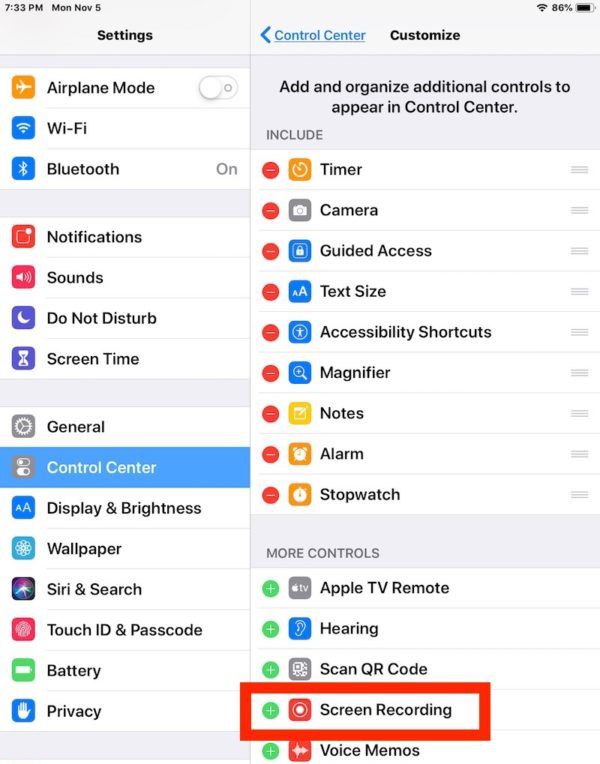
Following these steps, you will successfully generate a screen recording shortcut button in Control Center. Now you can easily start screen recording just by going to Control Center.
2. Start screen recording, with or without recording
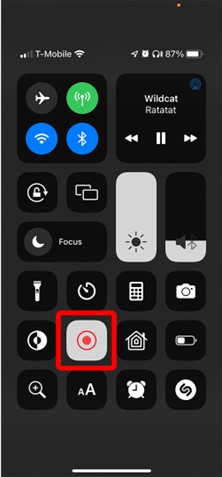
- No audio recording: Swipe down from the bottom right corner of the iPhone, near the battery symbol. You will see Control Center on the screen. Since you’ve created the screen recording shortcut, you can now record without audio by simply tapping its icon (a solid circle inside an open circle) once. This will start a screen recording within 3 seconds (with a timer on the screen).
- To record audio: You need to long press the screen recording icon and it will generate a popup message on the screen. To record audio using your phone’s microphone, tap the microphone icon, then tap the asterisk recording option. After a short period of 3 seconds, your recording will start.
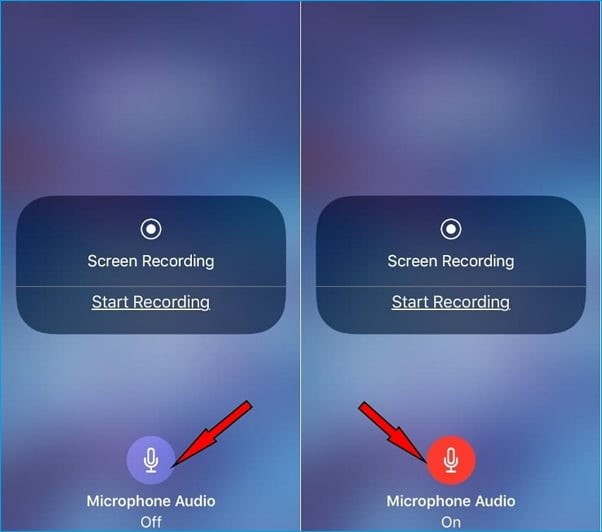
Once you have made the right choice for screen recording, you will see a red clock on the screen. It will record the time you recorded your screen.
3. Stop recording
If you’ve finished your screen recording and want to do it; you can do it in two ways:
- Go back to the iPhone 12’s Control Center, where you’ll see the screen recording icon (now red). Just click this icon and you can finish screen recording.
- Just tap the clock running on your recording screen. A pop-up message will appear. Click on the stop recording option.
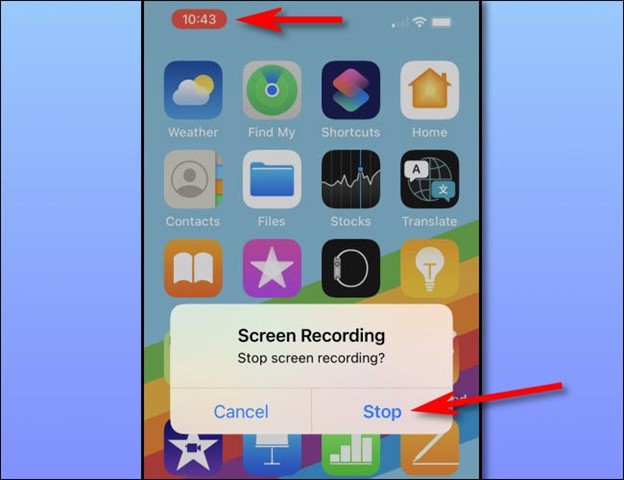
Follow either of the above two methods and you can complete the screen recording. After that, you can see a confirmation message on the screen that reads: “Screen recording video has been saved to Photos”.

Where can I find screen recordings on iPhone 12?
If you have successfully turned off screen recording, it will be stored in your iPhone storage. Your iPhone 12 has a standard Photos app. All your screen recordings are saved in this app by default.Whenever you want to access any screen recording, you just enter iPhone’s standard Photos app.
Adjust screen recording settings
iPhone doesn’t give you permission to change screen recording settings. You cannot make any changes to the resolution or quality of the screen recording video. All you can do is edit the final recorded video in the Photos app. Though it helps you share your screen on Facebook broadcast instead of saving it to your phone storage.
Edit screen recording
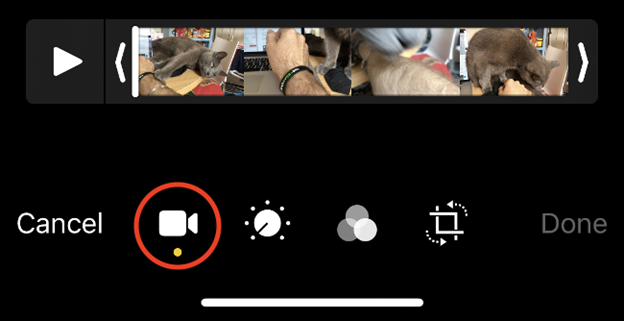
The Photos app in iPhone 12 also gives you the ability to edit screen recording videos.you can
- prune
- adjust color
- Apply filter
- Rotate/crop screen recording video
After editing your screen recording video, don’t forget to select the “Done” option, otherwise all your changes will be discarded and you will have to start over.
iPhone 12 screen recording limitations
While recording your screen, you may also record some confidential or personal information. For example, during screen recording, all messages and notifications are also recorded. At that point you may receive an OTP that should not be shared with anyone, but it will be logged and you may lose its confidentiality. In this case, it is recommended to keep the phone in Do Not Disturb mode while screen recording.
Screen recording on iPhone lets you record everything, whether it’s app data or game strategy, but it restricts you from recording shows that premiere on Disney+, Amazon Prime, or Netflix, as this can lead to copyright issues. Shows on these apps are only available to those who purchased a subscription.

