


Sharing is caring!
I should hopefully be able to review my first WiFi 6E router soon. Many new laptops are compatible with the WiFi 6E standard, but older laptops will be limited to WiFi 6 or WiFi 5.
I upgraded my old Dell XPS 15 before but I rarely use it now so in preparation for the review I upgraded mine Huawei Matebook 14. I think the process is relatively common knowledge (if you’re interested in tech/computers), but my PR asked me some questions about it, so I thought I’d document the process. this is very simple.
This guide will work in much the same way for most laptops.However, some laptop components are inaccessible and I can’t easily upgrade mine Huawei Matebook 13 (I think the motherboard is upside down). If you open the back of the laptop, you should be able to tell if it’s easy to upgrade.
Intel AX210 WiFi 6E M.2 Module
Currently, there are two modules that can do WiFi 6E, Intel AX210 and the killer AX1650. Killer has custom made their hardware in the past, but there are reports that the AX1650 is the same as the Intel model.
The Intel AX210 is sold on Amazon through a number of random brands. These are only importers of official modules, as Intel doesn’t sell directly to consumers.
You specifically want the one with the AX210 in the name, it should also say something like WiFi 6E and 6GHz.
The model I bought was from Wise Tiger and it cost £36.
The old AX200 is still available and only has 2.4Ghz/5Ghz WiFi 6 (not 6E). It’s nearly the same price, so there’s no reason to buy it, even if you don’t have an immediate plan for expensive WiFi 6E hardware.
Download the driver before installing the module!
The Intel AX210 has been out for a while and I made a schoolboy mistake thinking that Windows would recognize the new hardware and have the drivers for it. So when I restarted the laptop I had no network connection and I had to unplug the ethernet adapter to fix it.
Best to download the driver first.You can Download drivers directly from Intel here.
It’s probably easiest to install it before installing the hardware, which I obviously didn’t do afterwards.
Open Huawei Matebook 14 Laptop
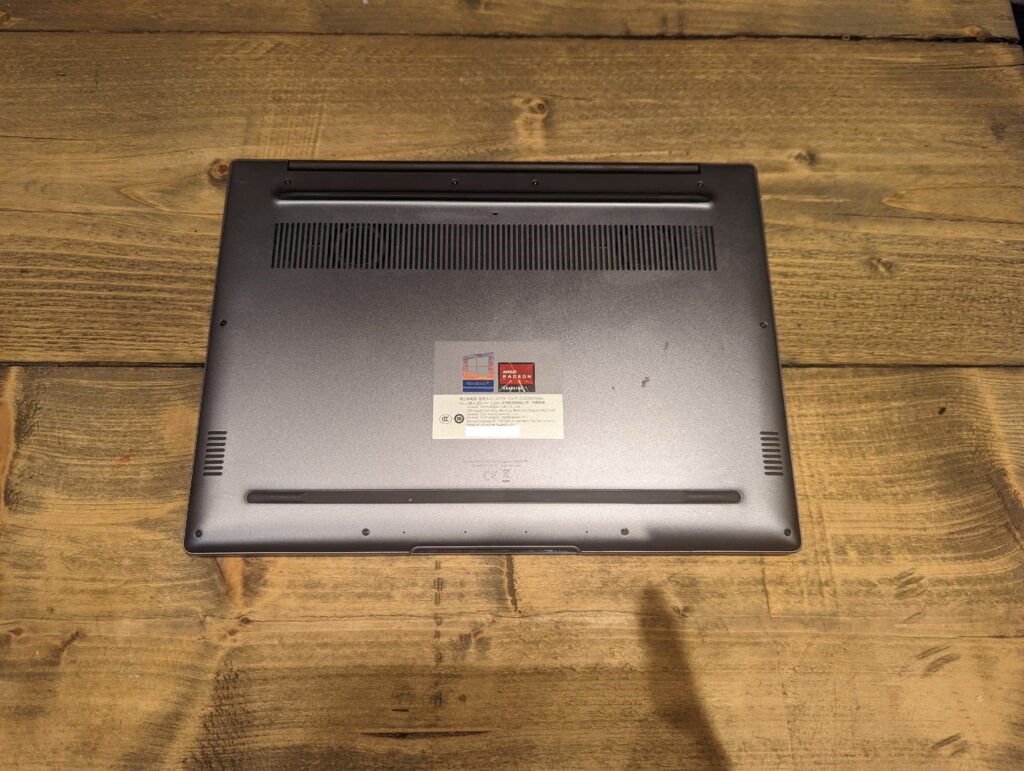
Matebooks use those annoying electronics-specific screws. It’s a Torx or Pozidrive, and you’ll need one of the cheap precision screwdriver sets available from Amazon. They are a good investment and I use mine all the time.
There are 6 small screws on the front and side edges and 4 longer screws on the back. They are small and put in a container or something so you don’t lose them.
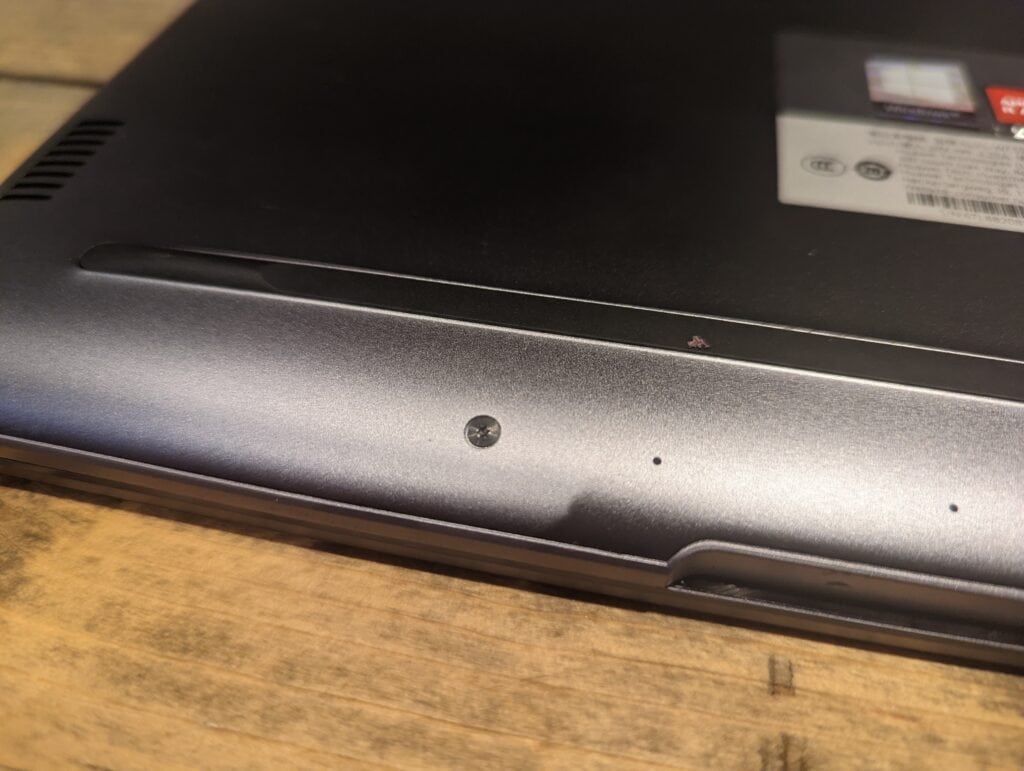
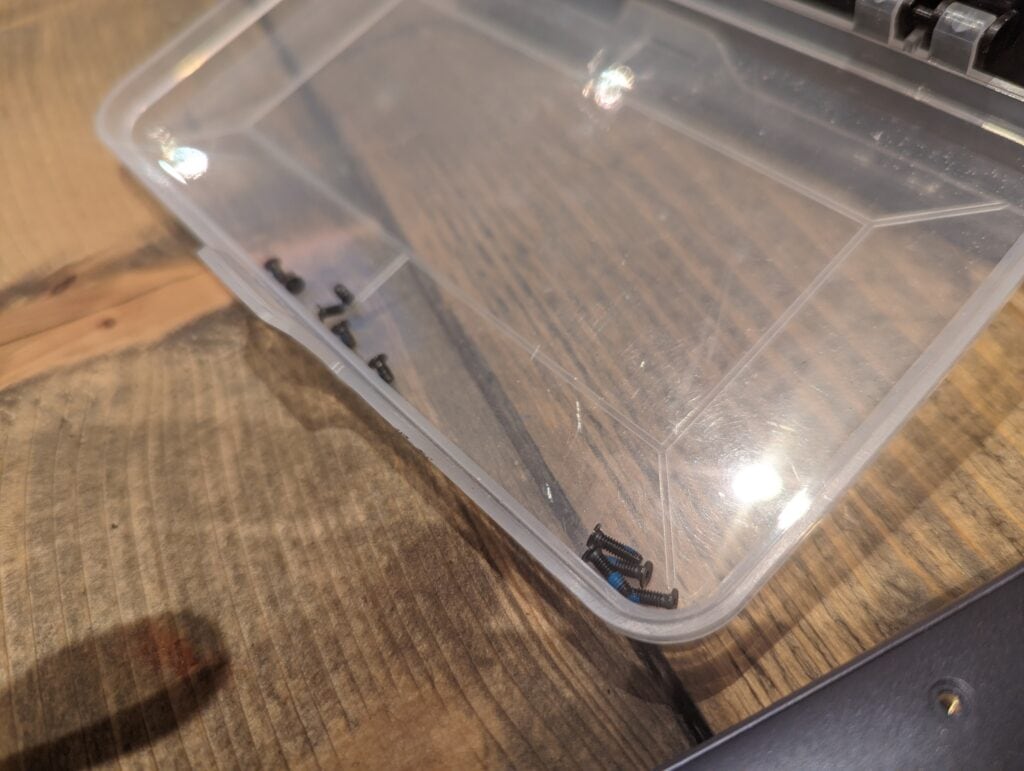
Removing the back panel is the hardest. I used the small plastic spudger from the screwdriver set, and starting at the back where the monitor hinges are seems to be the easiest way.
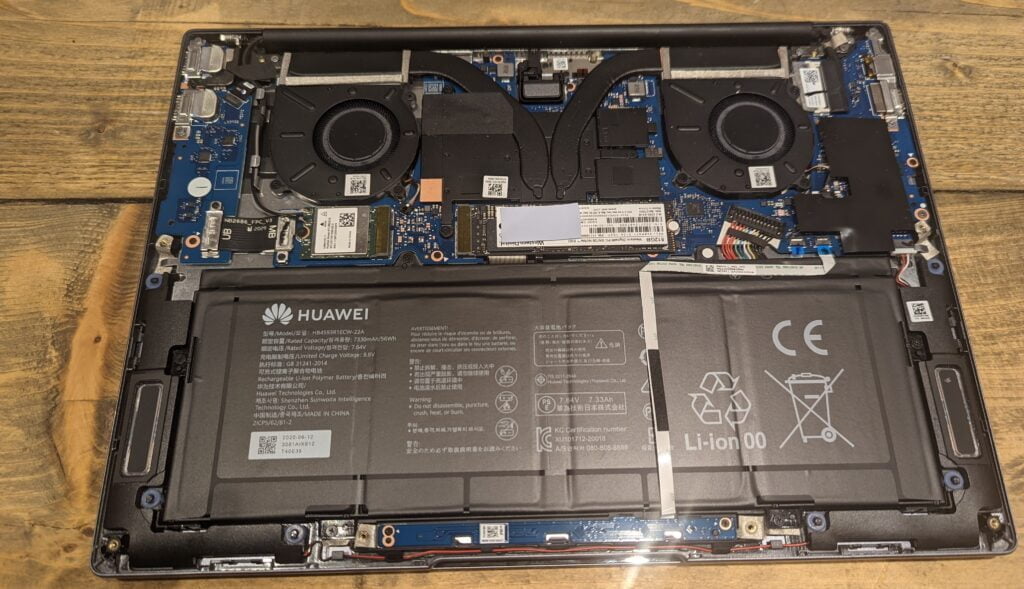
Once the rear panel is closed, the existing WiFi 5 module is immediately visible and easily accessible. NVMe drives are also easy to upgrade if you want to do both.
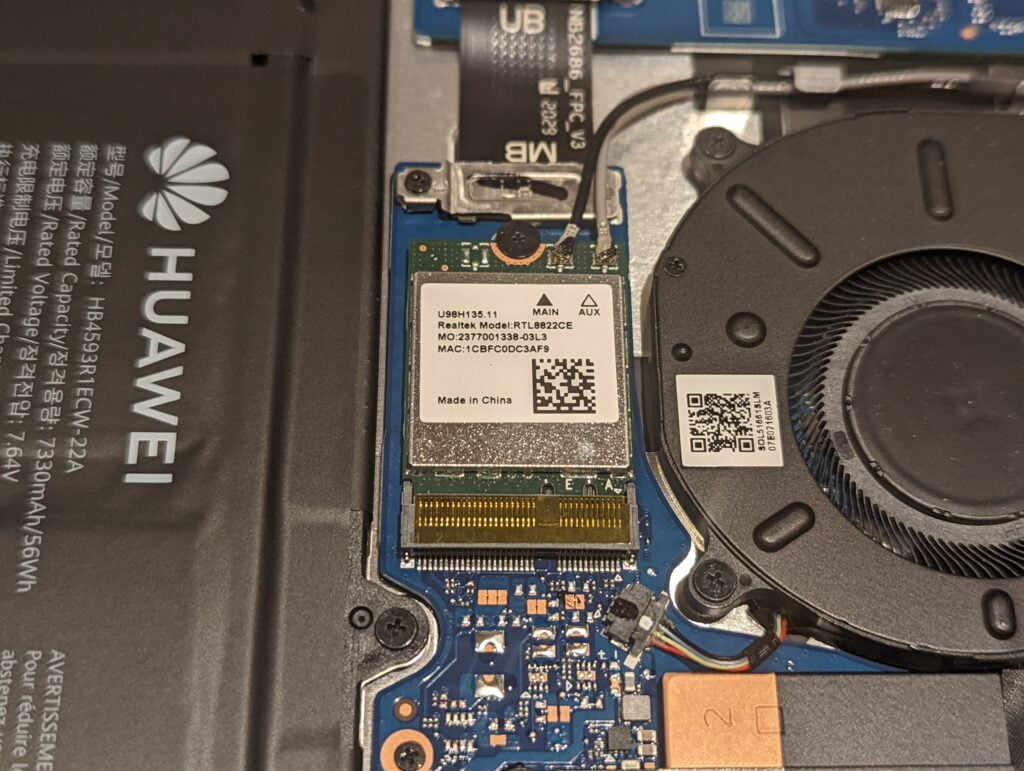
There are two antenna leads on this module that clip into place with small button clips. These pop easily, but you should keep in mind which color goes where (though I’m not sure if it makes a big difference).
The module is held in place by a small Philips screw. Remove it and the module should lift up and you can easily remove it.
Then just plug the Intel AX210 in place and screw it in.
They are pretty fiddly to reconnect the antennas and I found some tweezers to use to hold them in place. They require a little force to snap the buttons into place, and I had to use the ends of my fingernails to provide enough force for me to feel a slight click. If you don’t click them into place, you’ll most likely have some performance issues.
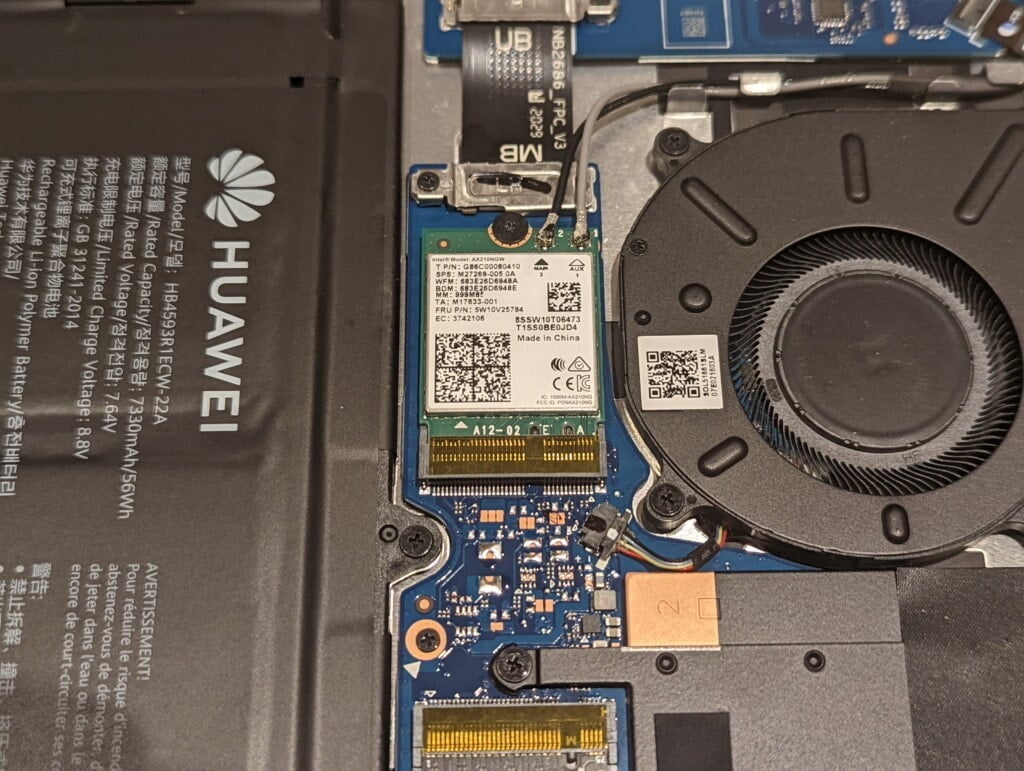
When you’re done, you can reinstall the back panel, which is much easier than removing it and screwing everything back into place.
When you boot, you should be told that your laptop now has WiFi 6. If you don’t have the driver installed then it will show the little circle and no connection is available.
Since this is a new WiFi module, the laptop will forget all saved connections.
Make WiFi 6E 6Ghz work
You absolutely don’t need to do anything. However, you can double check that Windows can use 6Ghz.
- Go to Network Connections (you can type in Windows Search)
- Right click on WiFi and select properties
- Click to configure
- go ahead
- It should show a channel width option of 6Ghz (there are separate options for 5Ghz and 2.4Ghz). You don’t need to change any settings.
Other laptop examples
As I said before, not all laptops can be upgraded, but I recently reviewed two Acer laptops that both expose the M.2 module for easy upgrades.
I think ultraportables will be the hardest to upgrade since all the components are packed as tightly as possible.
Last updated on Jan 15, 2022 / Affiliate Links / Image from Amazon Product Advertising API


