


Sharing is caring!
Over the past two years, I’ve reviewed the best-in-class 10GbE equipped TerraMaster F4-422 and more affordable TerraMaster F4-421 NAS equipment.
TerraMaster offers by far the best value for money for the hardware you get. However, TerraMaster operating system is not everyone’s favorite. I’ve been using a TerraMaster F4-422 with TOS as my NAS for over a year and haven’t had any major issues, but the system is a bit clunky and lacking in features compared to the likes of Synology.
Recently, I’ve been thinking about upgrading my main AMD Ryzen powered server from Ubuntu Server to Unraid or Freenas, and realized that TerraMaster NAS devices can be easily upgraded to a different OS.
I originally used the Ubunutu server because I had managed servers using it and it made sense to have a system at home that I could experiment with. However, TrueNas and UnRaid are in every way more home-user friendly, and they can run virtual machines if you want to use a full operating system.
The internal structure of TerraMaster is like a normal PC, similar to Intel NUC. The operating system runs from an internal USB drive and you have full access to the BIOS.
Before committing to upgrading my main server to a new NAS-oriented OS, I thought I’d upgrade my two TerraMaster appliances. TerraMaster F4-421 is now running UnRaid, while TerraMaster F4-422 is running TrueNas Core.
I’m going to split this into two articles, one for each NAS and OS, but much of the content is the same.
TerraMaster F5 / F4-422 and TerraMaster F4-421
There is only one big difference between these units, the F4-422 has one 10Gbit Ethernet port plus two additional Gigabit Ethernet ports, while the F4-421 has only two Gigabit ports.
The TerraMaster F4-422’s HDMI port is blocked, but the actual HDMI port is still there, easily accessible once you remove the back cover, and the HDMI tab can be ejected.
As of this writing, TerraMaster doesn’t appear to be selling the TerraMaster F4-422, it’s just a two-, five- or eight-bay model. The current price difference between the F4-421 and the F5-422 is £110.
Another option is the affordable TerraMaster F5-221 listed on Amazon, which has 2GB of RAM and an Intel Apollo J3355 2.0GHz dual-core CPU with an additional 5th Drive a caddie. Performance will obviously be lower, but I expect it to be fine for a basic UnRaid NAS.
hidden 5th SATA port for 5-drive NAS
If you have a 4-bay TerraMaster, you’ll be happy to find that the internal hardware is the same as the 5-bay variant. they just blocked 5th bay drive tray.
Some people have modified their NAS to add 5th tray. For me I used SSD in 5th Cached slot.With the NAS fully loaded, the SSD and SSD just hang there, with only a few millimeters of wiggle before it touches the 4th drive
If you’re reckless, you can hang the SSD there, which I did temporarily. I’m hoping I’ll provide some sort of support and maybe pin it on the hard drive next to it.
You can buy a TerraMaster HDD tray for £30 so you can retrofit the entire NAS to fit, or maybe hack away the front of the tray and slide it in with the front panel removed .
TrueNas and UnRaid
I’ve never used UnRaid or TrueNas Core before, I think I only know about them from Reddit and only roughly what they do. So I’m probably not the best person to compare.
First, TrueNas core is based on BSD’s UnRaid, and UnRaid is based on Linux Slackware.
UnRaid requires a paid license and costs $59 for up to 6 storage drives.
From my very brief experience, UnRaid is probably the best option if you want a simple setup in terms of hardware and OS. You can mix and match drive sizes and easily expand your system with new drives. This is better for someone like me who has slowly combined systems with hybrid drives over the years.
With the Community Application plugin, UnRaid also has a wider range of easy-to-install applications, and it has Docker built-in natively.
On the other hand, if you’re building a server from scratch with matching sized drives, TrueNas might be preferable because it improves performance. With the ZFS file system, data is stripped and written to multiple drives simultaneously. You can also run the equivalent of RAID10 for a significant performance boost. While Docker isn’t natively supported, under the plugins section, you have all the apps most home users might want, including Plex, NZBGet, NextCloud, and more. TrueNas Scale does support Docker, but I believe it’s still in beta.
prerequisites
Inside the TerraMaster F4-421 is a small USB drive. You can install a new OS on this drive, but given the price of the drive, you might as well keep it as a backup and replace it with a newer one.
It takes a short drive as there is not much clearance.
I was having trouble getting the UnRaid installer to work, so I had to install it manually and the instructions said it was limited to 32GB drives.
The options I choose are SanDisk Ultra Fit 32 GB USB 3.1 Flash Drive (SDCZ430-032G-G46)which cost £8.
I’m not sure if choosing the USB 3.1 version would have any impact on performance, but it’s so cheap I don’t care.
Open TerraMaster F4-421
Opening the box is easy, you’ll need some electronic screwdrivers.
Be careful when you pull the rear panel apart, as the fans are plugged in with relatively short cables. The motherboard and two fan headers run down the sides, and the LEDs are on the top edge. They’re just behind the HDMI port and can be easily undone.
Then you should be able to slide the main part of your body down.
upgrade memory
Upgrading RAM is very easy. For this drive, I temporarily stole some DDR3 RAM from an old laptop and upgraded it with an extra 4GB of RAM.
For the TerraMaster F4-422, I bought some random brand of 8GB DDR3 RAM and used it. While TerraMaster states that these drives are only up to 8GB (4 GB + 4 GB), my TrueNas installation recognizes and uses 12GB. I think the same applies to UnRaid and TerraMaster F4-421.
You should probably remove the entire front panel to upgrade the RAM, but I’m lazy and I removed the two screws on the top, which gave enough wiggle room to plug in the RAM.
Install UnRaid
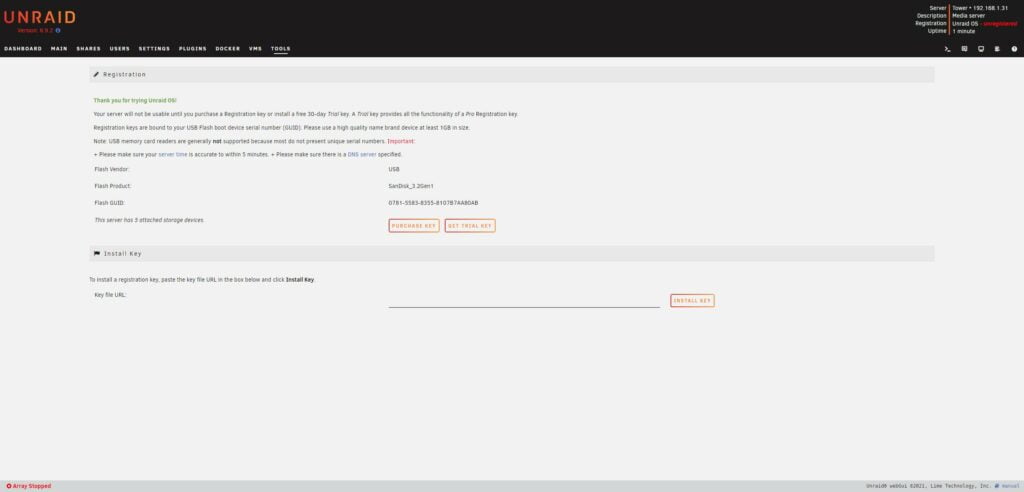
I had some issues at first, mostly user error, because I obviously didn’t read the instructions.
I’m assuming UnRaid installs are like other OS installs, you copy the OS onto a bootable USB, then install the OS on the drive of your choice.
However, you install the actual operating system onto the USB drive and it boots directly from that drive.
I’m also having issues with UnRaid USB Creator. For whatever reason, I can’t get TerraMaster to recognize the drive as a boot drive. I tried changing the drive priority in the BIOS without success.
Then, I realized that the manual install says you can only use a 32GB USB drive, and I’ve purchased 64GB.
Anyway, once my new drive arrived, I followed the manual installation instructions, which included:
- Format the device with the FAT32 file system. It cannot be ex-FAT or NTFS.
- Set the “Volume Label” to UNRAID (case sensitive, use all caps).
- Copy the file (download and unzip from UnRaid)
- A generation no Change EFI-director for UEFI boot
- For modern Windows PCs, you need to right-click the make_bootable file, run as administrator, and press Enter twice as instructed by CMD.
I found that you can slide an existing USB without unscrewing the cage from the motherboard, so you just swap the old TerraMaster USB for the new one.
That’s it, UnRaid should boot, I didn’t need to make any changes in the BIOS to boot. If you plug the NAS into the monitor, you will be told the IP address. Or you can use a tool like Advanced IP Scanner to search for it on your network.
Assuming you haven’t purchased a license, you can use UnRaid for free for one month during the trial period.
Set up your array with cache and parity
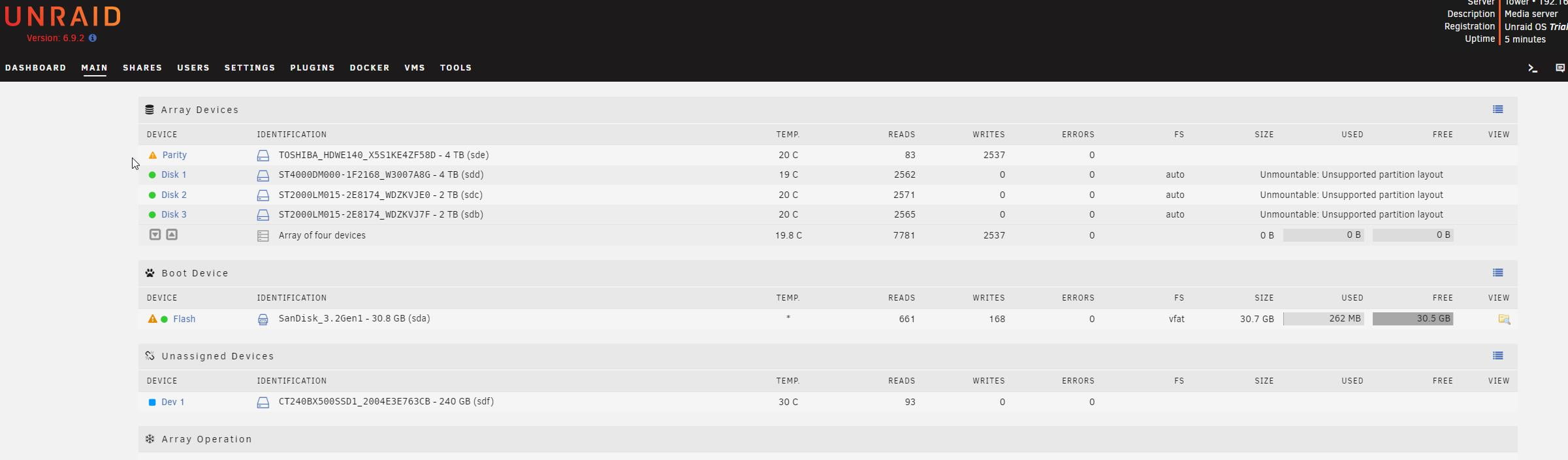
I’ve used older drives in this test setup. My parity drive has multiple SMART errors, so I’ll be replacing it soon. All data on this NAS is not critical.
This is nice and easy, more confusing than TrueNas, although neither is particularly difficult.
Select the desired drive in the main array, then select the parity drive. The parity drive should be the same size as the largest disk in the array.
You can also add a cache drive by going to Pool Devices and selecting an installed SSD.
If the drive is already in a format that UnRaid can read, I think all your data should be preserved. In my case I had to format the drive.
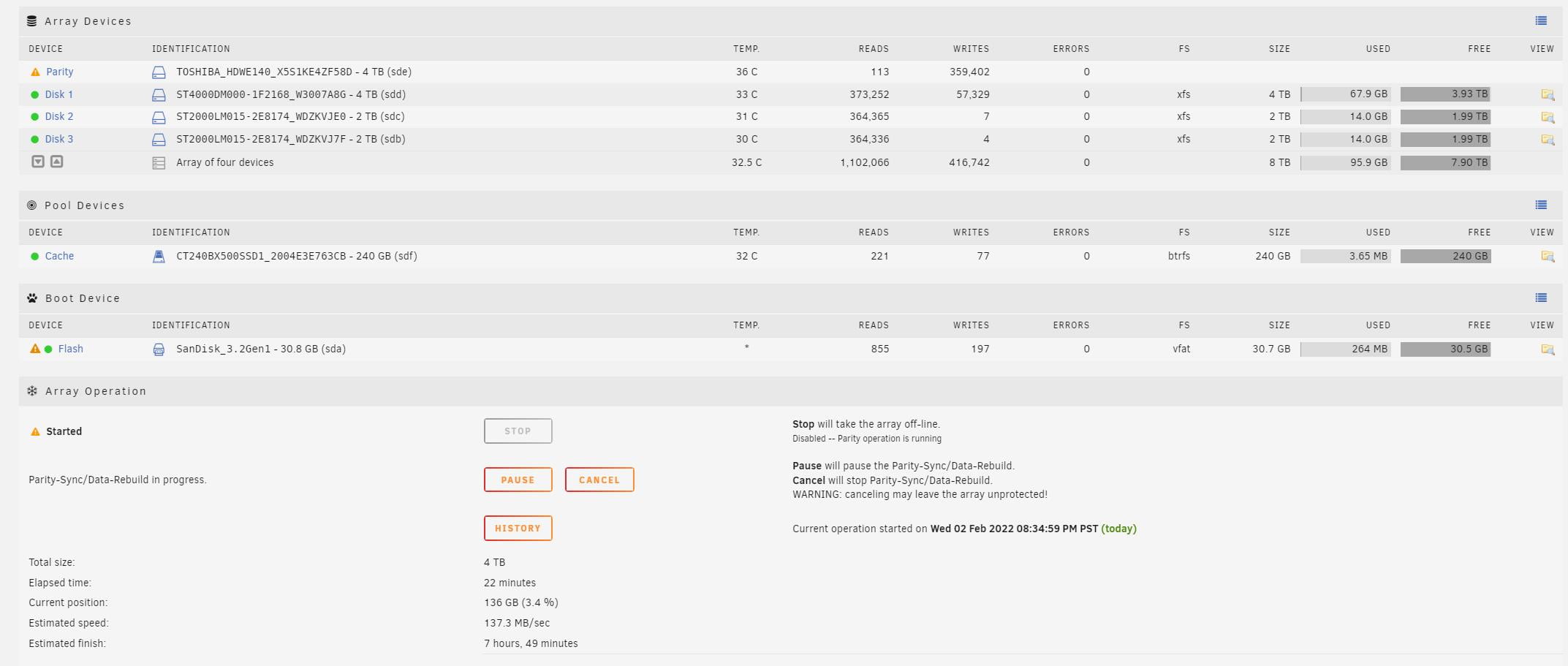
Once formatted, the array will be available immediately, but will require a parity drive to be built, and until this drive is fully built, your data will be at risk. For my system, a 4TB drive takes about 8 hours.
How to Install Apps – NextCloud / NZBGet / Radarr / Sonarr / Torrents
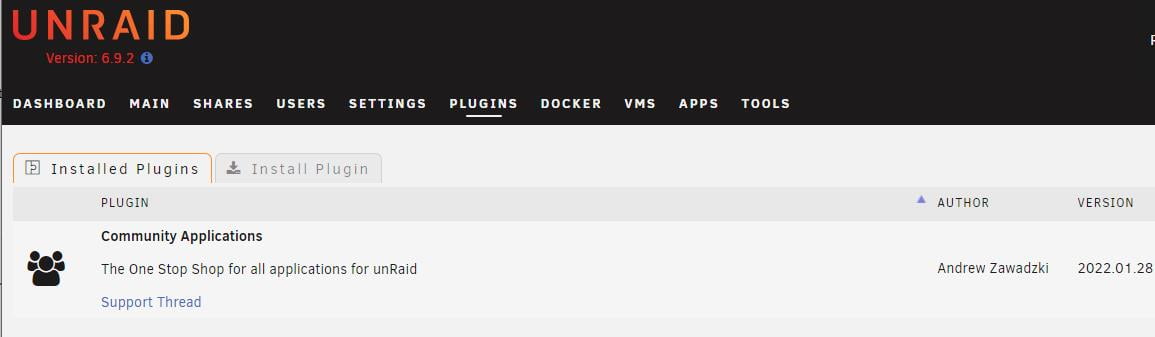
Since I haven’t read much about UnRaid, it’s not immediately obvious how to install the app easily. Docker is built into the system, but if you want to add containers via the Docker menu, you have to set everything up manually.
There are a few template repositories that can simplify things significantly, but by far the easiest option is to install the community app plugin.
A full thread is available here
Installation couldn’t be easier.
As the name suggests, this is a community-run application database, so you can’t always guarantee quality, but I haven’t had any issues with it.Each application states the repository used, linuxserver is always a safe bet, but many others are also excellent
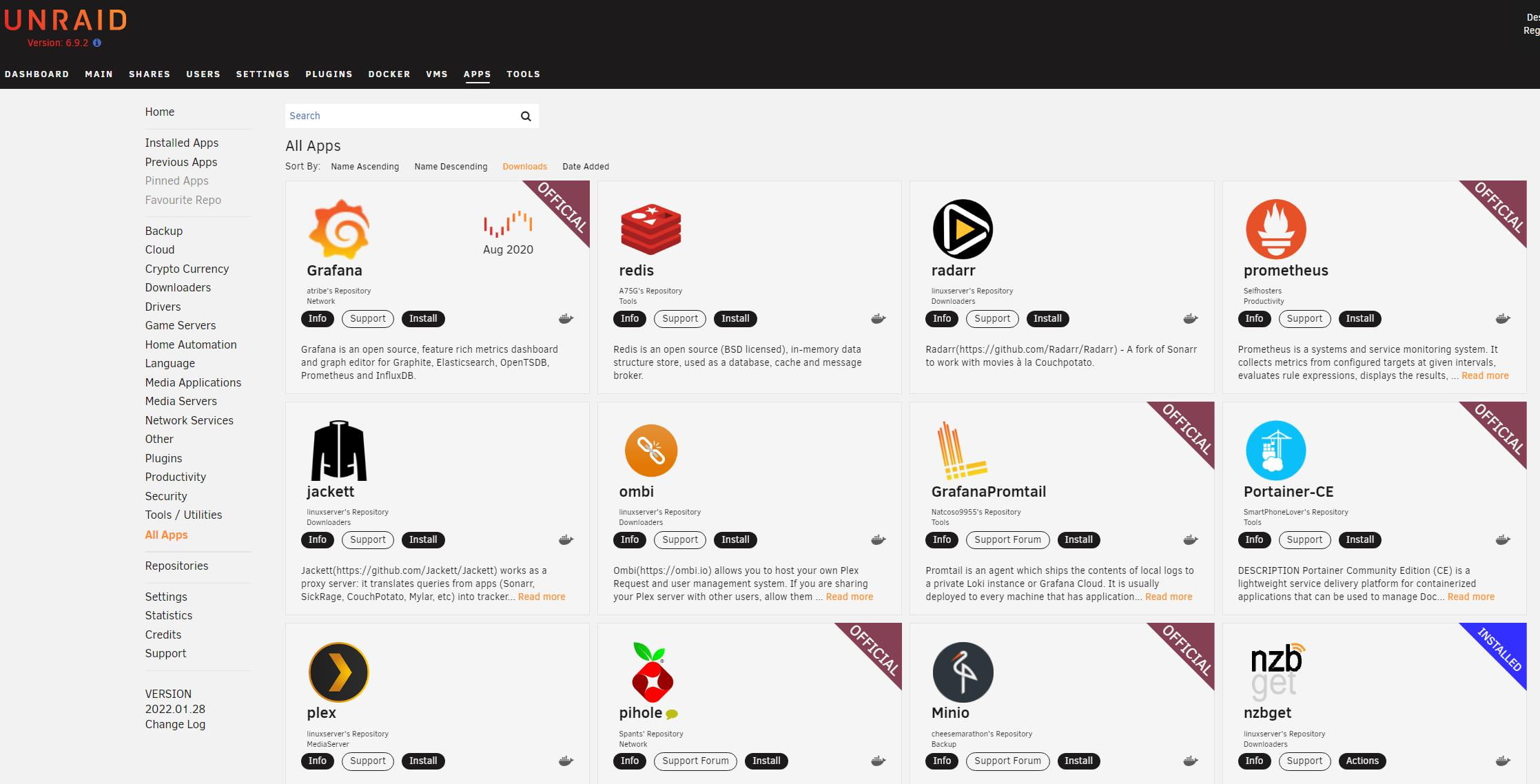
When you choose to install an application, you can install the default, latest or beta/test version. Then it will load all the container information for you. Usually, all you need to do is define the path you want to use.
Installation usually takes a few seconds and is much faster than FreeNas installation.
Then, from the main dashboard, you can see all the docker containers with various options, including starting and stopping them. Alternatively, you can manage through the Docker menu. It would be a good idea to set autostart for some applications.
From my limited experience, the whole thing is more user-friendly than the default TerraMaster OS and has more apps. This is the closest you will get to Synology.
comprehensive
Call me an UnRaid convert. I like the simplicity of the system and the community app plugin makes setting up new Docker containers much easier than Docker Compose or TOS docker apps.
The drive performance isn’t amazing, in my case it was made worse by an old problematic drive, but overall it’s good enough for your average user. Sure enough for all your downloading/streaming needs as well as backups.
Being able to upgrade TerraMaster NAS to UnRaid significantly improves their overall appeal. They are off to a good start due to their affordable price compared to other brands. Now with UnRaid, you can have something with significantly improved functionality, giving you a near-budget Synology.
I need to point out a caveat, the two TerraMaster systems I’ve upgraded are Intel based units, some cheaper models are ARM based, I’m not sure how easy it is to upgrade to UnRaid/TrueNas
Last updated on 2022-02-13 / Affiliate Links / Image from Amazon Product Advertising API


