Post views: 306
In these days, a major problem is people Face gadgets (PC, tablet, tablet or mobile phone). Usually, when someone encounters storage problems on a gadget like cell, he will get help from the PC (by converting the data from the phone to the PC). But what if the PC storage space is full? If you don’t use cloud storage, how to deal with your data? do not worry! Here, we provide you with a solution. Your PC window always has some unallocated drive space in Windows, you can add it to the partition or system drive for use.
Please also read:
Ways to protect your computer from viruses and adware
5 reasons why Windows laptops are running slowly (how to fix them)
The 10 best free Window 10 applications you need on your computer
Here, we will discuss the allocation and use of unallocated drive space, but there will be a problem here.
What is unallocated drive space?
As the name implies, unallocated space is the portion of the drive that is not allocated to any partition. The computer defines any physical space on the hard drive that is not related to any partition (defined as the space on the hard drive that has been assigned a drive letter, such as the C drive, D drive, E drive, etc.) as “unallocated”. Unless you use it as part of the actual drive/disk partition, no program in your computer can use this space for data storage.
Where to explore the unallocated space?
In Windows Explorer, you will not see the unallocated space, you will only find that your hard drive shows less space than the actual space. For example, 1 TB shows 750 GB. This means that you have 250 GB unallocated on your drive. Fortunately, you can view the complete disk space allocation status and unallocated space in the disk management of different versions of Windows (for example, 7/8/10/11) on your computer.
How to deal with unallocated space?
To use unallocated space, you need to know what options he can use to allocate unallocated space in the partition. Basically, there are two options:
Create a new partition in the drive (If you want to save some specific files/data separately in a new location, you can create a new partition for the unallocated space.
Choose an existing partition to expand (If your existing partition, such as C, E or any other drive is facing insufficient storage space, you can expand it by entering the unallocated space.
Types of partitions you can create
The volume or partition you create to allocate unallocated space must be recognized by Windows. You can create 3 types of partitions in this regard:
- To shrink an existing partition to create a new logical partition, such as a new drive named F (or another name), you can use a SIMPLE volume.
- If there are two or more unallocated volumes, you can combine them by creating new partitions (even on discrete physical hard drives). This new partition that combines various unallocated volumes can be called a SPANNED volume.
- If you want to comprehensively increase the storage capacity of all partitions to a certain extent, you can spread information among multiple disks for this purpose. Since the allocated disk blocks are distributed in each partition, the overall proficiency will be improved. This type of partition function can be called a STRIPED volume.
Method: Create a new partition for the unallocated space in the drive
Follow the steps mentioned here:
It can be opened by various methods. For your convenience, I mention the simplest one here.
- Right click on this computer
- Select management
- Click storage
- Select Disk Management under Storage
- Right click on unallocated space
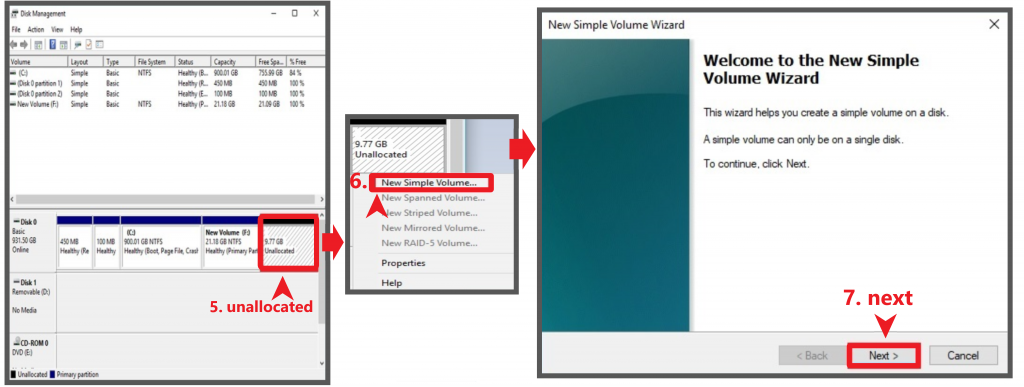
- Choose a new simple volume.this Welcome to the New Simple Volume Wizard Open
- Click next
- Now use the simple volume size to set the size of the new volume in the MB text box. Although the recommended size is based on the storage ratio of other partitions.you can Change It is based on your choice. For example, if you edit and set it to a smaller size, the remaining space will remain unallocated.
- Click now In the next step.
- Now Windows will ask you to assign a letter to the drive. Another option is that you can organize the newly formed drives/partitions in the form of folders on NTFS (a new technology file system used by Windows to store, organize, and search files on the hard disk) volume.
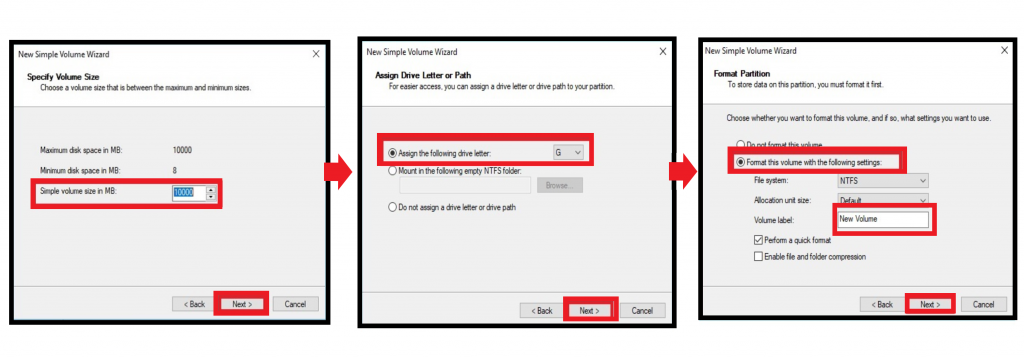
- Click the next button
- Now select the letters of the new volume of your choice
- Click Next again.
- It is worth pondering that Windows prepares the disk by formatting the disk and placing a parking space for the files. The larger the volume, the longer it will take to complete the operation. Therefore, larger disk drives require more time to format.
- In the wizard display, you can see the drive being formatted; you can also check its progress in the top center of the status bar. After formatting is complete, the newly assigned drive letter will appear.
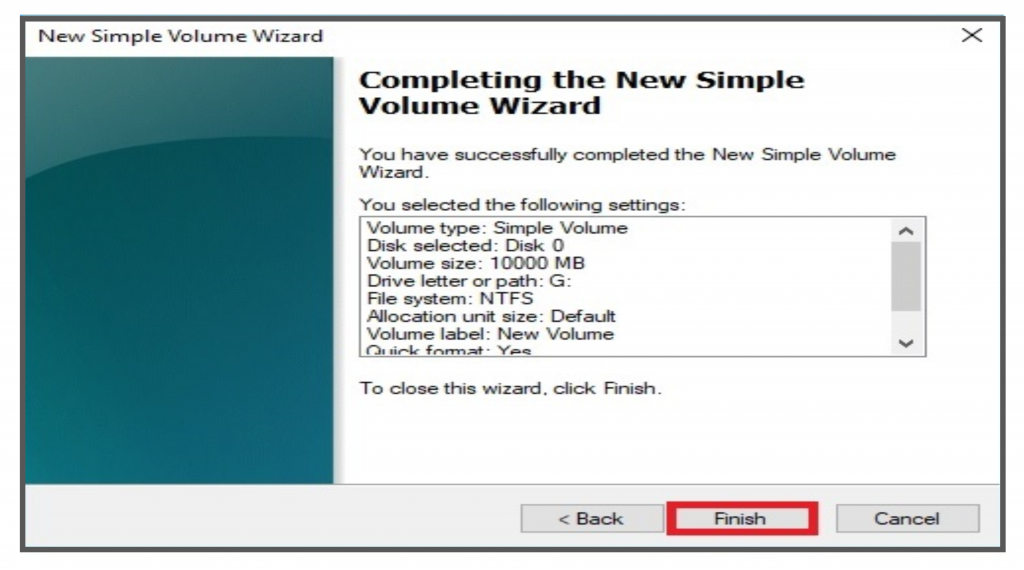
- When finished, click Finish, and the Disk Management Console will close. The newly created drive can now be used in the window.