


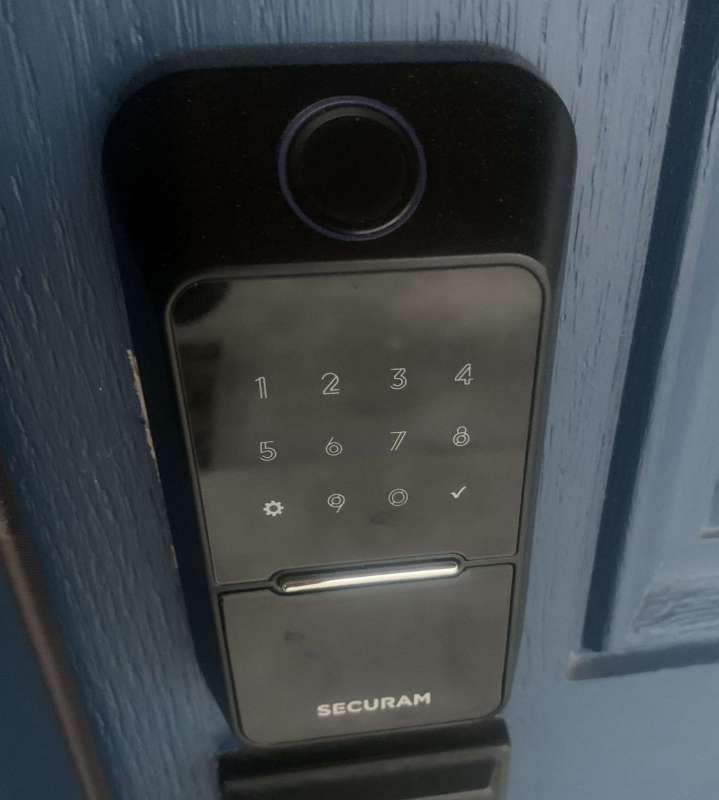
review – We recently moved into a new house and the front door is right by our driveway, which is very convenient for our family of four on a daily basis. We were looking for a smart door lock that would provide keyless entry for us, our kids and our guests if we needed them to come by while we were out. This is my experience with the SECURAM EOS Wi-Fi Smart Lock.
What is it?
SECURAM EOS Wi-Fi Smart Lock is a smart door lock that offers 4 ways of entry, auto relock, SECURAM Guard smart home security and built-in W-FI. It’s a deadbolt lock that easily replaces your current deadbolt and offers many smart lock features.
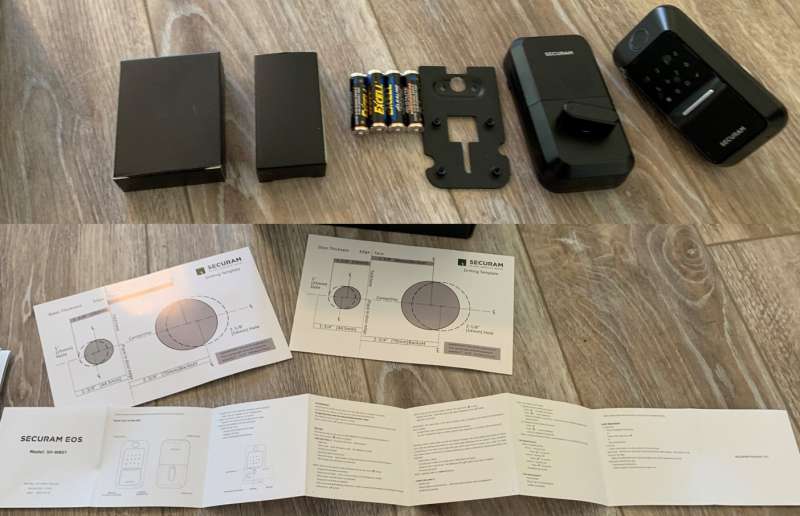
 What’s in this box?
- Internal assembly
- Latch and strike plate
- mounting plate
- Mounting screws x 8
- touchpad
- key x 2
- installation tape
- AA batteries x 4
- User Manual
Hardware Specifications
- Model: SECURAM EOS Wi-Fi Smart Lock
- Door Thickness: 1-3/8” to 2”
- Rear Set: 2-3/8” or 2-3/4”
- Touchpad: 4.92”L x 2.68”W x 2.17”H
- Internal Components: 4.92”L x 2.68”W x 1.98”L
- Working humidity: <95% RH
- Operating Temperature: 14 to 140 F (-10 to 60 C)
- Item Weight: 3.53 lbs
- Material: stainless steel, zinc
- Finish: Black Milled Metal Finish
Assembly and installation
Assembly and installation requires the SECURAM Guard app on your phone. The app is free and easy to use.
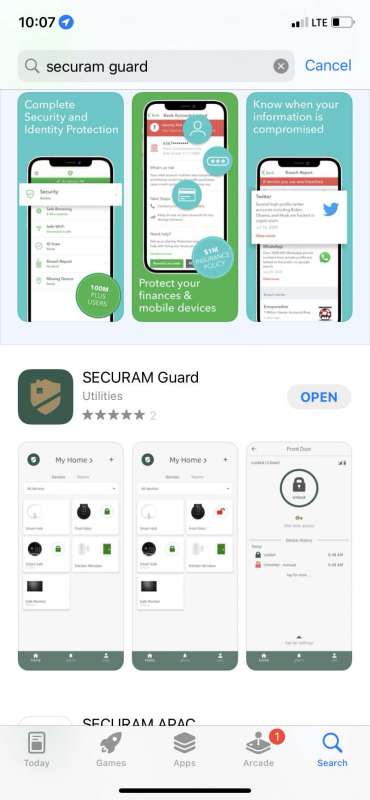
The SECURAM EOS Wi-Fi Smart Lock installation instructions provided by the app are great and a great feature of the app and lock. The app provides step-by-step instructions with detailed instructions and short videos that demonstrate what needs to happen at each step. I’m very impressed with the instructions, they make installation easier.
These are the steps to follow when replacing the current deadbolt.
- Remove the old deadbolt. Using a screwdriver, you should be able to remove the current deadbolt you intend to replace.
- Using the provided paper template, determine the chamfer for your current deadbolt hole (distance from the door edge to the center of the hole. The SECURAM EOS Wi-Fi Smart Lock can accommodate standard chamfer sizes of 2-3/8″ and 2-3/ 4″.
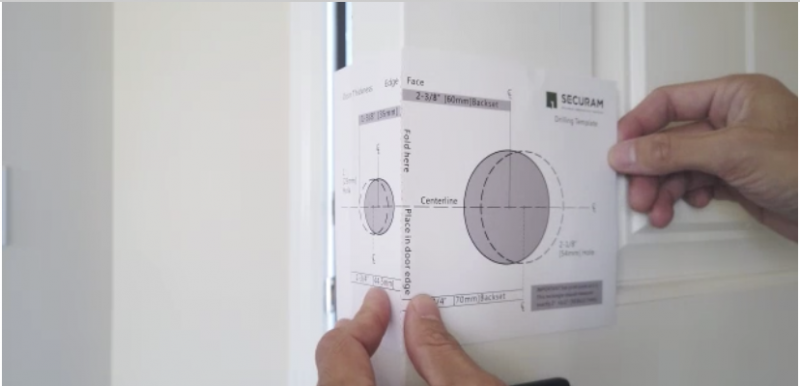
- After making sure the latch is set to the correct back size, install the latch on the side of the door with the top marked “TOP”. Our door has a slightly different size of a small cutout on the side of the door for the deadbolt plate, which required me to adjust the size with a small chisel. This is easy to fix, but be aware that the new deadbolt plate may be a slightly different size than the deadbolt plate you’re replacing.
- Install the outside touchpad side of the new lock so that the spindle passes vertically through the lock tongue spindle slot. Feed the cable under the door latch. Secure the touchpad to the outside of the door using the blue paint tape provided.
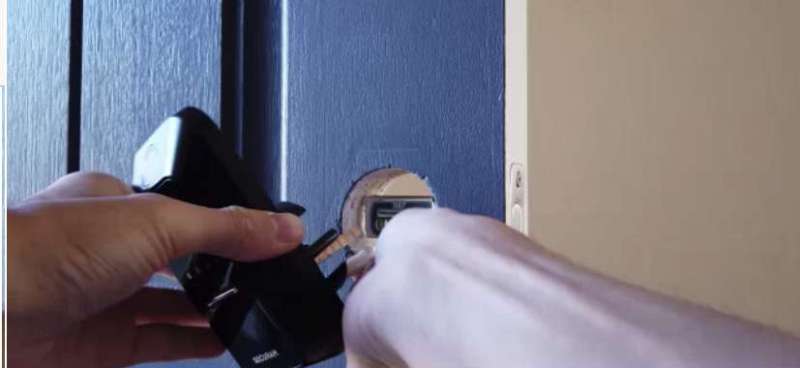
- Internally, attach the mounting plate to the touchpad through the holes using the 2 provided mounting screws. If facing the door, make sure the word SECURAM. After installing the plate, make sure that the deadbolt spindle twists easily.
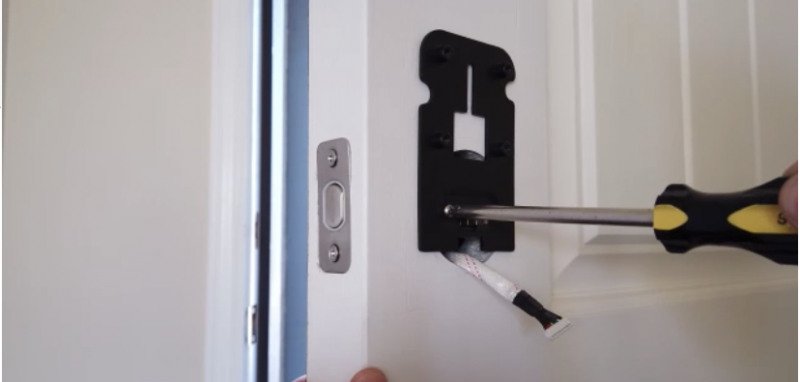
- Using the calibration switch on the interior lock assembly, set the lock for either the right hinged door or the left hinged door. I found this step a little confusing and don’t know how to know if your door is a right hinged or left hinged door. The app provides a great guide to determine what kind of door you have. Looking at the door from the outside, if the hinge is on the right and the door handle is on the left, then you have a right hinged door. From the inside, this looks like the left hinge setup, so the key is to check your setup from the outside.
- After you determine if you have a right hinged door or a left hinged door, slide out the appropriate sensor bar.
- With the battery cover closed, install the internal lock assembly by connecting the wires from the touchpad and attaching the assembly to the mounting plate. Push the sensor strip in to line up with the edge of the door. Secure the assembly to the mounting plate using the screws provided.
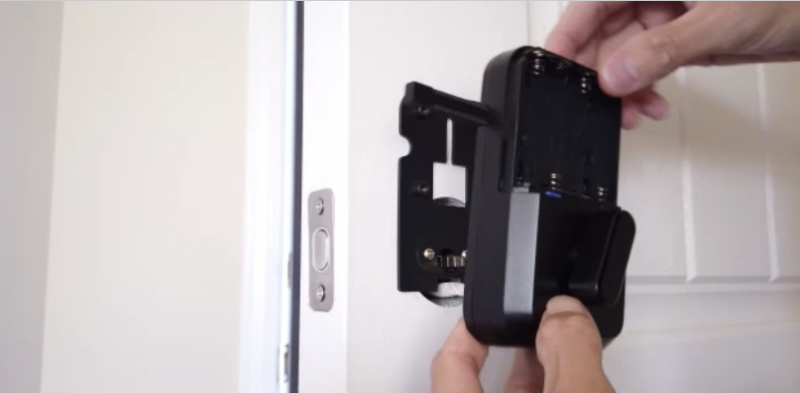
- Install the door magnet on the sensor strip within 3/8 inch of the door and the jammed paper. The magnet can be installed by simply applying a piece of double-sided tape to the magnet. The instructions on the app show magnets on the inside edge of the jam, between the door edge and the jam edge. When I install the magnet there, my door won’t close and knocks the magnet off. There isn’t enough space between the door and the jam to accommodate the magnets. I was able to put the magnet in front of the jam next to the sensor. This seems to work fine. Also note that this is an optional feature and no installation is required to use the lock. By default, this feature is set to off in the app. The feature tells you through the app whether the door is open or remains open (rather than just letting you know if the door is locked/unlocked).
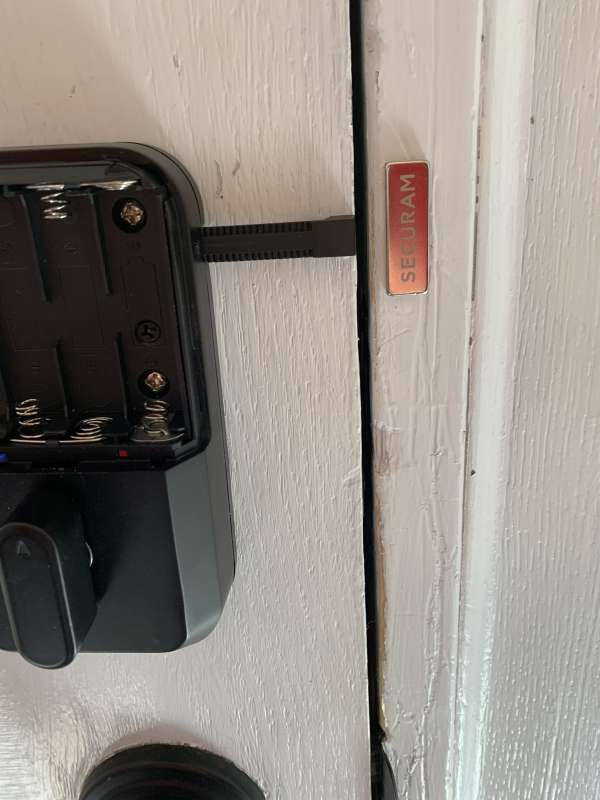
- Install the 4 AA batteries provided. Press and hold the red reset button until the lock reports that it has been reset to factory defaults. Install the battery cover.
- Test the thumb turn and make sure the deadbolt can open/close. You should have some resistance from the motor.
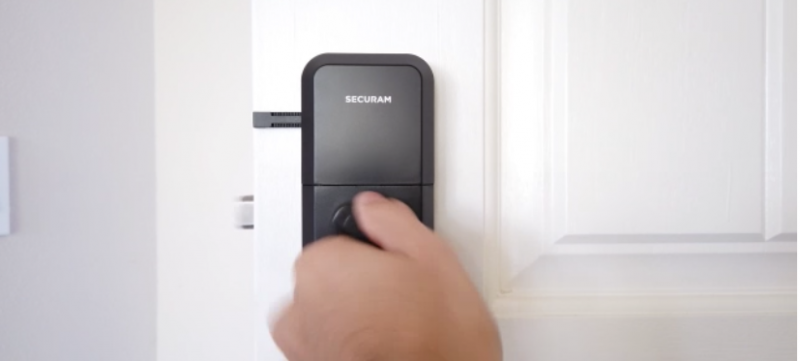
- Test the lock with the default code provided.
- Pair your phone. If you experience pairing issues, see the troubleshooting section below.
- After the phone is paired, the installation is complete, and functions can be set up and used through the app and the lock’s keypad. It is also possible to invite other users to access the lock, but require them to download the SECURAM Guard mobile app.
Design and Features
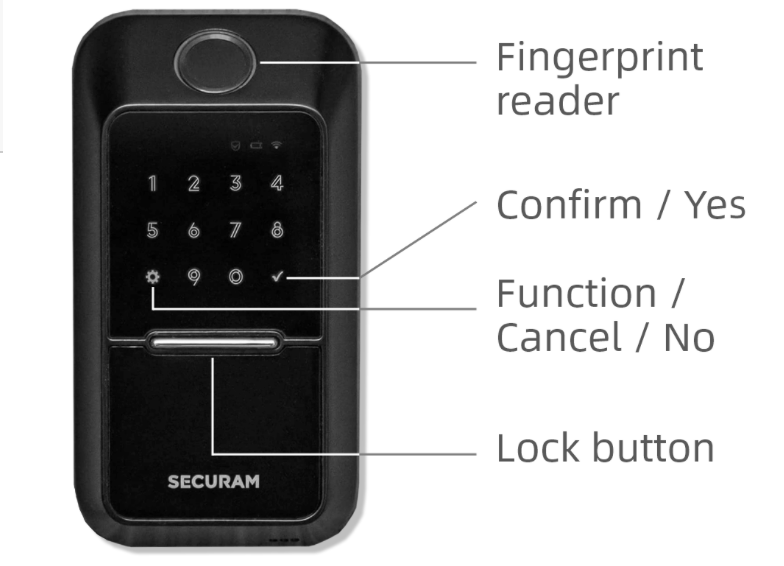
Locking your door with the SECURAM EOS Wi-Fi Smart Lock is easy. Inside, just use your thumb to turn the locking door. Press the silver lock button from the outside to lock it. You can also use the app to lock the door. Every time you lock the door, it will hear a voice telling you it’s locked, which is a nice feature.
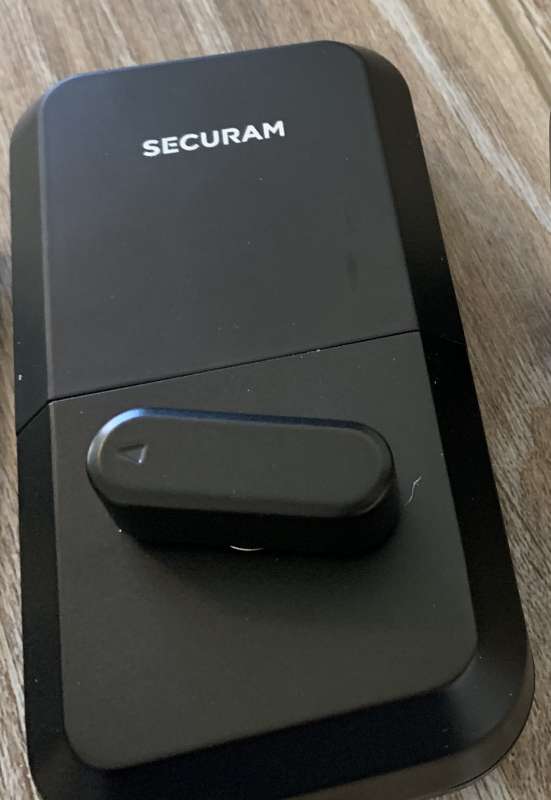
The SECURAM EOS Wi-Fi Smart Lock offers four entry/unlock methods. Here is some information about each option:
Option 1: Apps
To use the new SECURAM smart lock, you need to download the SECURAM Guard app. This is the main way to communicate with your device. This should have been done during installation.
The SECURAM Guard app allows you to perform many useful functions, including locking and unlocking, viewing historical logs, checking door status, remote management, and if desired auto-lock enablement and Alexa or Google Home compatible voice control.
Unlocking and locking is as simple as pressing the lock/unlock circle at the top of the app when opening the app.
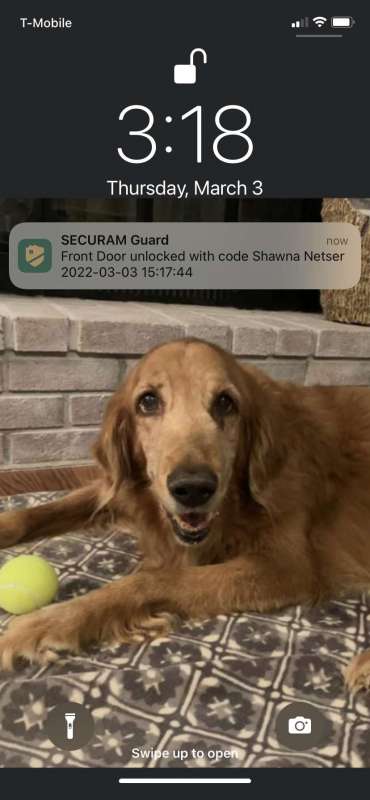
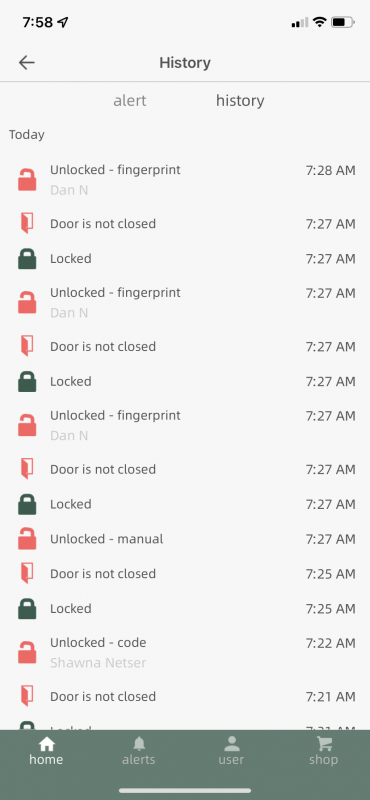
Aside from unlocking and locking, one of the great features you can access in the SECURAM app is to view your history. With this feature, you always know who is coming and going, and even what method they used to access the entry. You can also set up notifications that will alert you if the door has been unlocked for a long time. This option must be turned on and is optional. It uses the magnetic sensor described in step 9 of the installation instructions. All activity is tracked in real time, so no need to worry about delayed notifications.
Using the remote management option, you can generate and send passwords with different schedules as well as date-based passwords. This option is ideal if you are granting family or friends access to your home, and if you have service personnel who want to allow temporary access to specific services (like cleaning or repairs). If you own a vacation property, your date-based code option would also be a nice feature.
SECURAM smart locks are equipped with voice control. This allows you to pair your Alexa and/or Google Home devices.
In addition to allowing Alexa to open the lock, other options and settings you can control include automatic locking, using door sensors, disabling visitors, changing codes and user and language (SECURAM smart locks support both English and Chinese).
Option 2: Fingerprint
SECURAM EOS Wi-Fi Smart Lock offers fingerprint input option. This handy option lets you easily unlock your home by simply touching the sensor on top of the device with your finger. This is my favorite lock feature, and it’s very handy when unlocking because it doesn’t require opening an app on your phone or entering a passcode to unlock. I did experience it a few times and it didn’t recognize my fingerprint on the first try, but always on the second.
Option 3: Code
SECURAM EOS Wi-Fi Smart Lock allows you to set an access code. The initial admin user can set a 4-8 digit password during setup. This can be shared with other family members (like children) who don’t have the app. Users who gain connection access through the app (such as spouses) can set their own codes through the app. This allows notifications in the app to differentiate which user opened the door. Using the app, one-time codes can also be generated and shared with guests.
Your SECURAM smart lock will notify you when you enter an invalid code or when your fingerprint is not on file. When the wrong password is entered more than 5 times, the touchpad will be disabled for 3 minutes. NOTE: Even if the keyboard is disabled, your fingerprint and apps can still open the lock.
Option 4: Key
The SECURAM EOS Wi-Fi smart lock also comes with a key for opening the door. The lock is nicely hidden behind a lid on the outside of the lock, still easy to get in if needed.
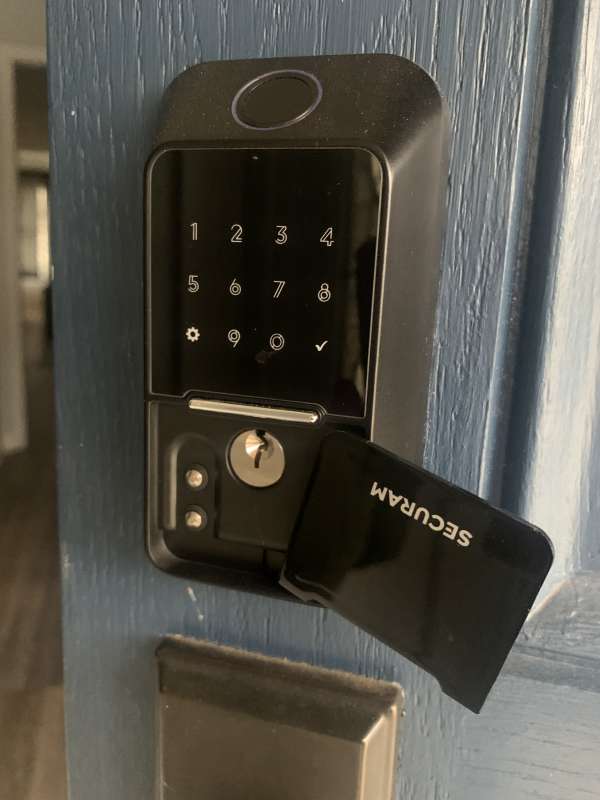
Another design feature of the SECURAM smart lock is weather resistance. Made of stainless steel, making it more resistant to rust and suitable for harsh environments. The operating temperature range of your lock is 14° to 140° F (-10° to 60° C). While that doesn’t matter in some areas, here in Indiana we have all four seasons, so it’s good to know it’s going to stay the same any time of year.
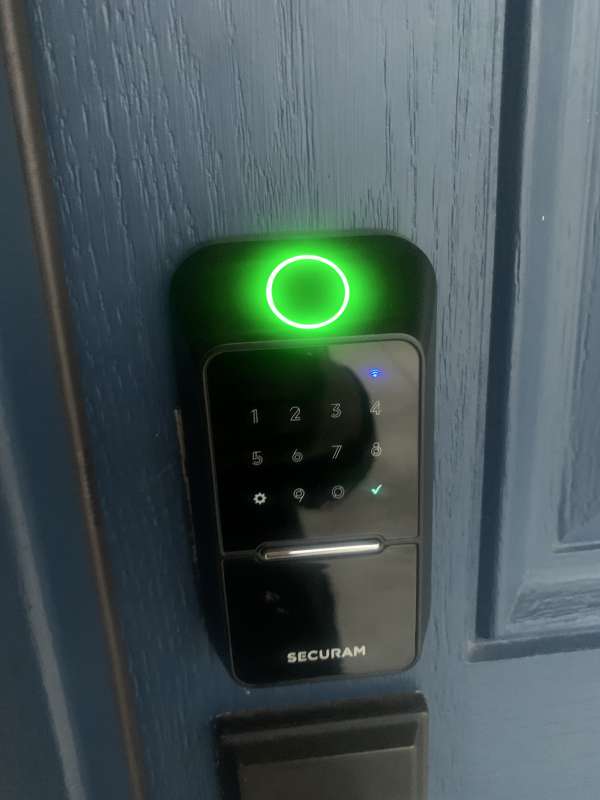
As mentioned above, the SECURAM EOS smart lock uses 4 AA batteries. So what happens when the battery runs low? The SECURAM lock has you covered, in the event of a low battery, the lock will unlock with a “low battery” voice warning, the low battery indicator will flash red and your app will notify you.
Well, let’s say I ignored all of the above warnings and you let your battery drain completely. SECURAM is at your service! Located within the key slide area, to the left of the keyway is an emergency 9V jumper. Contact the jumper with a 9V battery (polarity doesn’t matter) and enter your password or verify your fingerprint to unlock and gain access. The problem is that I need to make sure I have a 9V battery handy, but at least there is a way in an emergency.
Troubleshooting
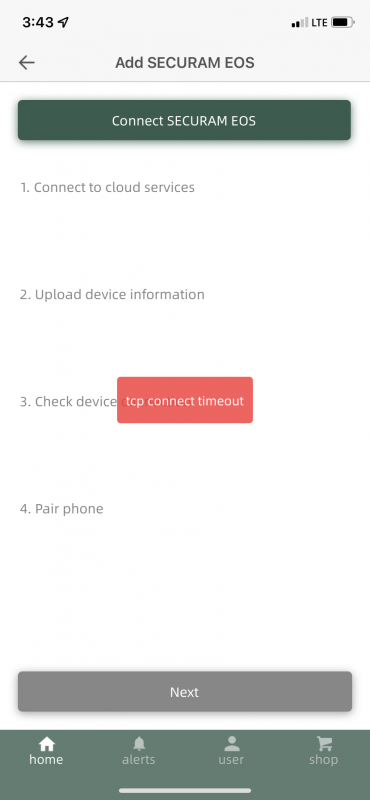
We’re having trouble pairing our phone with the SECURAM lock as described in the installation section – step 13. We were able to call support, the technician was very friendly and guided me through the troubleshooting and we were able to resolve the issue in no time.
If you can’t get the phone app and lock over a Wi-Fi connection and get a timeout error. The simple solution is that you need to turn off cellular data on your phone so that only Wi-Fi is available.
what do I like
- App notification if the door is unlocked for a long time
- Fingerprint access function
- Locked Voice Notification/Unlocked Tone
what would i change
- Make key slide panel easier to open
final thoughts
Honestly, once I solved the problem with pairing the device (troubleshooting tips), I found what I needed (and more) for the SECURAM EOS smart door lock. For myself, when we forget to lock our doors and monitor entrances and exits throughout the day, I feel like there is a security measure that can be reassuring. Not to mention the convenience of remotely granting access to friends, family or guests when needed. If you are in the market for a smart lock, I highly recommend that you consider the SECURAM EOS smart door lock!
Price: $199.99
where to buy: Amazon (Currently offering a $50 coupon)
resource: Samples for this review provided by SFC.


