


Post views:
2
In the daily work of the office, people will always encounter thousands of possibilities to make some format changes.take PDF format Take a common office software format as an example, and convert it to a picture format (in general, we use the most common JPG).
This may be a situation where your client specifically wants you to embed a PDF file in an email as an image. Or you want to put it into image editing software for some processing. Whatever your reason, we understand and we are here to help.
Here, we provide three different methods for you to convert PDF to image with minimal effort. Two of them are from a new PDF converter – WorkinTool PDF Converter. The third, of course, is the famous Adobe. let’s see.
- Using WorkinTool PDF Converter
- Using Online WorkinTool PDF Converter
- Adobe Acrobat DC
| membership | size limit | Batch conversion | daily conversion | |
| WorkinTool PDF Converter | X | X | √ | no limit |
| Adobe Acrobat DC | √ | X | X | no limit |
| online work tools | X | 50MB | 4 tops | no limit |
- WorkinTool PDF Converter
work tool is a new company specializing in how to make people’s lives easier. As its first product, WorkinTool spends a lot of time researching what users might want and what users might need, and continues to improve the software based on that.
It has the cleanest interface I’ve seen of all these PDF converters. This is especially friendly to ordinary users and saves unnecessary learning time. All functions are real users can use in their daily life and work. You can totally think of it as a simpler version of Adobe. But the biggest difference from Adobe is that it is completely free software.
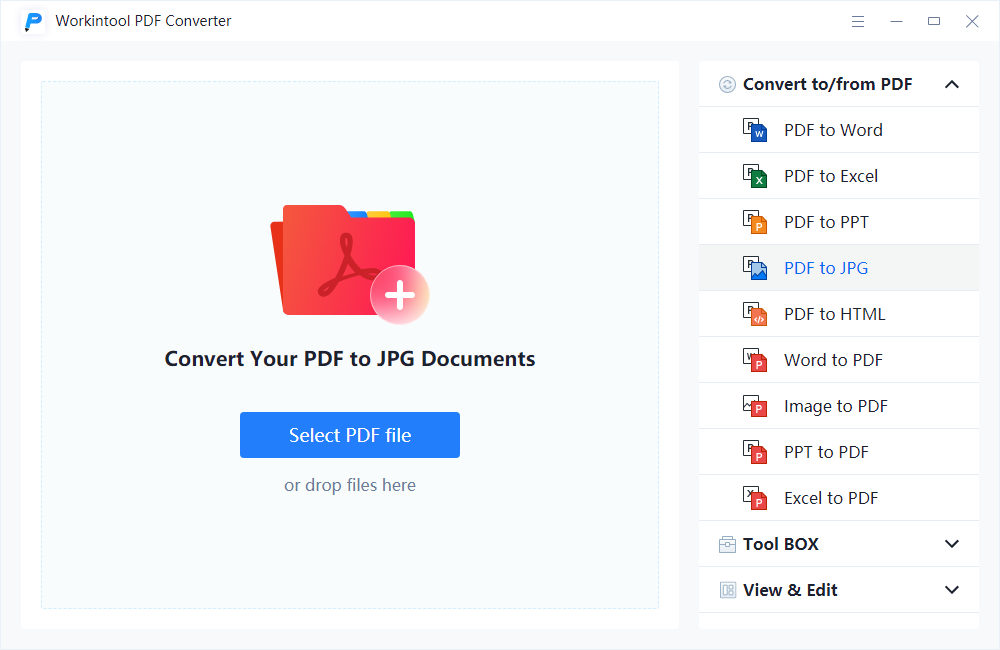
1: After you download and install this PDF Converter from the Internet, you will see the start interface like this.Find PDF to JPG in this list of conversion options. (In order to simplify the use and reduce the software load on the computer, WorkinTool decided to select the most commonly used JPG image format for conversion)
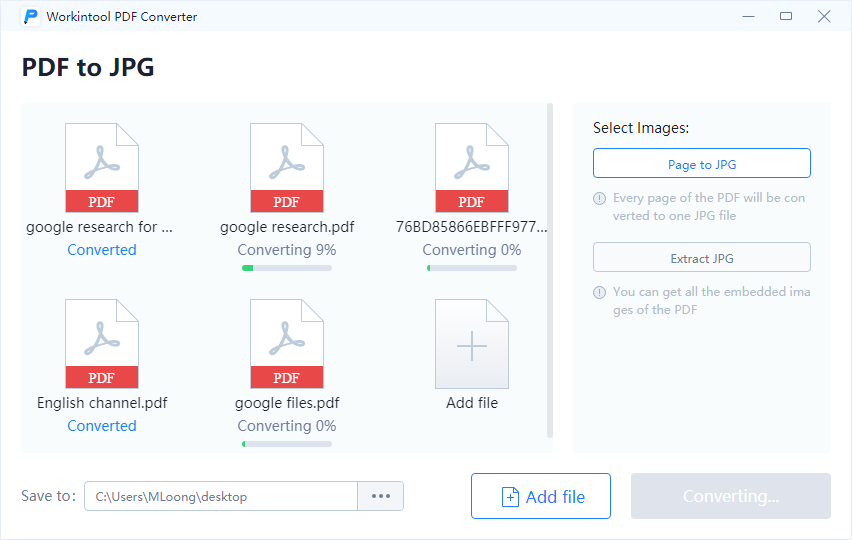
2: Drag and drop your PDF file into the processing window. This PDF tool supports batch conversations. You can choose to convert single or multiple PDFs according to your needs. Then this PDF Converter will provide you with two different image modes. Convert page to JPG Convert your PDF to JPG images page by page. However, Extract JPG, just like the name, takes the image element out of the PDF.You can choose one of them to suit your needs
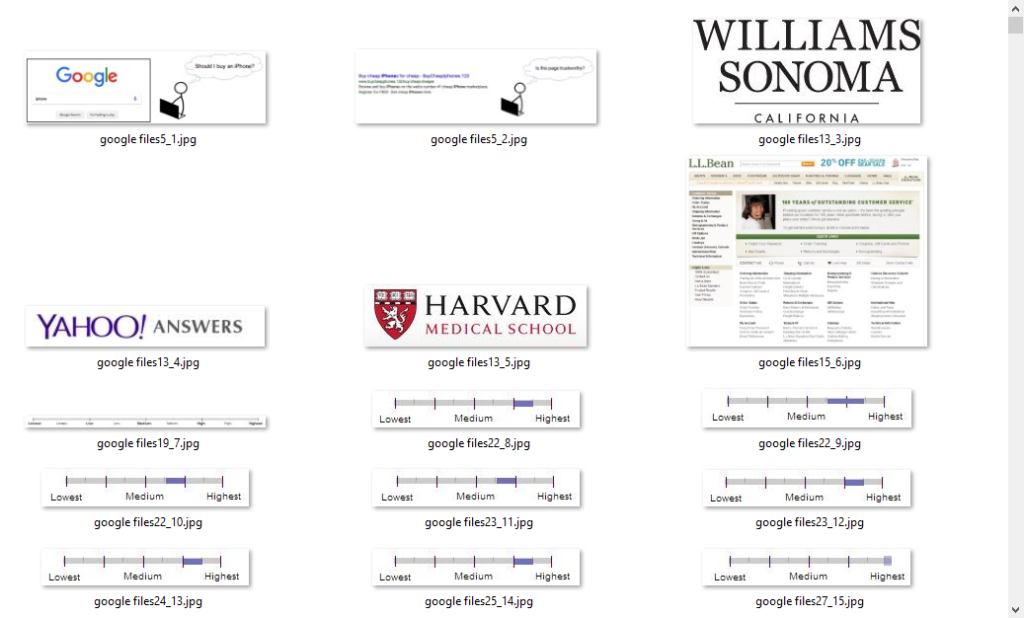
3: when you are done, Click”ExportStart conversion. Page mode directly converts the entire page to image format. Extract JPG drags all elements into a folder. Either way, I’m happy with the result.
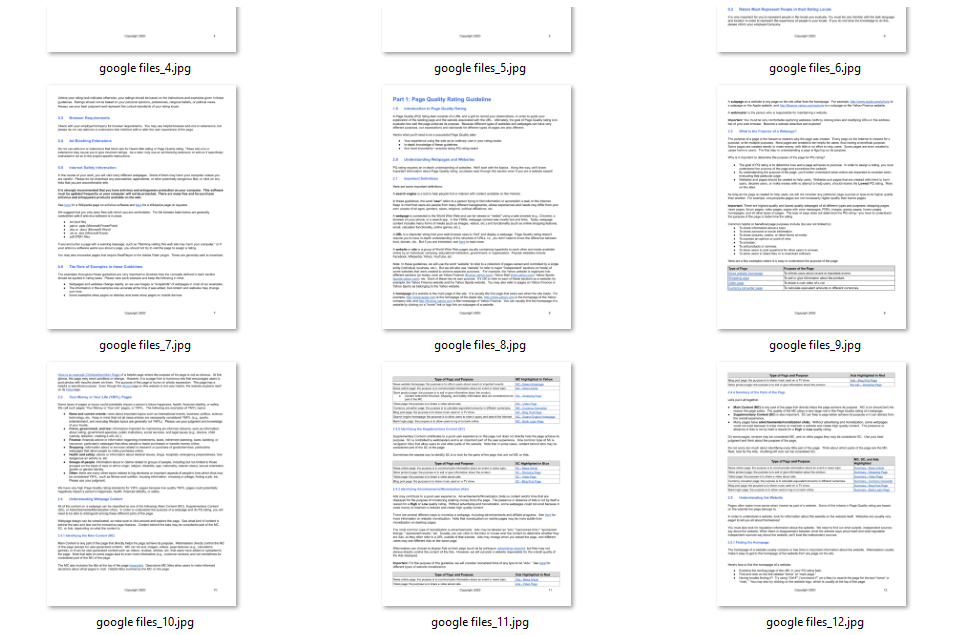
Convert page to JPG
VS
Extract JPG
- Online WorkinTool PDF Converter
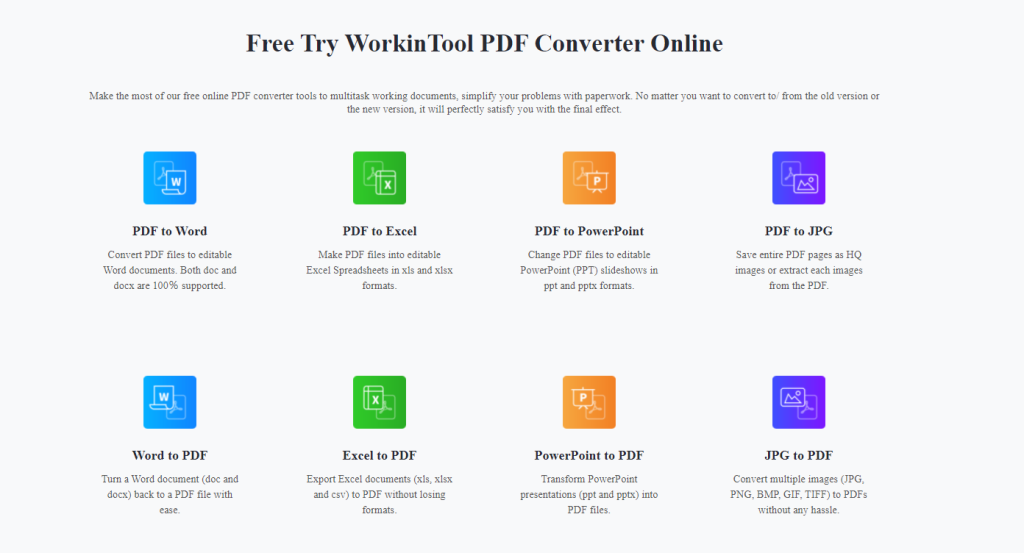
this is one Online PDF Converter Provided by WorkinTool, if you don’t want to download the desktop version, maybe you can try the free online PDF converter. Wherever you are, as long as you have internet access, you can always get the best of what WorkinTool has to offer.
Basically, the functionality is the same as the desktop version. However, there are some limitations. Also, if you use online conversion, you can convert up to four PDFs at the same time and limit the size to 50 MB.
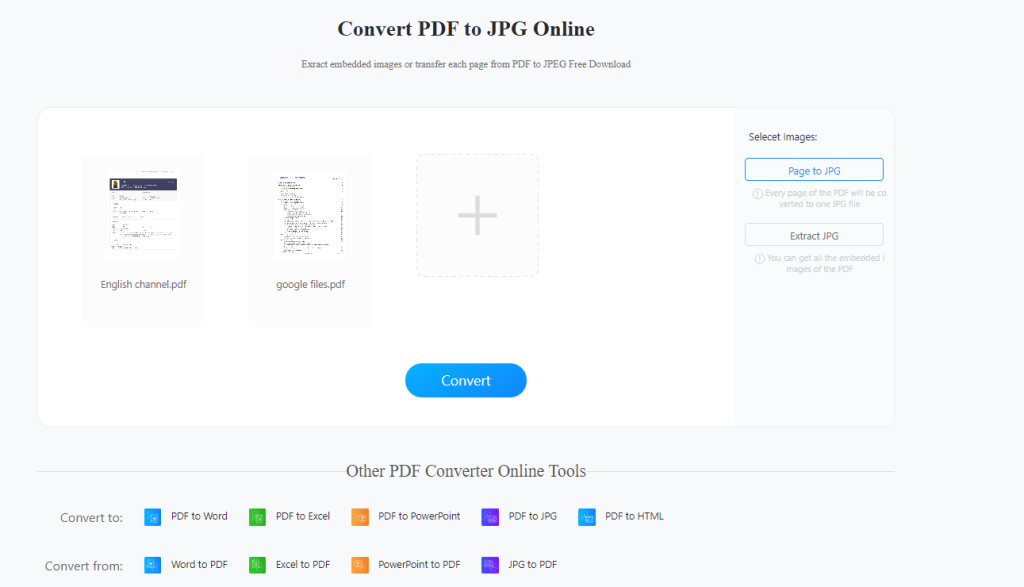
1: Go to the official website to choose PDF to JPG. Put your target PDF into the window and you will see the same content as the desktop version.
2: Decide if you want to convert PDF pages or extract image elements
3: Wait for the conversion to complete, then you can download the images to your computer. The conversion speed totally depends on your internet.
As we’ve heard from the folks at WorkinTool, while the online version isn’t quite as rich as the desktop version so far, other PDF features are coming later this year.
When we talk about PDF conversion, we have to mention Adobe, the creator of PDF. Adobe has a complete PDF editor – Adobe Acrobat DC. It also includes the ability to convert PDFs to images. You can choose to convert PDF files to JPG, PNG and TIFF in three different image formats. Adobe Acrobat DC supports millions of colors and works flawlessly on any system.
Still, despite being the creator of the PDF format, we have to say that while it gives new users a trial period, once the trial period is over, the expensive membership will make many users shout out. Moreover, its interface is not clean enough, and editing functions are still difficult for novices to use. Also, it does not support batch conversion. If you have a lot of PDFs ready to be images, we don’t recommend using Adobe.
1: Open your PDF in Adobe Acrobat DC.
2: document > output to > picture > Select the image format you want.
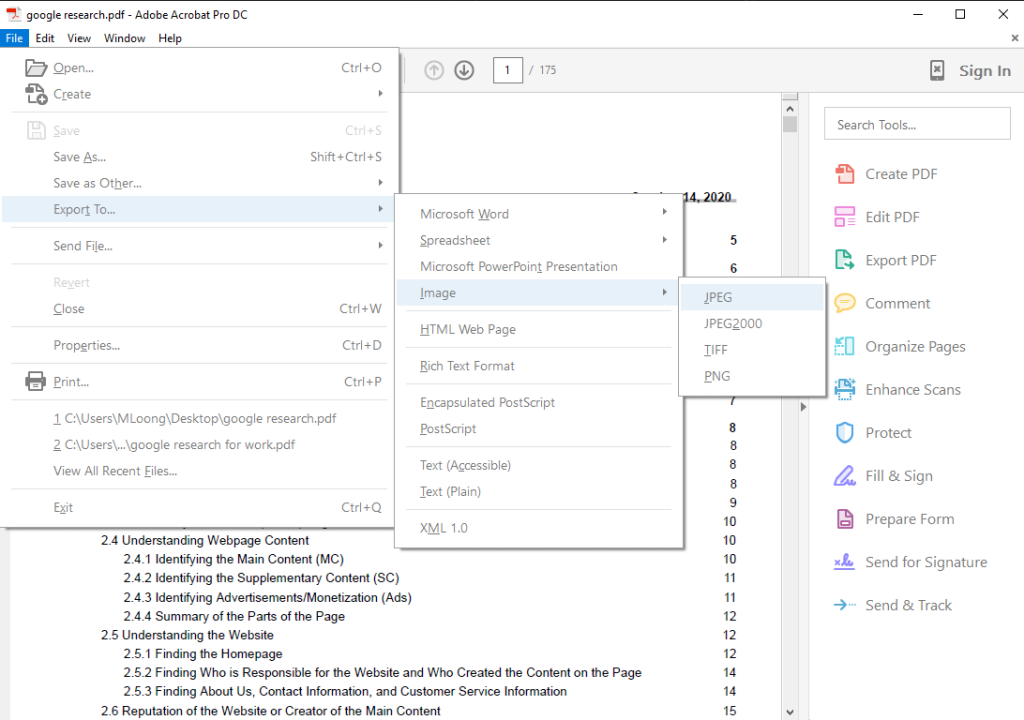
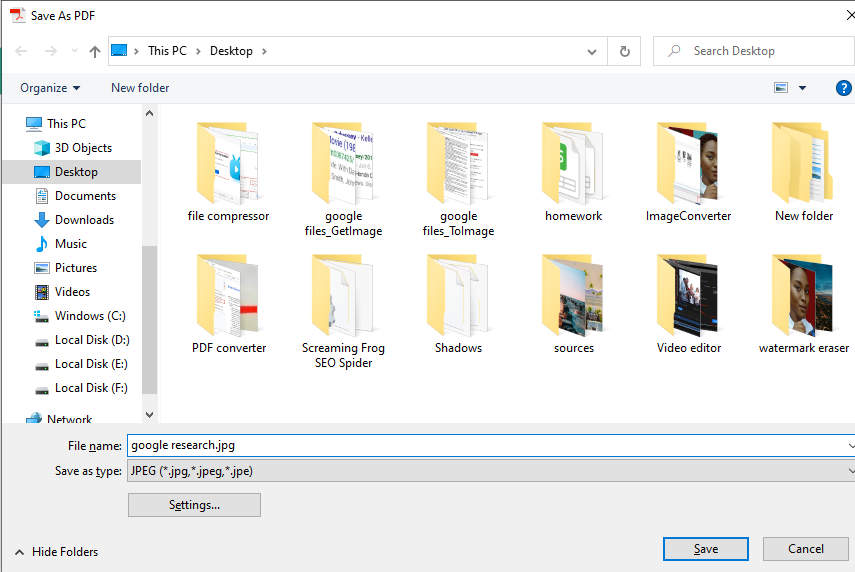
3: Set your image to a good save folder, change the filename and click save Complete the conversion. Then you will have the converted image on your computer.
in conclusion
After a comprehensive comparison and experience, we think that, for the functions of PDF to Image, WorkinTool PDF Converter is definitely worth a try. Besides excellent output quality, it also offers two different image conversion modes that other PDF converters don’t have. It has to be said that WorkinTool really stands on the user’s standpoint and is thoughtful for them. Whether it is the desktop version or the online version, I believe you will get a satisfactory WorkinTool service experience.


