


review – My personal laptop is a Dell XPS that is over three years old. Throughout my use of it, I used a bulky Dell Thunderbolt docking station to connect two 27-inch monitors and various other devices. When we started working from home, I was lucky enough to use the same docking station for my work laptop, which is also a Dell laptop. I’ve since added a set of external speakers and an external webcam. The Dell dock is fairly large and has a very short cable hardwired to the dock that you can use to connect to a Thunderbolt port on your laptop. Because the cables are so short, I put the dock behind the laptop, which makes it difficult to access any of the dock’s extra ports. The Visiontek VT4510 offers a longer non-hardwired USB-C to USB-C cable and some extra ports on the front of the workstation. Let’s see if it makes my desktop organization more functional and work the way it should.
What is it?
The VisionTek VT4510 is a powered dual-monitor 4K docking station that lets you easily connect your Windows™, Mac™ or Chrome™ laptop to dual 4K monitors and up to 8 accessories and peripherals via a single USB connection.
What’s in the box?
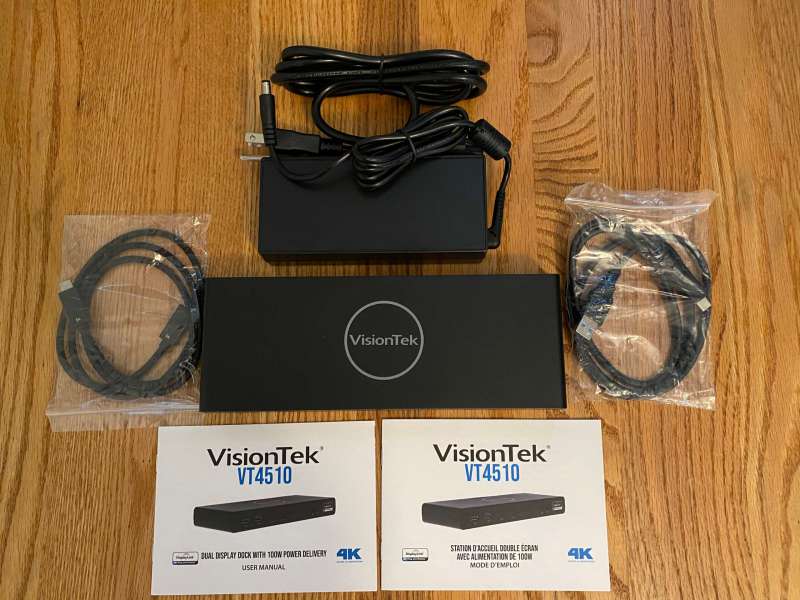
- VisionTek VT4510 Dual 4k Display Docking Station
- 130W – DC 20V/6.5A Certified Power Adapter
- USB-C 3.0 to USB-C 3.0 cable
- USB-A 3.0 to USB-C 3.0 cable
- Software installation CD
- User Manual
Hardware Specifications
- Universal compatibility for USB 3.0 and Type-C
- Compatible with M1 Mac
- Supports up to 2 external monitors
- Up to 100W USB-C Power Delivery
- 4 USB 3.0 ports 5Gbps
- 2 USB-C ports 5Gbps
- 2 DisplayPort 1.3
- 2 HDMI 2.0
- RJ45 Gigabit Ethernet port
- Enterprise function
o Wake on LAN
o MAC address passthrough
o PXE boot
Design and Features
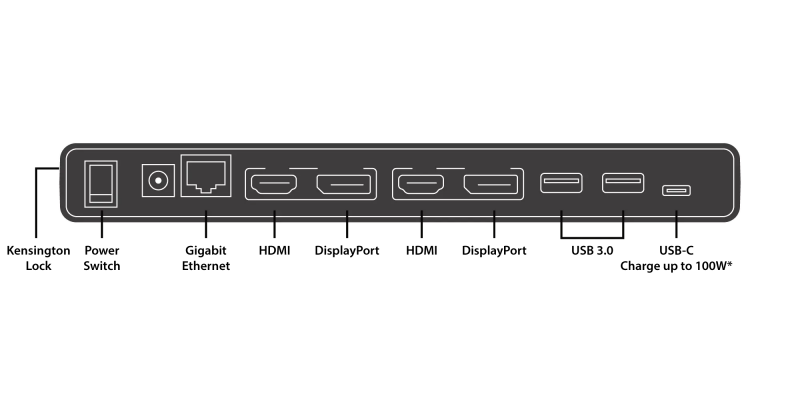
As mentioned above, the VisionTek VT4510 dual 4k monitors docking station Comes with plenty of ports. What I’m going to do next is show you graphic prints of the front and back of the station, followed by an actual picture of the station. First, we print out what the background port looks like. From left to right there is a physical power switch, power port, an ethernet port, and then two pairs of 4k display ports. You can use a combination of two HDMIs, two DisplayPorts, or one HDMI and one DisplayPort to make two 4k monitors work. Notice how the HDMI and DisplayPort are paired together. Only one can be used per pair. Then there are two USB 3.0 ports and a USB-C port that can deliver up to 100W of power to your laptop.
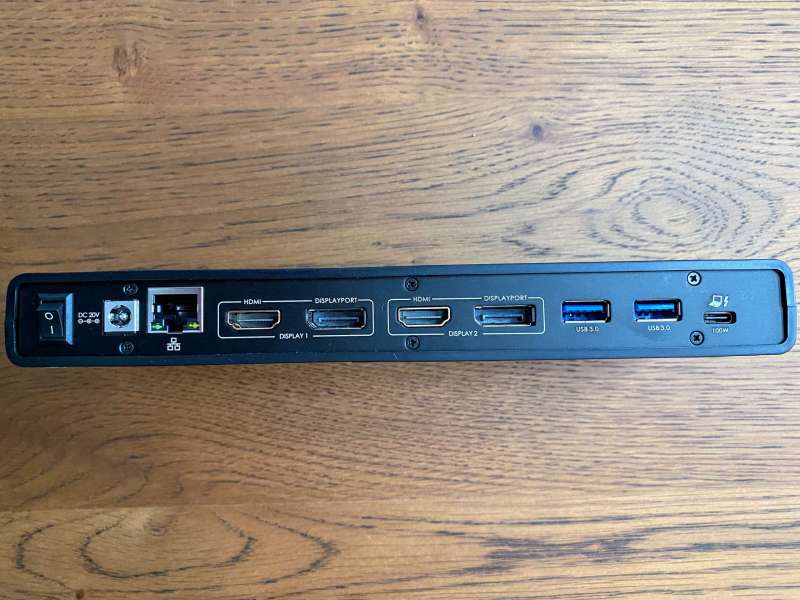
Here’s a picture of the back of the dock. This image makes it clearer that each pair of HDMI/DisplayPort will be used for a single monitor.
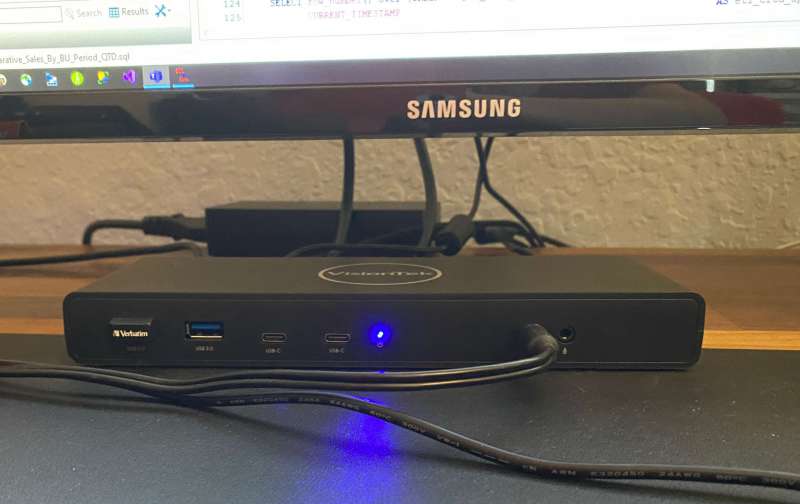
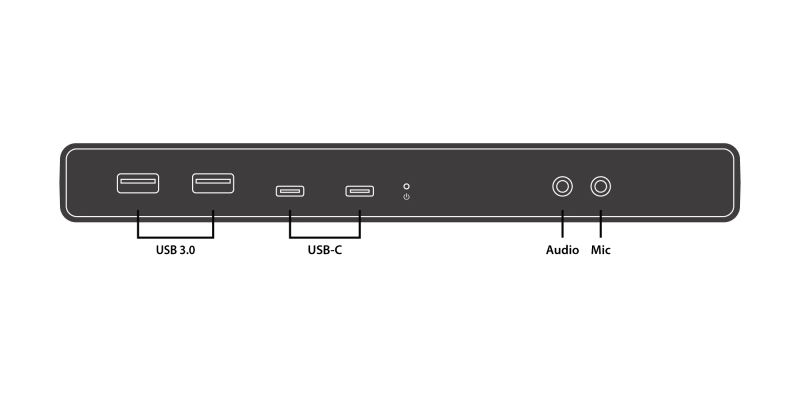
Next, I have a graphic on the front of the dock. We have two USB 3.0 ports, two USB-C, a small LED to indicate power on, an audio and a microphone jack.
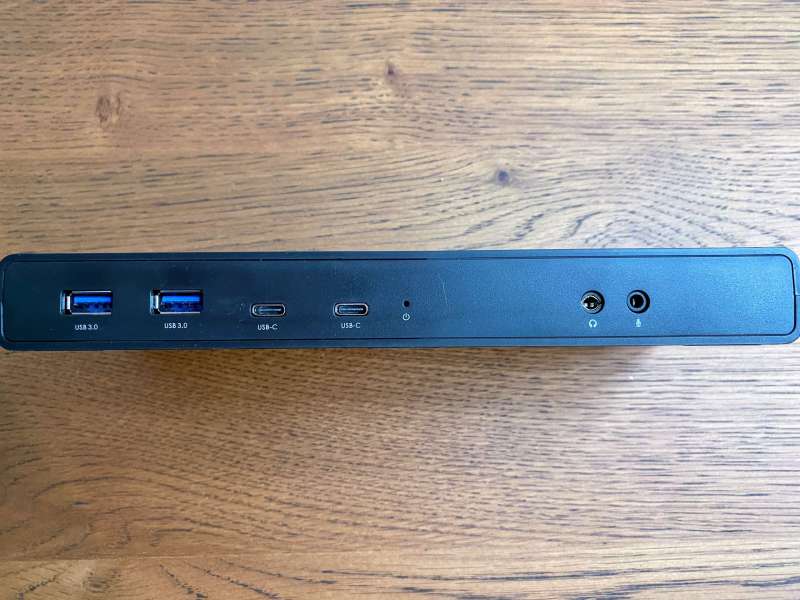
This is a real photo of the front of the station. You can see in the picture there is only one LED and a small power symbol below it. Everything about this station is well marked.
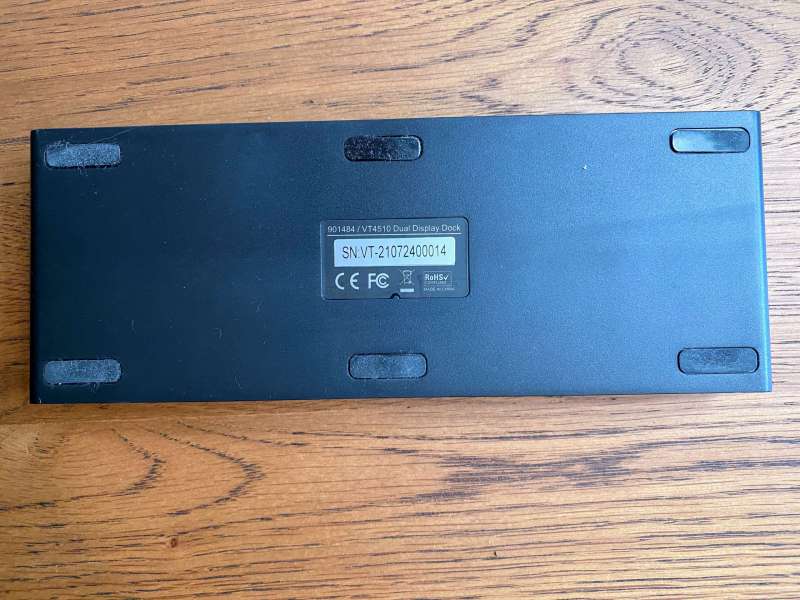
I took a photo of the bottom of the VisionTek VT4510 Dual 4k Monitor Dock to show you that it has six rubber feet to keep it from moving around on the table.
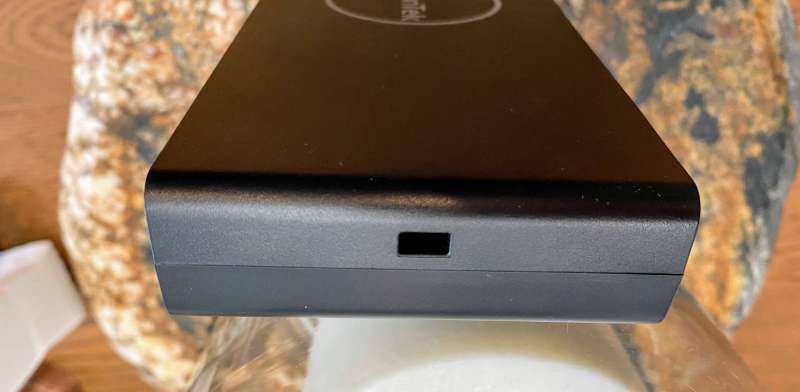
The VisionTek workstation also has a Kensington port on the right side when you’re facing forward, which you can lock to your desk if you prefer.
set up
Setup was very easy for me. Maybe it’s because I already have the DisplayLink driver installed, so I don’t have to install any. VisionTek does give you a link in the user manual where you can download these drivers. For me, the installation was just shutting down my laptop, unplugging everything from the old dock, and plugging it into the VisionTek. The hardest thing was having to redo some cable management for the power brick on my standing desk.
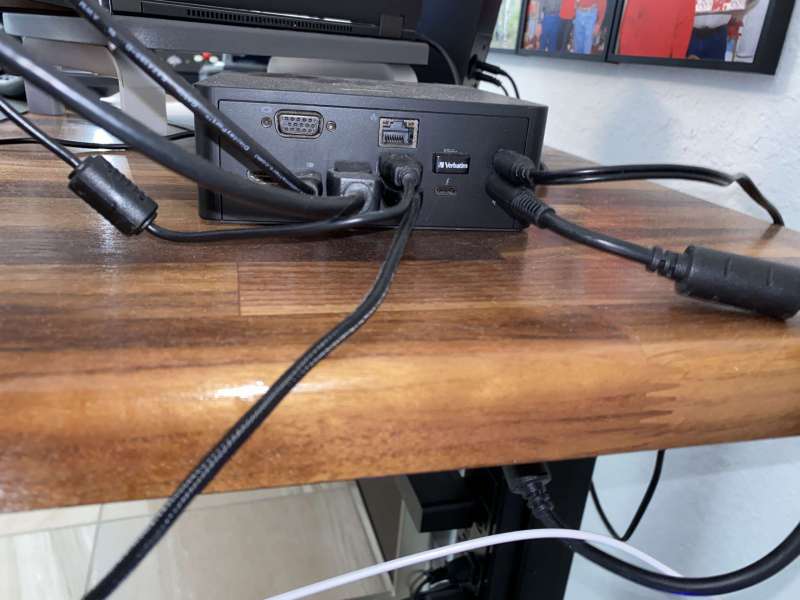
The image below shows you the back of my old Dell docking station. I’m using a DisplayPort and a Mini DisplayPort cable to drive the two monitors on this station. You can see the docking station is right behind my laptop, making the front 2 USB 3.0 ports almost inaccessible.
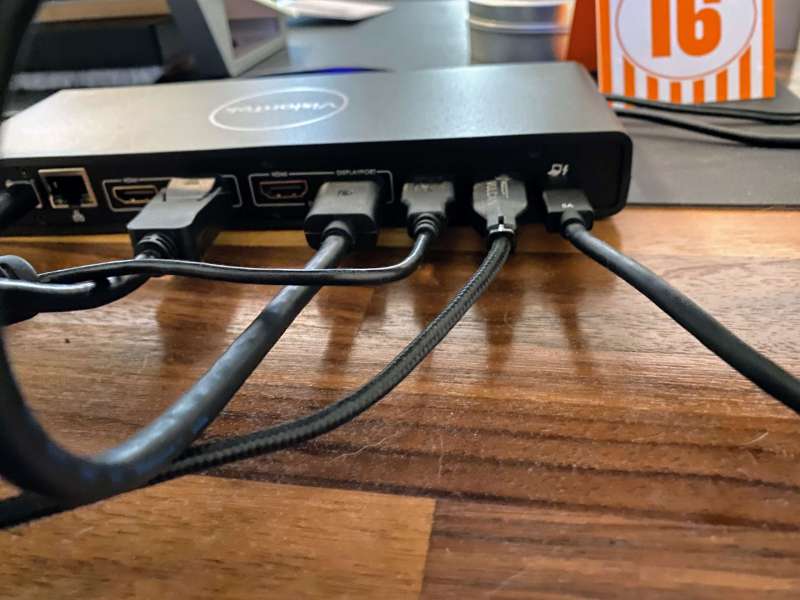
Here is a photo of the right rear side of the VisionTek VT4510 Dual 4k Display Dock. I used two normal display port cables for the monitor, one USB-3.0 for the external webcam and one for the keyboard. A USB-C cable will connect to my laptop.
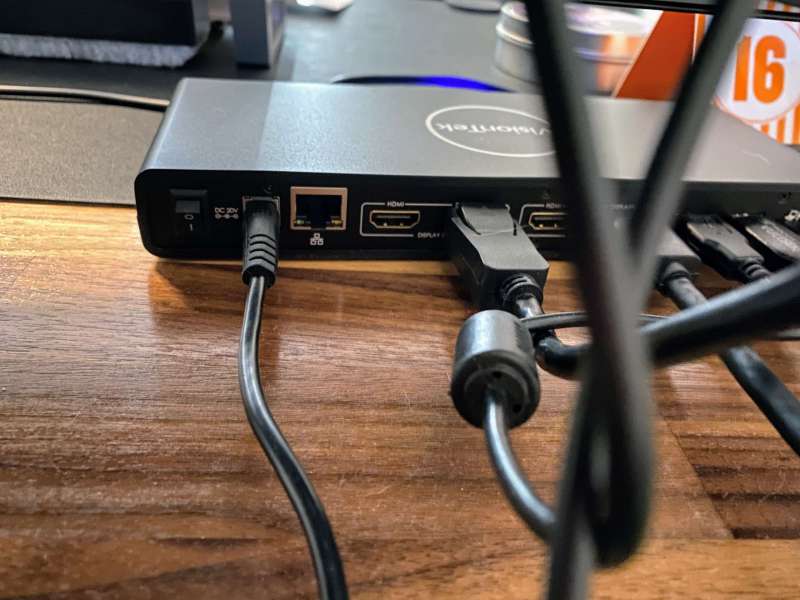
This is the left side of the back where you can see the power is plugged in. I use WiFi on my laptop and don’t need ethernet. I have a router on my desk, but I think there is something wrong with the ethernet on my work laptop, since I get faster speeds over WiFi instead of ethernet. My personal laptop loves ethernet.
Here’s a picture of the front of the dock. You can see it is powered by a blue LED. I have a small Verbatim USB drive that I plug my personal documents into, and external speakers.
Performance
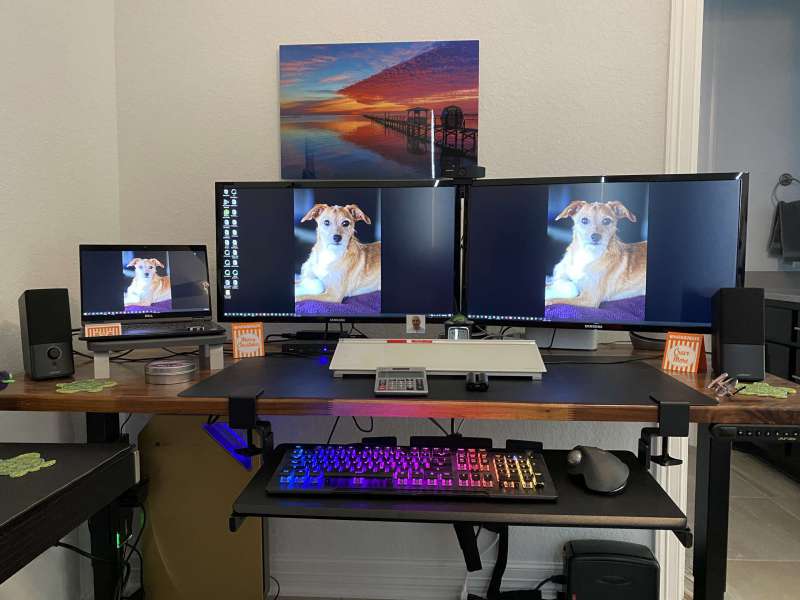
After unplugging the old dock and plugging everything into the new VisionTek VT4510 dual 4k display dock, I powered it up and everything worked! No driver required! From the image below you can see that the dock is now under my left monitor. It’s behind a small desktop whiteboard, but the ports are easily accessible.
I have my phone plugged into one of the USB ports, and I’m also charging my Logitech trackball mouse from one of the ports without having to move the mouse to an odd location. I now start my laptop by hitting the power button on the side of the laptop. With the old dock, I had to reach behind the laptop and press the power button on top of the Dell dock to get it to work. I would like to point out that the USB-C power port on my laptop is on the left side of the laptop. Otherwise, I can move the dock closer to the middle of the two monitors.
On the other hand, I would like to mention that both my Dell 13″ Latitude and my 15″ Dell XPS can be charged from the docking station.
Finally, I would like to provide a graph showing the available resolutions for the monitors on the docking station.
| 1 show | 1 show | 2 display | |
|---|---|---|---|
| monitor connection | DP or HDMI | DP + DP | DP+DP, DP+HDMI, HDMI+HDMI |
| window system | 4096 x 2160 @ 60Hz | 5120 x 2880 @ 60Hz | 4096 x 2160 @ 60Hz |
| macOS system | 4096 x 2160 @ 60Hz | 5120 x 2880 @ 60Hz | 4096 x 2160 @ 60Hz |
| Windows 10 Repeat |
Yes | Yes | Yes |
| Windows 10 Extended | Yes | Yes | Yes |
| macOS Duplicates | Yes | Yes | Yes |
| macOS extension | Yes | Yes | Yes |
what do I like
- A separate long USB-C cable is provided for connecting the dock to the PC.
- It has a nice thin profile.
- It has two USB-3.0 and two USB-C ports on the front for easy access.
- I was able to simply plug and play to use it.
Areas for improvement
final thoughts
The VisionTek VT4510 Dual 4k Display Dock has always been a great docking station. I found it was just simple plug and play and it worked. It provides 100 watts of power and is capable of handling everything I plug in. I highly recommend it.
price: $279.99
where to buy: Dell, Vision Technology, and Amazon
source: This product sample is provided by Vision Technology.


