


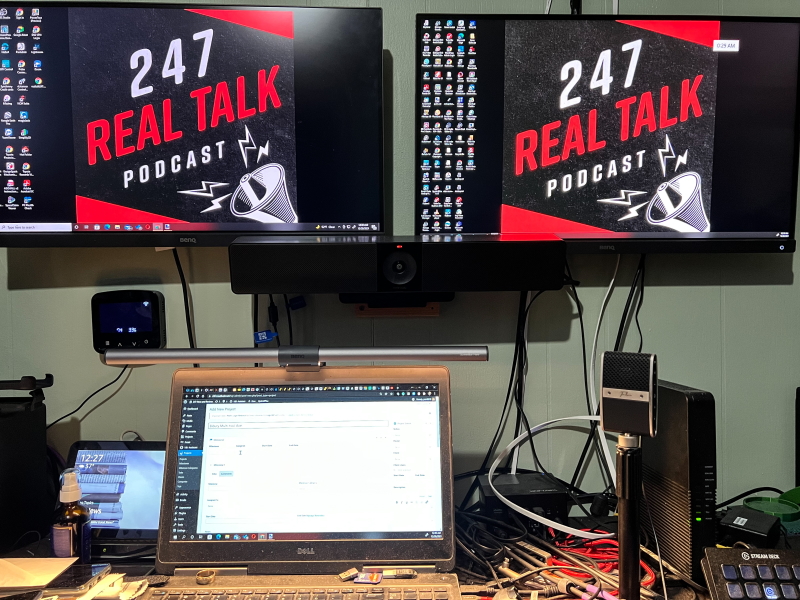
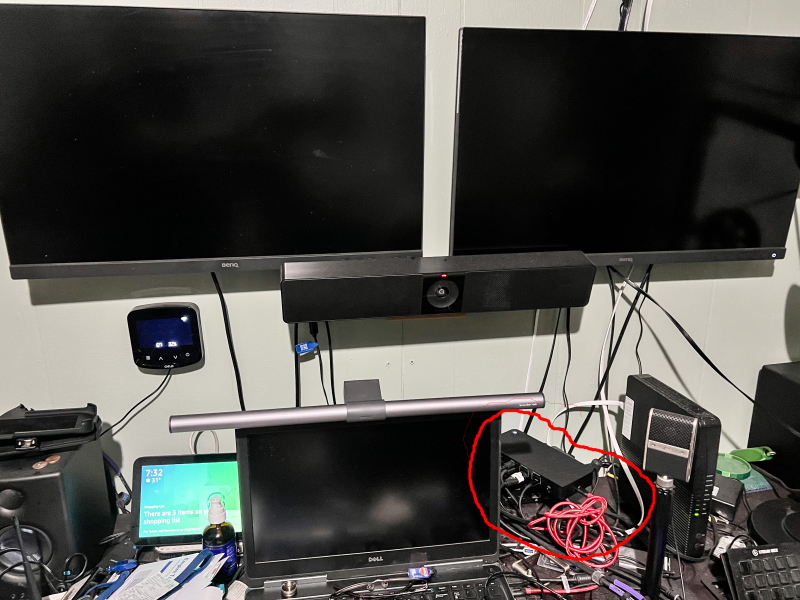
review – The settings you see in the opening photo of this review are the ones I’ve used for years. I’ve replaced monitors, microphones, and other gear over the years, but the “glue” that enables seamless connection and access has always been a base. For the past 3 years, I’ve been using a docking station that is doing pretty well but has recently started failing, as of 2 days ago, before I received this VisionTek VT7000 Triple 4K Display USB 3.0 & USB-C Docking Station with 100W Power Delivery , it seems it gave up and scaled down my setup to one monitor. So, as you can imagine, I’m very happy to get this device on time. Let’s see if the test makes me happy, sad or depressed! !
What is it?
The VisionTek VT7000 is a triple 4K monitor dock with 100W of power output that lets you easily connect your Windows™, Mac™ or Chrome™ laptop to up to three 4K monitors and up to 8 accessories and peripherals.
what’s in this box
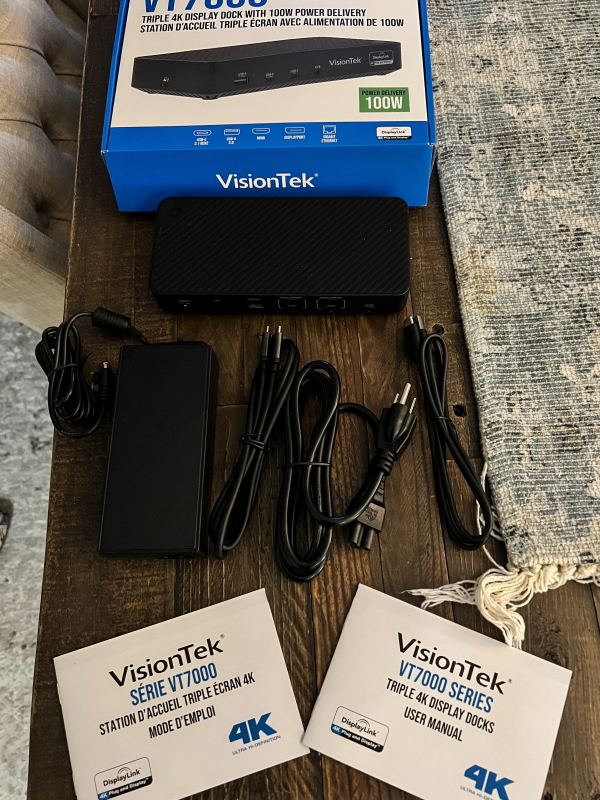 1 VisionTek VT7000 Docking Station
1 x 130W – DC 20V/6.5A Certified Power Adapter
1 x USB-C to USB-C cable
1 x USB-A 3.0 to USB-C cable
1 x User Manual
Design and Features
feature
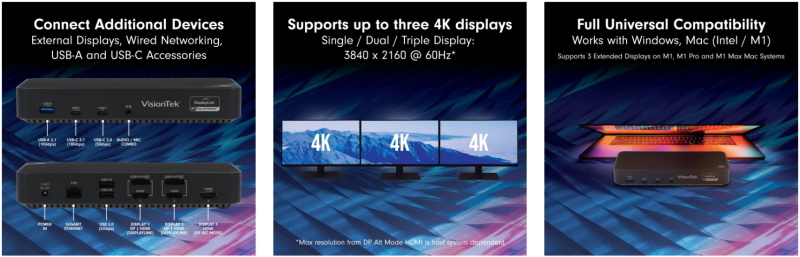
- Universal compatibility for USB 3.0 and Type-C
- Fully compatible with M1 Mac
- Supports up to 3 external monitors
- Up to 100W USB-C Power Delivery
- 2 USB-A 3.0 ports 5Gbps
- 1 USB-A 3.1 Gen 2 port 10Gbps
- 1 USB-C 3.0 port 5Gbps
- 1 USB-C 3.1 Gen 2 port 10Gbps
- 2 DisplayPort 1.2
- 3 HDMI 2.0
- RJ45 Gigabit Ethernet port
- Enterprise function
o Wake on LAN
o MAC address passthrough
o PXE boot
Specification
Dock connection: USB-C, USB 3.0
Display technology: DisplayLink, DP Alt Mode
Power Adapter: 130W – DC 20V/6.5A
powered by: up to 100W
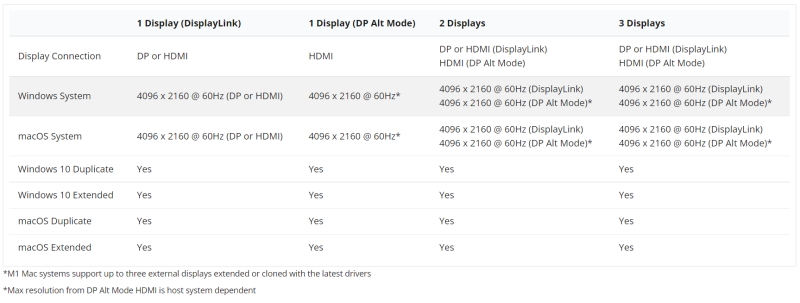
Supported Displays: 3
Maximum supported resolutions: 3 x 4K @ 60Hz*
*Maximum resolution for DP Alt Mode HDMI depends on host system
Video interface: (2) DP 1.2 (DisplayLink), (2) HDMI 2.0 (DisplayLink), (1) HDMI 2.0 (DP Alt Mode)
port: (2) USB-A 3.0 (5Gbps), (1) USB-A 3.1 Gen2 (10Gbps), (1) USB-C 3.0 (5Gbps), (1) USB-C 3.1 Gen2 (10Gbps), (1) 3.5 mm audio/microphone combo port, (1) RJ45 Gigabit Ethernet
cable length: 1.0m – USB-C, 1.0m – USB-C – USB-A
operating system: Windows 10, Windows 8.1, Windows 7, macOS 10.x and later, Chrome
Docking system connection: USB 3.0 Type A, USB-C 3.1, Thunderbolt™ 3
*Recommended system with USB-C 3.1 Gen2 port supporting USB-C charging and DP Alt Mode for best performance
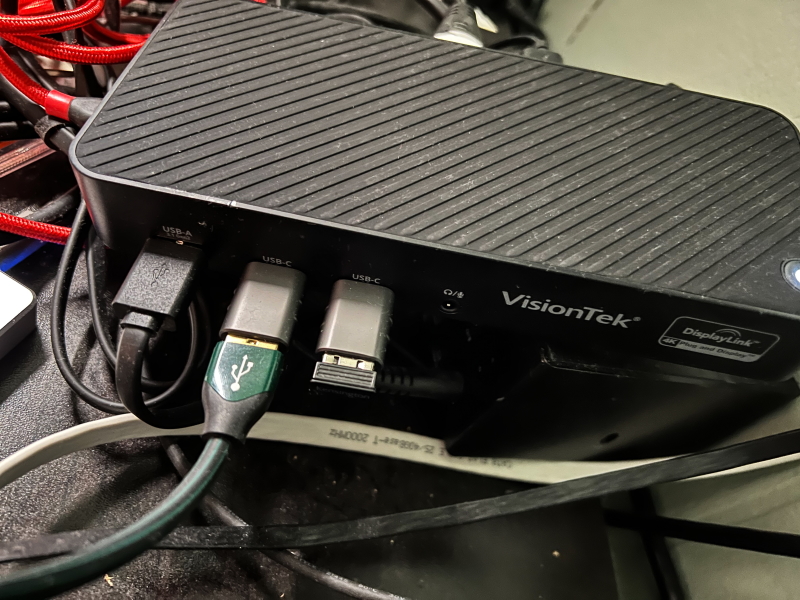
The VisionTek VT7000 Docking Station is built into a plastic enclosure, but is well built. The two long sides have ports, and the short sides have the power port and lock slot.There is a power button on the top plane
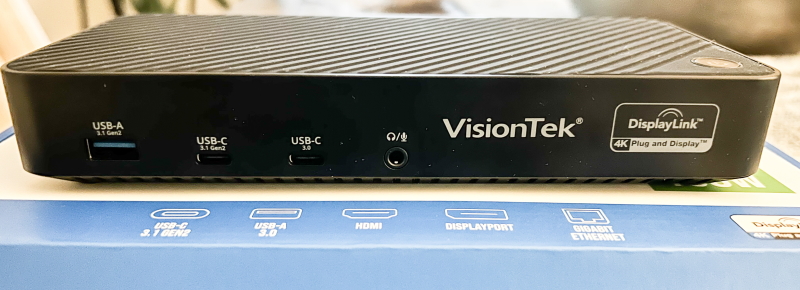 Front port:
1 USB-A 3.0 port
1 USB-C 3.0 port
1 USB-C 3.1 Gen2 port
1 x 3.5mm audio/microphone combo jack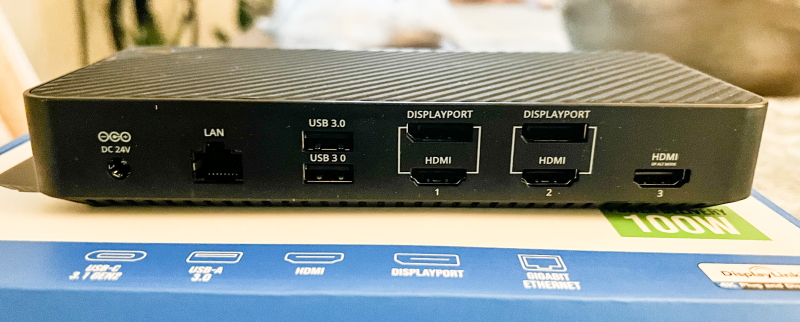 Backport:
DC 20V/6.5A power interface
Gigabit Ethernet port
2 USB-A 3.0 ports
2 HDMI ports (DisplayLink)
2 DisplayPort ports (DisplayLink)
1 x HDMI port (DP Alt Mode)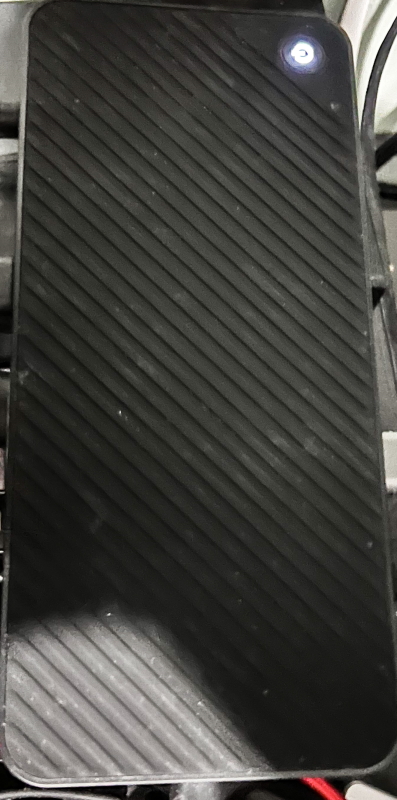
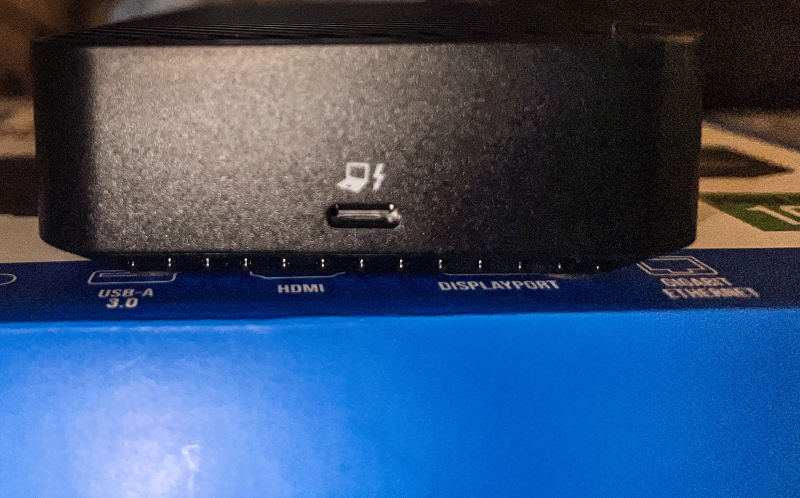 Side port:
USB-C to system
Kensington™ security lock slot
Power button (top)
Performance
I do a lot of photo editing, video editing, and audio editing. It’s really important to me to use as much screen space as possible. I also use a number of USB devices, which are connected to a USB hub, then to the dock, directly to any available port on my computer, and the rest of the slave devices are connected directly to the dock. As I mentioned before, my old dock that I used for a few years started to fail badly 2 days before I received this dock. My previous dock also used the DisplayLink driver, so when I swapped it out for a VisionTek VT7000 dock and plugged in my device, everything worked seamlessly. I placed the VisionTek VT7000 docking station in a somewhat awkward position because 3 of the 4 sides have cables. My previous dock had all the ports on one side, which worked better for my personal use.
As you can see in the photo below, I have the USB and HDMI cables connected on one side. The red USB cable you see is mine, I swapped out the cable that was attached to the computer with the one that came with it. My cable is longer and braided and it works great. In the second photo, you can see that I have more USB-A devices than ports. I use 2 USB _C to A to connect my USB-A devices. They work well with the adapter without any issues.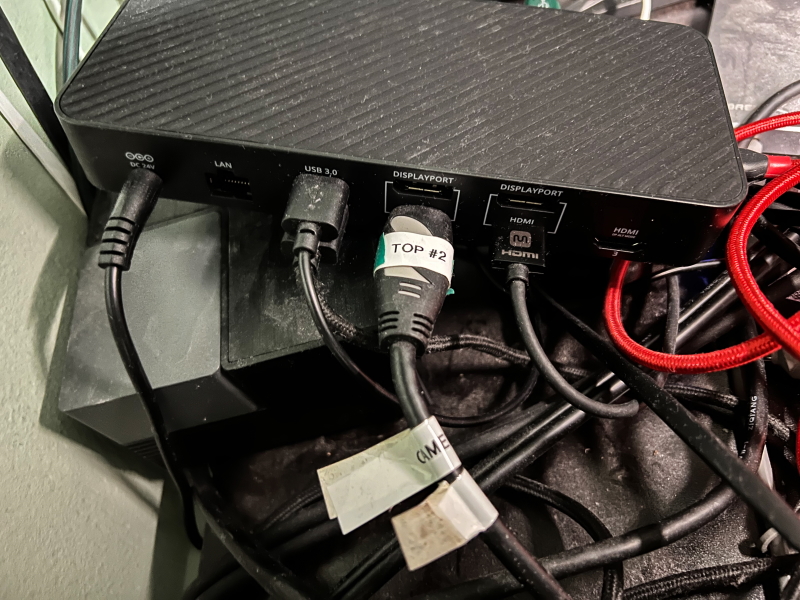
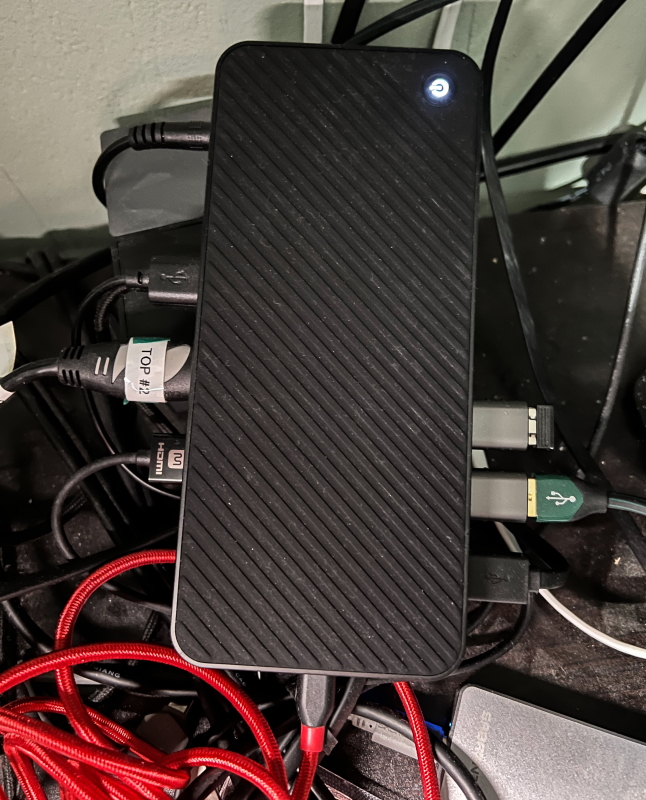
Overall, I really like the VisionTek VT7000 docking station. It has all the ports I need, and for connections I have that aren’t USB-C, a simple and cheap adapter solves the challenge. It’s actually now and future proof that some of my accessories need to catch up. I love the look of my 4K monitors, and this one makes them look so much better, even though the previous base was said to be 4K. My monitor can use both HDMI and Displayport, but since I already have them installed and moving them is a pain, I’m sticking with the HDMI cable. I did try using DisplayPort from another monitor I put in and it worked fine. The ethernet port works great too, but I changed back to the router for a direct connection since the laptop I’m using has a built-in gigabit ethernet port. FYI, my internet connection is 1GB/1GB. The dock also offers a working audio port, but since I’m using an external DAC, I’m sticking with it for my audio needs.
what do I like
- build quality
- number of ports
- various ports
- Connection quality and consistency
what would i change
- My personal preference is for all ports to be on one side of the device. This design works well and is most convenient when using this type of device as a permanent base on my home office desk.
final thoughts
The VisionTek VT7000 docking station came at just the right time and worked flawlessly. The connection has been solid, which is fine considering I have a USB hub connected to the dock and a couple of drives plugged in without any hiccups. The display works well, and the PD capability is a nice bonus. Well done to this dock, two thumbs up! !
Price: $369.00
where to buy: VisionTek website and Amazon
resource: Samples for this review provided by VisionTek


