


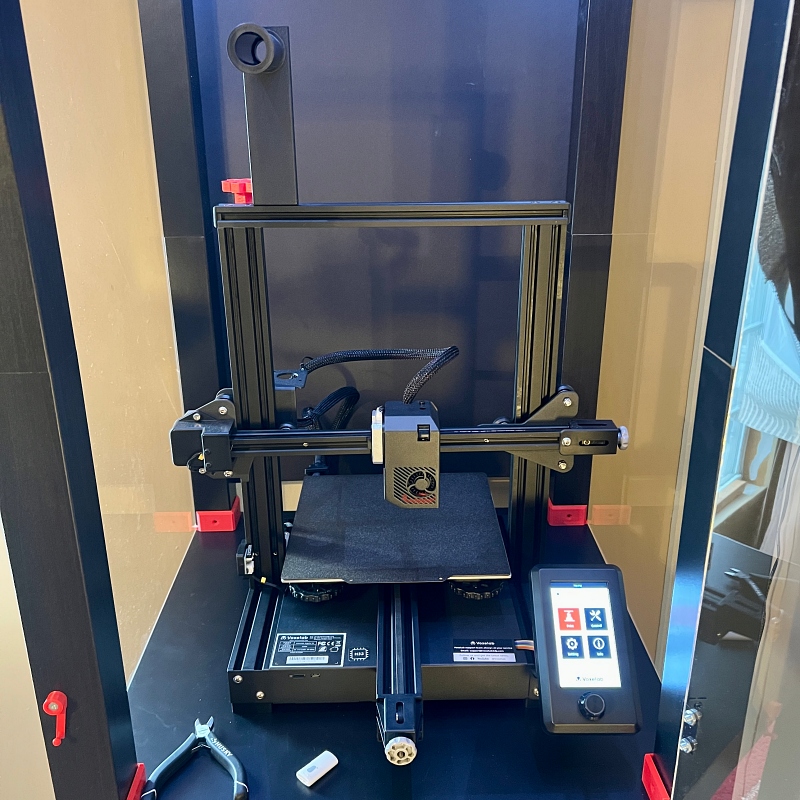
review – 3D printing is something I have always been obsessed with. I think it’s pretty cool that you can take a file, load it into the machine, and have a full 3D model at some point. However, I’m also a little concerned due to the steep learning curve. When I got an invitation to review the Voxelab Aquila S2 FDM 3D printer, I decided it was time to dive into the world of 3D printing. Boy, I’m glad I did.
What is it?
Voxelab Aquila S2 is a 3D printer Offers great value for money at a mid-range price.
What’s in the box?
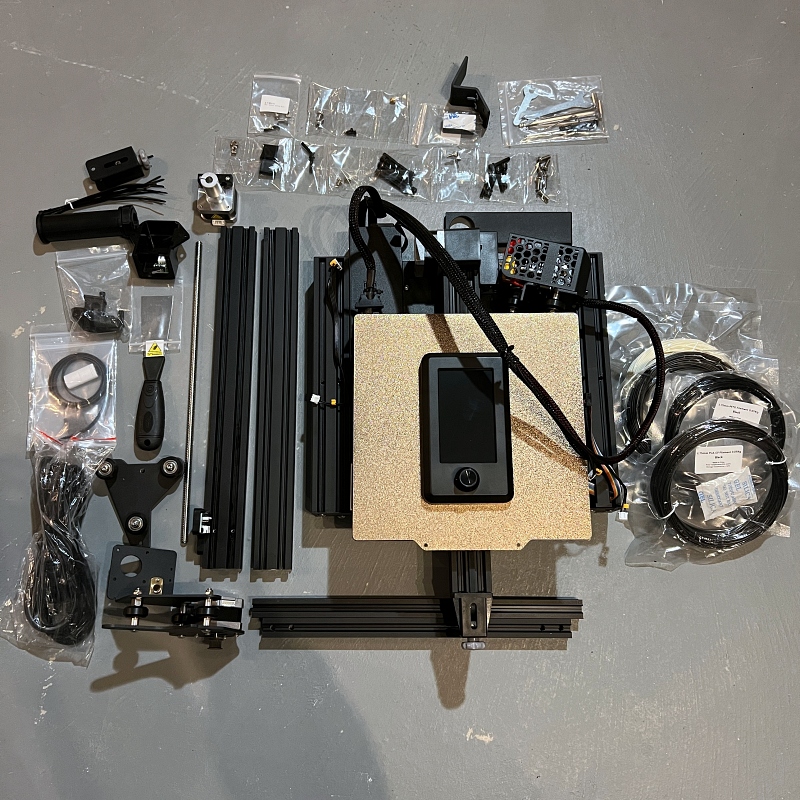
- Voxelab Aquila S2 3D Printer
- power cable
- 4 inch screen
- screw kit
- Filament spool rack
- Wrench and screwdriver
- removal tool
- Memory Cards and Card Readers
- cable tie
- Nozzle Needle
- nozzle
- 50g Filament
- User Manual
Hardware Specifications
- Number of extruders: 1
- Nozzle diameter: 0.4mm
- Maximum extruder temperature: 300º C
- Printing speed: 180mm/s, 30-60mm/s
- Maximum platform temperature: 110º C
- Filament Compatibility: PLA, ABS, PLA-CF, PETG, PETG-CF, PA12-CF, PA, PC, TPU
- Print volume: 220 x 220 x 240mm
- Layer resolution: 0.1mm-0.4mm
- Printing Resolution: ±0.2mm
- Software/Communications
- Connectivity: USB / memory card offline printing
- Software: Cura / Simplify 3D / Voxelmaker
- Output: G file
- Input: AMF/STL/OBJ
equipment
- Dimensions: 19.09 x 13.54 x 15.83 (with spool stand) inches
- Screen: 4.3 inches
- Net Weight: 17.64 lbs.
- Gross Weight: 20.72 lbs.
- Input: AC 115/230V 50/60HZ
- Output: 24V, 13.3A
- Power: 350W
other
- Operating noise: 50dB
- Working environment: 15-30ºC
- Restore print function: yes
- Language switch: English/Chinese
Design and Features
The base of the S2 is pre-assembled, so you only need to assemble the upper print components together. It consists of Z and Y axes, extruder kit, timing belt and screen kit. Assembling the printer is fairly simple. What makes it difficult is the user manual. All in all, this sucks, especially if you’ve never built a 3D printer before. And none of the parts or screws in the screw kit are marked. With the help of a friend, I had the printer fully assembled in just over an hour. If you don’t have a second hand, I recommend laying the printer on its side on a padded surface during assembly.
Three features make the Aquila S2 stand out from its predecessor, high temperature printing, direct extrusion and PEI magnetic plates.
The maximum extruder temperature for a typical 3D printer is about 250ºC. The high temperature printing of the S2 means the extruder can reach temperatures of up to 300ºC. This means you can print with a variety of filaments such as ABS, PLA-CF, PETG, PETG-CF, PA12-CF, PA, PC and TPU.
If you’re new to 3D printing, here’s a great video explaining the different types of filament and their uses.
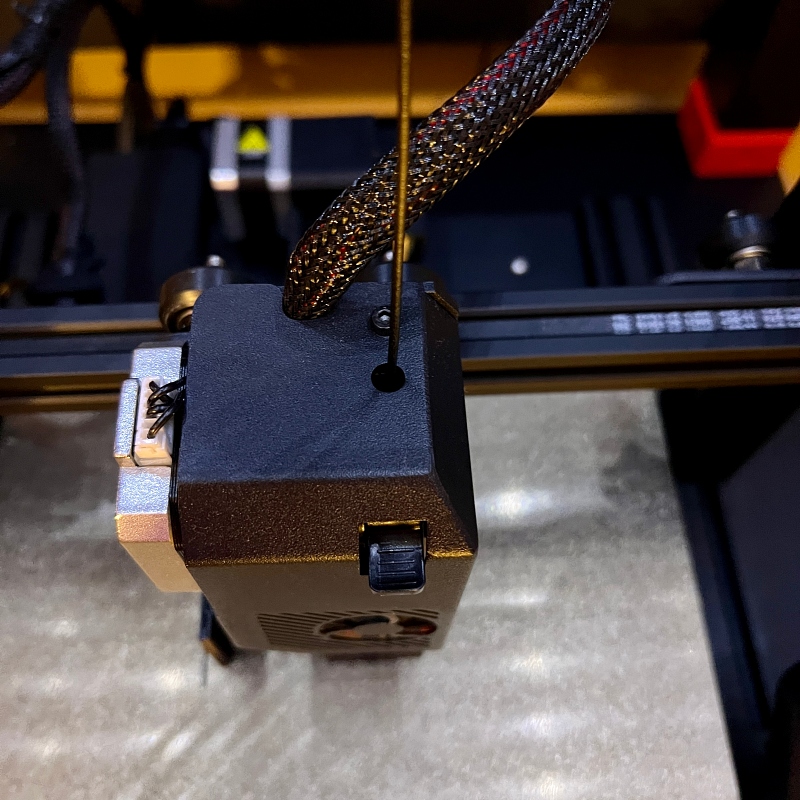
Direct extrusion provides fast manual loading of filament and better smooth extrusion with vertical loading.
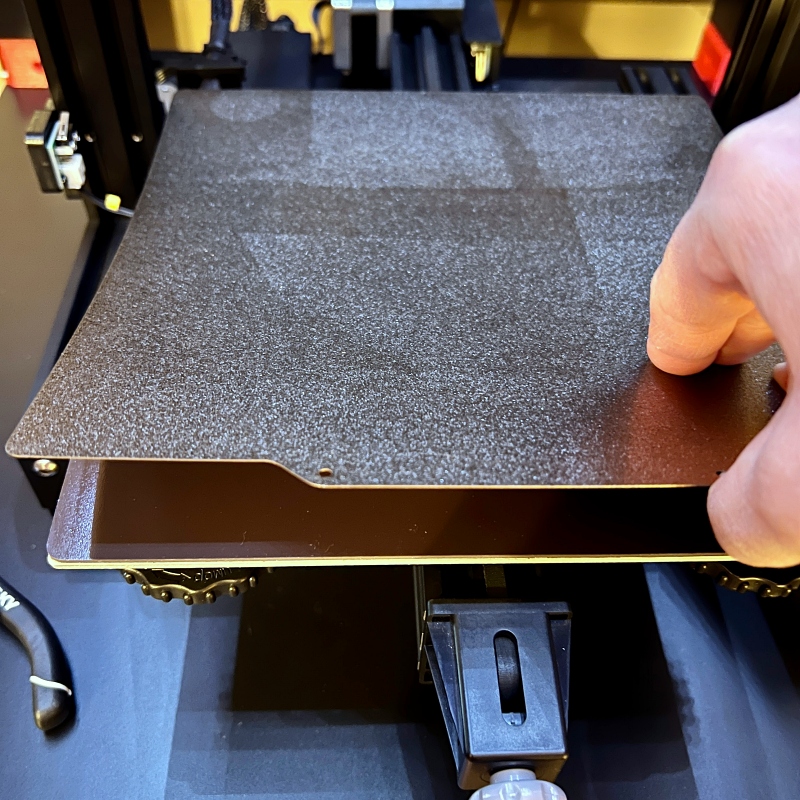
PEI Magnetic Plates offer better filament adhesion and easy removal of prints without tools.
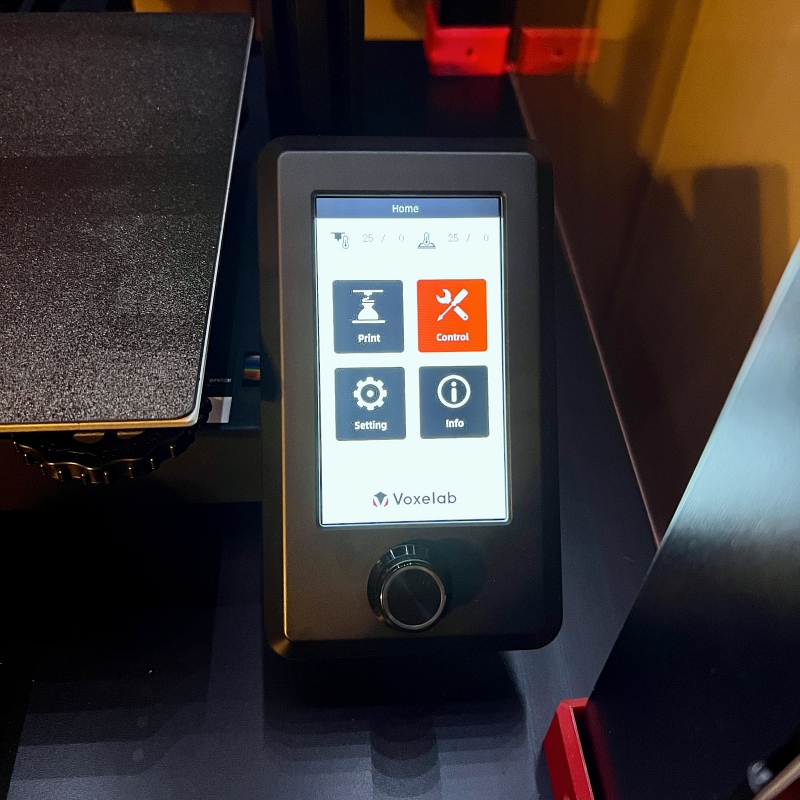
The 4.3-inch color control screen is easy to read and navigate with a rotary knob.
Leveling
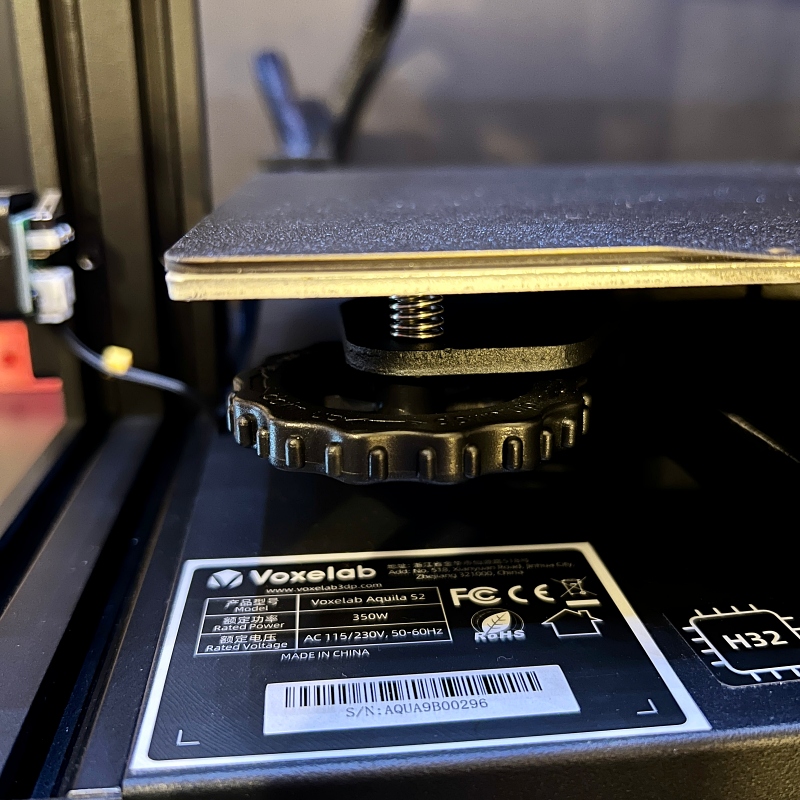
Before you start printing with the Voxelab Aquila S2 FDM 3D printer, you need to level the print bed. Leveling the print bed is very important. If it is not leveled correctly, it will adversely affect print quality. Again, this is where the manual can’t help. Luckily, there are tons of excellent leveling tutorials you can watch on Youtube. The process is actually quite simple. Large knobs on the bottom of the print bed allow you to raise or lower each corner until the print bed is level.
Before printing the file, you must load the supplies and preheat the extruder and print bed.Using the on-screen knob, navigate to control and select Preheat PLA. This setting heats the nozzle and bed to the optimum temperature for printing with PLA filament (200ºC / 60ºC).To load filament, select autoload. The extruder will heat up to 235ºC and when it is ready the screen will guide you to load the supplies. The S2 features a direct drive extrusion that loads the filament directly into the top of the printhead. Loading the filament this way is faster and smoother. It also helps reduce nozzle clogging.
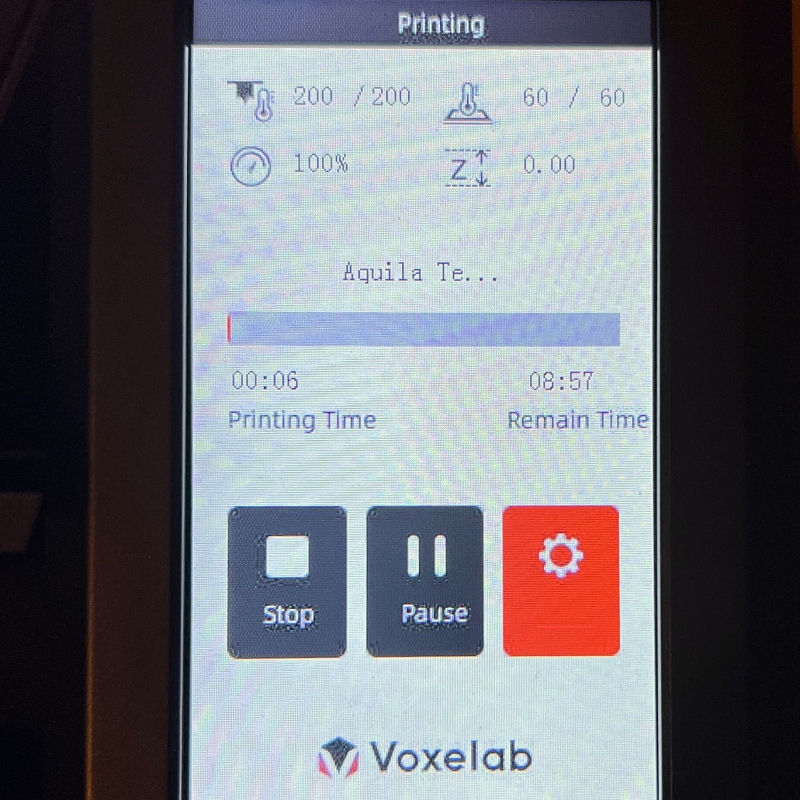
You can print files using the S2, micro SD card or micro USB port in two ways. I chose to print the test files from the included micro SD card. I plug the card into the port on the front of the printer.I use the rotary switch on the screen to select Print Then select the Aquila test file. I printed it using the sample PLA Voxelab that came with the printer. While printing, the screen will display the nozzle temperature, bed temperature, print speed and Z axis. In the center of the screen, you will see the name of the file being printed and a progress bar. It also shows the print time and remaining time. The remaining time can be misleading at the beginning. However, after a while, it will show a more accurate estimate. Note that the remaining time in the picture is more than 8 hours. However, the actual printing took only about 45 minutes. At the bottom of the screen, there are options to stop or pause printing. You can also choose settings and adjust the nozzle and bed temperature during printing.
The Voxelab Aquila S2 FDM 3D printer is surprisingly quiet when printing. The printer is in my bedroom and I can easily watch TV while the printer is running. I did eventually build an enclosure for it, which I’ll discuss later in the comments.
The Aquila test file printed in about 45 minutes without any issues.

Removing the model from the magnetic build plate is easy. I let the print cool for a few minutes and the model popped right out.
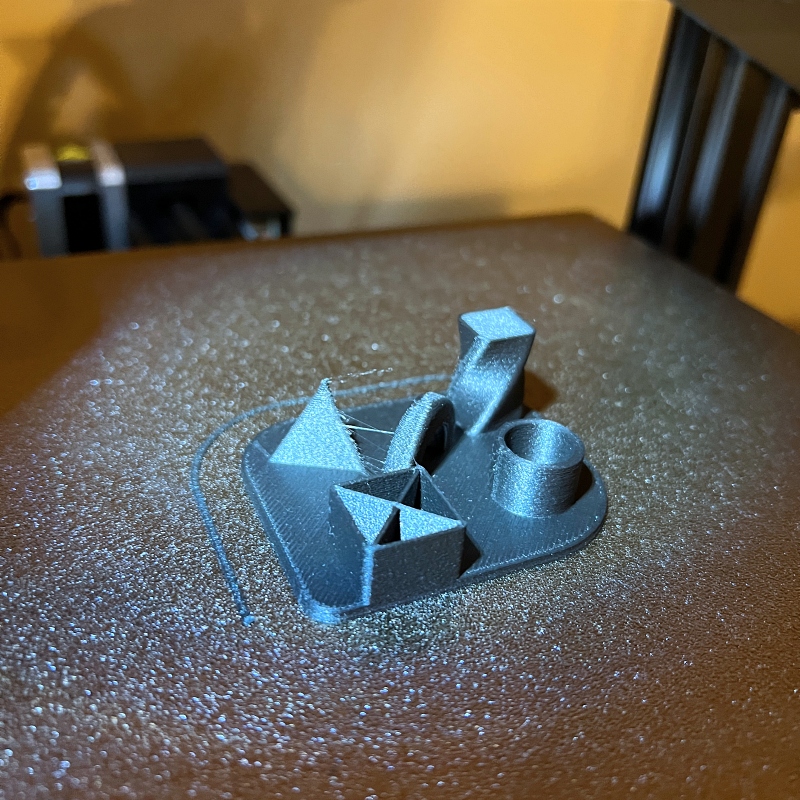
The build plate also provides a nice texture to the bottom of the model.
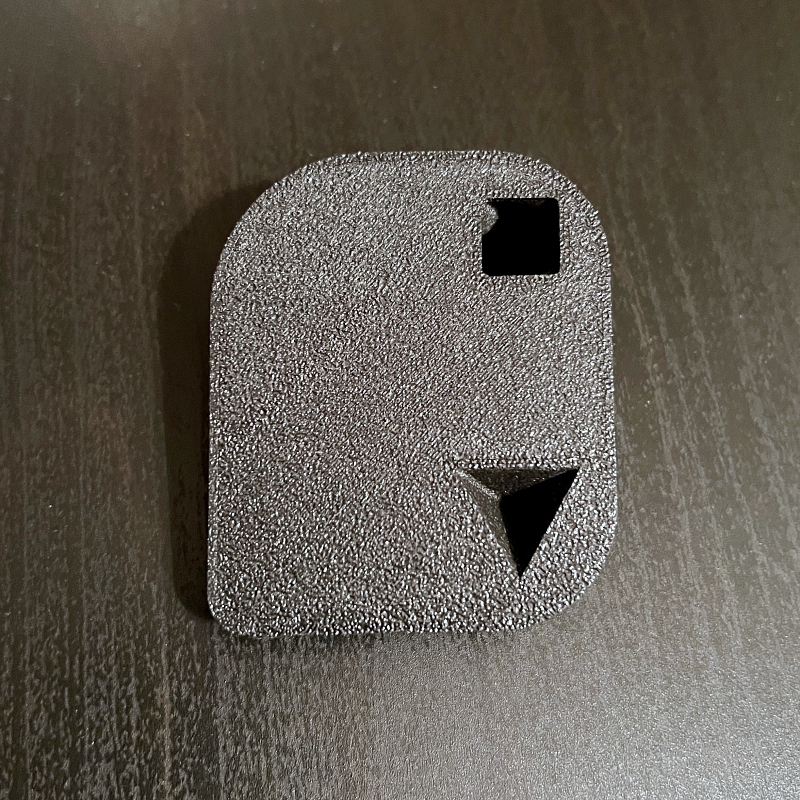
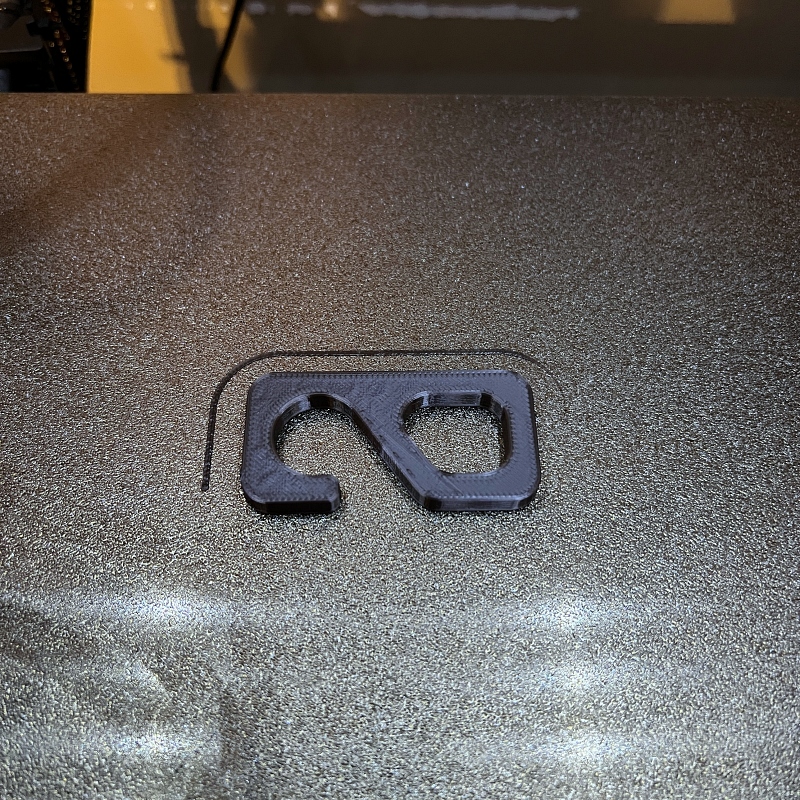
The file prints out a model with various geometries, and it looks great, at least to my untrained eyes. A little brushed but easy to clean up. I printed another file from the SD card, a test hook. But this time, I used silk PLA purchased from Eryone. The file prints again without problems and looks very good.
software
To print the downloaded file, you must use slicing software to change it to a printable file (G-code). I used the VoxelMaker slicing software provided on the SD card. The software has two modes, basic mode and expert mode.
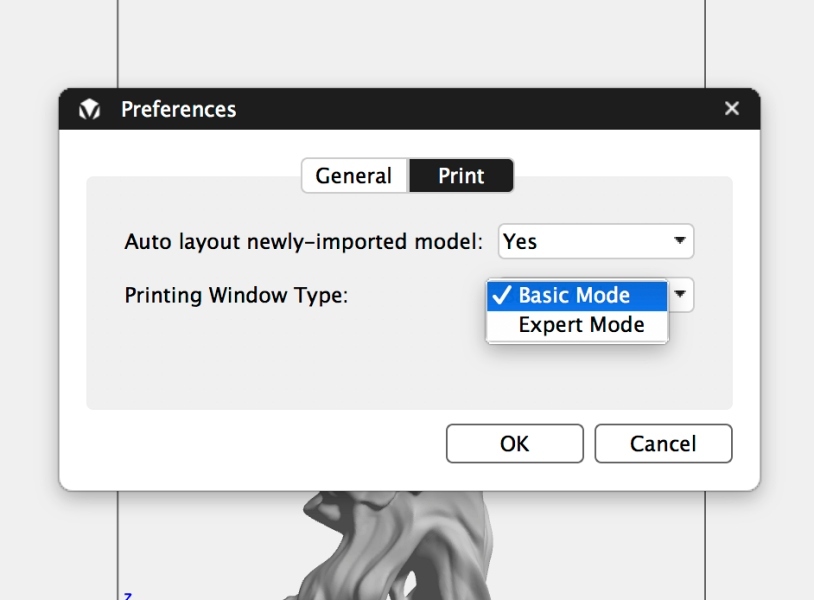
In basic mode, most of the printing parameters are set for you for the convenience of beginners. Expert Mode allows you to access and adjust almost all available print settings. Since I’m new to 3D printing, I used the basic mode.
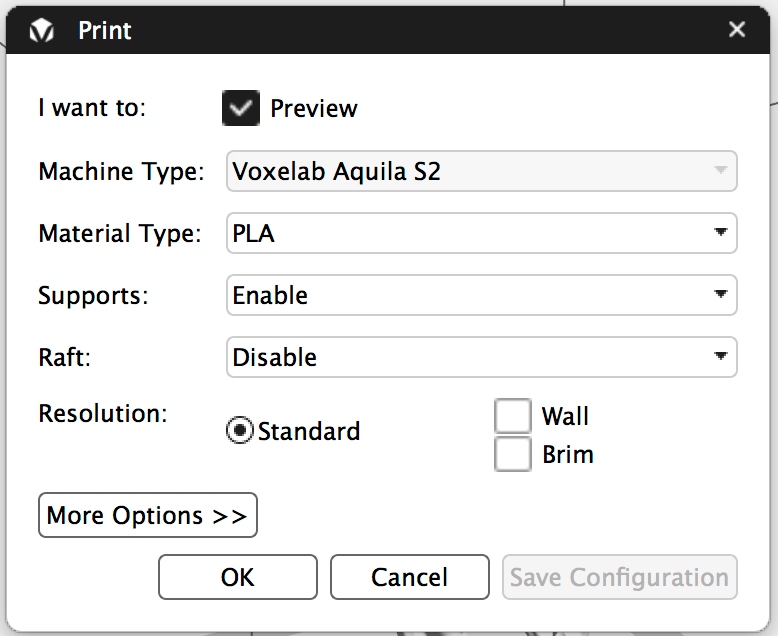

i downloaded one ghost ghost file from Ultrathin Universe and load it into the VoxelMaker software. You can manipulate the file in the software, but I chose to leave it as-is.
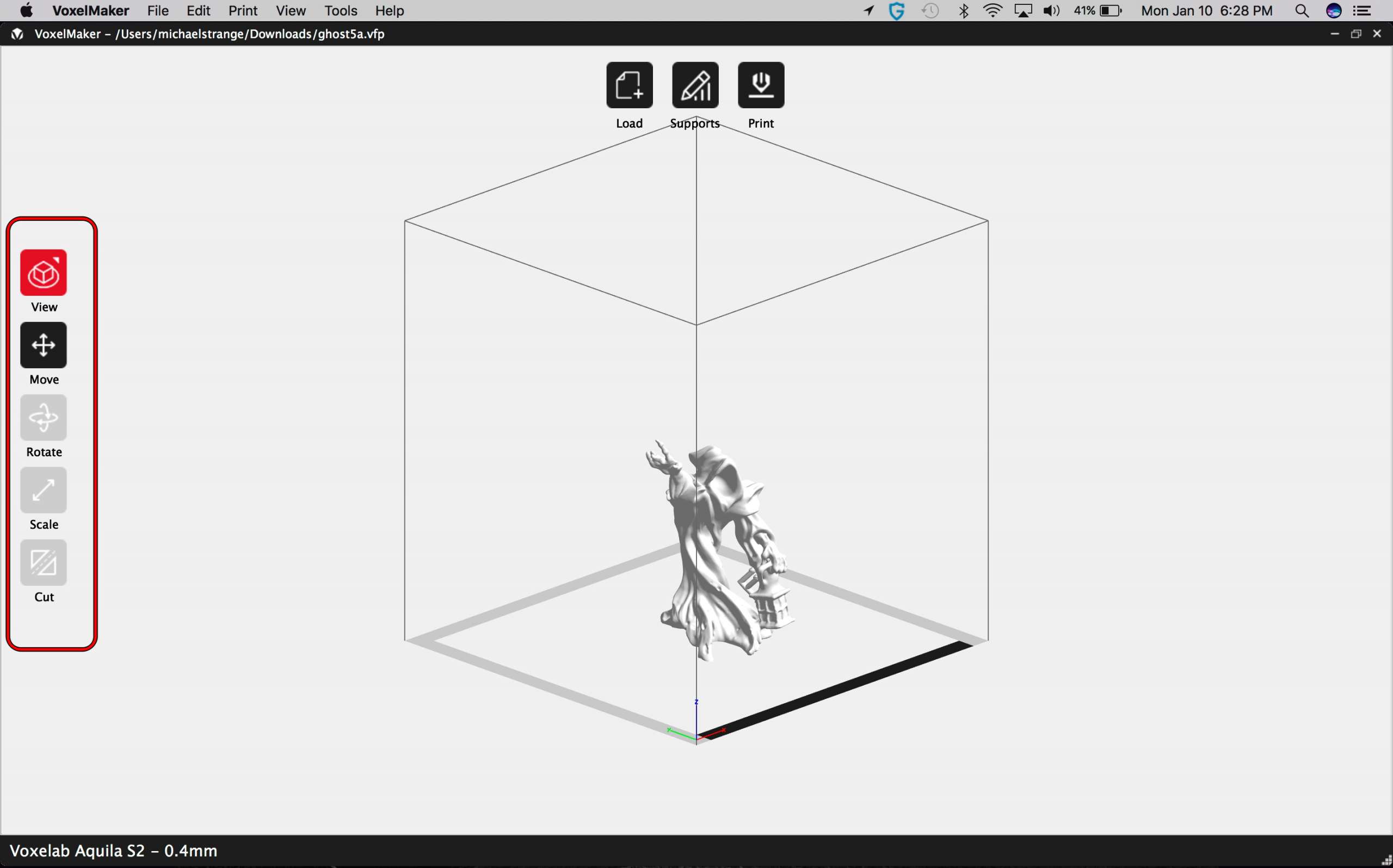
Then I save it to a micro SD card. After saving the file, the software shows how the model will look on the print bed. It also shows the number of layers that will be printed along with estimated print time, estimated material used, estimated weight and slice information.
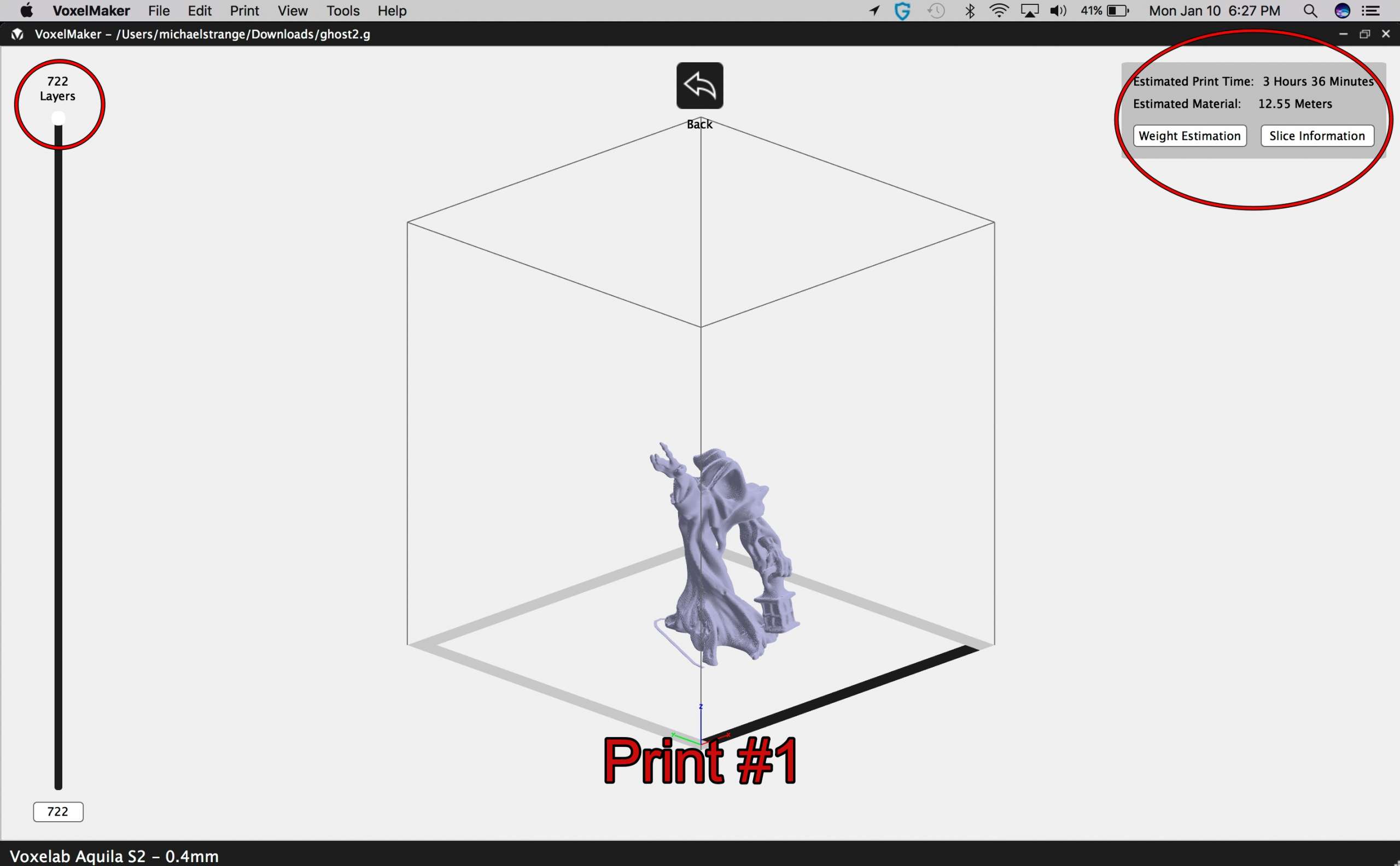
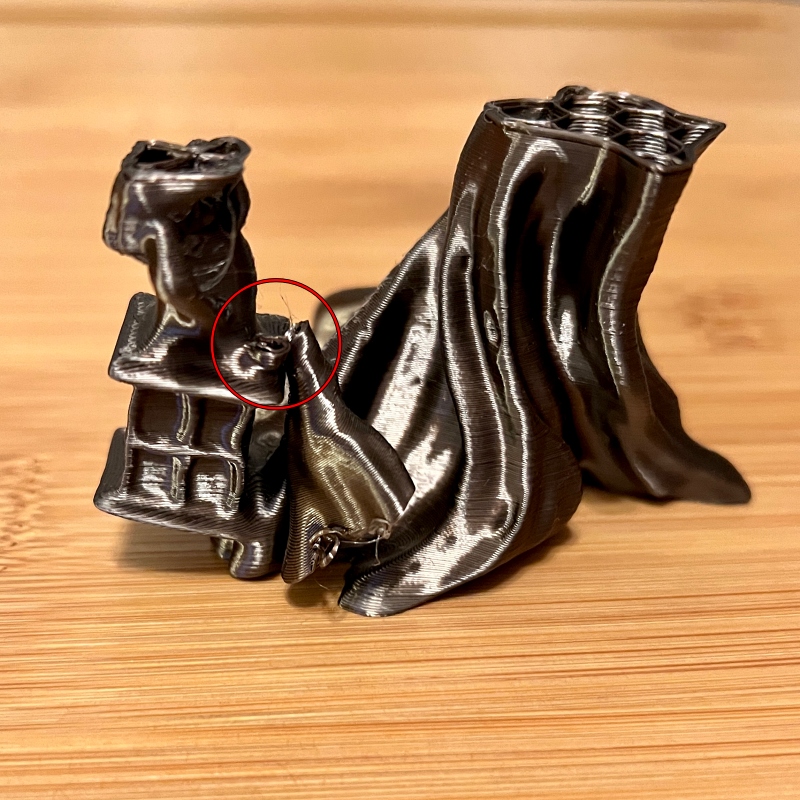
I inserted the SD card into the printer and selected the ghost file. All went well until about 11/2 hours. That’s when the ghost’s left arm was broken. I stopped printing and took it off the bed.
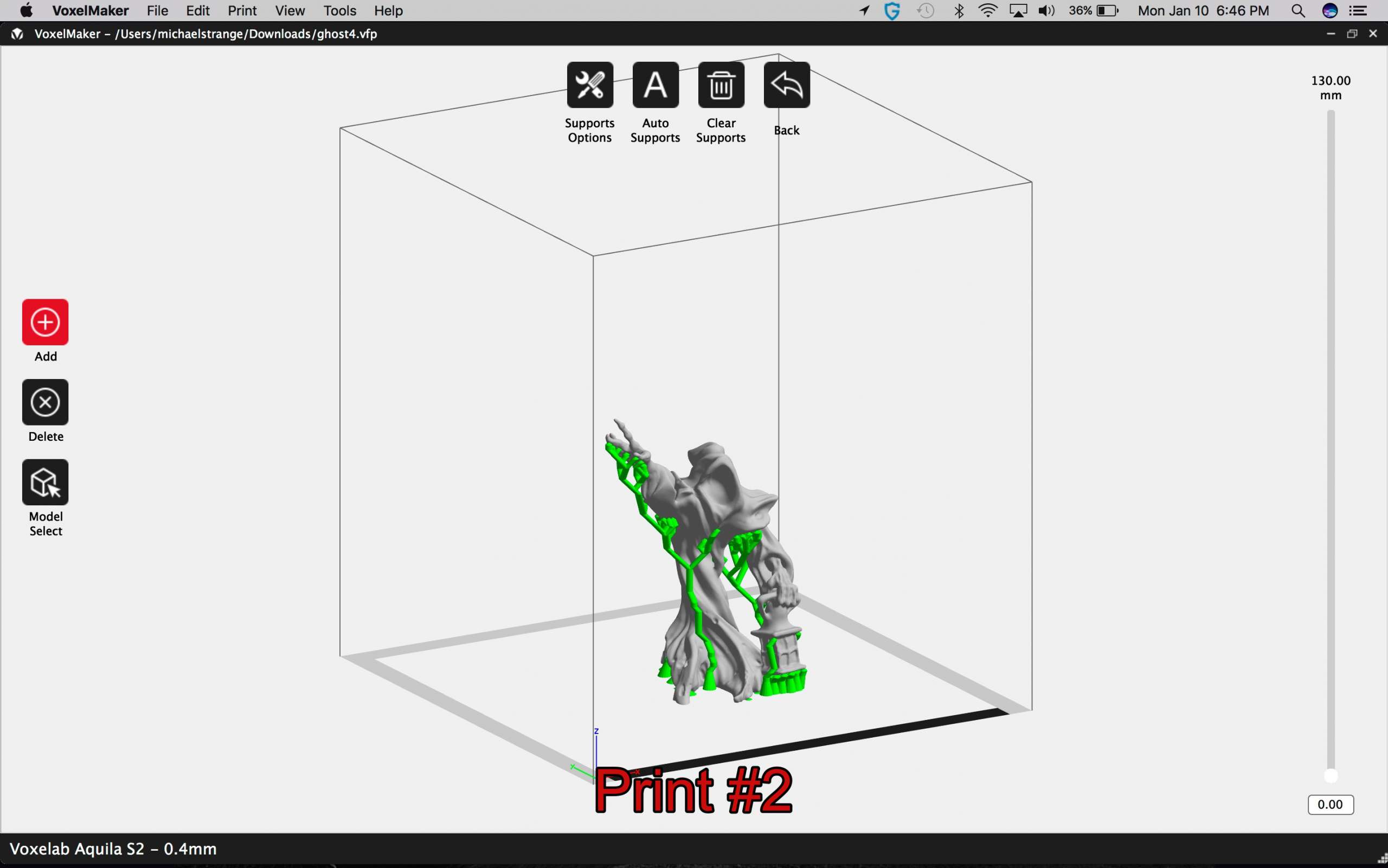
This is how I learned to use support. They can be added during the slicing process to prevent large overhanging prints from sagging or breaking. There are two options supported, tree and linear.I choose to use tree supports and select car mount in the menu.exist car mount, the software automatically generates supports where needed and adds them to the model. When using a stand, it is best to print with a raft. A 3D printed raft is basically a disposable horizontal surface that sits beneath a model. The raft provides the support with something to stick to during the printing process. Both the raft and the stand can be easily removed after printing. After adding supports, I saved the file and started a new print.
About 21/2 hours into the second print, the nozzle got stuck on one of the brackets. and break the model again. what! Undaunted, I went back to the drawing board. This time I decided to remove all the supports except the ones under the arms which were broken during the first print.
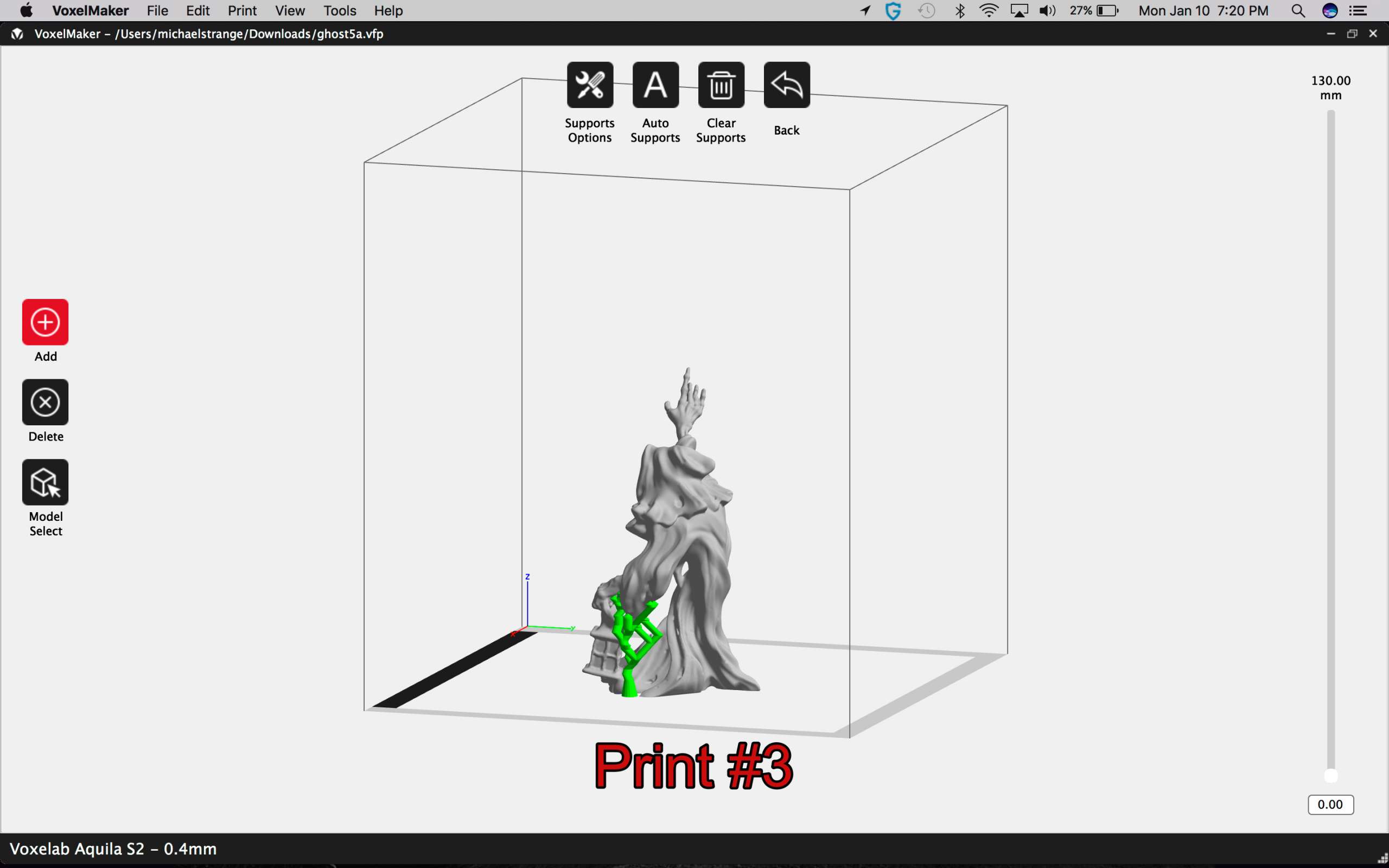
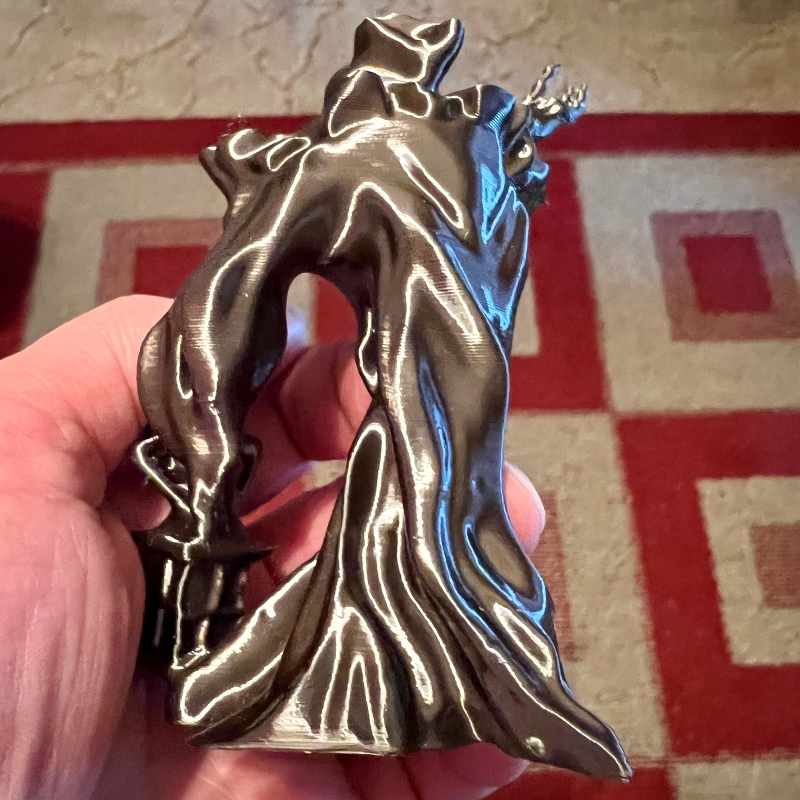
I print the model for the third time. After 4 hours, I had a successful, beautiful model. The Ghost model really highlights the capabilities of the S2. As you can see in the pictures, it has a lot of intricate details and the printer handles it beautifully. 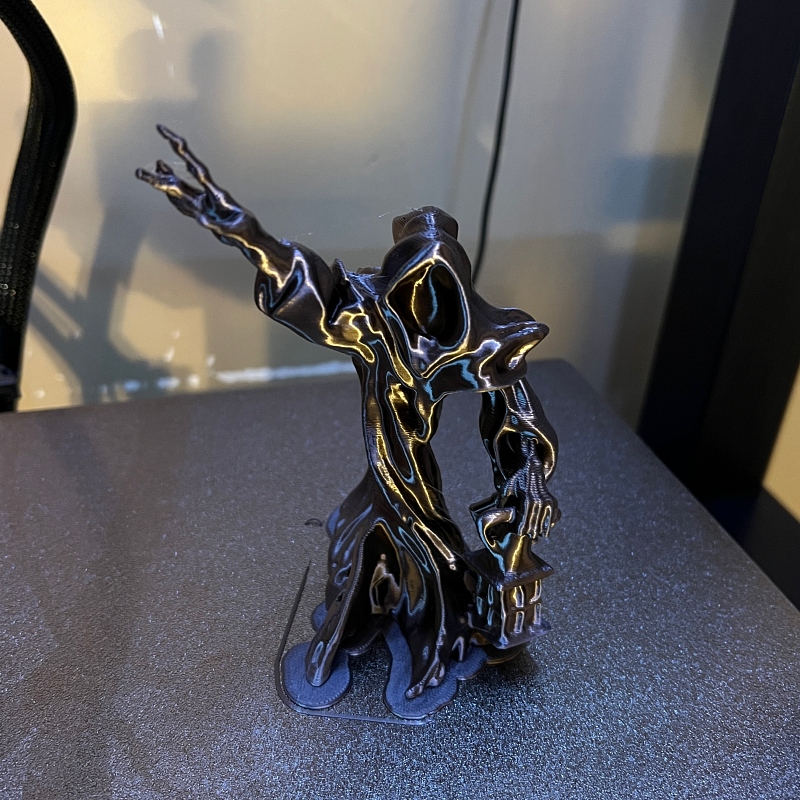
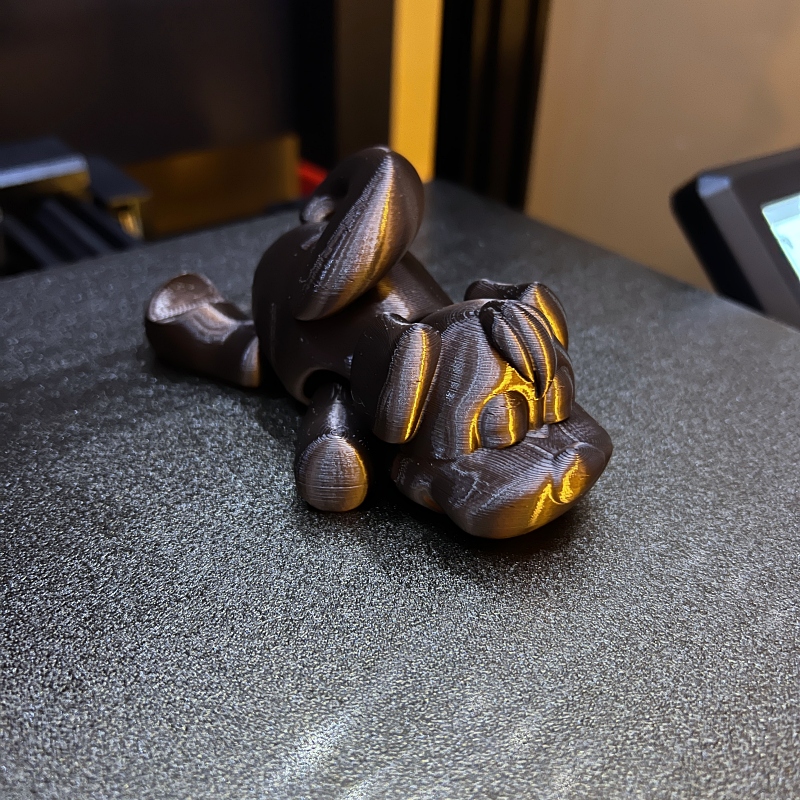
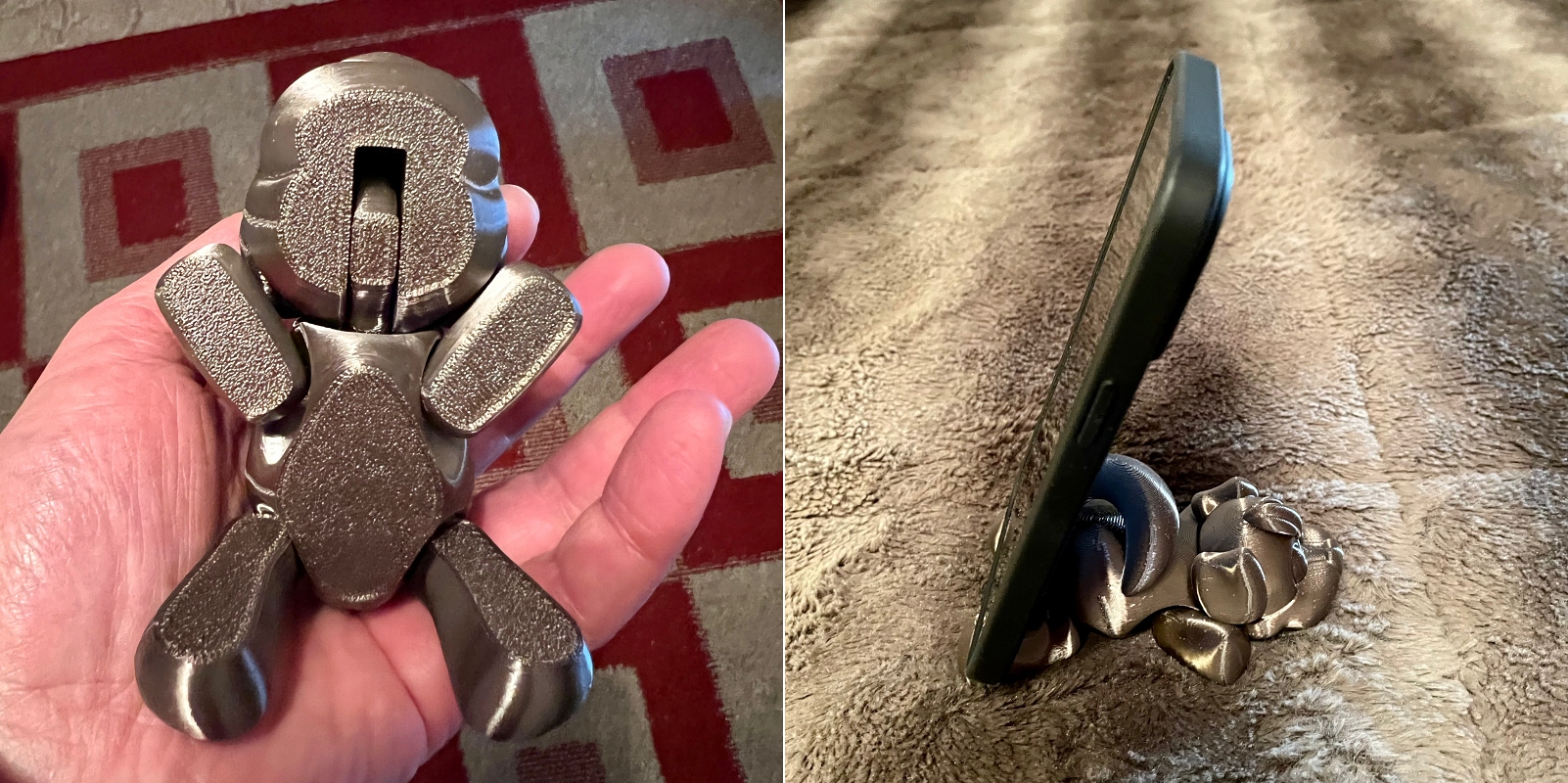
I’ve printed various models and parts since the first print, all of which print very well. I’ve printed over 50 hours on a Voxelab Aquila S2 FDM 3D printer and I haven’t had any issues. The most impressive thing about it is its ability to manage a variety of prints.I printed an articulated bouncy puppy model from Cult 3D This requires a lot of complicated printing. The model’s head and legs are moving. The model took 6 1/2 hours to print, and when I took it out of bed, I was amazed at how smoothly the hinges moved. The puppy even doubles as a phone stand.
 The S2 also handles printing precision parts well. I printed about 30 parts to build my case, and every part was flawless and precise. It took hours to print all the parts, but it saved me nearly $30 in construction costs.
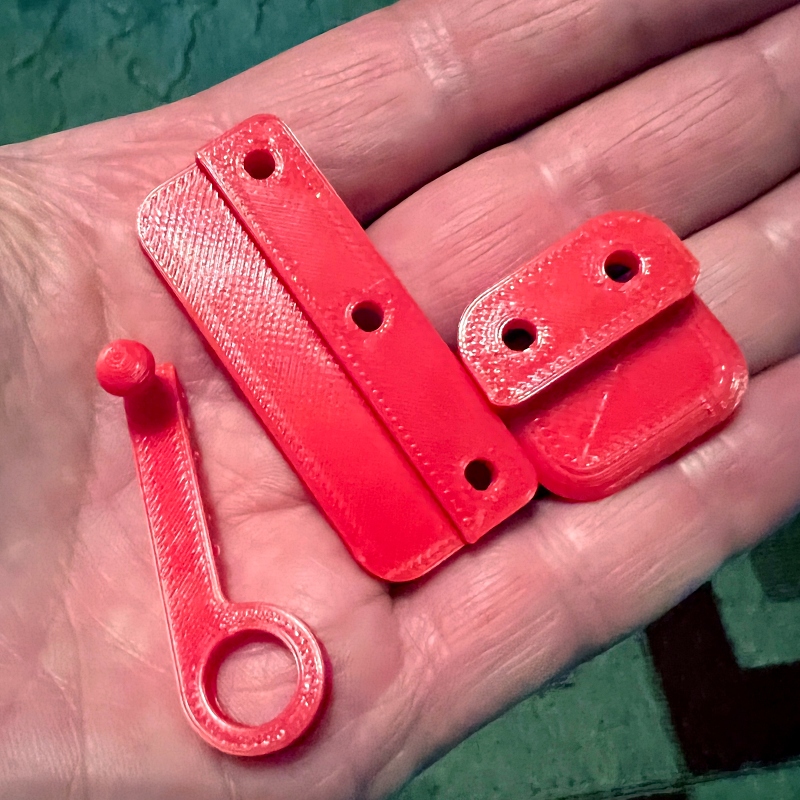
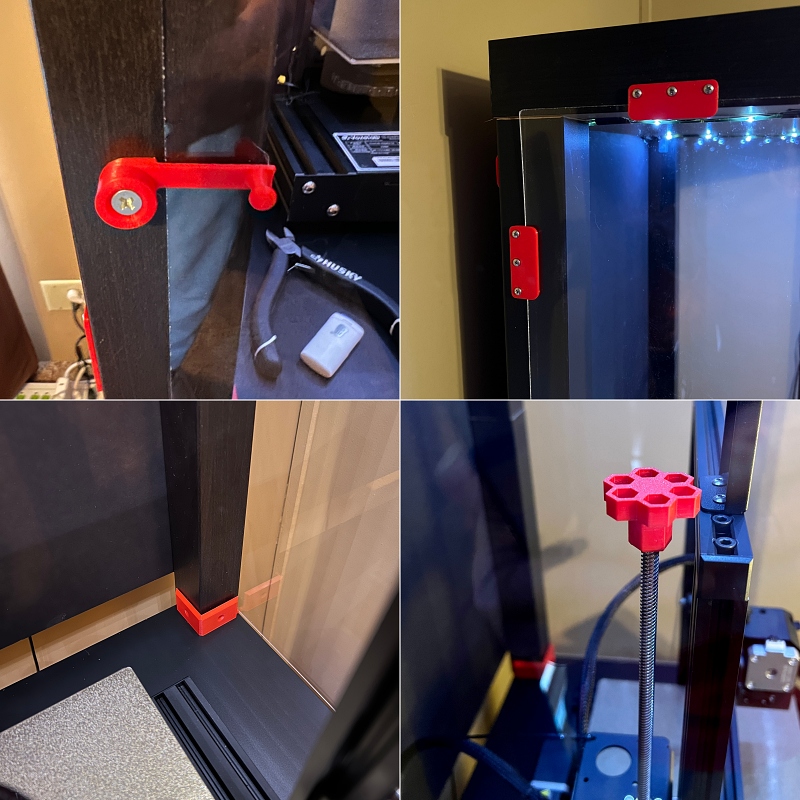 The bottom line here is that the Aquila S2 has handled all the issues I’ve thrown at it so far.
For the last print of this review, I wanted to print a file using one of the high temperature filaments that Voxelab sent me.
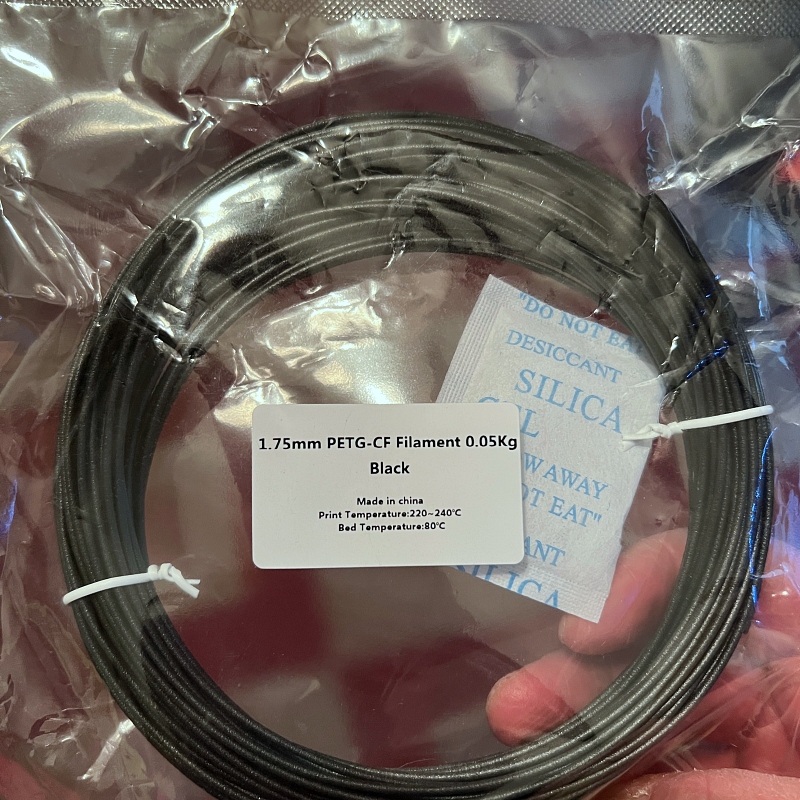
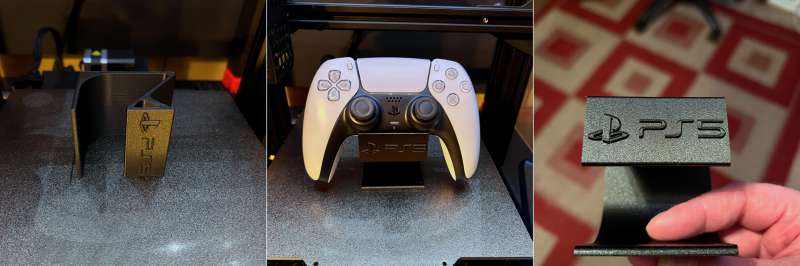
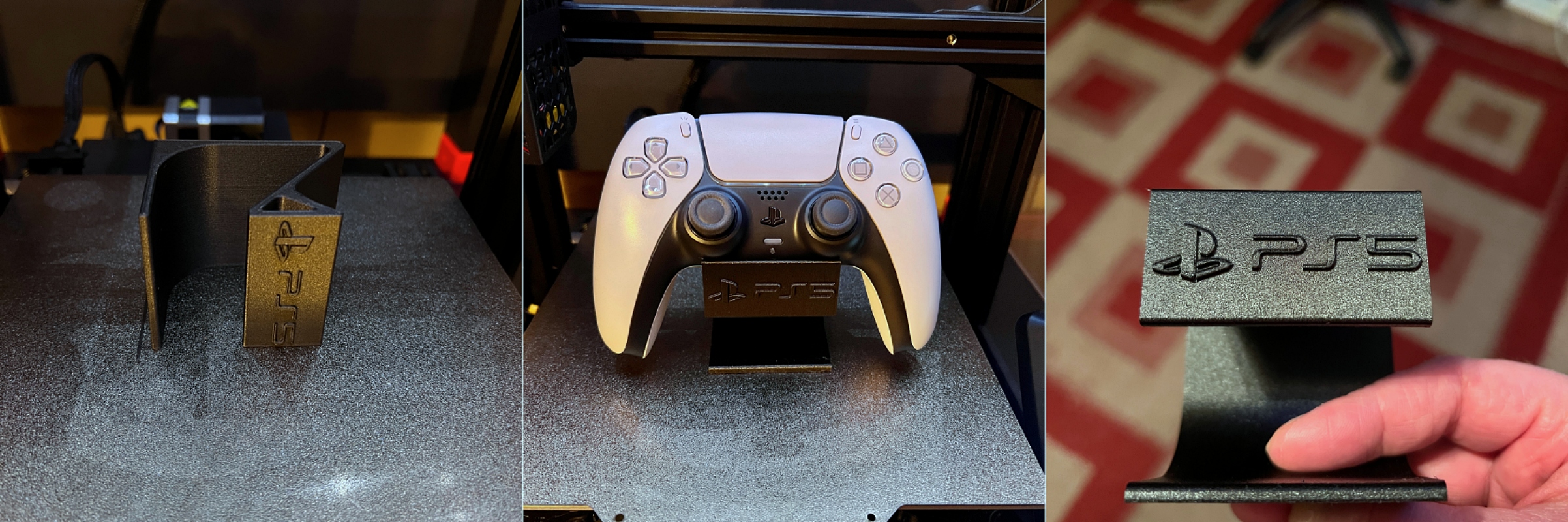
I chose to use PETG-CF (carbon fiber) filament, which requires a print temperature of 220ºC-240º and a bed temperature of 80ºC. I printed a stand for my PS5 Dual Sense controller. It took about 4 hours to print and the result was flawless.
 shell
shell
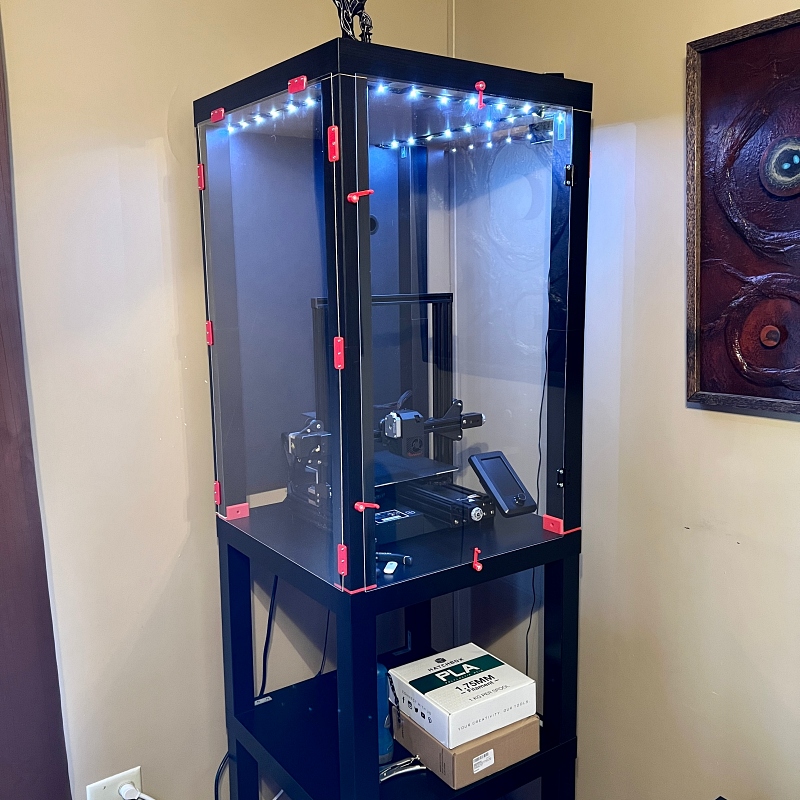
As I mentioned before, I built an enclosure for my Voxelab Aquila S2 FDM 3D printer. It was made using a table from IKEA. It’s easy to make and fairly cheap. The vertical build is perfect as I don’t have much space in my house. The case can be used as a workstation and also has space for things like filament and tools. It also reduces dust and any residual noise from the printer. It’s a great showcase to showcase your 3D printer. There are several different versions of this case. You can find them just by going to YouTube and searching for Ikea Lack Enclosure. Also, please note that all the red parts you see were printed using the Aquila S2.
what do I like
- easy to assemble
- easy to use
- run quietly
- direct drive extrusion
- PEI Magnetic Build Plates
- great show
- Multiple Filament Types Supported
what would i change
- More comprehensive user manual
final thoughts
Overall, the Voxelab Aquila S2 FDM 3D printer is an impressive 3D printer. It’s easy to assemble (despite the terrible user manual). It’s quiet, easy to use, and good value, especially for under $300. In my opinion, S2 is simple enough for beginners, but offers features that even advanced users will appreciate. I highly recommend it to anyone looking to get started with 3D printing. I can tell you it’s got me hooked.
price: $279
Where to buy: Voxel Lab
source: Samples for this review are provided by Voxel Lab.


