


Post views:
2
Videos and pictures are often shot with different backgrounds.But when we have to do photography for a subject, we need to take pictures video. After that, set a custom background for them. Especially the white screen background is very important. Consider using a white screen background as it reduces distractions and creates a more consistent look. Most people use mobile apps to get white backgrounds. Because mobile apps are not only convenient, but also more functional. Videos are also shot with various backgrounds, but the background takes the viewer’s attention away from the main content you want to show. Therefore, the movement of the target material in front of a white background will give your audience a clearer message.
In this article, you’ll learn about the best tools and apps to set a white screen background for photos and videos.
Mobile apps for Android and iOS users:
Apowersoft Background Eraser (both iOS and Android users)
This application is available for Android and iPhone users. But the minimum requirement is iOS 9.0 or Android 4.1 for Iphone and Android respectively. Another benefit (especially for Android users) is that it requires very little space, 11 MB for Android and 54.5 MB for iOS.The reason this software is mentioned is that it removes the background of your photos or video Automatically and gives you a variety of solid colors, including white screen backgrounds. You can also enjoy its advanced features, background templates and numerous built-in solid colors.
Just follow the given steps to get a perfect white screen background:
- Install the app
- Open it
- Select Recognition to import photos
- The background will be removed instantly without clicking
- To insert a screen background, click the Background option.
- Now choose white from the Colors tab.
- To save it, just click the “Save HD” button.
Mobile apps designed for iOS users:
Knockout Mix
Although this app is not available for Android users. This software is very suitable for Iphone users. It works with iOS 8.0 or later. The file size is 107.1 MB, i.e. a little bigger than the previous one. It is one of the best and easy-to-use apps for inserting white screen backgrounds. To change the background to white through this app, follow the given guidelines:
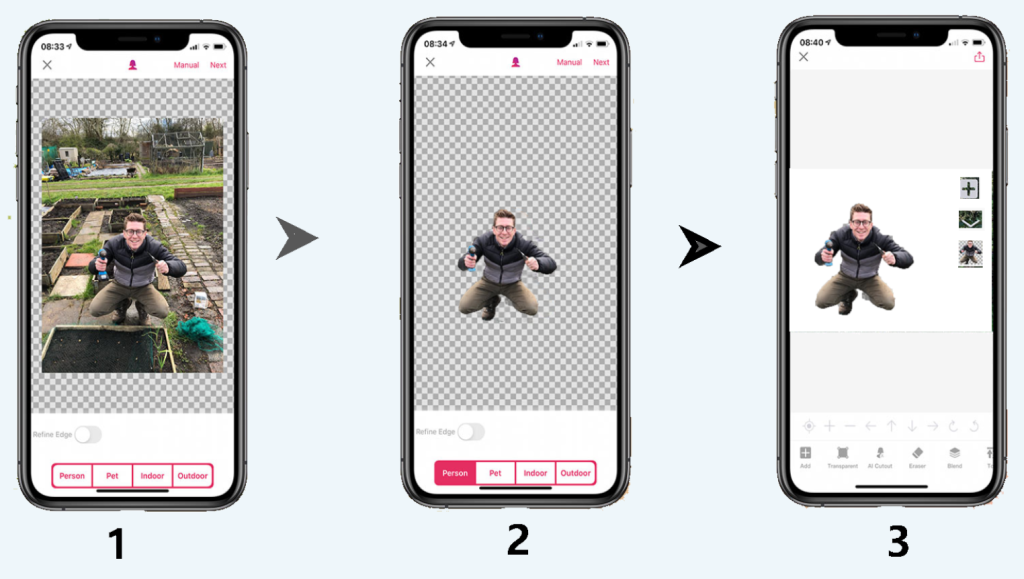
- Install apps from the App Store.
- First select “Cut” and upload the image you want to edit.
- Then use the selection tool and manually remove the background.
- Once deleted, click the icon next to the import icon.
- Choose JPG format.
- Now choose white and it will appear in the background.
- You have successfully changed the white screen background of your image.
Magic Eraser Background Editor
For Iphone users, this software is also a good choice. iOS users can work in a fun way by enjoying its various image editing options. The app is user friendly and it will guide you step by step to use it. Users can easily change its background to transparent and then convert it to white. Even after saving, you can perform editing functions again by retouching the current work. However, the software is only available to users of iOS 11.0 and above. At 27.1 MB, it’s neat and tidy and won’t give you storage issues. The guidelines for getting a white screen background are as follows:
- Open your App Store and install the app.
- After installation, open it.
- Import the photo you want to edit
- When the selected image appears in the editing section, click the Erase option to remove the background.
- Now, change the box shape to white (above the Tolerance option)
- After successfully changing the white screen background, click the “Save” button icon.
- The image is finally saved to the camera roll.
Mobile app for Android users:
Automatic background changer
It’s a white background app for images, giving them a decent and consistent effect. This app offers many options for editing images, including converting the background to a solid color. Like the first, this app can also automatically erase the background. The main reason for recommending this app to Android users is that it runs efficiently and takes up very little space. The file size is only 5.4 M. The minimum Android requirement is 4.4. Despite all the advantages, there are also disadvantages. That is it has no built-in color. So users first need to download a pure white image and then add it to the photo. Guidelines for adding a white screen background include:
- Install the app from the Play Store
- Open it and select the image you want to edit
- The app will automatically remove the background
- the image will become transparent
- Now, download Pure White.
- Open the app again
- Import white and set your image on this background.
simple background changer
Users of Android 4.1 and above are eligible to use this application, which is only 38MB in size. Apart from providing the opportunity to change the white screen background, it also provides you with many other tools and functions. You can select the background area you want to delete with a touch of your finger. You can easily add a white background. The procedure to use this application is as follows:
- Go to the Play Store to install the app.
- Open it and click the (Cut Photo) button.
- Choose and insert images from your gallery.
- Crop the desired image and hit the “Inspect” function.
- Now click the “Auto” button and change the background to white before adjusting the background.
- Now use the selection tool manually to erase the original background.
- Select the “Check” button in the top right options to save.
Video background changing software for your PC:
Formola
If you want to use green screen (change video background to white) then Movie Video Editor is a good choice for you. You can add different virtual or white light effects through this software. But it’s not a mobile app. You can download it to your laptop or computer with Windows 10, 7 or 8. It offers a variety of free HD video backgrounds, including pure white as an option. The steps to add a white screen with Filmora are as follows:
- Install and launch Filmora on your Mac or desktop PC.
- Now upload the video you want to edit.
- Now import the video clip and white background into your timeline.
- Now start editing by double-clicking on the green screen video.
- A popup menu will appear.
- Now click on the Chroma Key option.
- Save your video now
Note: You can download white screen backgrounds for free from various sites like Unsplash, Pexels, Pinterest, Storyblock, Pixabay, etc.


