


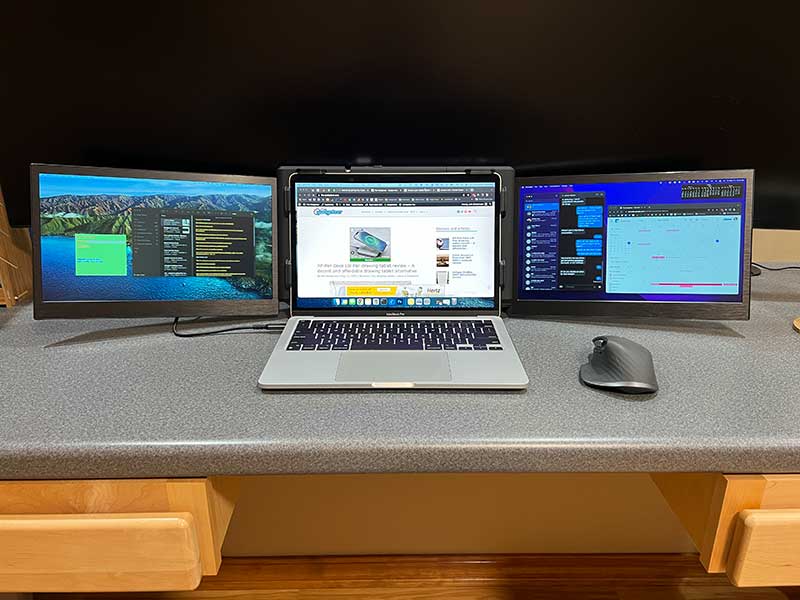
review – I have used a MacBook as my primary computer for many years. This is the workhorse I like to use on my lap and at my desk. But like all laptops, the screen sometimes feels cramped when I try to compare two documents or open two browser windows.When I use my MacBook at the office, it connects to Dell Ultrasharp Curved 49″ Monitor But when I travel, I stick to the 13-inch monitor. still me? Today I want to show you the Kwumsy P2 Pro 13.3 inch Triple Screen Portable Laptop Monitor.
What’s in the box?
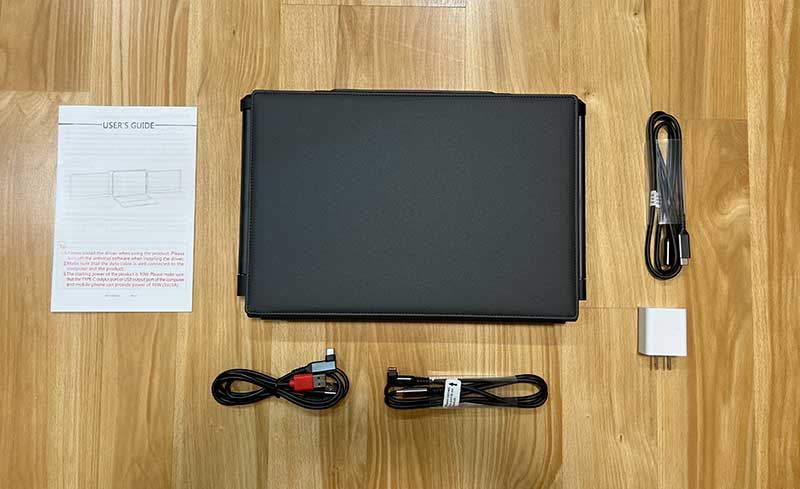
- Kwumsy P2 Pro Triple Monitor
- USB-C to USB-C cable(2)
- USB-C to 2 USB-A cable
- AC adapter
- User Manual
Hardware Specifications
Laptop: 13.3-16.5 inch size laptop (max width 390mm)
Applicable operating system: Mac/Windows/Android
Screen resolution: 1920*1080P full HD, aspect ratio 16:9
Screen size: 13.3 inches (L 12.36 x W 7.91 inches)
Display panel: IPS wide viewing angle, 220 CD/m²
Port version: 1xUSB-C version 3.1, 1xUSB-C version 3.0 charging PD 60W (20V/3A)
Rotating angle 207°
For M1 chips: yes, even 2020 and 2021 M1 Macbooks
Material: All aluminum alloy
Weight: 1.34 kg
Design and Features
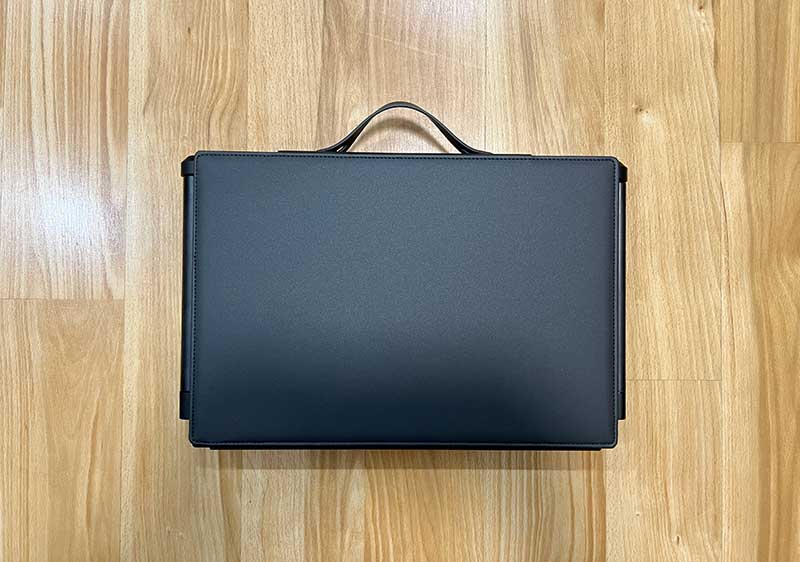
The Kwumsy P2 Pro 13.3-inch triple-screen portable laptop monitor is designed for travel. The device includes a case.
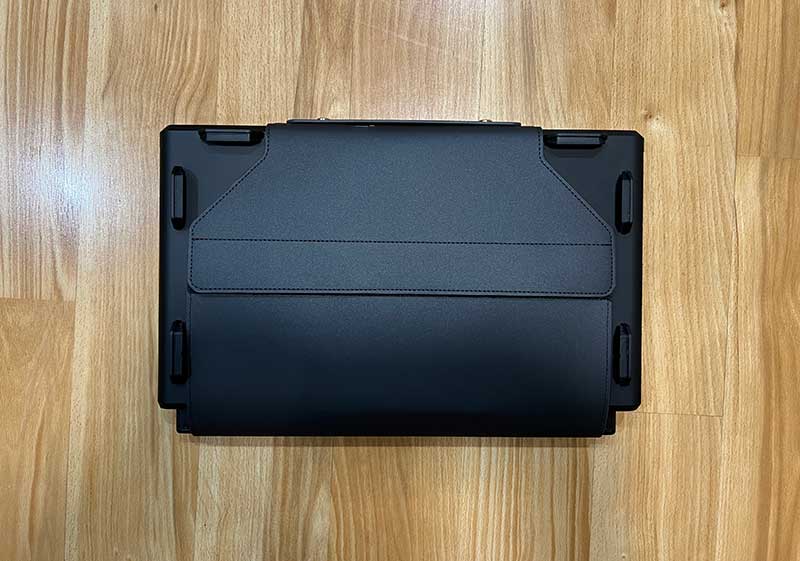
The case wraps around the device and uses Velcro to hold it in place.
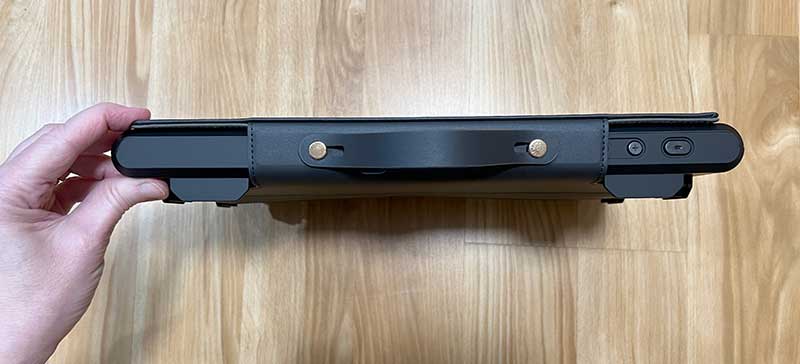
There’s even a built-in handle for added convenience.
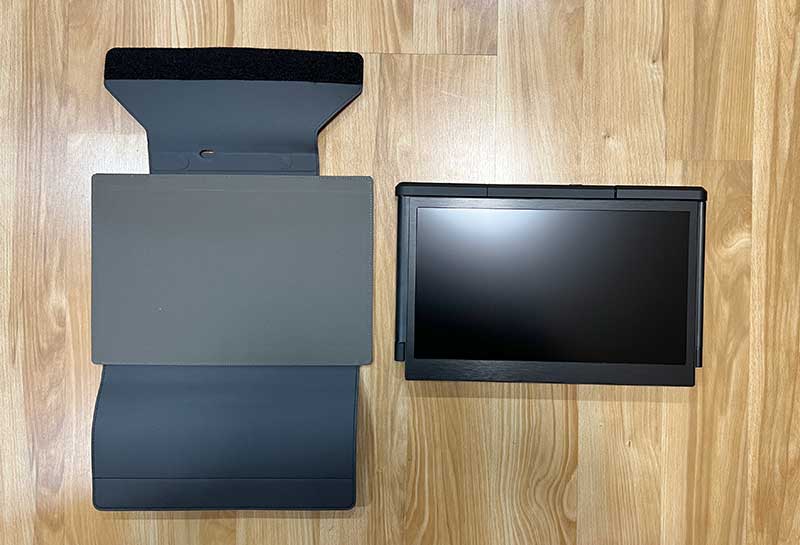
When folded, the Kwumsy P2 Pro Tri Screen looks like a single 13.3-inch display.
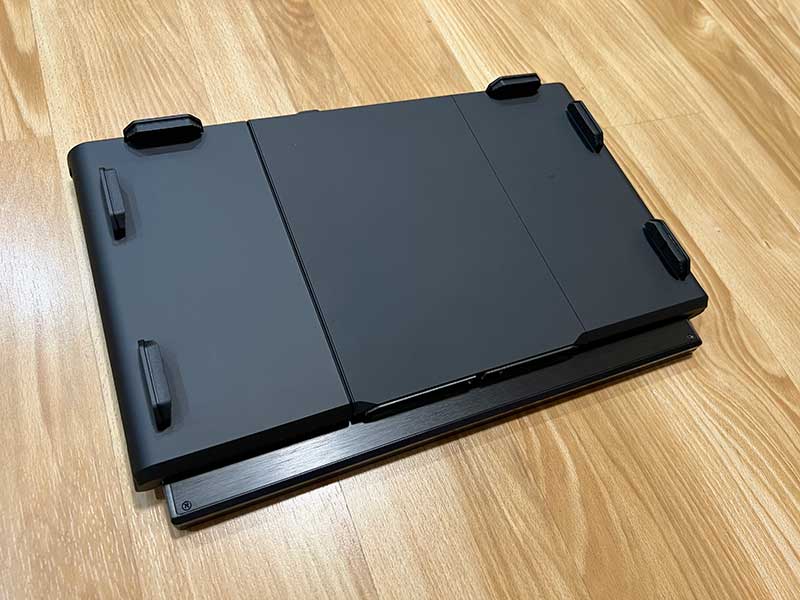
There are 6 rubber-lined handles on the back for mounting the monitor on existing 13.3 – 16.5 inch laptops. I did all testing with the P2 Pro using a 13-inch MacBook Pro (M1).
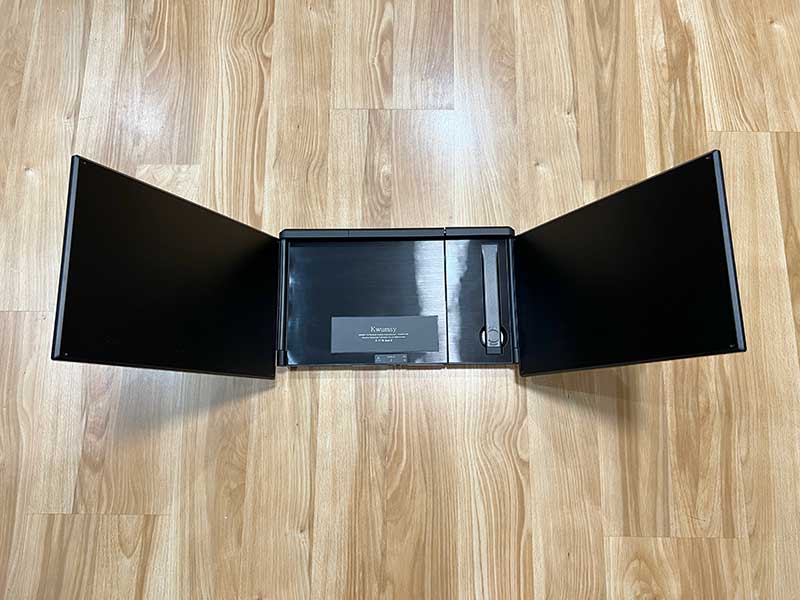
The P2 Pro unfolds like a butterfly, revealing two 13.3-inch 1080P displays with a stand in the middle.
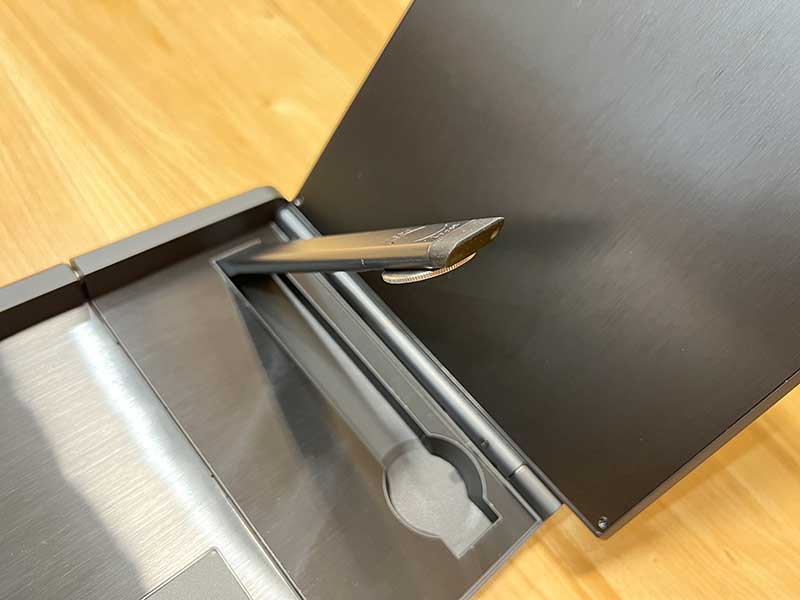
There is an adjustable flip stand on the back of the stand to provide stability to existing laptops when the P2 Pro Tri Screen is attached.
Connecting the Kwumsy P2 Pro Tri Screen to my MacBook
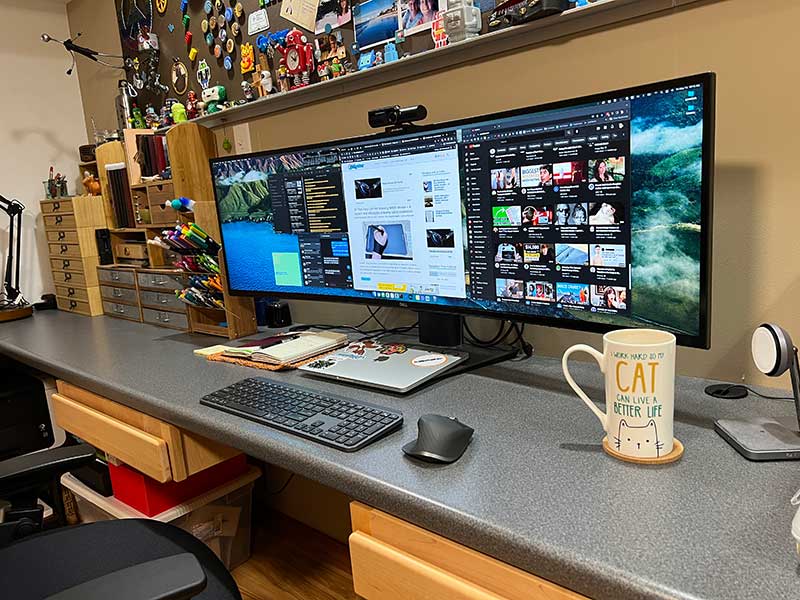
Let’s start with a forward picture. This is my normal office setup. My 13″ MacBook Pro (M1) is connected to a Dell Ultra Wide monitor via a USB-C cable. Let’s see if we can create a similar setup for travel.
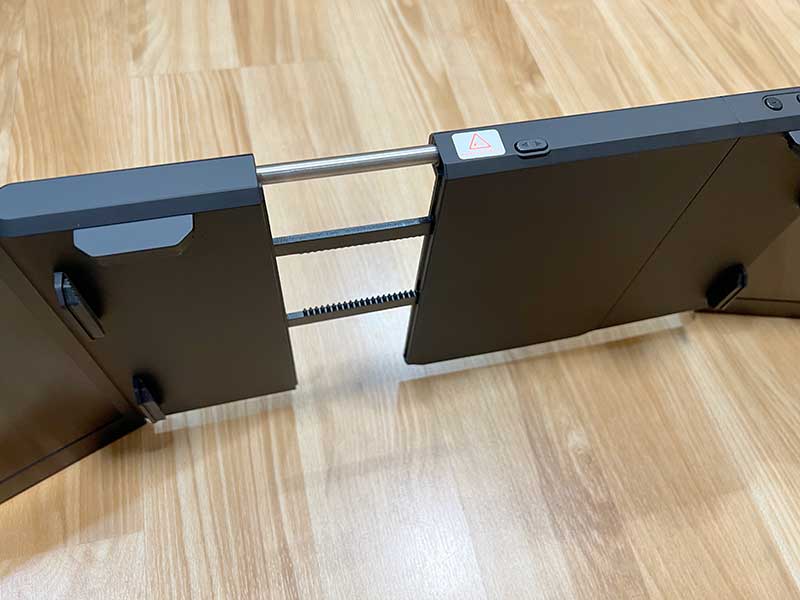
The edge of the Kwumsy P2 Pro has a button that, when pressed, slides the two parts of the laptop stand apart.
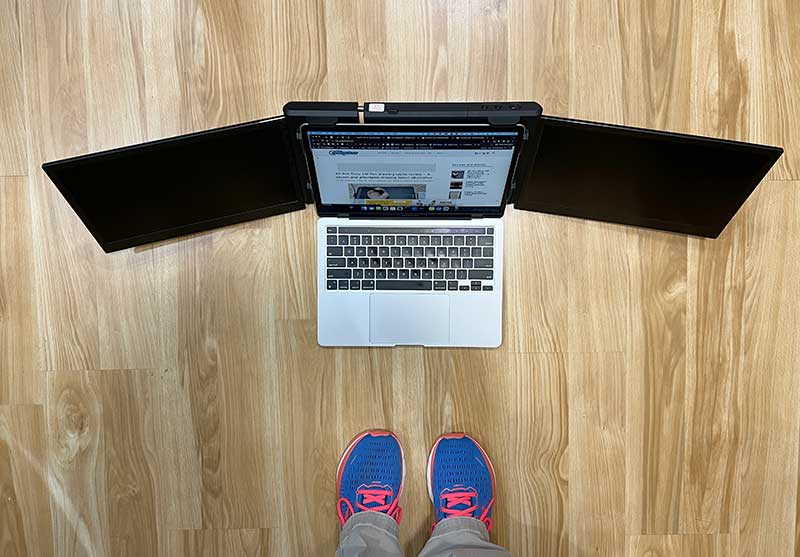
Then simply place the P2 Pro against the back of the MacBook Pro display and slide the two parts of the stand together. After adjusting the fit, the Tri Screen automatically locks securely in place.
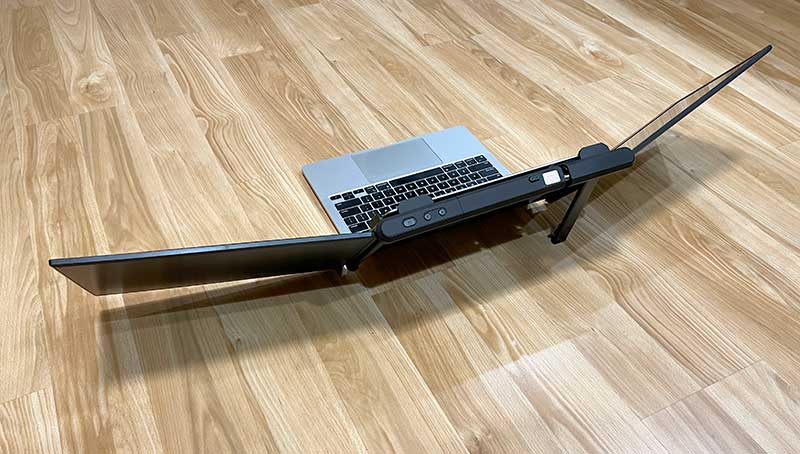
The stand can then be folded up to provide stability.
In the image above, you’ll notice 3 buttons on the top edge of the P2 Pro. There is a power button and two up/down buttons for navigating the OSD menu to adjust the monitor’s settings.
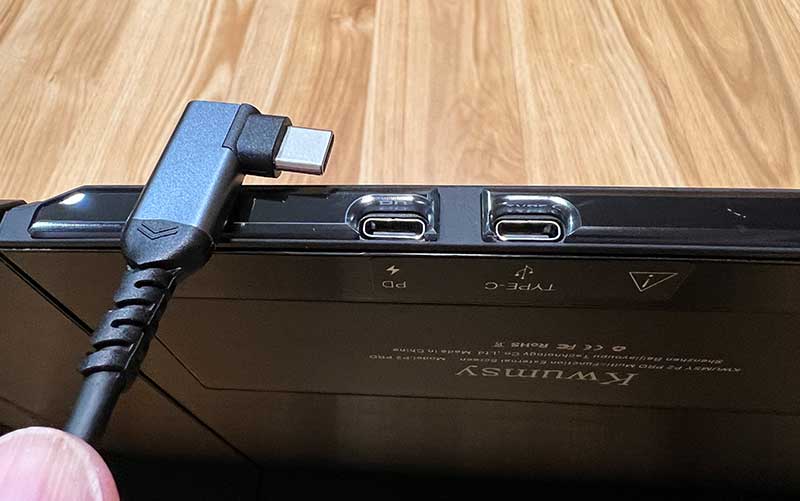
Along the bottom edge of the P2 Pro are two USB-C ports. For some odd reason, Kwumsy has added plastic around the ports, which makes it nearly impossible to use a USB-C cable with this monitor other than what comes with this unit. When I tried some existing cables, they wouldn’t fully seat in the port due to the plastic around the port.
When I connect the Kwumsy P2 Pro Tri Screen to my MacBook Pro using the included USB-C cable, the monitor turns on, but soon displays a “No Signal” message on the screen. Looking through the user manual shows that I need to install the driver first.
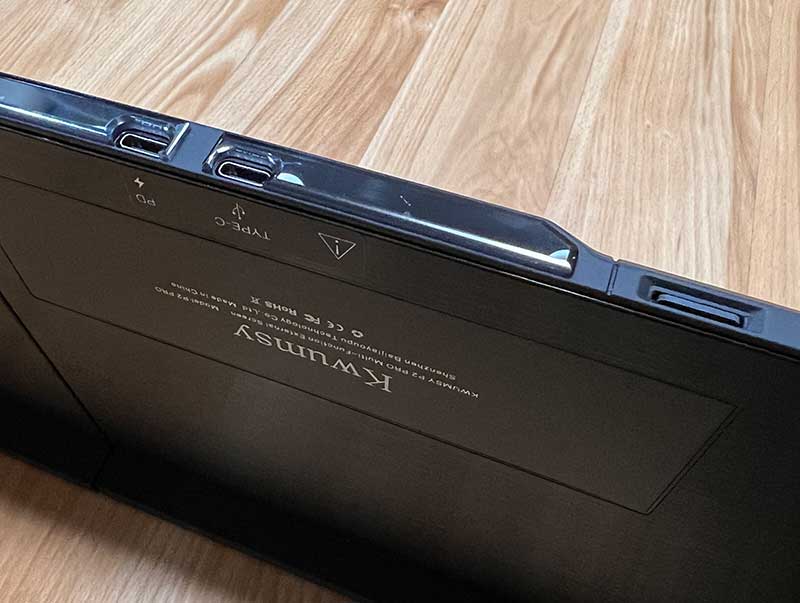
The P2 Pro Tri Screen actually has a built-in microSD card reader with a microSD card and drivers that plug into the card reader.
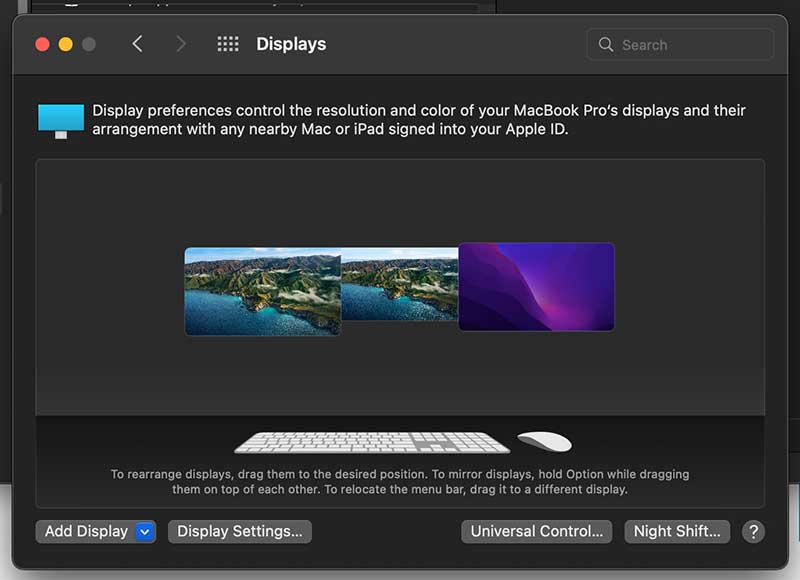
After installing the drivers, the two new monitors appeared in the MacBook’s system settings, allowing me to arrange the order of the monitors.
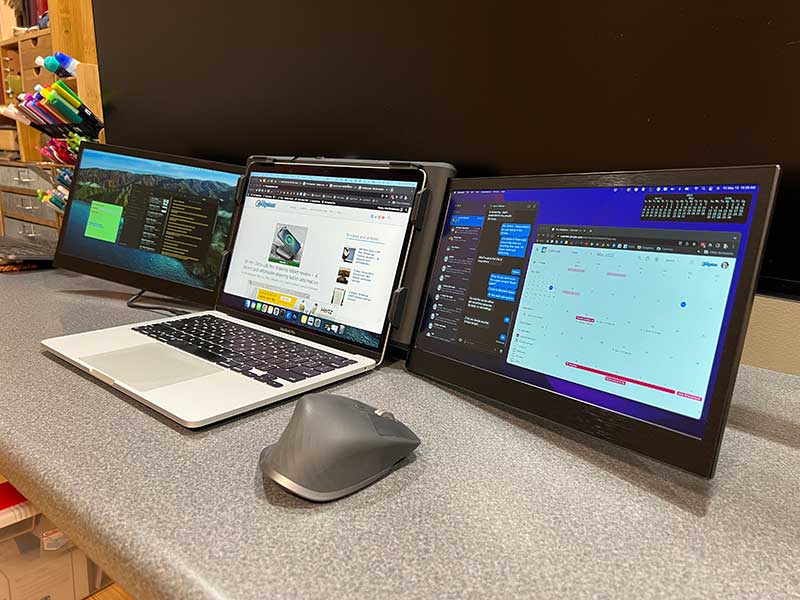
I thought it would be really cool to be able to add two extra monitors to my MacBook with just one USB-C cable.
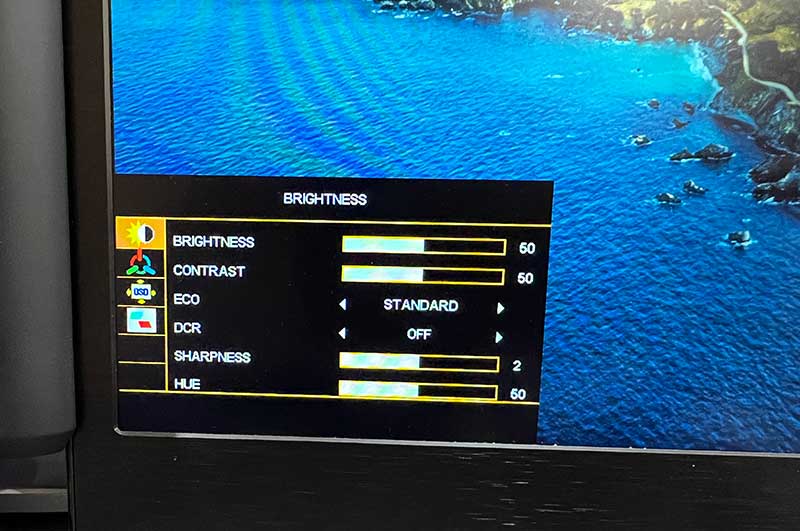
Using the built-in menu, I can adjust the settings to brighten the display a bit, but I still find it to be much dimmer than my MacBook Pro’s retina display. Even at full brightness, the P2 Pro isn’t quite as bright as the Retina display, but that’s not surprising.
The P2 Pro might not be as bright or colorful as the built-in laptop’s display, but the ability to easily add two extra screens to the laptop more than makes up for it. I can imagine taking my Kwumsy P2 Pro Tri Screen with me on vacation because I obviously don’t know what a vacation is 😉
I can also imagine this monitor would be great for students sharing a small dorm, as they can fold it up and store it away when not in use. It’s even useful in the library while studying.
I should mention that while you can use this monitor with a laptop using a single USB-C cable, it does draw power from the laptop itself, and this power draw will obviously drain the laptop relatively quickly ‘s battery. So if you plan to use this setup for an extended period of time, you’ll want to make sure you connect the cable to the PD port on the Tri Screen and plug it into a power source.
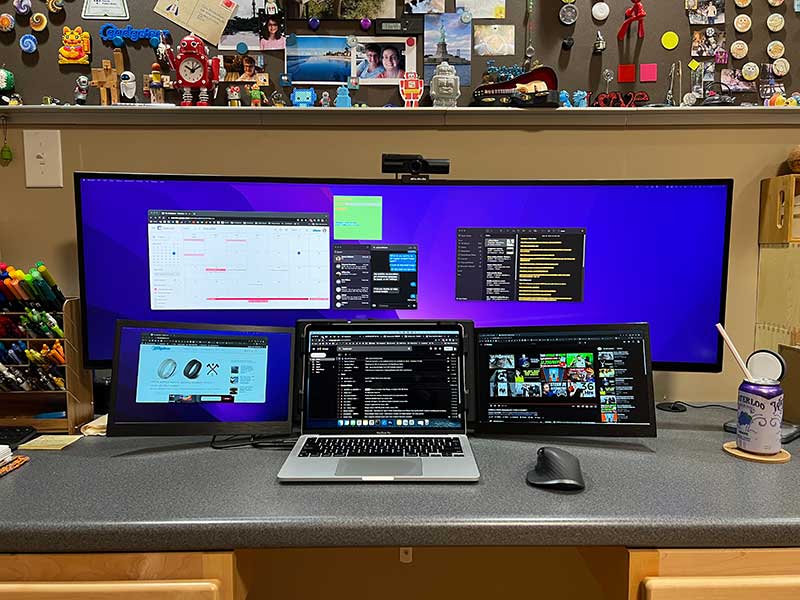
This is a flex picture of the Kwumsy P2 Pro three screens and Dell Ultrasharp connected to MacBook Pro (M1) at the same time!
what do I like
- More screen real estate – ugh!
- travel foldable
- Easy to install and remove
- Has built-in microSD card reader
what would i change
- I wish the screen was brighter
- Fix the USB-C port so that other cables can be used with this monitor.
final thoughts
I was impressed with the Kwumsy P2 Pro Tri Screen Laptop Monitor, how easy it is to attach and detach from the laptop, and add two monitors to the laptop with just a single USB-C cable. While there are some issues with the monitor, namely brightness and the USB-C port, I think this monitor will be useful for travelers and students.
price: $549.00
where to buy: Coombs and Amazon
source: Samples for this review provided by Kwumsy.


