


Post views:
2
Whether you like it or not, sliders are a great design resource for website design.Many sliders are available online WordPress. Before using sliders on your website, you need to understand what sliders are. Design elements go by various names, such as slideshows, sliders, or carousels. All of these options are used to obtain a generic object. That is to make the website more attractive and attractive through visuals. The most common name for a generic design tool is a slider. Not only does it allow you to display images and videos, but it can also display other content by increasing your website space. Sliders help you grab the attention of your visitors. But before we understand the use of Slides in WordPress, let’s first understand what Slider means.
Also read:
How to Create the Perfect WordPress Site with the Divi Kids Theme Plugin
5 Best WordPress Alternatives for Bloggers
Slider meaning
It can be described as a design element used for various purposes, such as displaying images and videos on your website. The meaning of the slider can be interpreted as adding an engaging visual effect to your website. You can use GIFs, images and videos at once by setting up a slideshow. But in this case, only one element (image or video) can be displayed at a time. After a few seconds set by the designer, the next element will appear. Sometimes the next element appears when a visitor clicks “Next” to view further.
Different WordPress Slider plugins are available to insert sliders into your homepage and landing pages, etc.
How to use sliders to work on WordPress
The first step after getting the meaning and concept of Slider is to add a slider to WordPress. We can take it from various WordPress sliders and add them to any page or post on the website you’re working on. But the question is how to get them. There are plenty of WordPress slider plugins for you to make sliders and add to any page or post. You can download them for free to use even from the official WordPress.org site. The top and top rated slider plugins for WordPress are:
- Smart Slider 3
- Slider Revolution
- Layer slider
Now that we understand what a Slider is, the next thing to know is that most slider plugins offer basic and advanced features for free. Free includes design images. Whereas, advanced design includes complex designs such as inserting animations, CTAs, text, layers, videos, and more.
Basic process
After confirming what Slider means, the basic process of adding a slider to WordPress includes:
- Install the slider plugin
- Create sliders or modules
- Then add slides or slides as per your requirement
- Create layers (edit them with options and effects as you wish)
- Plug it into WordPress
Type of slider
Well, different types of sliders are available in different Slider plugins accordingly. So, after explaining what Slider means, you need to search for various Slider plugins. This will allow him to see options for various slider plugins. For example, in Smart Slider 3, the following styles of sliders are available:
- Standard (works in slideshow format)
- Carousel (display two or more pictures at the same time, can be circled)
- Showcase (focus on the main image and provide a preview of a series of other images)
- Blocks (includes a slideshow with various elements such as images, text, animations, videos, etc.)
Likewise, Slider Revolution includes modules, hero units, scenes, carousels, slideshows, and more. Therefore, when choosing a Slider plugin and explaining what a real Slider means, you need to understand his priorities.
Layout option or module type
After the discussion, now the next step is to choose the layout of the slider. Before that, learn what it means to layout a Slider, which is the size and style of the slider you’re creating. For example, when we talk about Smart Slider 3, the following layout design can be used:
- Boxed (most common layout)
- Full width (slider is displayed over the full width of the page)
- Full Page (fills the entire page above the fullscreen layout fold)
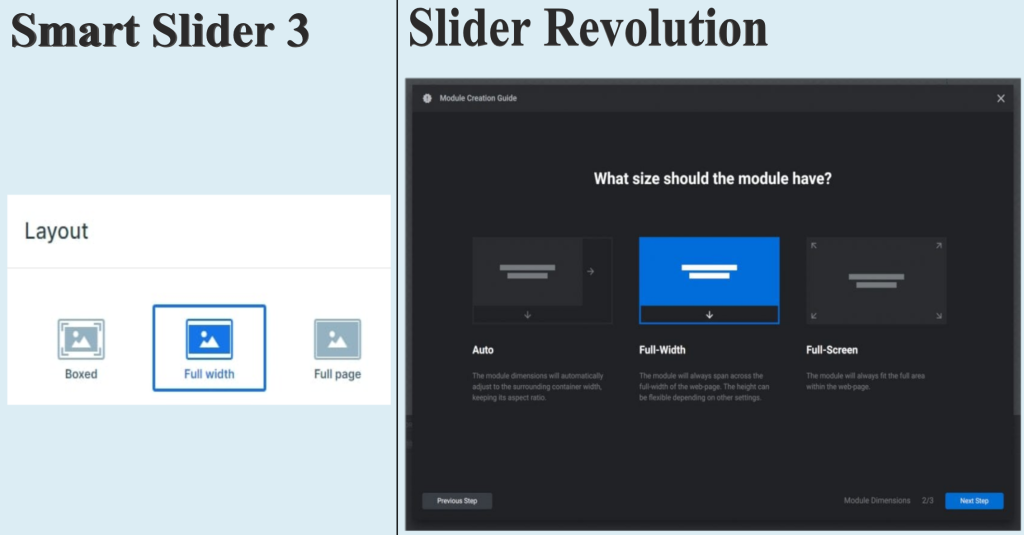
Again, when we’re talking about Slider Revolution, the plugin offers layouts including:
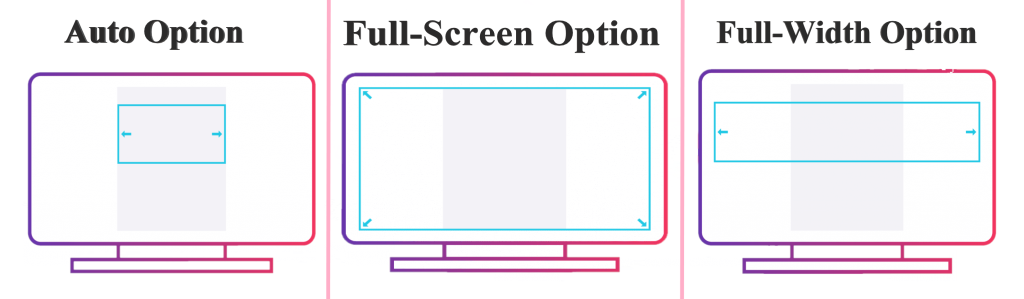
car: (Automatically adjust the width of the module to fit the container. For example, if you select the automatic option to put something into a blog post, it will adjust accordingly)
full screen width (The module will break out of its container and take up the full width of the browser. It will cover the entire viewport)
full screen (The module adjusts its size accordingly, but still scrolls to access content above and below the module)
How to choose a layout?
The automatic option is best for slideshows, gifs or video sliders. This way they will appear inline with the post. Oh, and on the other hand, full-width size layouts are good for headers, banners, or other types of content that are laid out at the top of the screen. Additionally, it can be used to display an imager slider in the middle of a web page (for promoting products). Now let’s look at the full screen option. In this case, the visual presentation of the slider is meant to engage the visitor accordingly. Now, the meaning and size selection of Slider is explained. So choose the module or layout size accordingly.
Content resizing
When dealing with sliders, we need to find the most eye-catching content size and use that. It works with the fact that on different sized screens, how the slider will resize it accordingly. For example, Slider Revolution offers three options such as:
- Classic Linear Resizing (makes the slider or module fill all sizes of browsers, keeping the aspect ratio the same)
- smart inheritance (Made four different size modules. It makes Slider meant to fit smaller screens)
- Manual custom size (Here, it is possible to manually set the version of the module and create four different sliders or modules)
Add more effects
Use the Slider plugin and make it more efficient, with background animations, layer animations, text animations, key burn effects, animated shape dividers and other pre-made templates. You can step through each option and then step through all its sub-options. For example, you can scale, fade, rotate or edit each option individually.


